MCP: How to connect PromptLab to ChatGPT
Add PromptLab to ChatGPT as a plugin, in five short steps.
Updated October 1, 2026
Once connected, ChatGPT can look up your accounts, quotes and meetings in PromptLab and log notes and tasks for you. It only sees what your PromptLab account can see.
Before you start
- A paid PromptLab plan (Basic or higher).
- About two minutes.
Step 1: Copy the PromptLab address
In PromptLab, open Settings → Apps → AI Assistants. On the ChatGPT card, click the copy button next to the address.
https://trypromptlab.com/mcp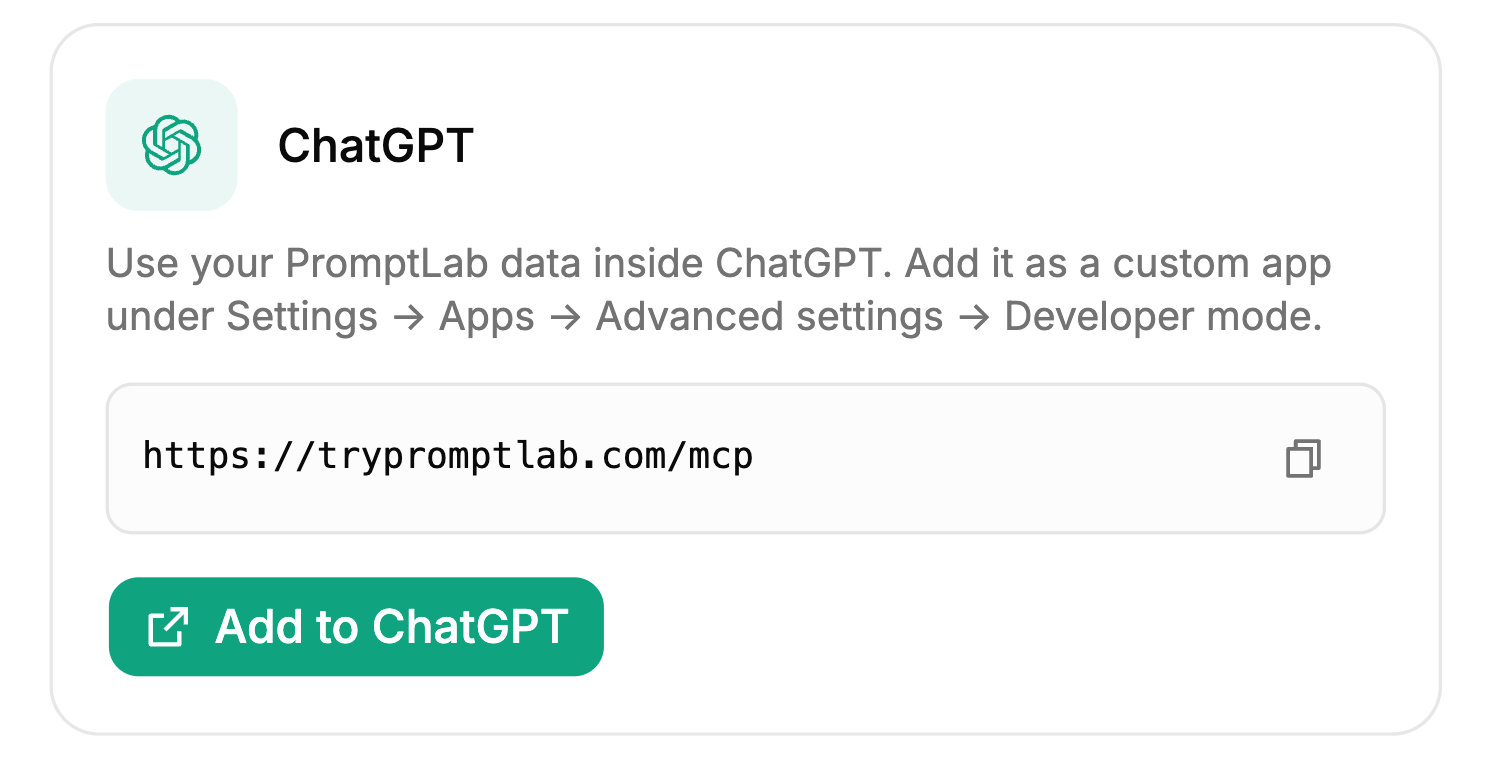
Step 2: Open Plugins in ChatGPT
In ChatGPT, open Plugins and click the + button next to the search box.
No + button? Turn on Developer mode in ChatGPT under Settings → Apps → Advanced settings, then come back to Plugins.
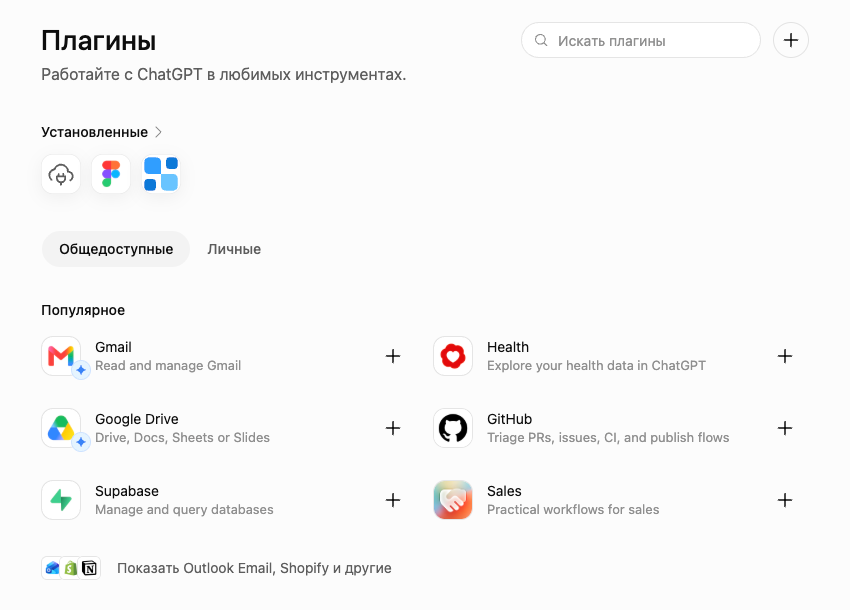
Step 3: Create the PromptLab plugin
In New plugin, type promptlab as the name, keep Server URL selected and paste the address. Leave Authentication on OAuth, tick I understand and want to continue and click Create.
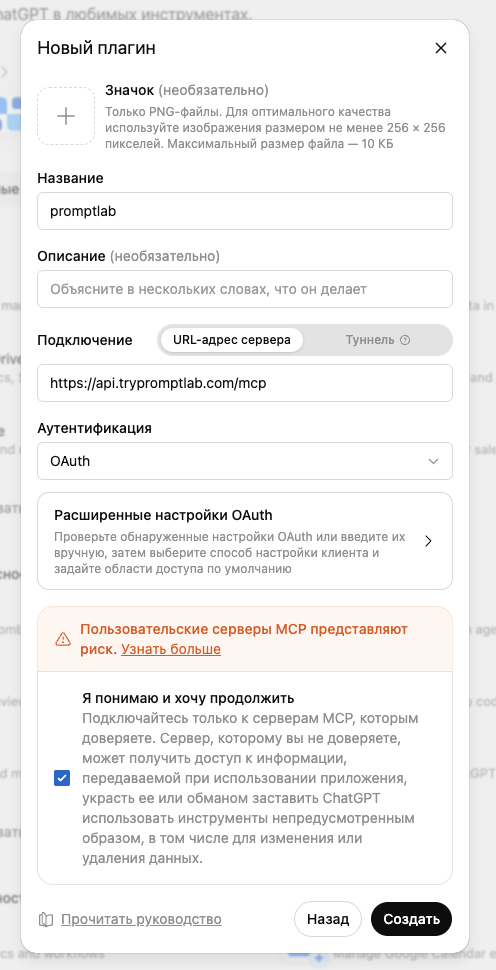
Step 4: Sign in and allow access
ChatGPT opens a PromptLab page: sign in if asked, check that it says ChatGPT is requesting access, then click Allow access.
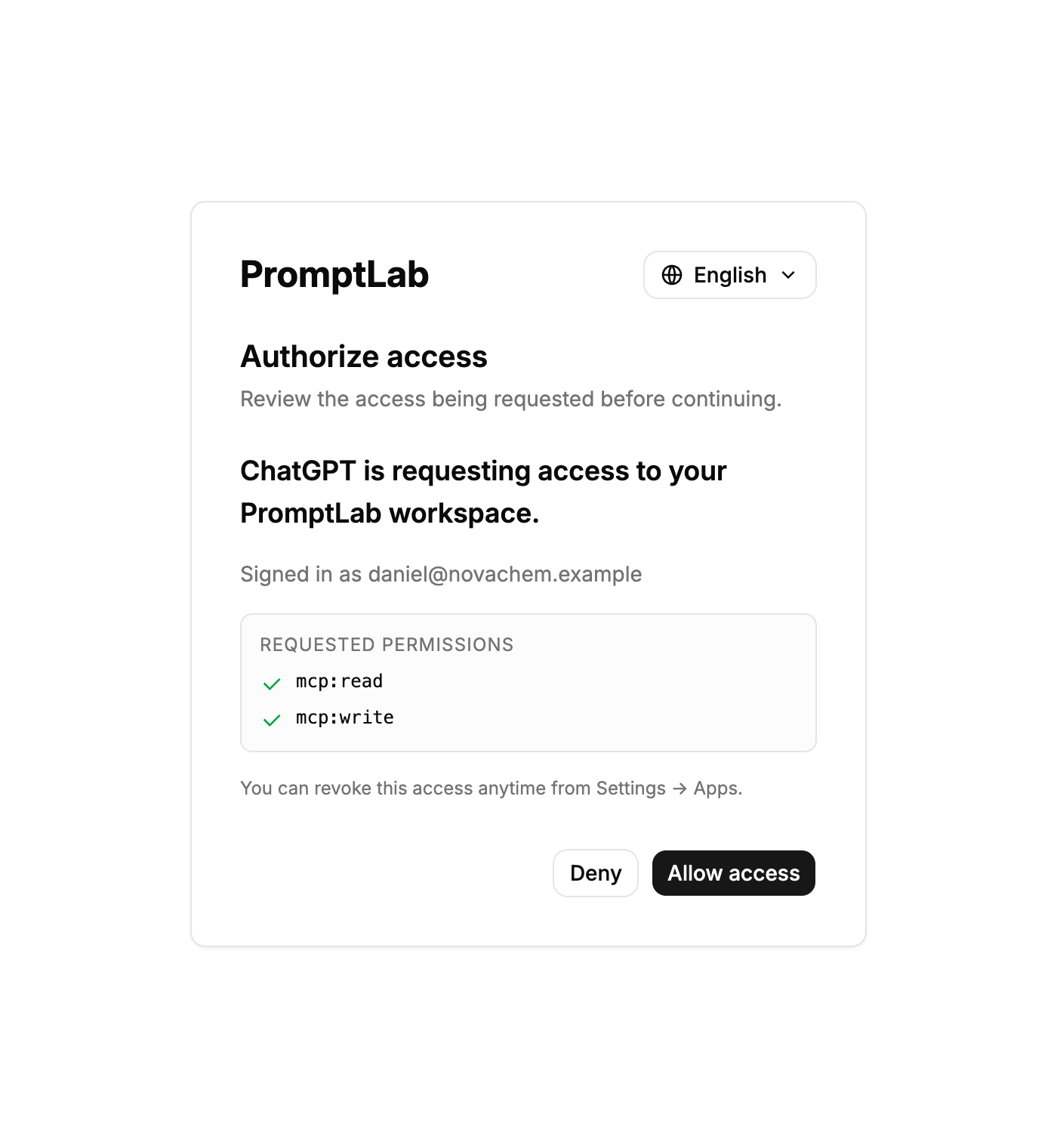
Step 5: Use PromptLab in a chat
Start a new chat, pick PromptLab from the + menu under the message box and ask your question.
Check it works
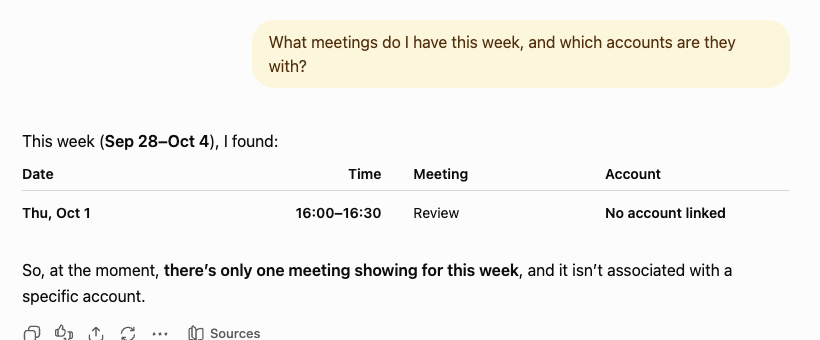
Ask a question about your own data, for example:
“What meetings do I have this week, and which accounts are they with?”
 Open in Claude
 Open in ChatGPT
If the answer uses your real accounts and meetings, you're connected.
Disconnect
In PromptLab, open Settings → Apps → AI Assistants and click Revoke access on the ChatGPT card. ChatGPT stops reaching PromptLab straight away.
Related articles
Did this answer your question?