



















Set up your PromptLab workspace: tools and team invite
Learn how to sign up for PromptLab, connect your communication tools, and invite your team to start capturing deals automatically.
This page walks you through everything you need to do after creating your PromptLab account — from signing up for a free trial to connecting your email, calendar, and messaging tools, and getting your team set up with the right roles.
Sign up for a free trial
PromptLab offers a 14-day free trial on the Basic and Professional plans. No card is needed to start the trial. You access PromptLab entirely through your web browser — no software to install. The Business plan has no free trial: choose it in the app under Settings → Billing.
Go to the signup page
Visit supplier.trypromptlab.com and click Start free trial.
Choose your plan
Select Basic or Professional to start your 14-day trial. You can switch plans at any time before your trial ends.
Create your account
Enter your work email address and set a password. You'll receive a verification email — click the link inside to confirm your account and log in.
Connect your communication tools
PromptLab captures deal activity automatically from the tools your team already uses. The more tools you connect, the more complete your pipeline data will be.
Connect every communication tool your team uses daily — email, video calls, and messaging — so PromptLab can capture every customer interaction without manual effort.
Open Apps settings
Go to Settings → Apps.
Choose your email provider
Select Gmail or Outlook and click Connect.
Authorize access
Follow the OAuth prompts to grant PromptLab read access to your inbox. Your credentials are never stored — PromptLab uses a secure token.
Meetings and calendar
Open Apps settings
Go to Settings → Apps and pick Video Conferencing.
Connect your meeting tools
Connect what your team uses — Google Meet, Zoom, or Microsoft Teams. Teams also syncs your calendar events, so scheduled customer meetings show up in PromptLab and get matched to the right deal.
Connect your booking links (optional)
If customers book time with you through Cal.com or Calendly, connect those too and each booking becomes a CRM meeting against the right contact.
Notifications
Open Apps settings
Go to Settings → Apps and pick Messaging.
Connect Slack
Click Connect on the Slack card and authorize the PromptLab app in your workspace. You'll get notifications and a daily digest in the channel your team already watches.
Add Telegram or WhatsApp (optional)
Both carry the same order and update notifications, for teams who'd rather get them on their phone. Each card can also be linked manually if you'd rather skip the OAuth flow.
Invite your team
Once your tools are connected, add the colleagues who will work deals in PromptLab.
Open your company's team list
Go to Settings → My Company and stay on the Team tab. It lists everyone in the workspace with their role, permissions, and join date.
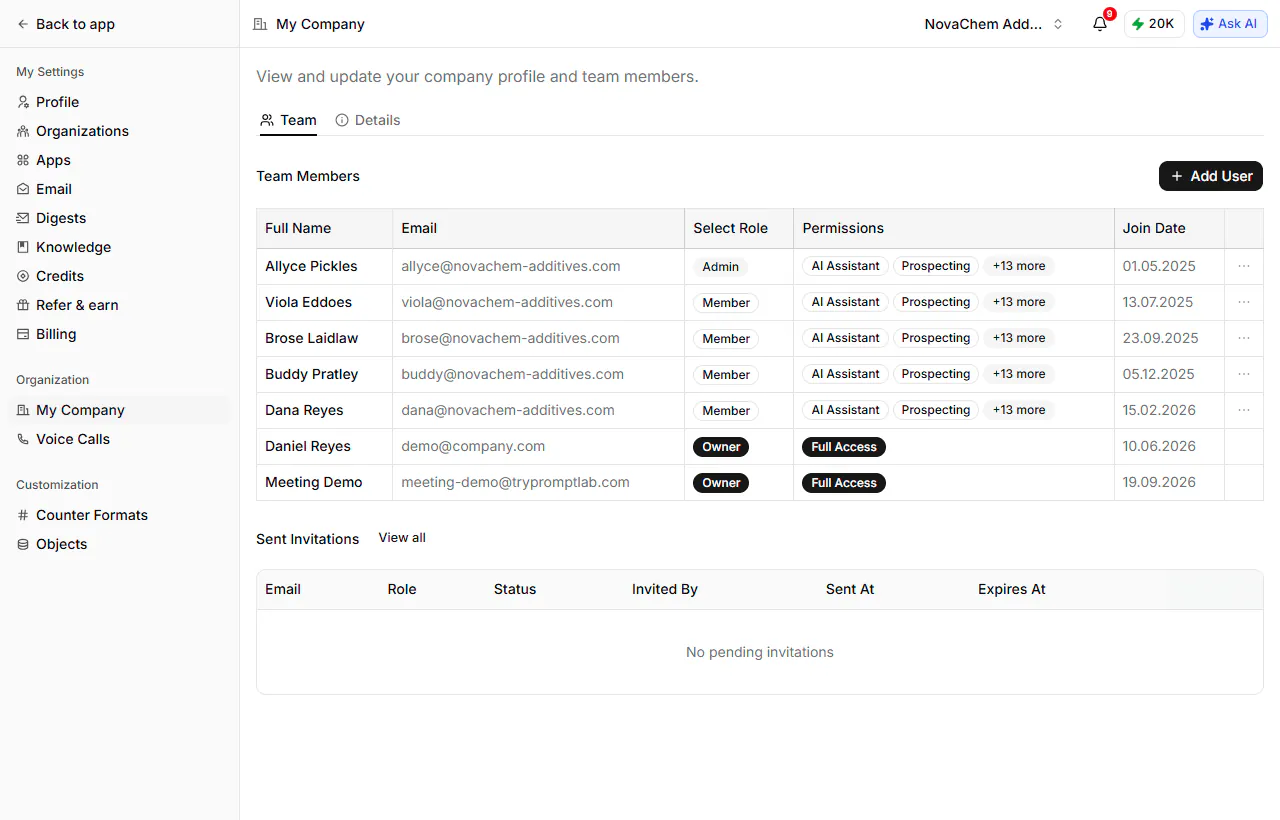
Add the person
Click Add User and enter their work email address.
Assign a role and permissions
Pick a role — Owner, Admin, or Member — and set which parts of PromptLab that person can reach. Owners and admins carry full access; for a member you choose the features individually.
Invited people appear under Sent Invitations until they accept, and they receive an email with a link to set up their account.
Granular admin controls — such as restricting which settings team members can access — are available on the Professional and Business plans.
Single sign-on (SSO) is available on the Business plan. Contact your account manager to configure SSO for your organization.