



















Webhooks, workflows & MCP: connect PromptLab to your other tools
Send data into PromptLab workflows with a webhook trigger, call external systems with the HTTP request action, and connect AI tools like Claude and ChatGPT through MCP.
PromptLab gives you three ways to connect your pipeline to the rest of your stack. Workflow webhooks let other systems push data into PromptLab, the HTTP request action lets a workflow call out to other systems, and MCP lets AI assistants such as Claude or ChatGPT work with your PromptLab data directly.
Webhooks and API access — the workflow webhook trigger and HTTP request action below — are available on the Professional plan and above. MCP access is included on every plan — up to 2 connections on Basic and 3 on Professional. See plans for details.
Receive data with a workflow webhook trigger
Every workflow can start from a webhook trigger. When you add one, PromptLab gives that workflow its own unique URL. Anything that can send an HTTP request — a form tool, an ERP, an automation platform — can post data to that URL and start the workflow.
Create or open a workflow
Open Workflows and either open an existing workflow or start one — from a template, from a blank canvas with Create from scratch, or by describing what you want to the assistant.
Choose the webhook trigger
Set the workflow's trigger to Webhook. PromptLab generates a unique URL for this workflow.
Copy the URL into the sending system
Paste the URL into the tool that should send data. Each time that tool posts to the URL, the workflow runs with the data it received.
Use the incoming data in later steps
Map fields from the incoming request into the workflow's later steps — for example, to create a deal, update a contact, or create a task.
Treat a workflow's webhook URL like a password: anyone who has it can start that workflow. Share it only with the systems that need it.
Send data with the HTTP request action
To push data out of PromptLab, add an HTTP request action to a workflow. When the workflow reaches that step, PromptLab sends a request to the URL you choose, with the data you map into it. Use it to notify an internal system when a deal changes, post to another tool's webhook, or keep an ERP record in step with your pipeline.
Connect AI tools with MCP
PromptLab includes an MCP (Model Context Protocol) server, so AI assistants such as Claude or ChatGPT can read and work with your PromptLab data from inside the assistant — for example, to look up a deal, summarize recent activity on an account, or draft a follow-up.
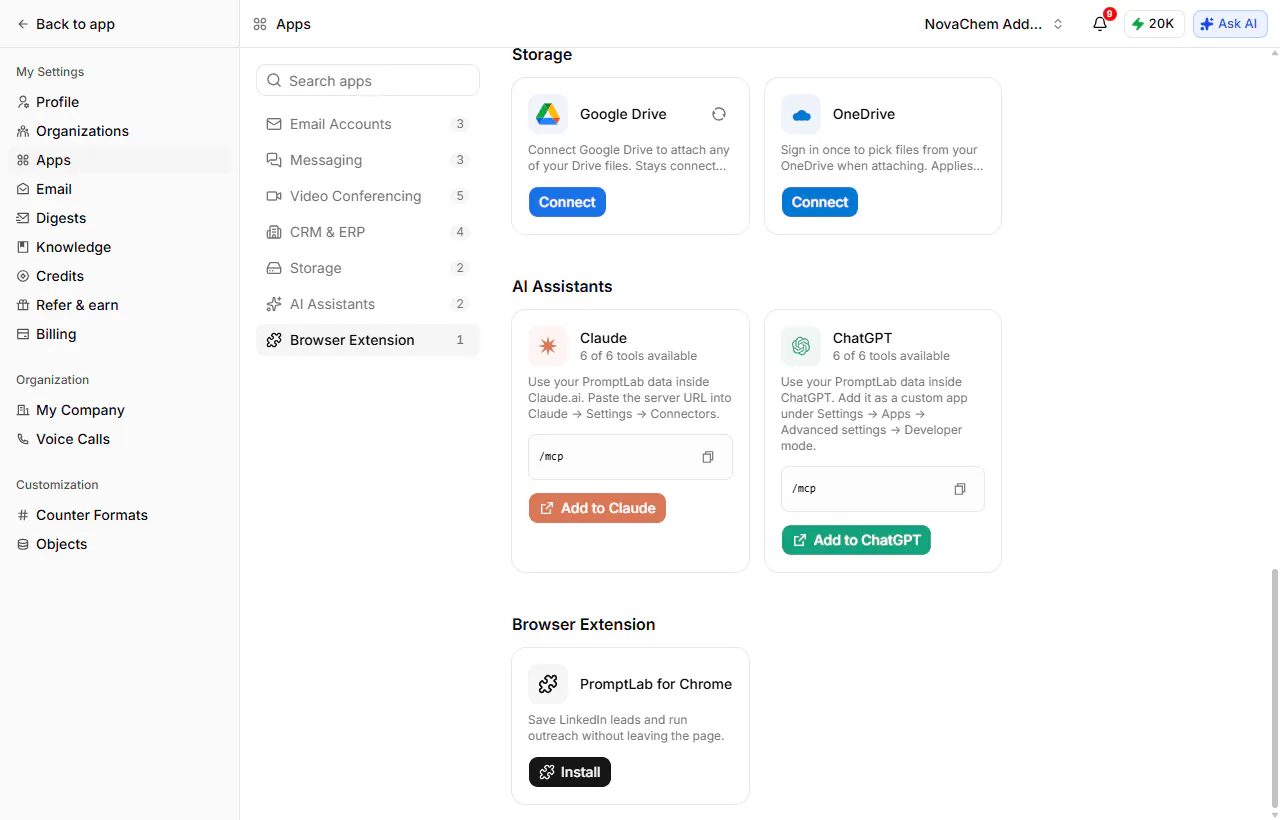
Go to Settings → Apps → AI Assistants. Each assistant's card shows the server URL to paste and how many of the tools are available to you:
- Claude — copy the server URL and add it under Claude → Settings → Connectors, or use Add to Claude to go straight there.
- ChatGPT — add it as a custom app under Settings → Apps → Advanced settings → Developer mode.
Sign in with your PromptLab account to authorize it. Each connected tool counts as one connection toward your plan's limit.
Not sure which approach fits? Use a webhook trigger when another system needs to start something in PromptLab, the HTTP request action when PromptLab needs to tell another system something, and MCP when a person wants to work with PromptLab data through an AI assistant.