



















Get started with PromptLab: first-time setup guide
Set up PromptLab in six steps — connect your tools, invite your team, configure your pipeline, and send your first quote in under an hour.
PromptLab is designed to be up and running quickly. Follow these steps to connect your communication tools, set up your pipeline, and start capturing deals from day one. Most teams complete this setup in under an hour.
Basic and Professional include a 14-day free trial, with no card needed. You get full access to the features of the plan you pick during the trial. Start your free trial or book a demo to get a guided walkthrough.
Sign up and start your free trial
Go to supplier.trypromptlab.com to create your account and start your trial. During sign-up, you'll choose your plan — Basic ($11.99/user/mo) or Professional ($23.99/user/mo). Both include a 14-day free trial. Business ($99/user/mo, or $79 billed yearly) is also available, without a trial: choose it under Settings → Billing.
Once your account is created, log in and complete your profile. Add your name, role, and company so your team members can identify you in the workspace.
Connect your communication tools
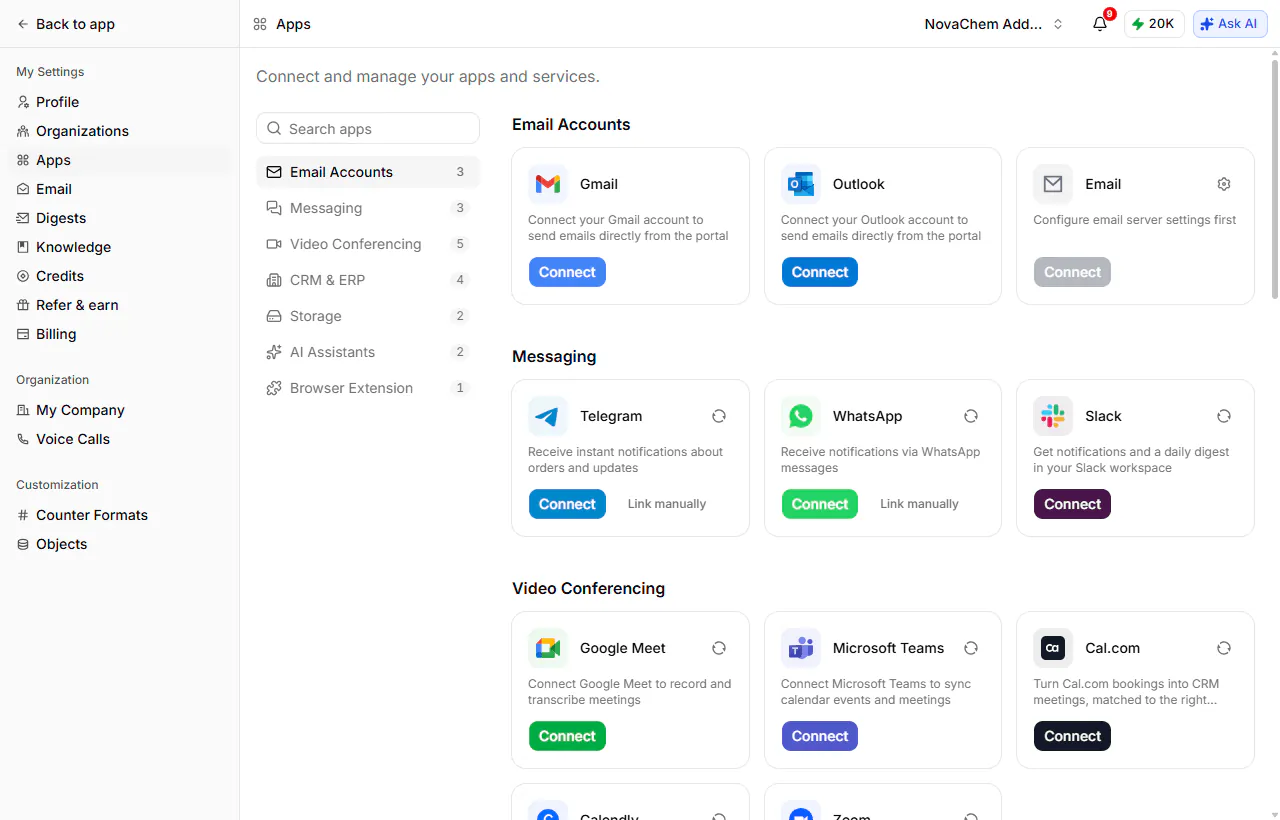
PromptLab captures emails, calls, and meetings automatically — but only after you connect your tools. Navigate to Settings → Apps and connect the services your team uses:
- Email accounts: Gmail, Outlook, or your own mail server
- Video conferencing: Google Meet, Zoom, Microsoft Teams — plus Cal.com or Calendly if you take bookings
- Messaging: Slack, Telegram, or WhatsApp, for notifications and the daily digest
- CRM & ERP: Salesforce, HubSpot or Acumatica, if you're bringing records across
Email and meeting tools are what let PromptLab capture conversations and log them against the right account. Connect as many as you use; you can disconnect any of them later.
Invite your team members
Go to Settings → My Company → Team and click Add User to invite your sales reps, managers, and anyone else who needs access. Each person gets a role — Owner, Admin or Member — and, for members, the specific features they can reach.
Each invited user will receive an email with a link to set up their account. They'll need to connect their own communication tools after signing in.
Professional and Business plans include admin controls for managing permissions across your team. If you're on Basic, all users share the same access level.
Set up your pipeline and add your first accounts
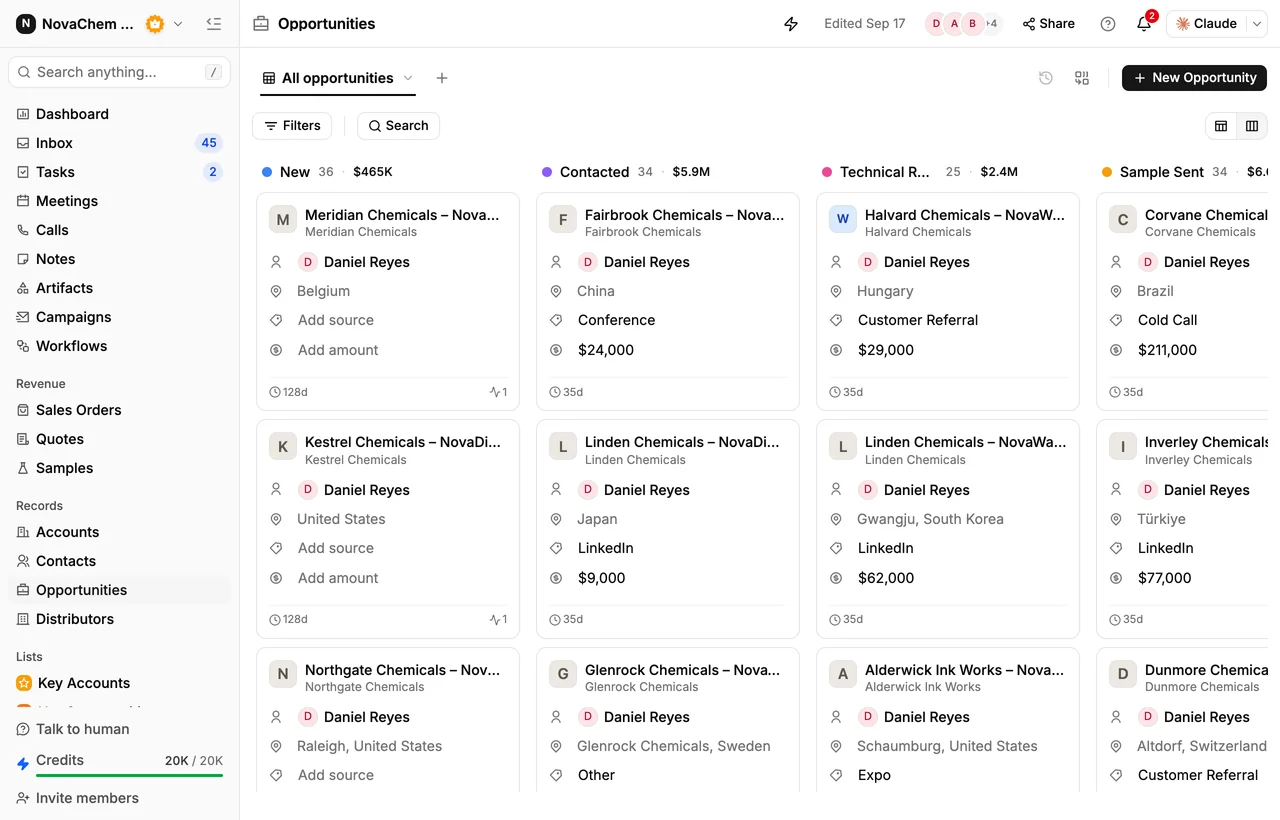
Open Opportunities and edit the options on the Stage field so they match how your team actually sells — for example New → Contacted → Sample Sent → Testing → Negotiation → Won. Switch to Kanban view and each stage becomes a column with its deal count and value.
Next, add your first accounts. Import / Export on the Accounts table brings them in from a spreadsheet.
Enable Call Intelligence for your first meeting
Before your next customer call, make sure Call Intelligence is active. Go to Settings → Apps and confirm that your meeting platform (Google Meet, Zoom, or Microsoft Teams) is connected and recording is enabled.
When you join your next call, PromptLab records and transcribes it automatically. Afterwards the call appears under Meetings → Past Conversations with its summary, the commitments it picked up, the objections raised, and the full transcript.
Call recording requires explicit consent in many jurisdictions. The PromptLab recording bot is visible in the meeting, and you should still inform participants that the call is being recorded.
Send your first quote
A quote pulls its products from a price list, so set that up first. Open More → Catalog → Price Lists, click New, name the list and use Add Product to put your products on it — you can create a product right from that picker, or add them beforehand under More → Catalog → Products.
Then open More → Revenue → Quotes, click New Quote, and pick the Opportunity it belongs to and the Price List you just made. On the quote, the Available products tab lists that price list's products — click Add on each one, then set quantities and prices on the Products tab: unit cost sits next to unit price on every line, and the total margin and margin % update as you type — so you see the margin while you build the quote, not after.
Click Quote on the record to generate the document for your customer. Physical samples get tracked the same way from More → Revenue → Samples.
Quotes, Samples and the Catalog pages start out in More on a new account. Click the pin icon next to any of them to add it to your left navigation.
What's next
Once you've completed the setup, explore the rest of the platform:
- Use Deal Management to monitor which deals are stalling
- Set up custom reports to track win rates and pipeline activity