



















Workspace settings
Set your workspace's name, logo and time zone, invite your team and choose what each person can open, pick a plan and track AI credits.
Available on all plans.
Only workspace owners and admins can change workspace settings, members and billing.
Settings has two parts. My Settings is yours: your profile, your workspaces, email, scheduled messages, knowledge, credits, referrals and billing. Workspace and Customization apply to the whole team, and only owners and admins see them.
This page covers the workspace itself: its details, its members and their access, more than one workspace, your plan and your AI credits.
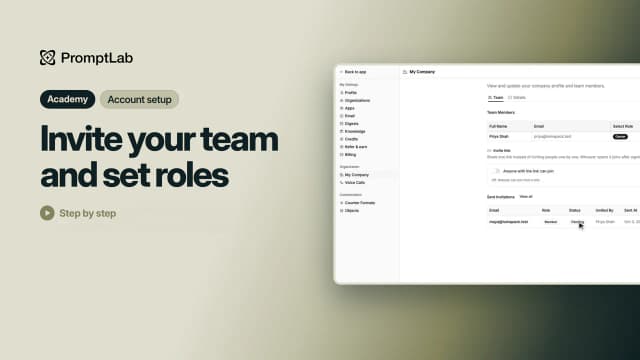
For a short walkthrough of inviting your team, watch Invite your team and set roles in PromptLab Academy.
WatchOpen workspace settings
Click your workspace's name at the top of the sidebar. The menu lists your workspaces, then Account settings for your own profile, Workspace settings and Invite members (owners and admins only), Upgrade PromptLab (on Basic or a trial), Refer another team, Apps and Sign out.
In Settings, the left side lists every page:
- My Settings: Profile (your name, language, theme, password and email), Organizations, Email, Scheduled messages, Knowledge, Credits, Refer & earn and Billing.
- Workspace: General, Members, Voice Calls and Developers.
- Customization: Counter Formats and Objects.
Change the name, logo and time zone
Open Settings → General. Click Upload new logo to add a PNG, JPEG, GIF or WEBP under 5 MB; it shows at the top of the sidebar and in the workspace menu. Then edit the Name, Website and Timezone, and under Contact details your company's contact name, email, phone, address and description.
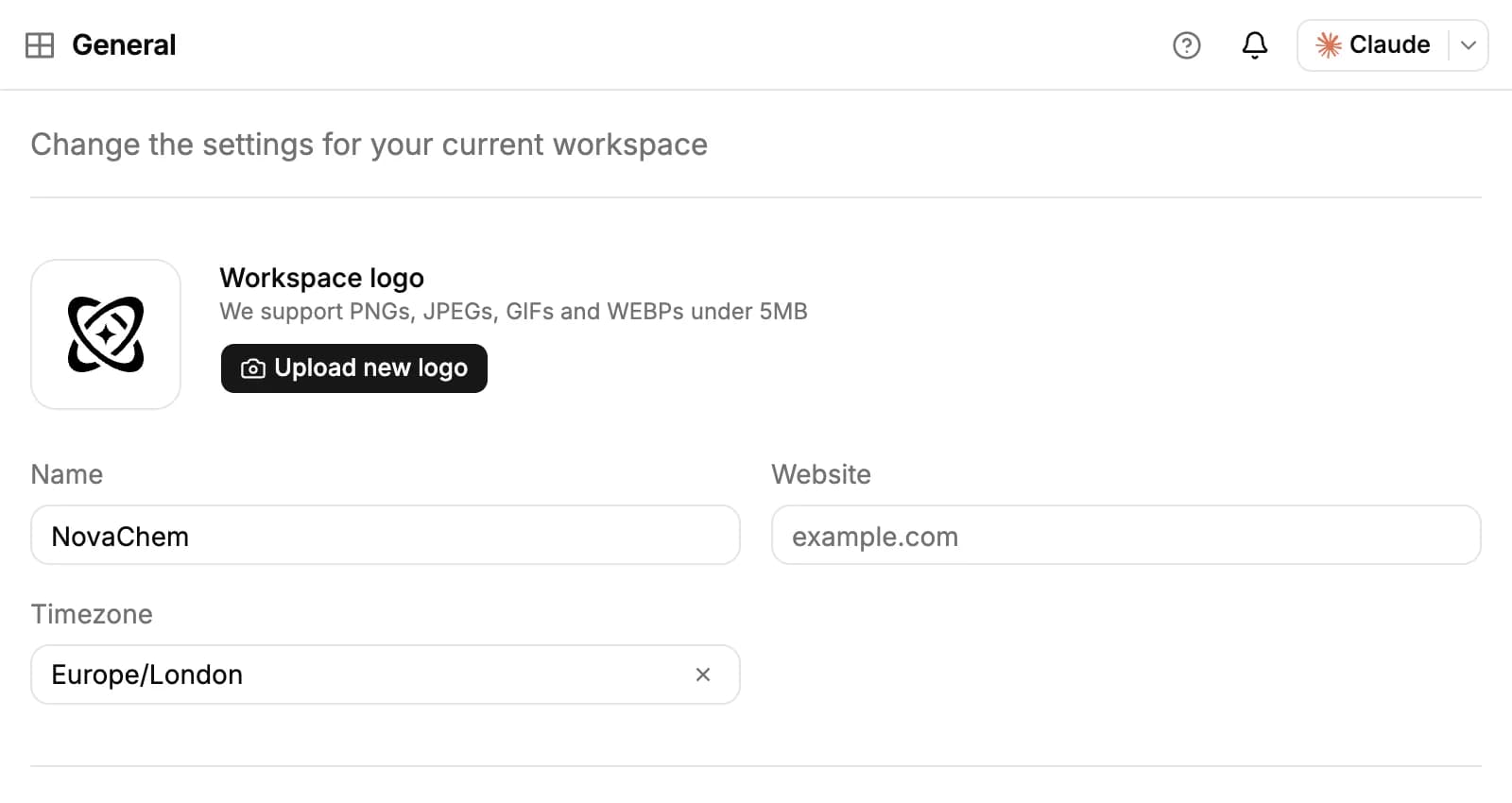
Each field saves when you leave it. Two workspaces can't share a name. Schedules, such as a scheduled workflow, use the workspace's time zone unless you pick another one.
Invite your team
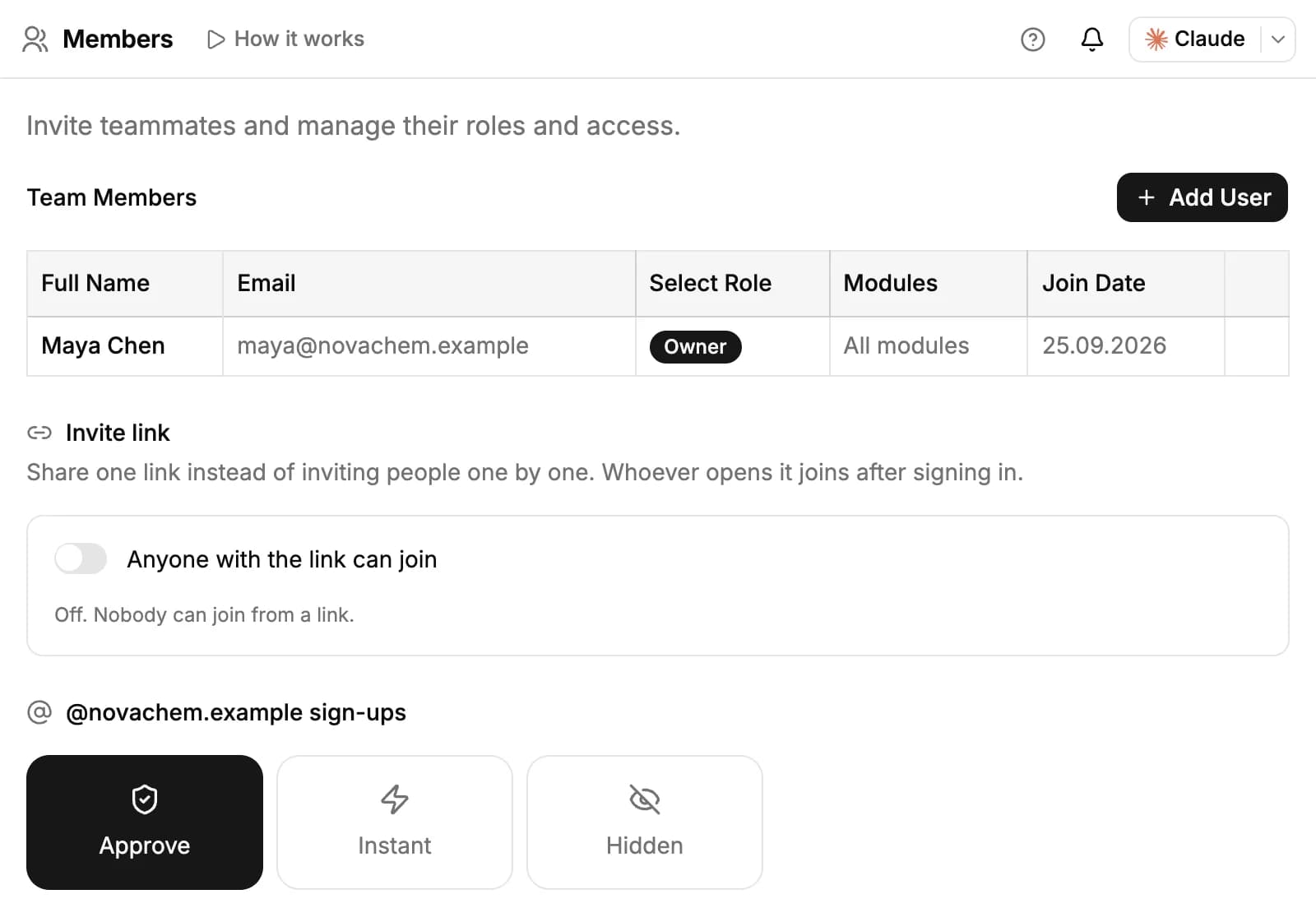
- Open Settings → Members and click Add User.
- Enter their email and choose a role: Member or Admin.
- Under Select Permissions, untick any module they shouldn't use.
- Click Send Invitation. They get an email with a link to join.
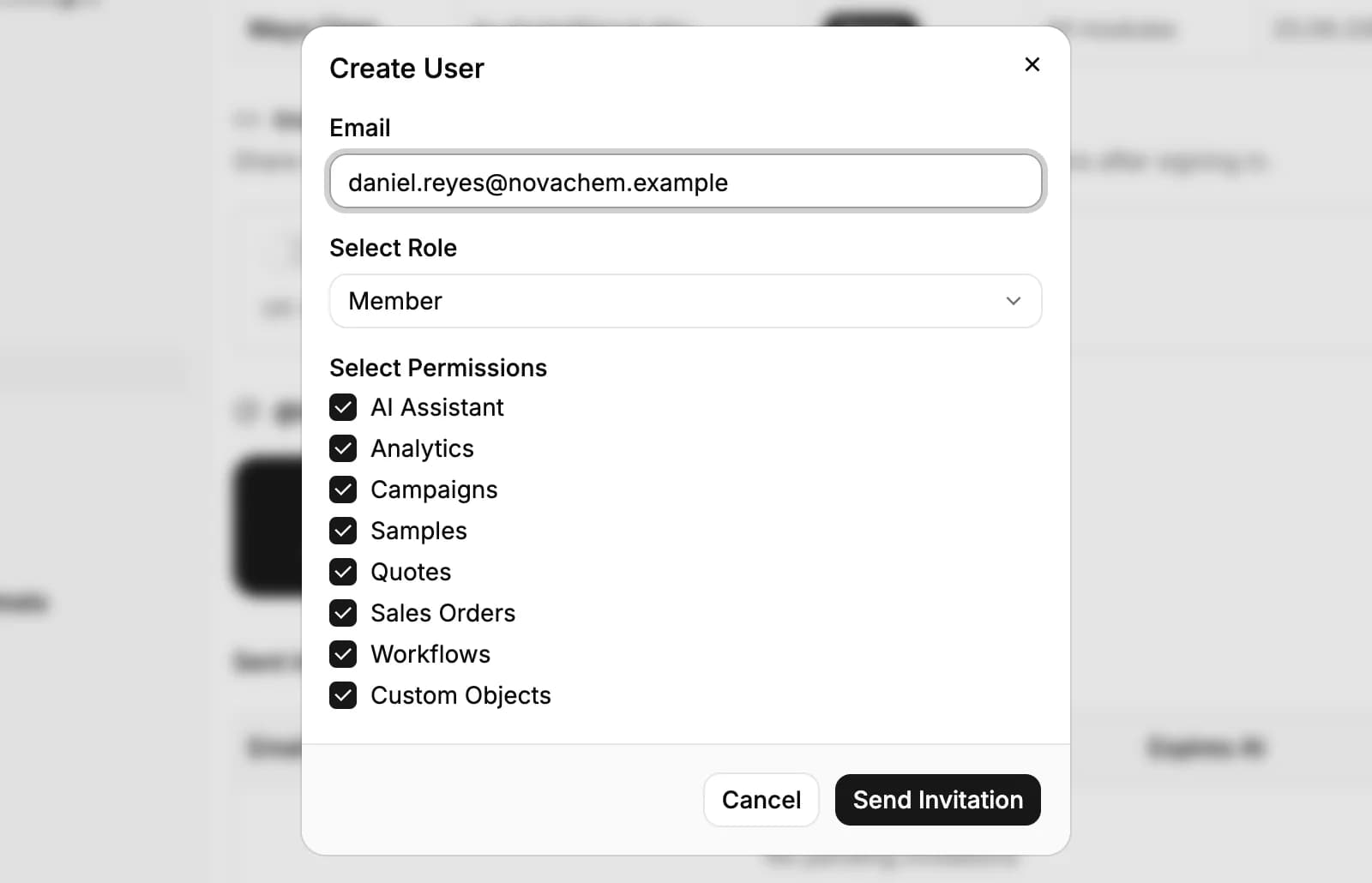
To invite several people at once, use Invite members in the workspace menu. Invitations expire after 7 days. Pending ones are listed under Sent Invitations, where you can Revoke them.
Under Invite link, turn on Anyone with the link can join, choose the role in Join as, and share the link. Each person who joins takes a seat on your plan. Reset link makes a new one and stops the old one. If your workspace has a company domain, choose what happens when someone signs up with an email on it: they join after an admin approves (Approve), join right away (Instant), or don't see the workspace (Hidden). Approvals wait under Join requests.
Roles and module access
- Owner: has every module and all settings. Only the owner can change an admin's role or modules, and hand the workspace to someone else with Transfer Ownership (the owner then becomes an admin).
- Admin: sees the Workspace and Customization settings, invites and manages members, connects workspace apps and manages billing. Admins see every record in the modules they have.
- Member: does the daily work in the modules they're given.
To change what a member can open, click their Modules cell, for example "All modules", and set each module:
- Records: Accounts, Contacts, Opportunities, Samples, Quotes and Sales Orders can be Full access or Own records, so the member sees only the records they own. Samples, Quotes and Sales Orders can also be No access.
- Features: AI Assistant, Analytics, Campaigns, Custom Objects and Workflows are Can use or No access.
- Products and Lists show Everyone: every member has them.
Use the … menu on a member's row to Change role or Delete them from the workspace.
Work in more than one workspace
Each workspace has its own members, records, settings and plan. The workspaces you belong to are listed at the top of the workspace menu; click one to switch. New workspace in the same menu creates another one; it appears when one of your workspaces is on a paid plan. If you're a member, not the owner, of another workspace, PromptLab asks you to leave it first.
Settings → Organizations lists your workspaces with Switch and Leave Organization, and invitations you have received, which you can accept or reject.
An owner can leave only when no one else is in the workspace: remove the others or transfer ownership first. When the last member leaves, the workspace and its data are deleted.
Choose a plan and pay
Open Settings → Billing to compare the plans. Prices are per seat, so you pay for each member:
- Basic: $11.99 a month, or $8.25 a month billed yearly ($99 a year).
- Professional: $23.99 a month, or $16.58 a month billed yearly ($199 a year). Adds calls with business phone numbers, the incoming webhook trigger and the HTTP Request step.
- Business: $99 a month, or $79 a month billed yearly ($948 a year).
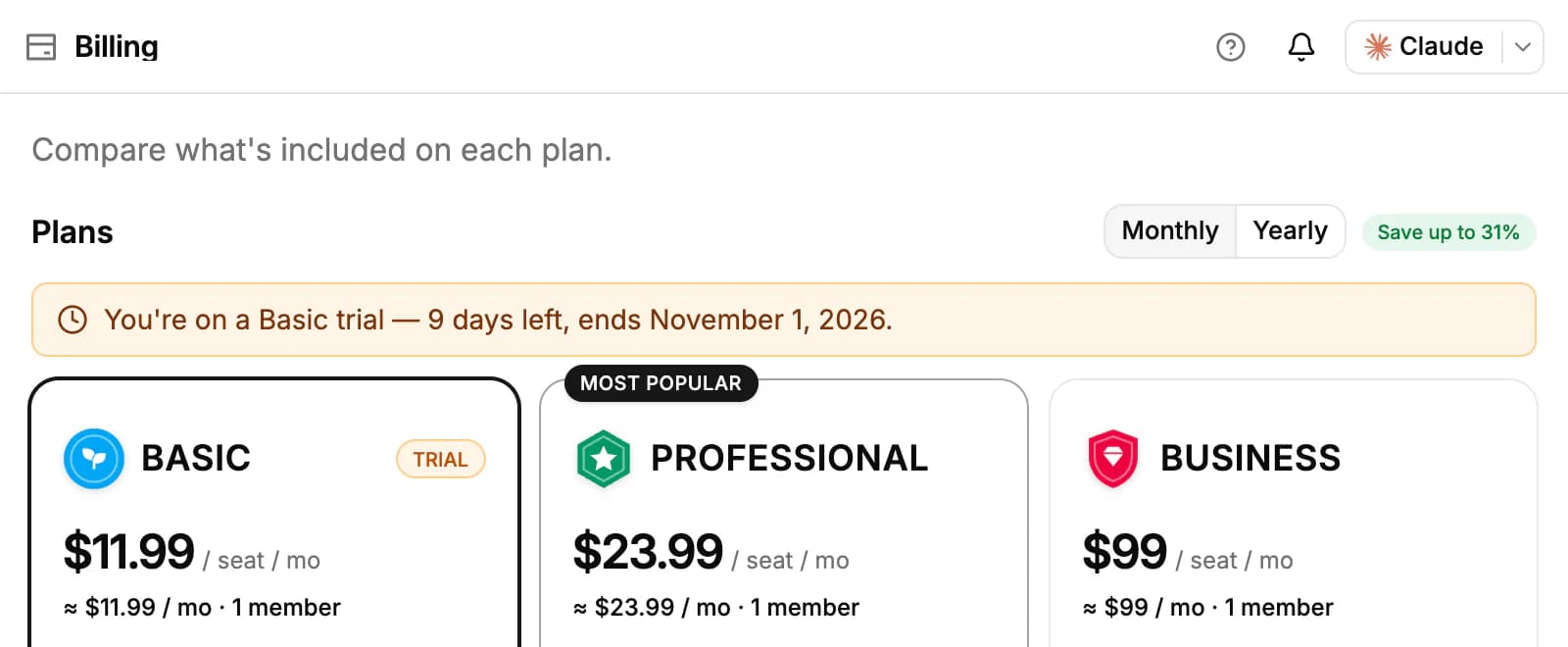
Switch between Monthly and Yearly, then click a plan's button to pay by card. Once you subscribe, Manage billing opens your subscription with our payment provider, Stripe.
The free trial lasts 14 days and gives you the Basic plan. When it ends without a plan, the workspace locks: everyone sees a page to choose a plan, and your data stays safe. Only owners and admins can choose a plan.
Track AI credits
AI features run on credits. Each member has their own weekly allowance, which depends on the plan: 5,000 credits on Basic, 10,000 on Professional, and 20,000 on Business and Enterprise.
Open Settings → Credits to see Weekly usage, the credits you have left and when they reset. Your actions lists each AI feature with its cost Per use, how many times you used it and the credits it took; Background features are the ones that run by themselves, such as meeting processing. For example, one Ask AI message uses 30 credits, a meeting prep 10, and an AI-written email 6.
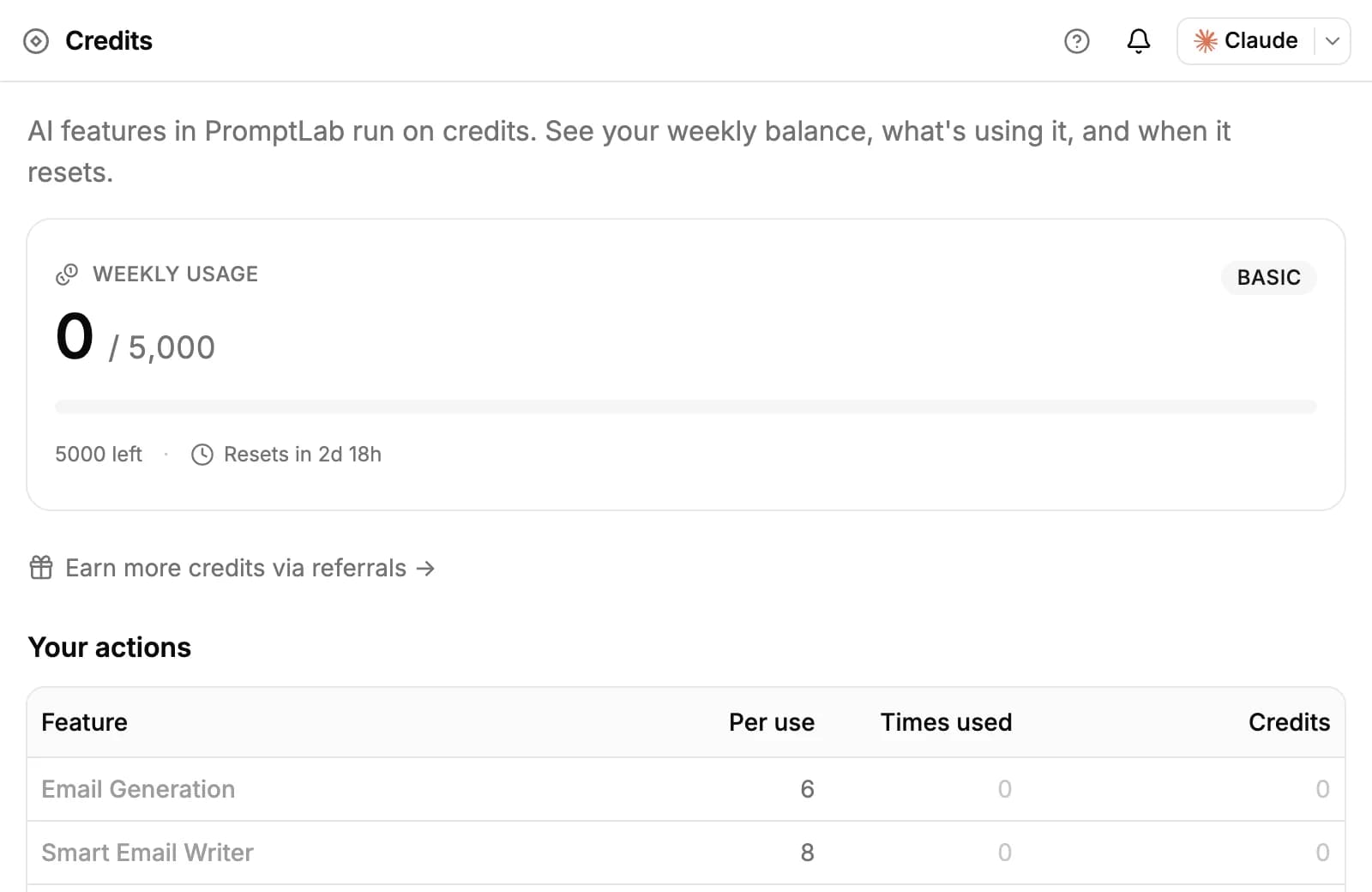
When your credits run out, AI features stop until your allowance resets or the workspace moves to a bigger plan. Ask AI chats on Your own AI key (Apps page) use no PromptLab credits.
Number your documents
Settings → Counter Formats sets how invoices, sales orders, opportunities, quotes and samples are numbered. Write a Template with {number} for the running number and, if you like, {YYYY} or {YY} for the year, for example INV-{YYYY}-{number}. Set the Padding and the number to Start At, and check the Preview.
Each kind of document can have several formats; Set default picks the one new documents use. Only owners and admins see Counter Formats.
Related resources
To compare what each plan includes, see Plans & pricing.
Setting up a new workspace from scratch? Follow Account setup.
To connect email, calendars and other apps for your team, see Apps & integrations.
Frequently asked questions
How much does PromptLab cost?
Per seat: Basic $11.99, Professional $23.99 and Business $99 a month, or $8.25, $16.58 and $79 a month billed yearly.
What does the free trial include?
14 days of the Basic plan. Calls, the incoming webhook trigger and the HTTP Request step need Professional, so they aren't part of the trial.
What happens when the trial ends?
The workspace locks until an owner or admin chooses a plan. Nothing is deleted.
Are AI credits shared by the team?
No. Each member has their own weekly allowance: 5,000 credits on Basic, 10,000 on Professional and 20,000 on Business.
Can a member see only their own records?
Yes. Set Accounts, Contacts, Opportunities, Samples, Quotes or Sales Orders to Own records for that member.
How do I make someone else the owner?
As the owner, open the … menu on their row in Settings → Members and click Transfer Ownership. You become an admin.
Can I belong to more than one workspace?
Yes. Switch between them from the workspace menu at the top of the sidebar.