



















Apps & integrations
Connect your email, calendar, chat apps, other CRMs, file storage and AI assistants such as Claude and ChatGPT to PromptLab.
Available on all plans.
Every member connects their own apps. Only workspace owners and admins connect Salesforce, HubSpot and Acumatica, and use Settings → Developers.
The Apps page lists everything PromptLab connects to: email, messaging, video calls and calendars, other CRMs and ERPs, social media, file storage and AI assistants.
Most connections are personal. Your mailbox, your calendar and your chats are linked to your own account, and only you see the chats you bring in. A few connect the whole workspace, such as Salesforce and HubSpot, and only owners and admins can set those up.
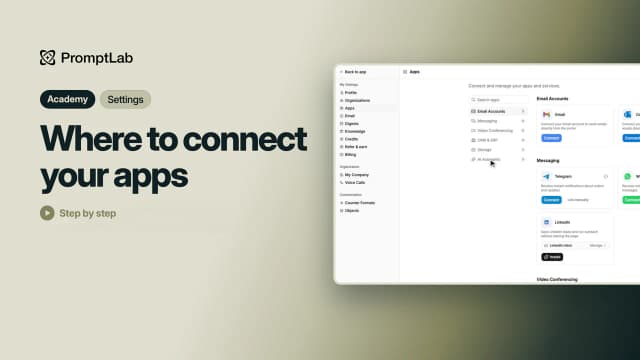
For a short walkthrough of the Apps page, watch Where to connect your apps in PromptLab Academy.
WatchOpen the Apps page
Click your workspace's name at the top of the sidebar and choose Apps. The categories on the left jump to each group: Email Accounts, Messaging, Video Conferencing, CRM & ERP, Social media, Storage and AI Assistants. Type in Search apps to find one by name.
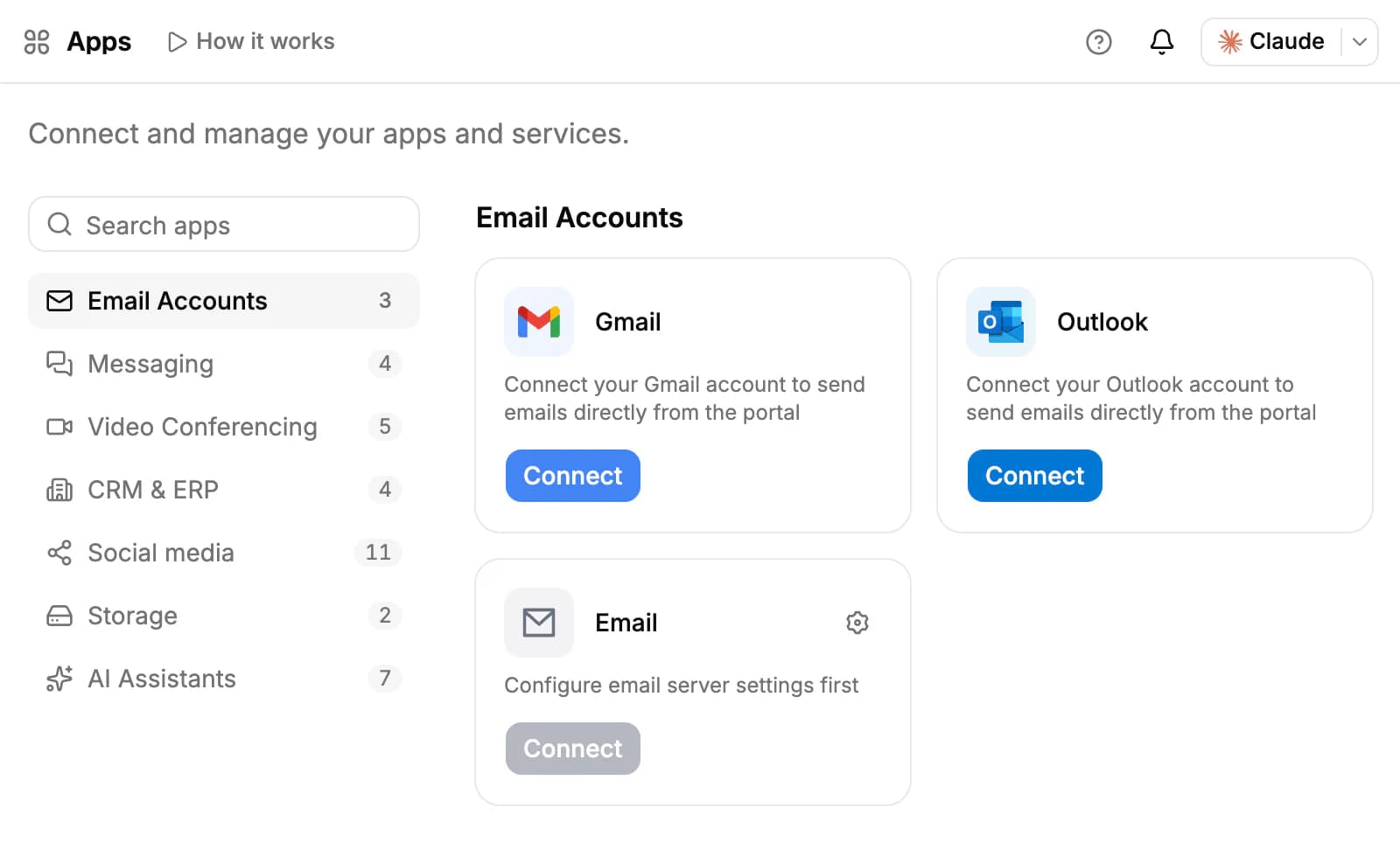
When a connection expires or needs another step, Needs attention appears above the categories, with a count. Click it to see only those apps. The Connect buttons in the Inbox and on the Meetings page open this page on the right card.
Connect your email
- Under Email Accounts, click Connect on Gmail or Outlook and sign in.
- Choose how to sync: All emails saves every email you send or receive and creates contacts for unknown senders; Contacts only saves only emails with people who are already contacts.
- Choose how far back to import: 1 month, 3 months, 6 months, 1 year or everything.
For any other mailbox, including Microsoft Exchange, use the Email card. Someone first enters the mail server's settings with the gear icon (IMAP and SMTP, or Exchange). The settings are saved for the whole workspace, so after that each person connects their own address and password.
You can connect more than one mailbox, and change a mailbox's sync mode later from its card.
Connect chat apps
The Messaging cards:
- Telegram and WhatsApp each have two connections. Inbox: click Show QR code and scan it with your phone, the way you link Telegram Desktop or WhatsApp Web; your chats come into your Inbox and only you see them. Notifications: PromptLab's bot sends you notifications there.
- Slack: notifications and a daily digest in your Slack workspace, and your Slack conversations in the Inbox.
- LinkedIn: the PromptLab Chrome extension saves LinkedIn leads and runs outreach without leaving LinkedIn.
Owners and admins can also connect a WhatsApp business number or a Telegram bot for the team, so customer messages land in the shared Inbox. See Inbox.
Connect calendars and meeting apps
Under Video Conferencing, connect Google Meet (it syncs your Google Calendar), Microsoft Teams (your Microsoft calendar) or Zoom, so the notetaker can record your meetings. Connect Calendly with a personal access token or Cal.com with an API key, and every booking becomes a meeting, matched to the person who booked.
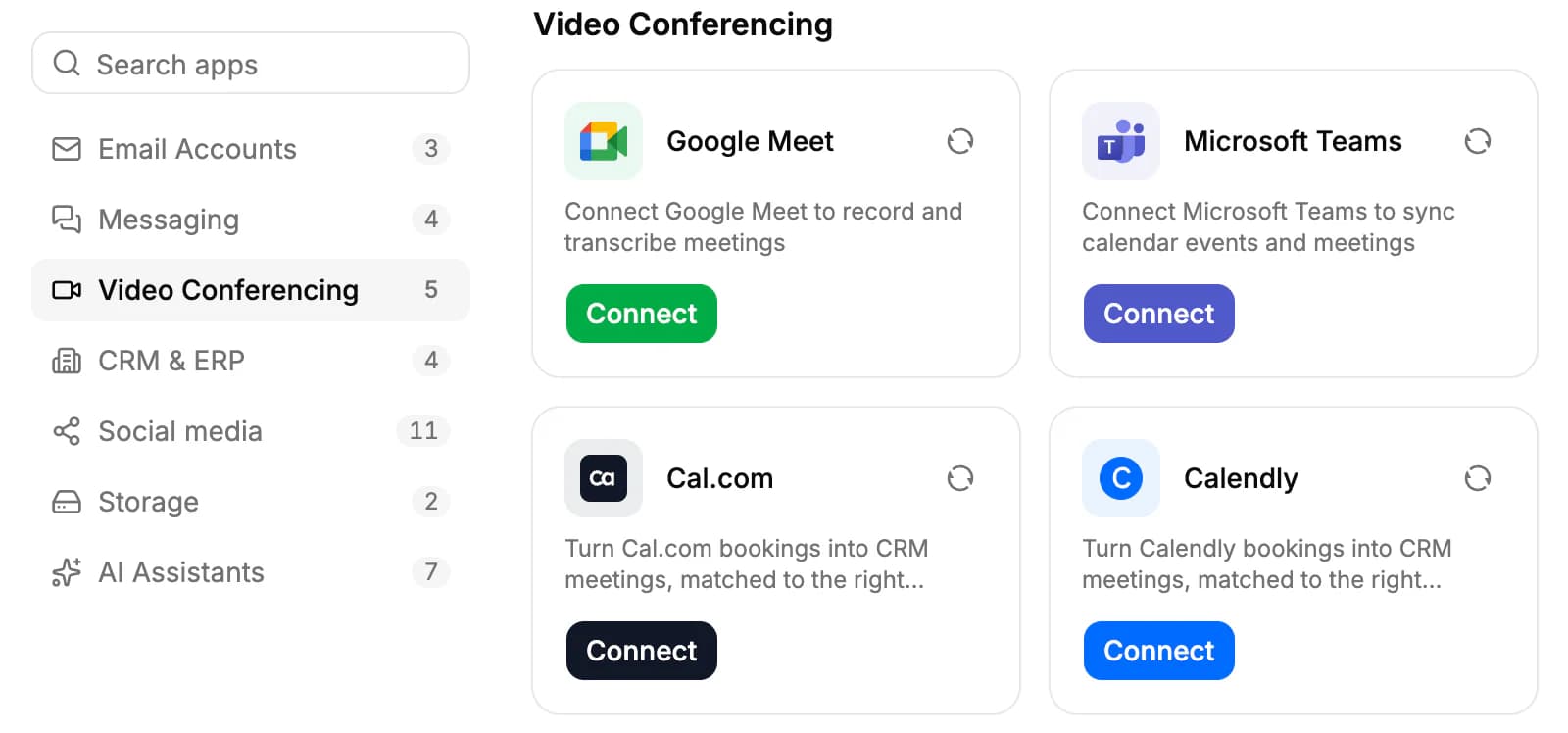
The same section holds Notetaker name and Recap email to attendees. How meetings are recorded is covered in Meetings.
Sync another CRM or ERP
Under CRM & ERP, owners and admins connect Salesforce, HubSpot or Acumatica for the whole workspace.
- Salesforce brings in accounts, contacts, leads and opportunities, and their tasks, calls, emails and events. The gear on the card opens its settings: under What to bring in, choose All records, Records assigned to me or Accounts & contacts only, and turn on Send changes to Salesforce to send new and edited accounts, contacts and opportunities back every 15 minutes.
- HubSpot brings in companies, contacts and deals.
- Acumatica brings in customers, contacts, leads and opportunities.
- Apollo enriches contacts with your own Apollo API key. An admin can add a workspace key and share it with the team.
Click Sync now to sync right away. Disconnecting Salesforce or HubSpot stops the sync; the records already brought in stay in PromptLab.
Connect Claude, ChatGPT and other AI assistants
Under AI Assistants, connect PromptLab to Claude, ChatGPT, Perplexity, Grok, Gemini CLI or Microsoft Copilot Studio. They then work with your PromptLab data through the PromptLab MCP server:
- Copy the server URL on the card: https://api.trypromptlab.com/mcp.
- Click Add to Claude, Add to ChatGPT or Set up, and add the URL as a connector in that app, following the steps on the card.
- Sign in to PromptLab when the app asks, and allow access.
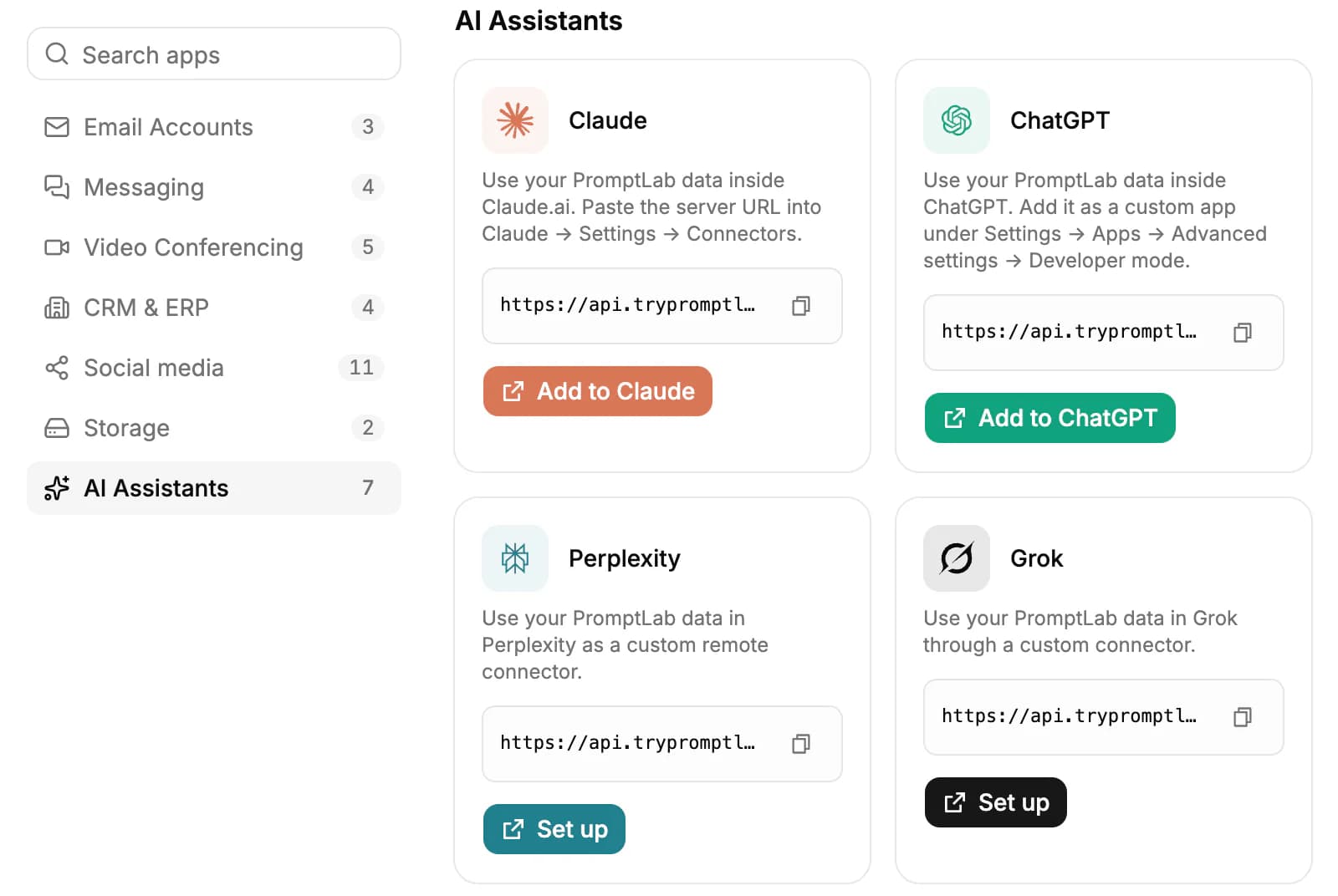
The assistant acts as you, with your access. To stop it, click Revoke on the Claude or ChatGPT card, or remove the connector in the other app. Your own AI key lets you run Ask AI on your own Anthropic or OpenAI account; those chats use no PromptLab credits.
Connecting an AI assistant needs a paid plan or an active trial. On Basic, the tools that change many records at once need Professional. Step-by-step guides for each assistant are on the MCP help page.
Files and social media
- Google Drive and OneDrive under Storage let you attach your files in PromptLab. The Google Drive connection is also the one workflows use for Google Sheets.
- Social media brings the posts, daily metrics and followers of your social accounts into PromptLab. A network marked Coming soon can't be connected yet.
Use API keys and webhooks
Owners and admins connect PromptLab to their own tools under Settings → Developers. API docs opens the reference.
- Create API key: give it a name and copy the key; you won't see it again. A key acts as you, with your access, and Revoke stops it right away.
- Add webhook: enter an Endpoint URL (a public https:// address) and tick the Events to send: created, updated and deleted for contacts, accounts, opportunities, notes, tasks, custom object records and list entries. Each webhook has a signing secret, so you can check that a request comes from PromptLab.
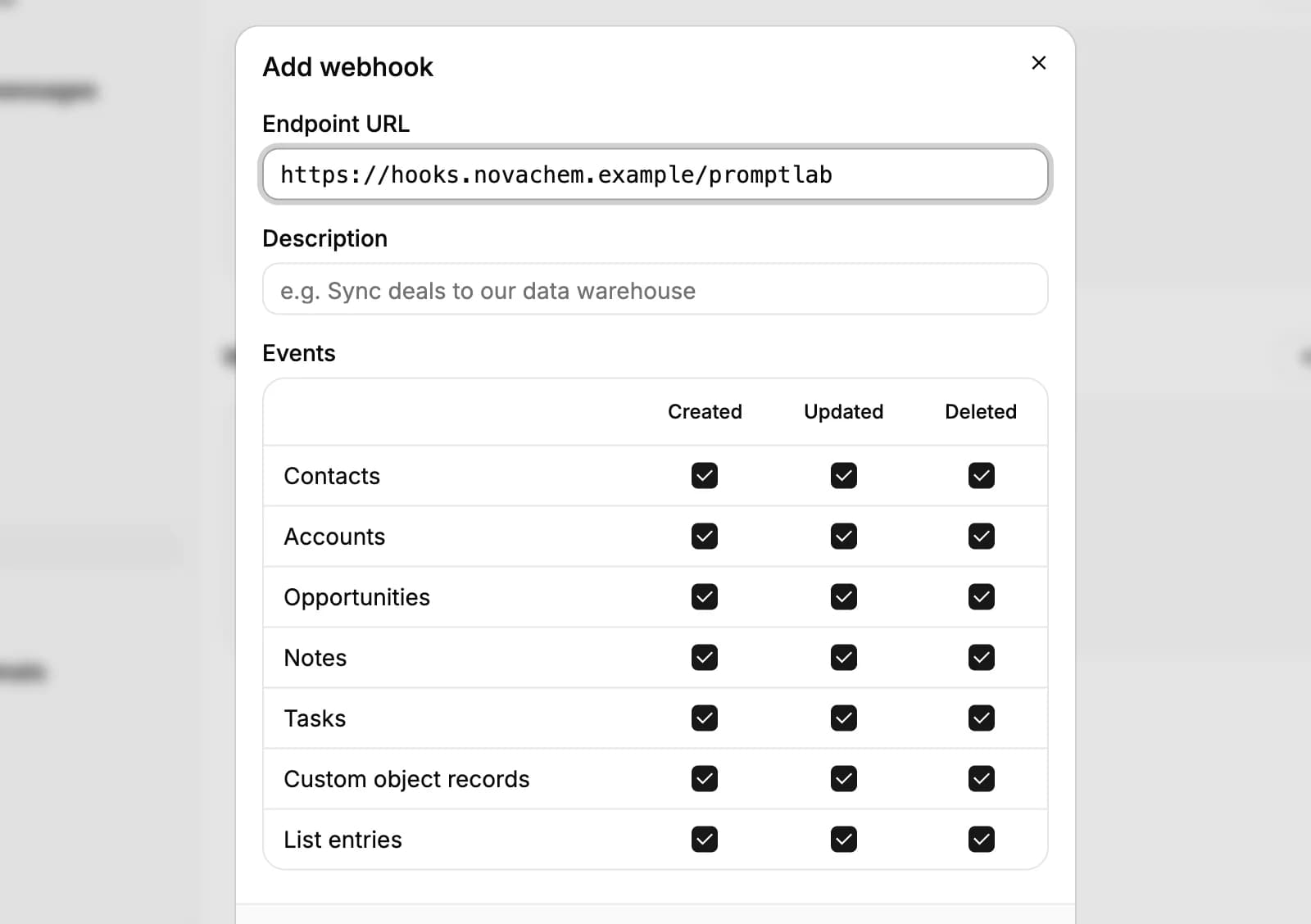
Send test sends a sample event, and Deliveries shows what was sent. A webhook that keeps failing is turned off; fix the receiver, then turn it back on.
Related resources
For an overview of what each integration captures, read Integrations.
To connect Claude or ChatGPT step by step, see the MCP help page; for webhooks and the HTTP step, see Webhooks, workflows & MCP.
Workflows send messages through the apps you connect here: see Workflows.
Frequently asked questions
Who can connect apps?
Everyone connects their own mailbox, calendar, chat apps, storage and AI assistants. Only owners and admins connect Salesforce, HubSpot and Acumatica, and create API keys and webhooks.
Can my teammates read my WhatsApp or Telegram chats?
No. Chats you bring in by QR code are visible only to you.
Does the Salesforce sync go both ways?
Salesforce records come into PromptLab, and you can turn on sending new and edited accounts, contacts and opportunities back every 15 minutes. HubSpot and Acumatica come into PromptLab only.
What is the MCP server URL?
https://api.trypromptlab.com/mcp. Paste it into Claude, ChatGPT or another assistant that supports MCP connectors.
Can I connect Microsoft Exchange or my own mail server?
Yes, with the Email card. Enter the server settings once for the workspace, then each person connects their own address.
Is there an API?
Yes. Owners and admins create API keys under Settings → Developers, and API docs on that page opens the reference.