



















Artifacts
Have AI write documents and slide decks, edit them with AI or by hand, present them, download them and share them with a link.
Available on all plans. Writing and editing with AI uses your weekly credits.
Available for members with AI Assistant access. Only an artifact's owner or an admin can share or delete it.
Artifacts are documents and slide decks that AI writes for you: an account brief, a meeting recap, a proposal or a board update. They live on the Artifacts page in the sidebar, where you can edit them, present a deck, download them and share them with a link.
Create a document or deck
- Open Artifacts in the sidebar.
- In the box at the top, describe what you need, for example a one-page brief or a five-slide update.
- Choose Document or Deck and press the arrow.
The new artifact opens straight away and fills in as AI writes it, which can take a minute or two. It keeps going if you leave the page. New offers the same choices, plus a Blank document or Blank presentation to write yourself.
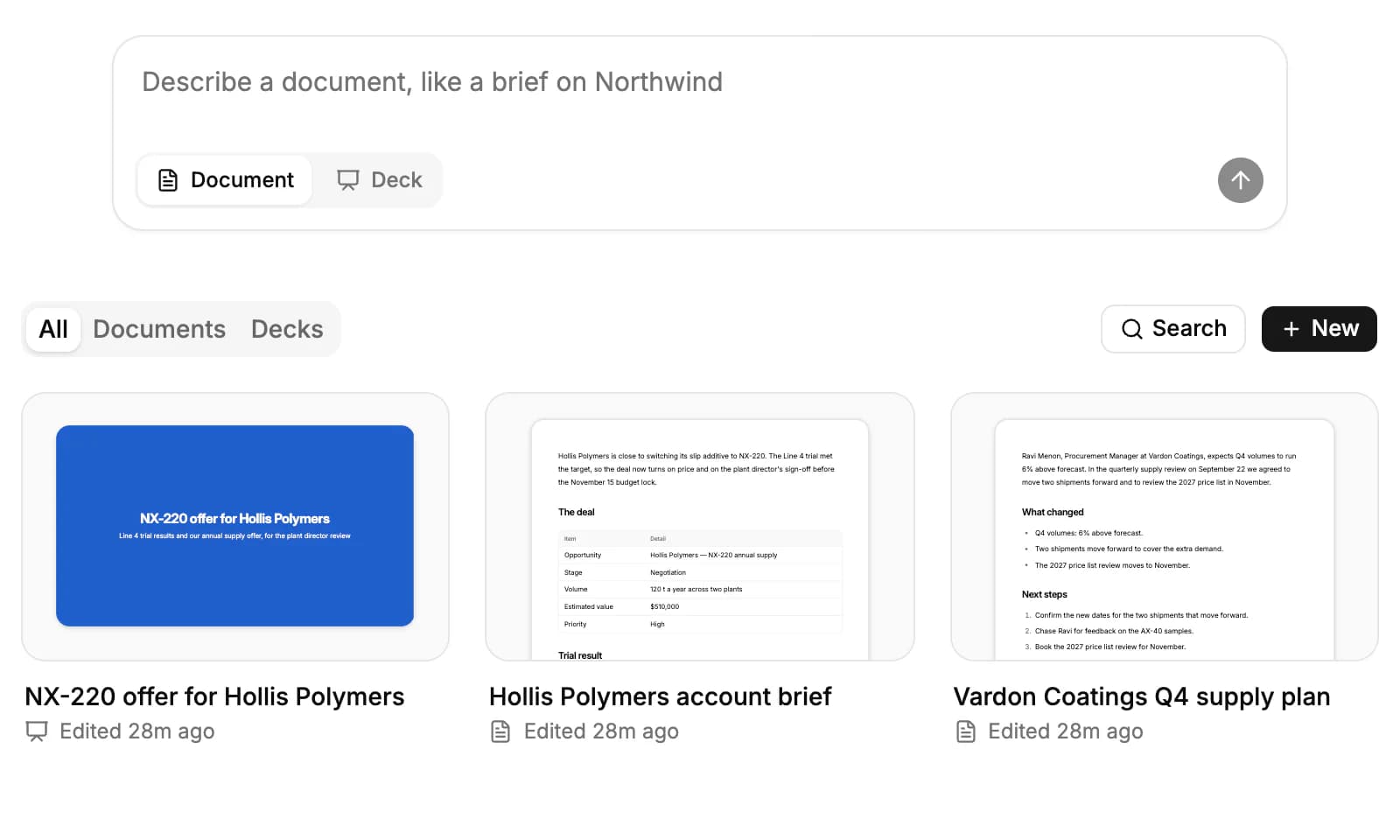
AI on the Artifacts page writes only from what you type. It doesn't read your CRM, so give it the facts and figures; where one is missing it leaves a placeholder such as [figure]. To build a document or deck from your CRM data, ask Ask AI instead.
Create one from Ask AI
Ask AI can write a document or deck from your workspace's data, for example "Make a short deck on the Hollis Polymers deal for the plant director". It looks up the records first, then creates the artifact, and a card in the chat opens it.
You can also keep any Ask AI answer as a document: open the download menu under the answer and choose Save as document.
Edit a document
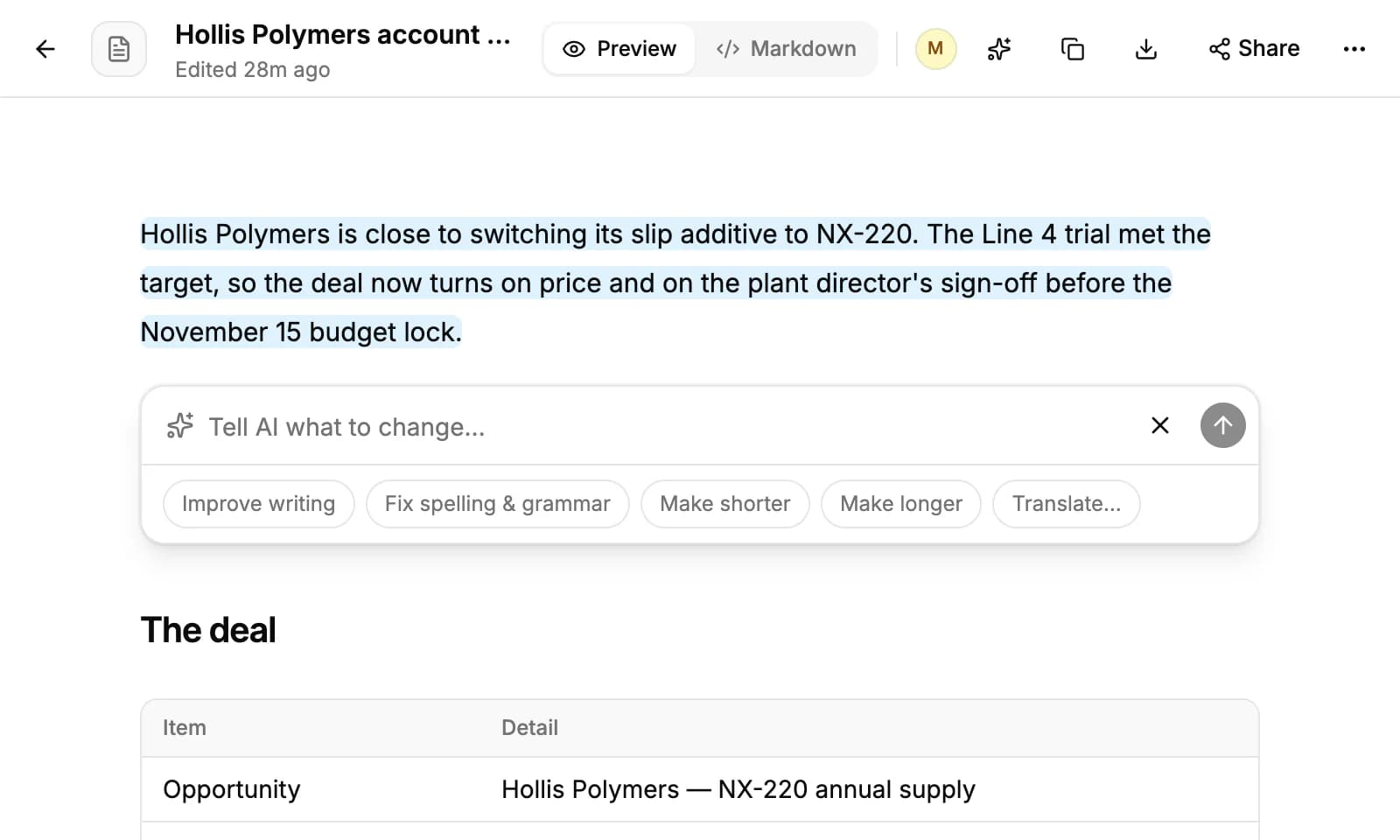
A document opens in Preview. Switch to Markdown to edit the text yourself, then click Save, or Discard to drop your changes. Copy copies its Markdown.
To edit with AI, select a passage and click Ask AI, or use the box at the bottom of the document (Edit with AI takes you there) to change all of it. Type what to change, or pick Improve writing, Fix spelling & grammar, Make shorter, Make longer or Translate…. AI shows its suggestion: click Accept or Discard.
A document can be up to 200 KB of text.
Build and present a deck
A deck lists its slides down the left. Click a slide's text to change it. Add slide adds one with a layout (Title slide, Content, Key numbers, Section break or Takeaways), and Add text adds a headline, a subheading, bullets, a key number, takeaways or a footnote. Each slide can be moved, duplicated or deleted. A deck holds up to 30 slides.
Theme colors every slide, the cover and the PowerPoint download, with eight themes to choose from. To change a slide with AI, click Edit with AI on it and type an instruction, or pick Sharpen the headline, Make shorter, Fix spelling & grammar or Translate….
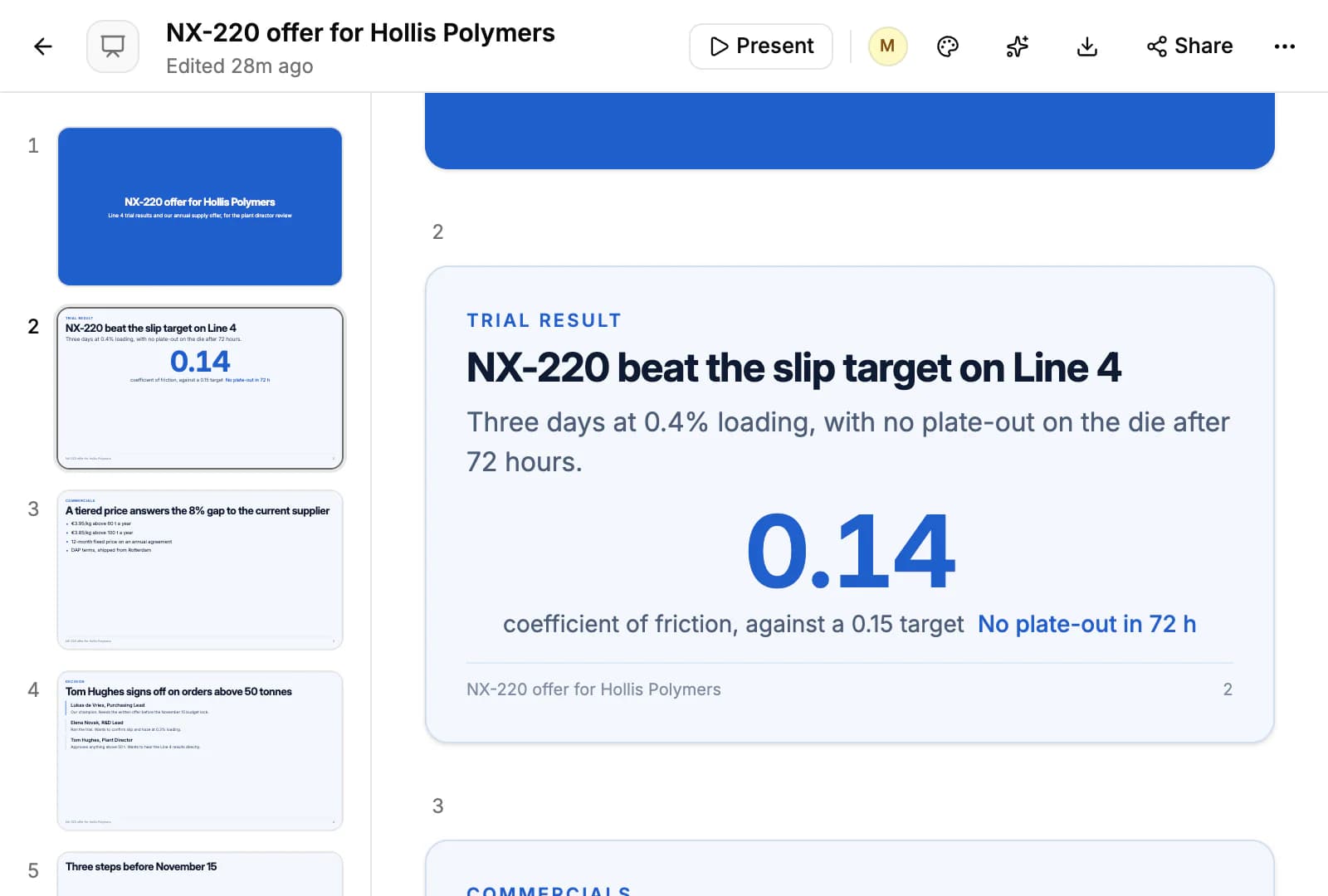
Click Present to show the deck full screen. Move between slides with the arrow keys or the space bar, and press Esc to leave.
Download and share
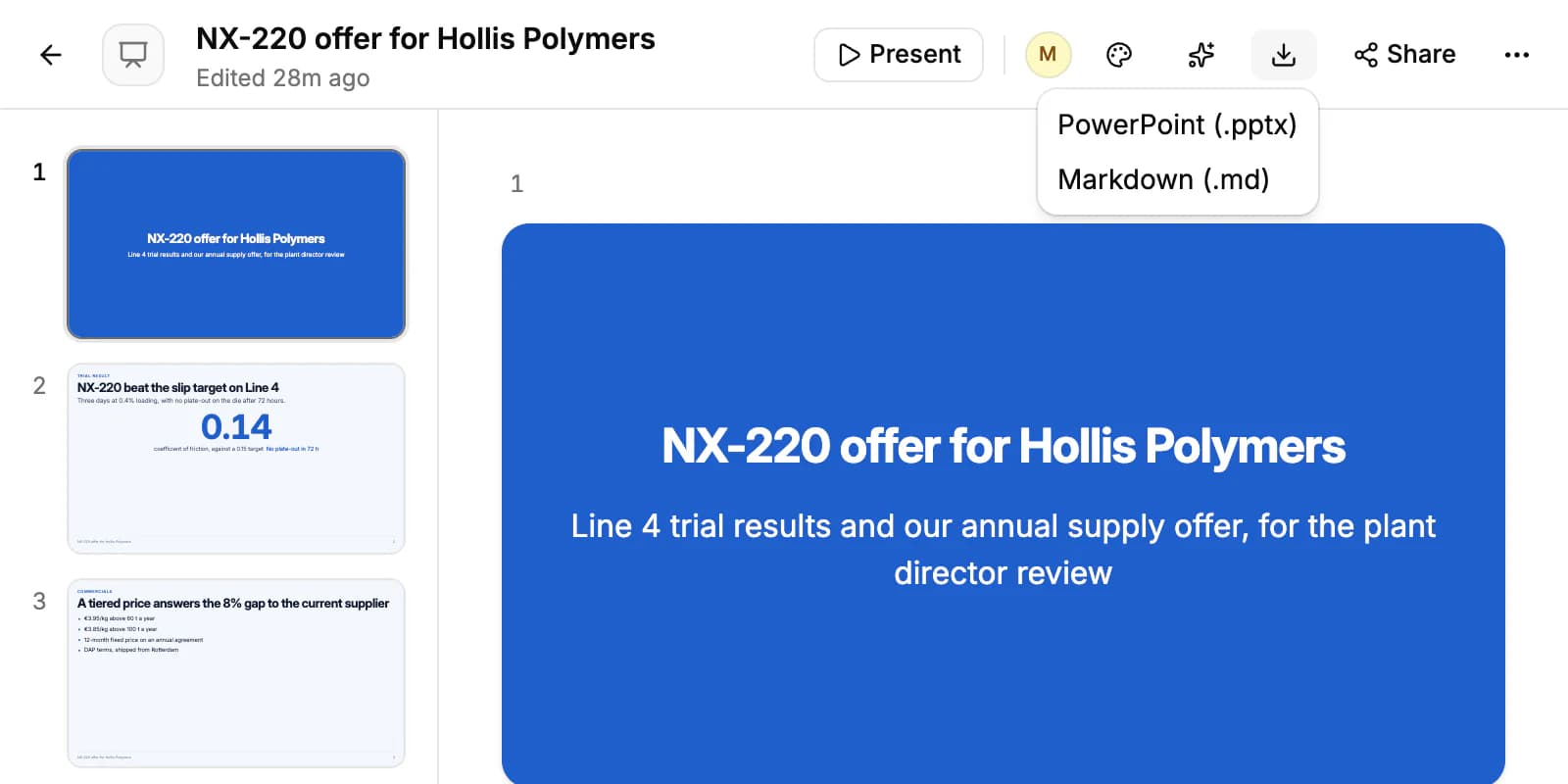
Download saves a document as Markdown (.md), PDF (.pdf) or Word (.docx), and a deck as PowerPoint (.pptx) or Markdown (.md).
Share has two tabs. Share sets who in your workspace can open it: everyone, or only the people you add, each with Can edit or Can view. Publish turns on Anyone with the link can view: a read-only link anyone can open without signing in, which you can set to expire after 1, 7 or 30 days.
A new artifact is open to everyone in the workspace with AI Assistant access, and they can edit it, until you make it private. Only its owner or an admin can change who has access, publish it or delete it. A private artifact can't be published, and deleting an artifact stops any link you shared.
Related resources
To have AI build documents and decks from your CRM data, see Ask AI.
Charts and saved reports live on the Dashboard.
To compare plans and weekly credits, see Plans & pricing.
Frequently asked questions
Does AI on the Artifacts page read my CRM?
No. It writes from what you type. To use your records, ask Ask AI to write the document or deck.
Which formats can I download?
Documents as Markdown, PDF or Word. Decks as PowerPoint or Markdown.
How many credits does it use?
Writing an artifact from the Artifacts page costs 30 credits. An AI edit of a passage or a slide costs 6, and an edit of a whole document 24. Editing by hand is free.
Can people outside my company see an artifact?
Only through a published link, which is read-only. Turn the link off at any time.
Can I upload a Word or PowerPoint file to edit?
No. Start a blank document and paste your text into its Markdown view instead.