



















Workflows
Let PromptLab do routine work: a record change, a schedule or a message starts a workflow, and its steps update records, notify people or use AI.
Available on all plans. The incoming webhook trigger and the HTTP Request step need Professional or higher.
Available for members with the Workflows module.
A workflow is a trigger followed by steps. When the trigger fires, for example a new opportunity, Monday at 9:00 or a WhatsApp message, PromptLab runs the steps in order: it can update records, wait, take one path or another, send a message, or ask AI to summarize, sort or draft something.
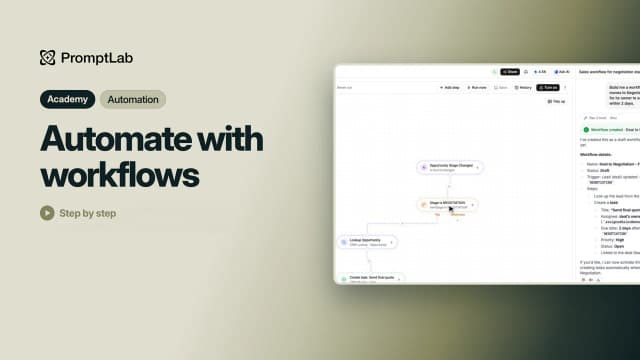
You build a workflow on a canvas, test it on a real record, and turn it on when it's ready. Every run is logged step by step.
Create a workflow
Open Workflows in the sidebar. New workspaces don't pin it: click More at the bottom of the sidebar and find Workflows under Workspace. Then click Create workflow. Until your first workflow exists, the page opens straight on the start screen, which offers three ways in:
- Describe it: write what should happen and click the send arrow. The AI assistant builds the steps in a draft and asks in the chat if something is unclear. Ideas such as Lead follow-up and All ideas fill in a ready-made description.
- Use a template: browse the templates under the box. Narrow them with Filters (category, app or trigger) or Search, click Preview to see the steps, and Use template to copy one into a new workflow.
- Create from scratch: pick what starts the workflow, then add the steps yourself.
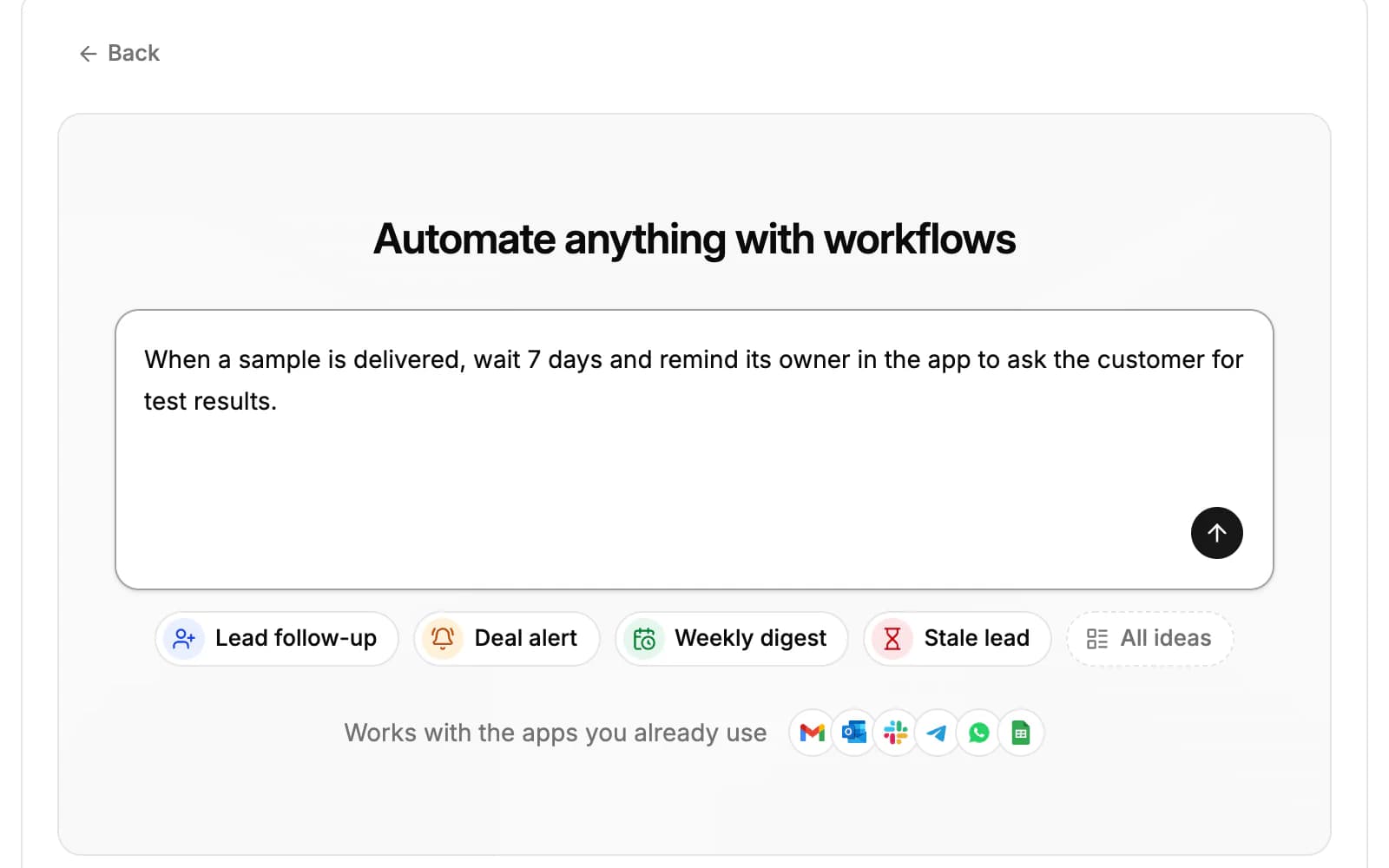
Describing a workflow uses the AI assistant, so it needs the AI Assistant module and uses your AI credits. The Automate button at the top of the Accounts, Contacts, Opportunities, Quotes and Samples pages opens the same screen, showing the templates for that page's records.
Choose what starts it
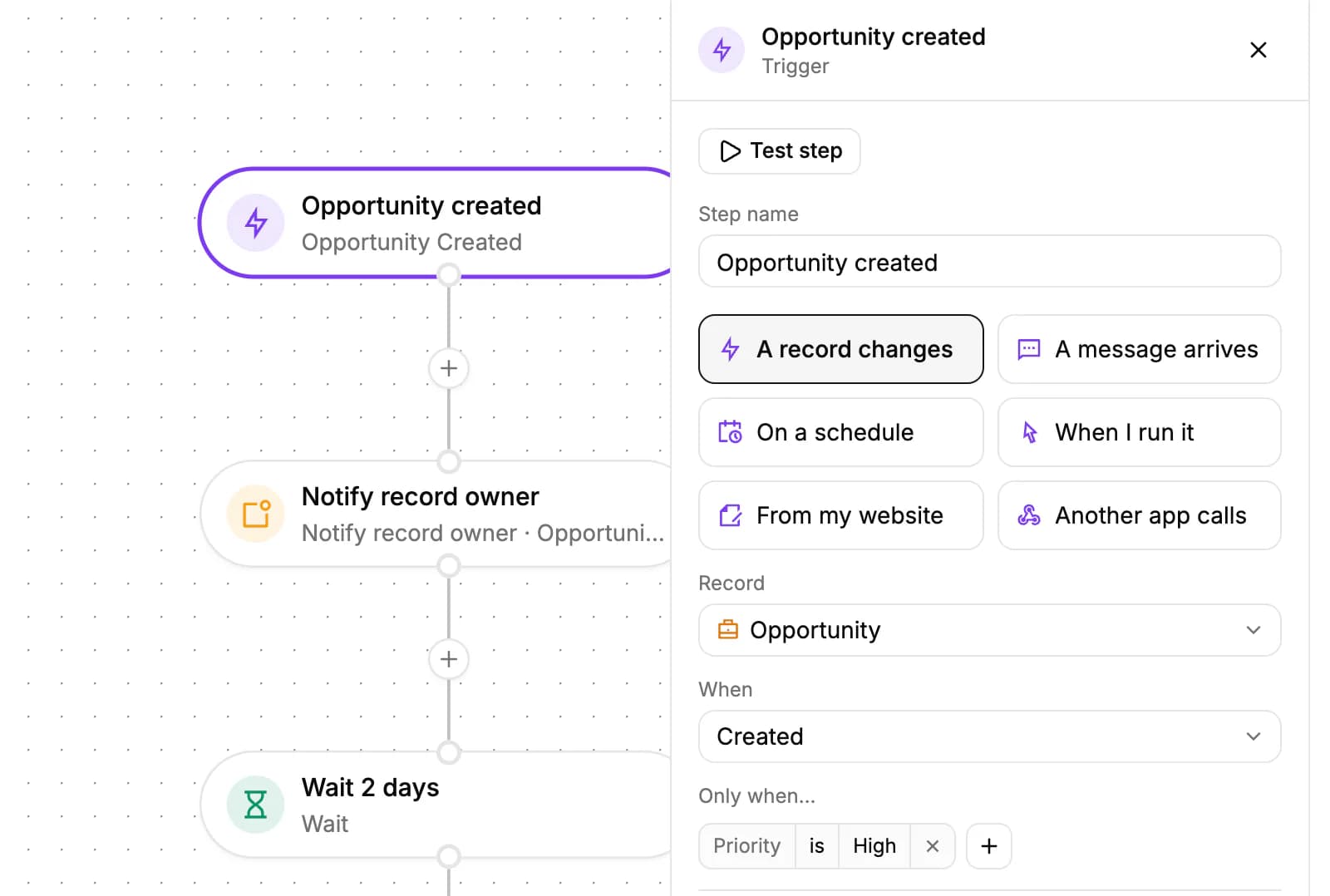
The trigger is the first card on the canvas. Click it, and pick what starts the workflow:
- A record changes: pick the Record, such as an account, opportunity, task, quote or a custom object, and When, for example Created, Updated, Stage changed or Deleted.
- A message arrives: an email from a contact, or a Telegram or WhatsApp message.
- On a schedule: every 5, 10, 15 or 30 minutes, hourly, daily, weekly or monthly, in the time zone you pick. Use a custom schedule takes a cron expression instead; runs must be at least 5 minutes apart.
- When I run it: the workflow starts only when you run it yourself.
- From my website: someone sends one of your forms, or a website visitor is recognized.
- Another app calls: the workflow gets its own web address under Address to call. Another app starts it by sending a POST request with JSON there, and the steps can use that data.
For a record trigger, Only when… narrows it down. Click Add condition and use the same filters as on a list, for example Priority is High. Under Advanced you can add rules on the change itself, such as which field was edited.
Another app calls needs the Professional plan or higher, and it only starts a workflow that is on. A schedule uses the workspace's time zone unless you pick another one.
Add steps
Click + under a card to add a step, or between two cards to insert one. The step picker groups the steps:
- Records: Create record, Update record (including moving a deal to another stage), Delete record, Find record and Find records.
- AI: AI action, where you say in words what AI should do, plus ready-made steps: Classify text, Classify record, Summarize record, Summarize text, Translate text, Detect sentiment, Extract fields and Draft email.
- Conditions: If / otherwise (two paths), Several paths, and Filter, which carries on only when its rules match.
- Delays: Wait for a time, or Wait until a date and time, such as a task's due date.
- Workspace: Ask for approval pauses the run until a teammate approves or rejects it.
- Advanced: Run code, Combine paths, Repeat for each item, and Ask AI, an AI step that can use actions as tools.
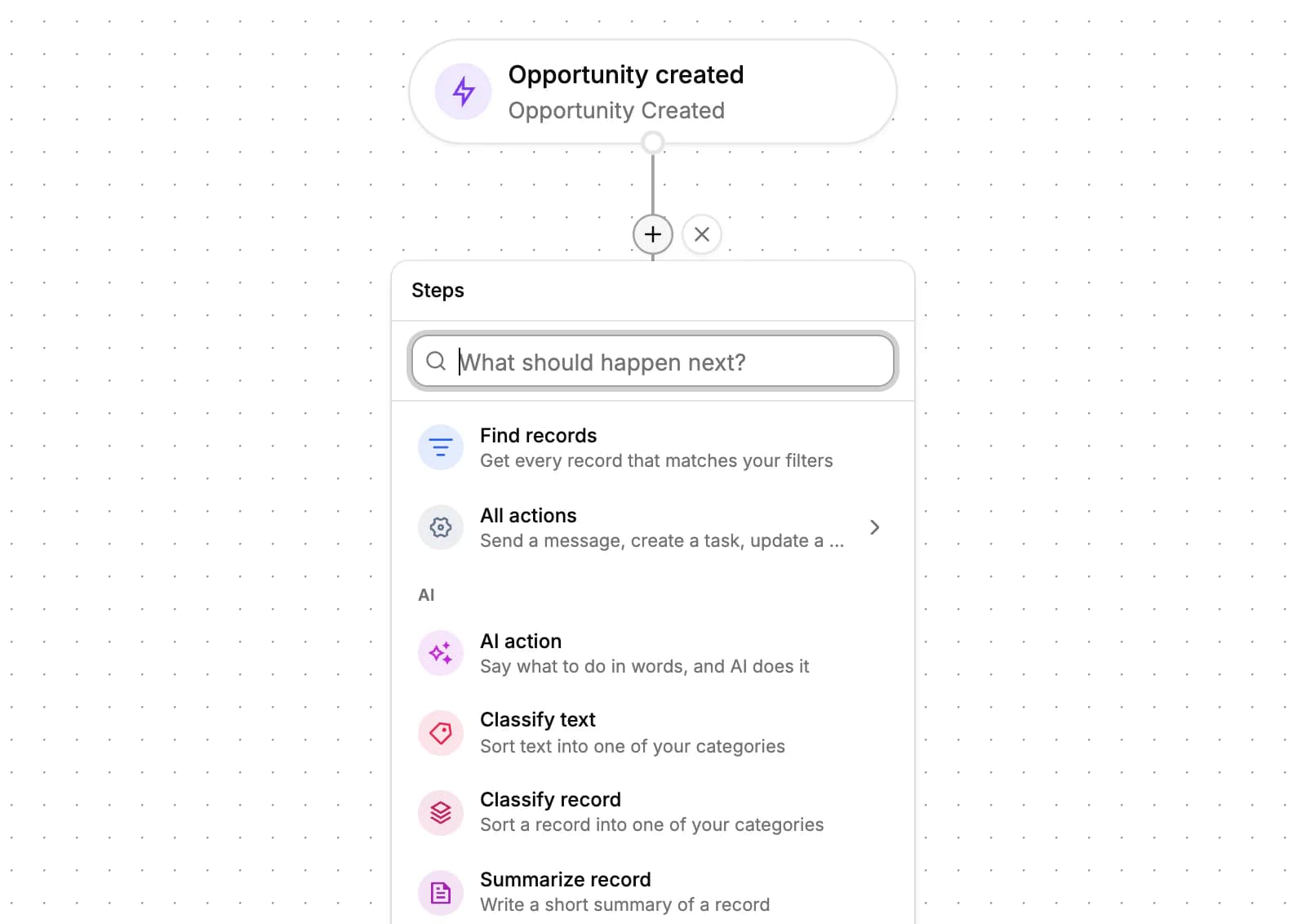
All actions opens the full list, from lists, sequences, quotes and samples to calculations, round robin, running another workflow, Google Sheets and Salesforce.
Click a card to set it up in the panel on the right. Insert data puts a value from the trigger or an earlier step into a field, and Test step runs only that step. Under If this step fails, a step can try again up to 5 times, then stop the workflow, carry on, or follow an If it fails path.
Send messages and use other apps
- Notify record owner: an in-app notification to whoever owns the record, such as an opportunity's sales owner or a task's assignees.
- Communicate: a message by email, in the app, in Slack, Telegram or WhatsApp.
- Send email to contact: an email from your connected mailbox, from a template or in your own words.
- Send SMS: a text to a contact from the workspace's phone number (see Calls).
- Send report to chat: sends a saved report's table to Telegram, Slack or WhatsApp.
- Google Sheets: add a row, find rows, or update a row in a spreadsheet you pick.
- Salesforce: create, update or read a record, or find records with a SOQL query (up to 2,000).
- HTTP Request: sends a request to another app's web address. It needs the Professional plan or higher.
Messages go out through the apps connected on the Apps page; Google Sheets steps use the Google account on its Google Drive card. If an app isn't connected, the step fails and the run offers to connect it.
Test and turn it on
- Fix anything in the list of issues. Until there are none, you can't test the workflow or turn it on.
- Click Test run. It runs your latest edits now, without waiting for the trigger. For a record trigger, pick the record to test with.
- Read the warning in the dialog: it lists the steps that really run, such as a message that is really sent. Then click Run test, and each card shows its result on the canvas.
- Click Turn on. The status changes from Off to On.
Edits save as you go. Once a workflow is on, new edits don't change what runs until you click Publish changes, and Discard changes in the ⋮ menu goes back to the published version. Turn off stops new runs.
The canvas shows an estimate of runs per week and credits per run. Each AI step uses 30 AI credits every time it runs; the other steps use none.
A workflow runs as the person who last turned it on, with that person's access. If they leave the workspace, turn the workflow on again to run it as you.
Check run history
Click History in the builder for one workflow's runs, or All runs on the Workflows page for every workflow. Filter by status: Completed, Failed, Running, Waiting for approval and more.
Open a run to see each step in order, with what went in and what came out. A failed step says why in plain words and offers a fix, such as connecting an app. Retry runs it again from the failed step or from the start, and Stop ends a run that is still going.
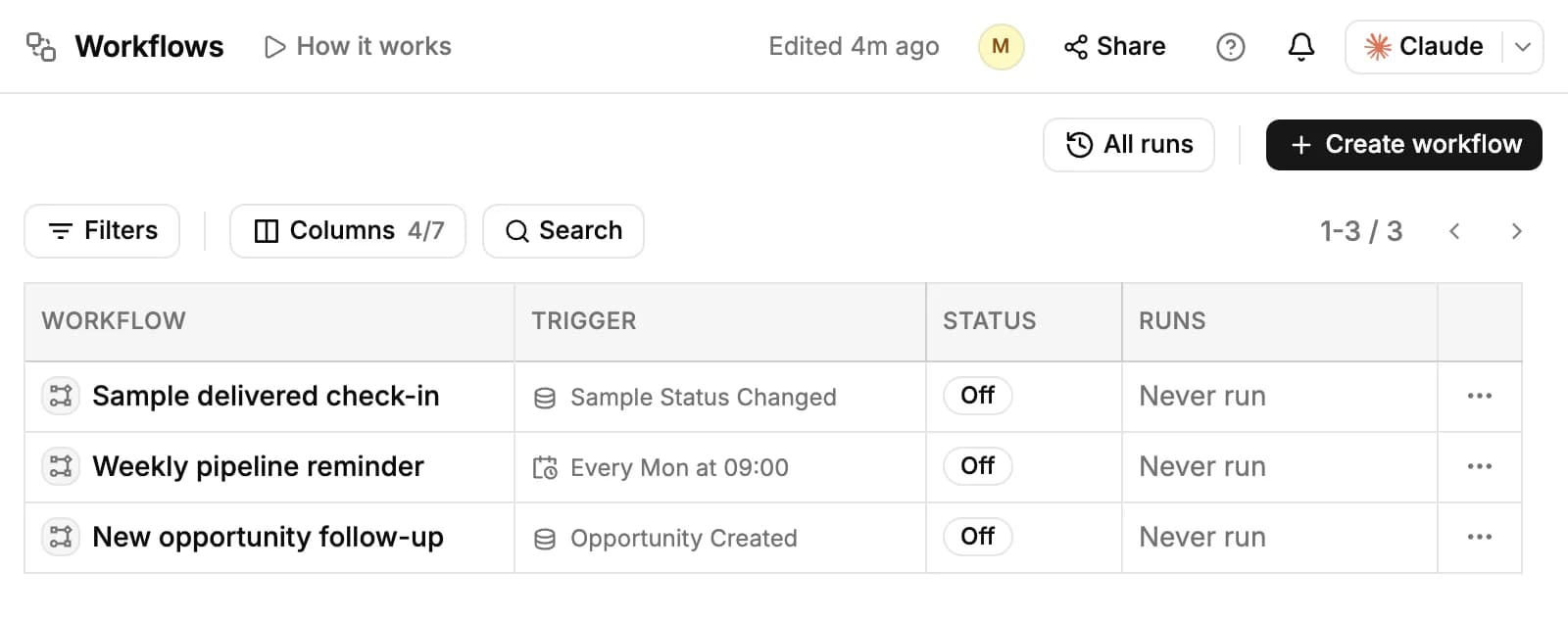
On the Workflows page, the Runs column sums up recent results, such as "Failing". Use the … menu on a row to Rename, Duplicate or Delete a workflow.
Runs that wait at an Ask for approval step show in a banner at the top of the Workflows page, with Approve and Reject.
Related resources
To send data into a workflow from another app, or call one from a workflow, see Webhooks, workflows & MCP.
Connect the mailboxes, chat apps and Google account your steps use on Apps & integrations.
AI steps use your weekly AI credits, explained in Workspace settings.
Frequently asked questions
Which plans include workflows?
Every plan. The incoming webhook trigger (Another app calls) and the HTTP Request step need Professional or higher.
Do workflows use AI credits?
Only AI steps do: 30 credits each time an AI step runs. The builder shows an estimate per run and per week.
Does a test run really send messages?
Yes. A test run runs the real steps on a real record, and the dialog lists the steps that will really run before you start it.
Can a change in Google Sheets start a workflow?
No. Workflows can add, find and update rows in a sheet, but a sheet can't start one. To start a workflow from another app, use Another app calls.