



















Dashboards & reports
Follow your team's numbers on ready-made dashboards, build your own reports, share a read-only link and get reports in your chat app.
Available on all plans.
Available for members with Analytics access. Only owners and admins can reorder or hide dashboard tabs.
The Dashboard page is where PromptLab's reports live. It opens on built-in dashboards for your pipeline, orders, revenue, meetings and calls, and you can add dashboards of your own.
Every card is a saved report on your PromptLab data. Change its date range on the card, open it to change what it measures, or have it sent to Slack, Telegram or WhatsApp on a schedule.
For a short walkthrough of the dashboard, watch Your dashboard and reports in PromptLab Academy.
WatchThe built-in dashboards
Open Dashboard at the top of the sidebar. Each tab along the top is a dashboard, and every workspace starts with these:
- Overview: open pipeline, won revenue, win rate, new leads, meetings held and overdue tasks, then pipeline health, the deal funnel, new versus won deals, monthly revenue, a rep leaderboard, lead sources, activity by rep and stuck deals.
- Orders: revenue, open orders, volume, customers and expected cash, with sales by country, team performance, orders by trade term and product margin against revenue.
- Revenue Analytics: revenue by month, product and customer, orders by trade terms and order count by month.
- Meetings: meetings held and coming up, average length, how many were transcribed or recorded, and meetings by platform, rep and purpose, with deal signals, top objections and conversation stats by rep.
- Calls: a fixed set of call reports on four tabs, Overview, Team, Insights and SDR Profile. See Calls.
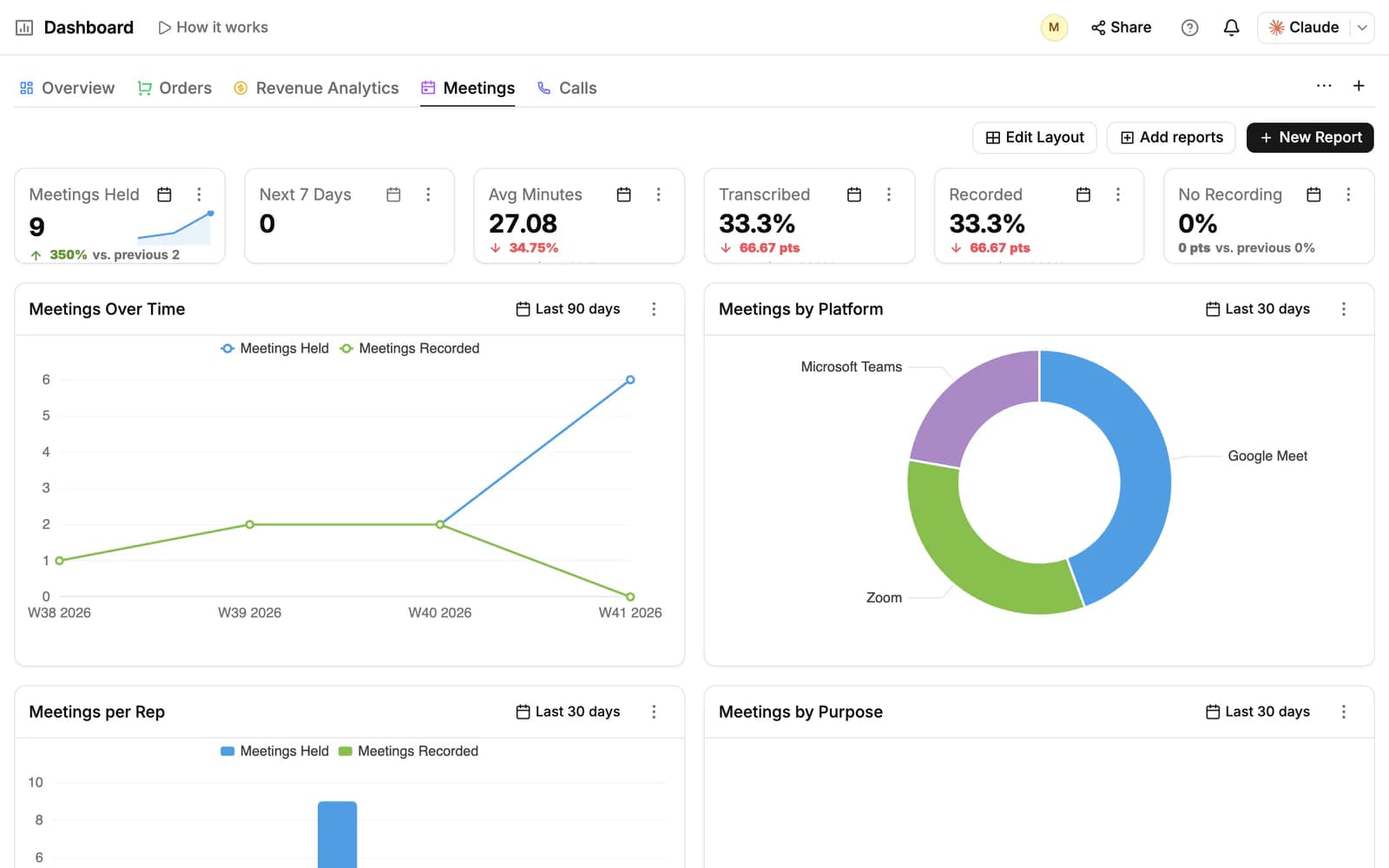
The built-in dashboards can't be renamed or deleted. Owners and admins can change the order of the tabs for the whole workspace, or hide a tab: open the three-dot menu at the end of the tab row and choose Reorder tabs.
Work with a card
- The calendar icon on a card sets its date range: All time, the last 7, 30 or 90 days, this or last month, quarter to date, year to date, this or last year, or a custom range. The range is saved with the report.
- On most charts you can click a bar or a slice to see the records behind it, and open them in their table with View in list.
- The card's menu has Edit, Refresh, Visualization to switch the chart type, Send to chat…, Remove from dashboard and Delete.
To arrange a dashboard, click Edit Layout, drag and resize the cards, and click Done. While you edit, Overlay report draws a second report on the same chart. Add reports puts reports you already have on the dashboard.
Build a report
Click New Report on a dashboard. When you save, the report is added to that dashboard.
- Name the report and, if you like, describe what it tracks.
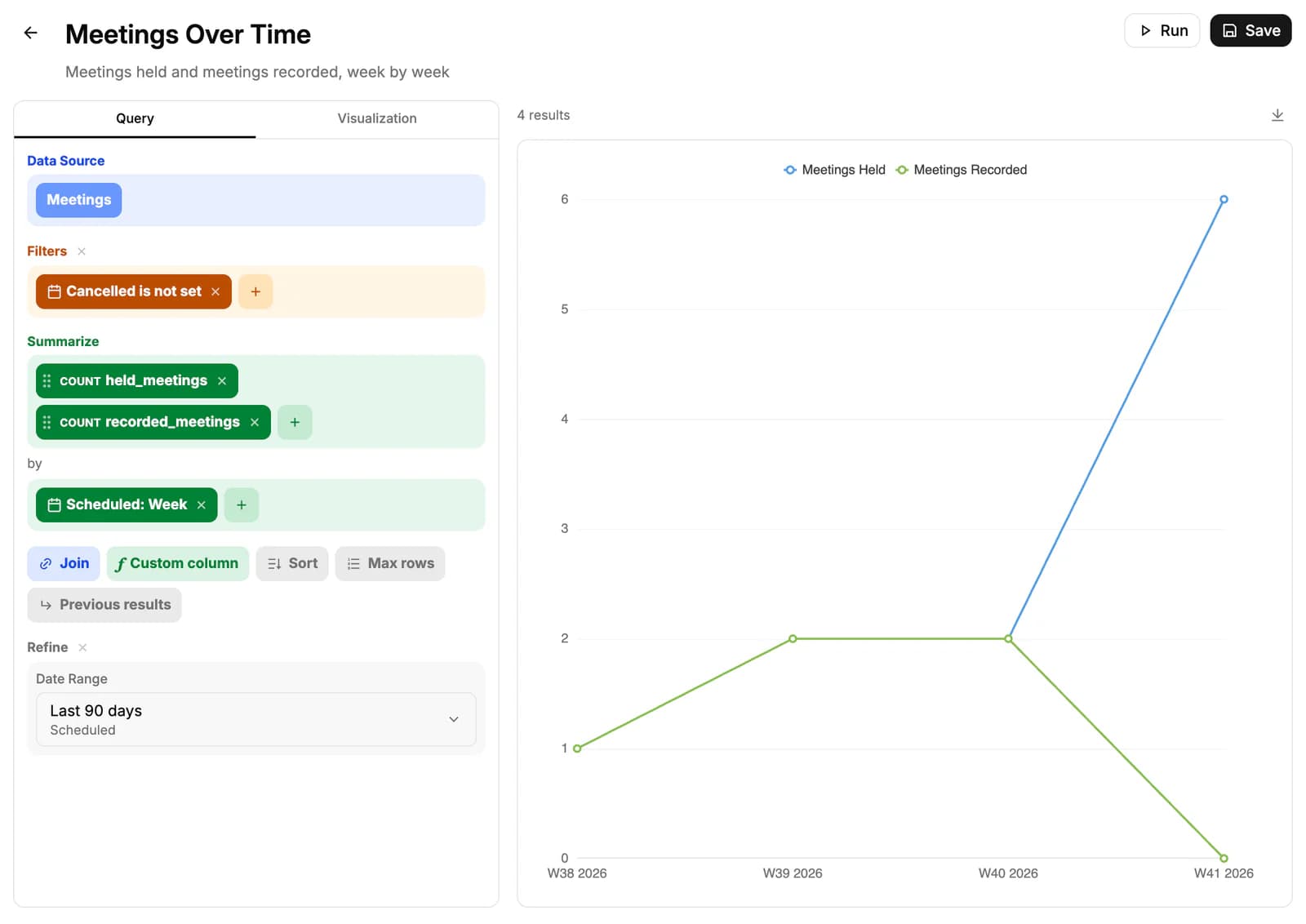
- Under Data Source, pick what to report on: opportunities (or their stage history, or their comments and notes), accounts, contacts, products, sales orders, invoices, quotes, samples, tasks, meetings, calls, activities or a custom object.
- Add Filters to keep only the records you want.
- Under Summarize, add a metric (Count, Sum, Average, Min, Max, Distinct Count or Ratio) and the fields to group by. Dates group by day, week, month, quarter or year.
- Under Date Range, pick a period. Turn on Compare to previous period to see the change.
- On the Visualization tab, choose the chart and its options, then click Save.
The preview updates as you go. For more, add a Join to bring in a related table, a Custom column with a formula, Sort, Max rows, or Previous results to run further steps on the result. The download icon above the preview saves the result as a CSV file.
Charts: Table, Bar, Line, Area, Pie, Donut, KPI, Map, Combo, Radial, Heatmap and Scatter. A chart is offered only when the data fits it: a map, for example, needs a group-by on a country field.
Add your own dashboards
Click + at the end of the tab row. A dashboard called New dashboard opens: fill it with New Report or Add reports.
To rename it, open the three-dot menu and choose Edit. There you set the name, description, icon and color, and who can open it: the whole workspace, or only the people you add. Admins can open every dashboard.
Delete in the same menu removes the dashboard for everyone. The reports on it are kept. Only a dashboard's owner or an admin can edit or delete it.
Share a read-only link
- Open the dashboard and click Share at the top.
- Open the Publish tab and turn on Anyone with the link can view.
- Choose when the link expires (Never, or after 1, 7 or 30 days) and click Copy.
Anyone with the link can view this dashboard, and nothing else, without signing in. Turn the switch off to stop the link working.
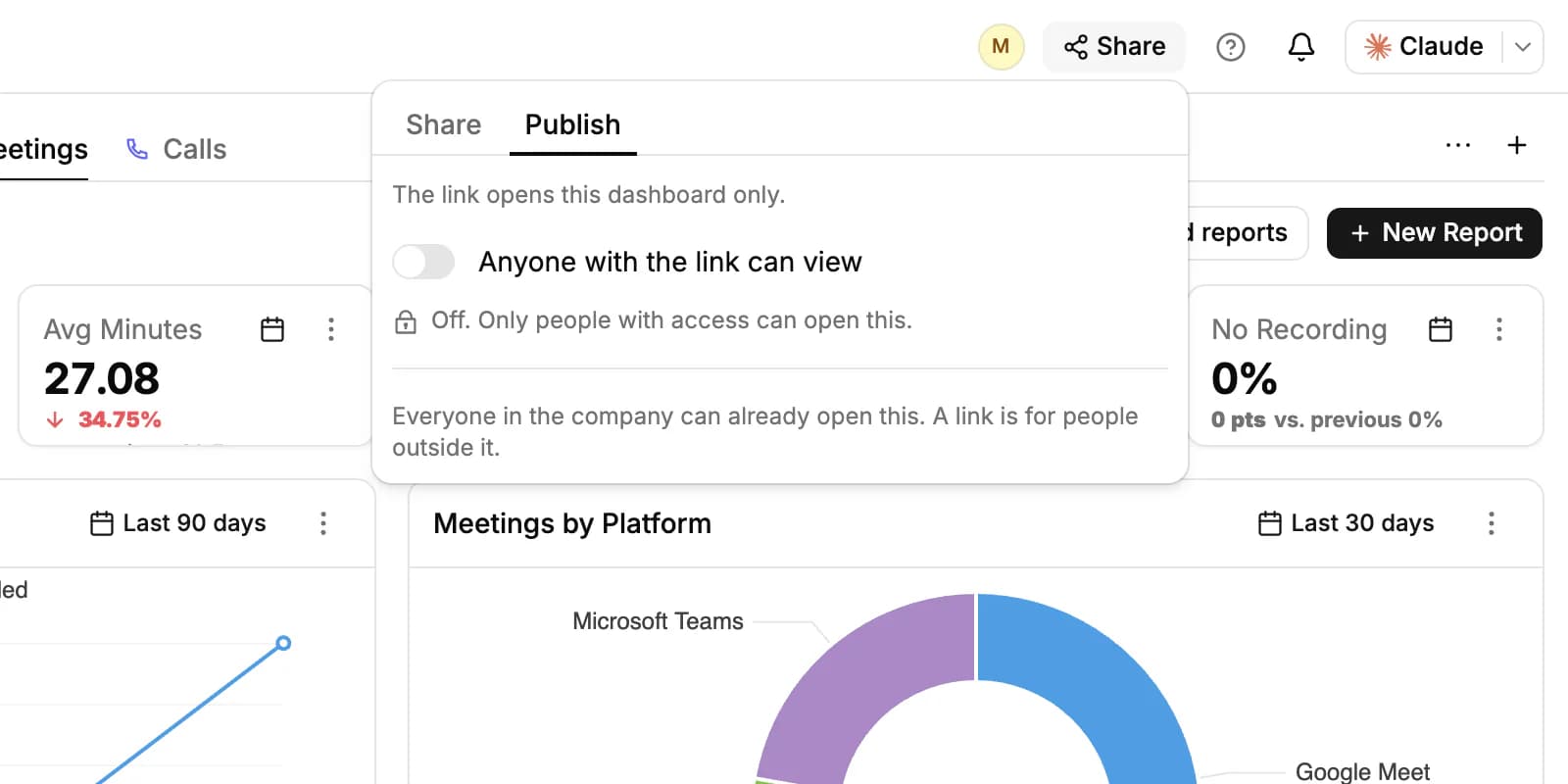
Only the dashboard's owner or an admin can publish it, and a private dashboard can't be published. The Calls dashboard has no Share button.
Get reports in your chat app
PromptLab can send your numbers to Telegram, Slack or WhatsApp on a schedule, daily, weekly or monthly. Connect the app on the Apps page first.
To send one report, choose Send to chat… in the card's menu. Pick the chat under Where, the period under Data, and when it goes out, then click Save. Later, Send now sends it at once and Stop sending ends it. Reports going to the same chat at the same time arrive together in one message.
For a summary, open Settings → Scheduled messages and click New. Describe the message in a sentence and the assistant sets it up, or choose Create from scratch and pick its parts:
- My day: today's and tomorrow's tasks, overdue tasks, follow-ups, upcoming meetings, overdue invoices and new leads.
- What happened: an AI recap of calls, emails, meetings and stage moves, for the Whole team or Only my work.
- Reports: your saved reports as tables.
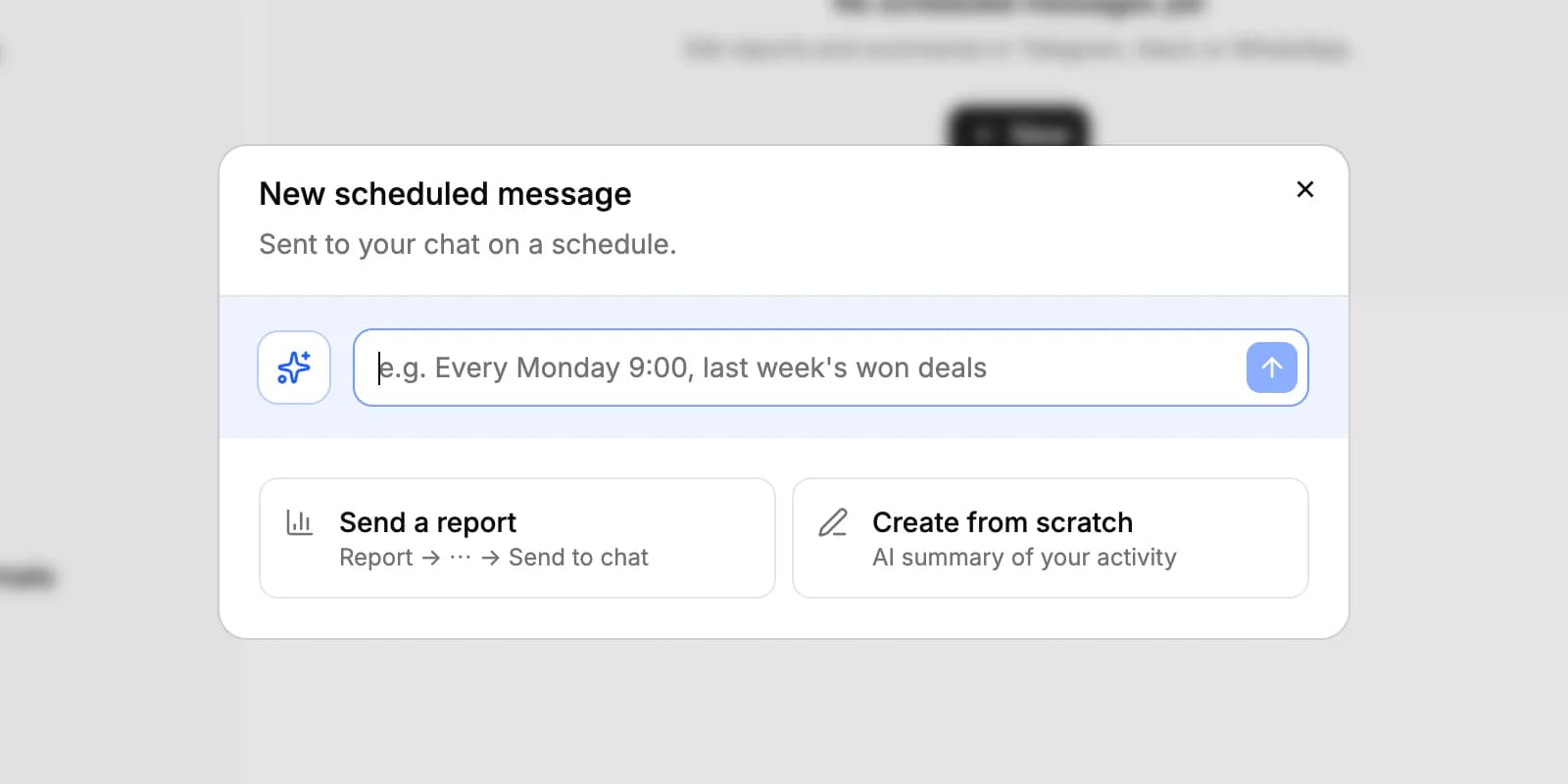
A scheduled message uses 6 credits per send, plus 4 for each AI part (My day and What happened). Reports sent with Send to chat are free. On the Basic plan each person can have 3 active scheduled messages; Professional, Business and Enterprise have no limit.
Related resources
For a guided tour of reporting in PromptLab, read Reporting.
To ask questions about your numbers in plain words, see Ask AI.
To connect Slack, Telegram or WhatsApp, see Apps.
Frequently asked questions
Which plans include dashboards and reports?
All plans. The only plan limit is on scheduled messages: 3 per person on Basic, no limit on Professional, Business and Enterprise.
Can scheduled reports go to email?
No. Scheduled messages go to Telegram, Slack or WhatsApp only.
Is there a TV or full-screen mode?
No. To show a dashboard to people outside PromptLab, publish a read-only link from Share.
Can I export a dashboard?
Not as a whole. You can download a report's result as a CSV file from the report builder.
Can I report on data from outside PromptLab?
No. Reports read the data in your PromptLab workspace, including custom objects.
Who can see a dashboard I create?
Everyone in the workspace with Analytics access, unless you make it private to the people you add. Admins can always open it.