



















Products & price lists
Keep your catalog of products, raw materials and bag types, and set up the price lists your quotes are built from.
Available on all plans.
Available for workspace members with access to Products. Price lists come with access to Quotes.
Products is your catalog: what you sell, in which unit, at what price and what it costs you. Raw materials and bag types sit next to it, and price lists give a group of customers their own prices.
Quotes, samples and sales orders all pick from this catalog, so it is the place to start.
Find the catalog pages
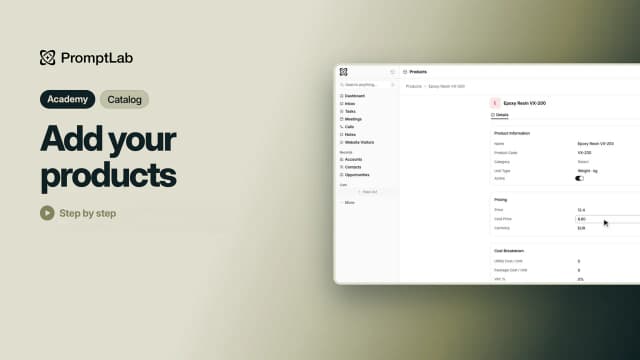
Products, Raw Materials, Bag Types and Price Lists aren't in the sidebar of a new workspace. Click More at the bottom of the sidebar and open Catalog. Click a page to open it, or the pin next to it to keep it in the sidebar.
Add a product
- Open Products and click New Product.
- Type a Name. Every product in the workspace needs a name of its own.
- Pick the Unit Type, for example kg, L or pcs. New products start in kg.
- Enter the Price and pick the Currency: USD, EUR, UZS or RUB.
- Click Create.
Open the product to fill in the rest: Product Code, Category, Cost Price, Utility Cost / Unit, Package Cost / Unit, VAT %, a Description, the Formulation and up to 10 Photos. To add a category, type its name in Category and create it.
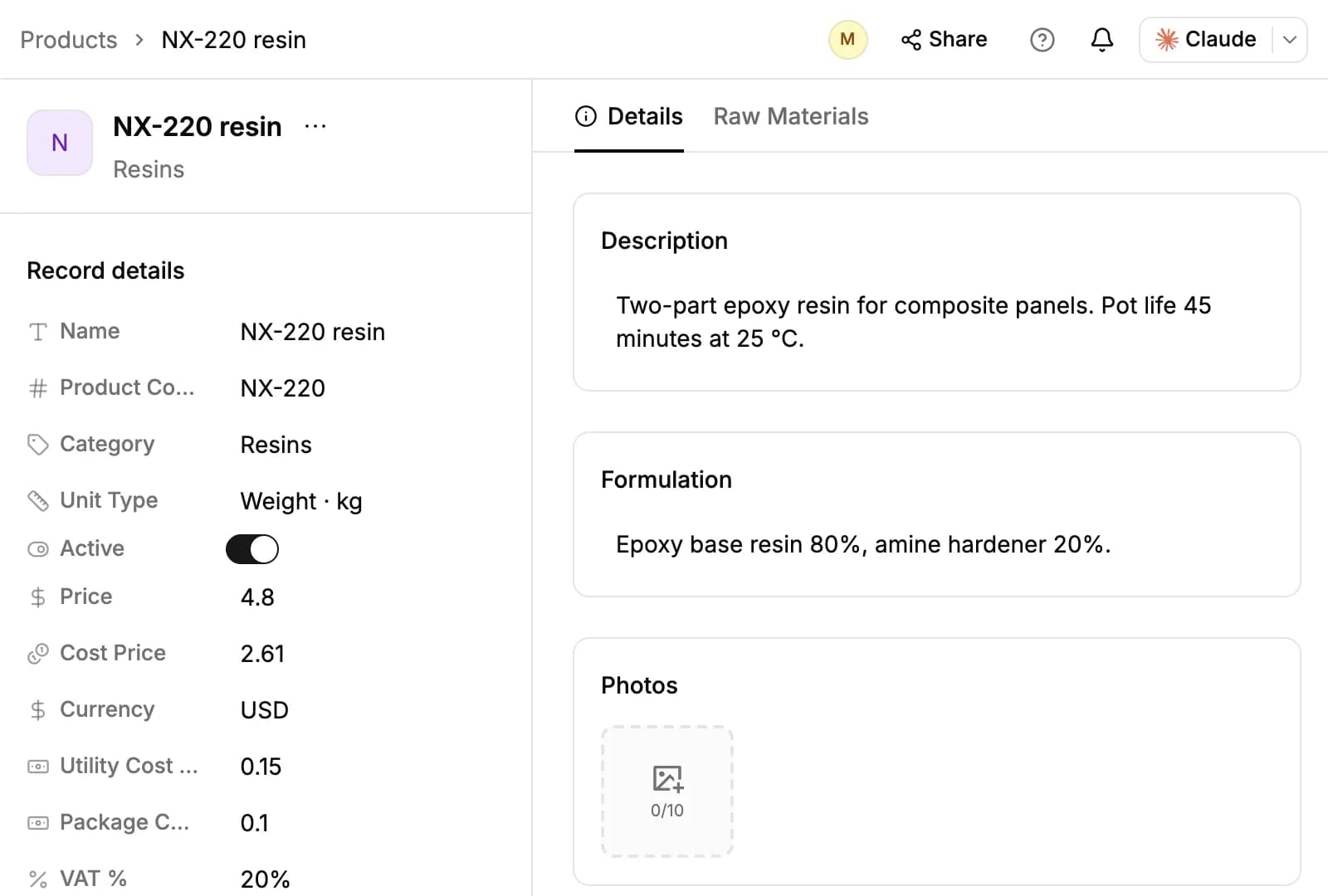
Switch off Active to retire a product. An inactive product can't be picked for a price list, a sample or a sales order.
VAT % is kept on the product for your records. Quotes, sales orders and invoices don't add tax.
Work out cost from raw materials
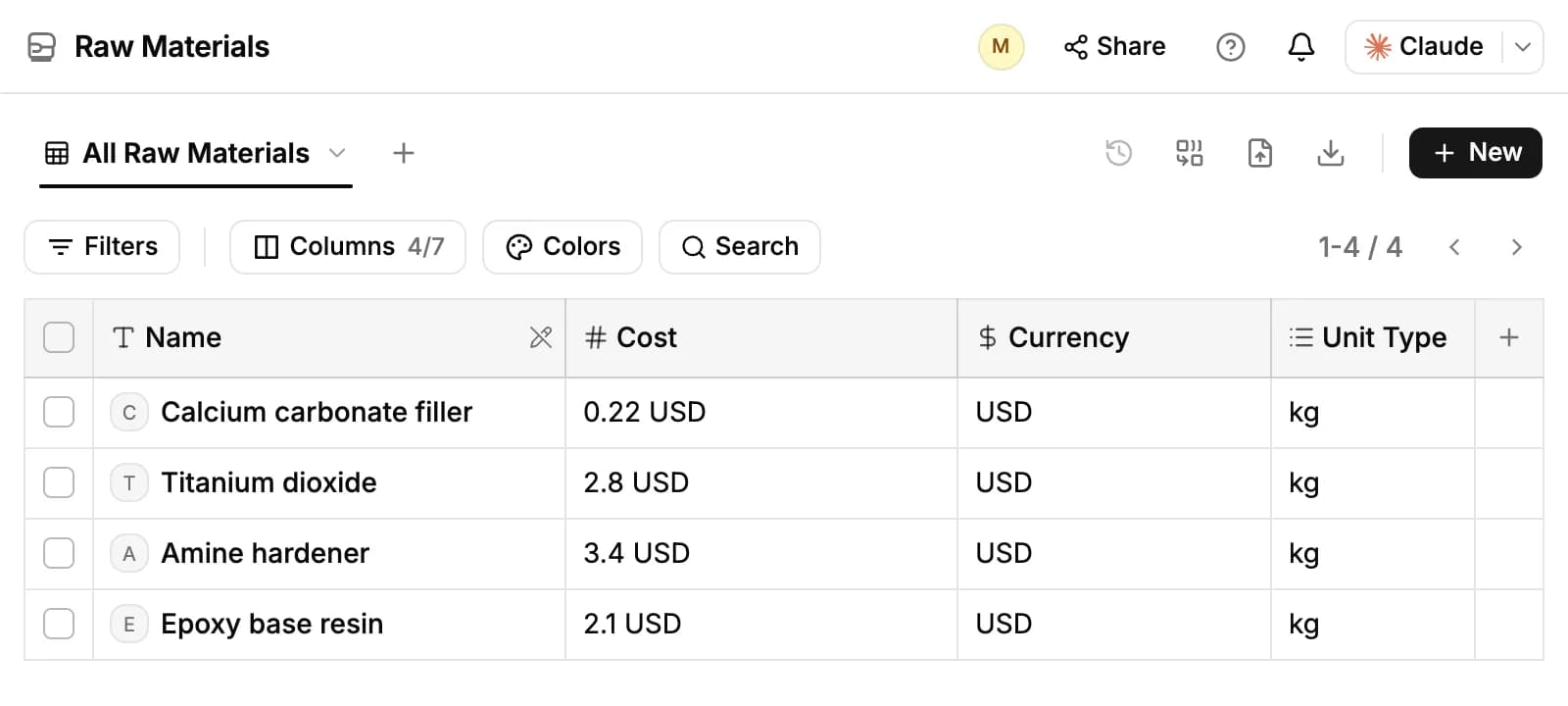
Raw materials are the inputs you buy. Each one has a Cost, a Currency and a Unit Type. Click New on the Raw Materials page to add one, then build a product's recipe:
- Open the product and click the Raw Materials tab.
- Click Add Raw Material and pick one, or create a new one from the list.
- Set how much of it goes into one unit of the product.
PromptLab then works out the Cost Price: the raw material lines plus Utility Cost / Unit and Package Cost / Unit. While a product has raw materials, you can't type its cost price by hand. When a raw material's cost changes, every product that uses it gets a new cost price, and the raw material keeps the change on its Price History tab.
Work with the product list
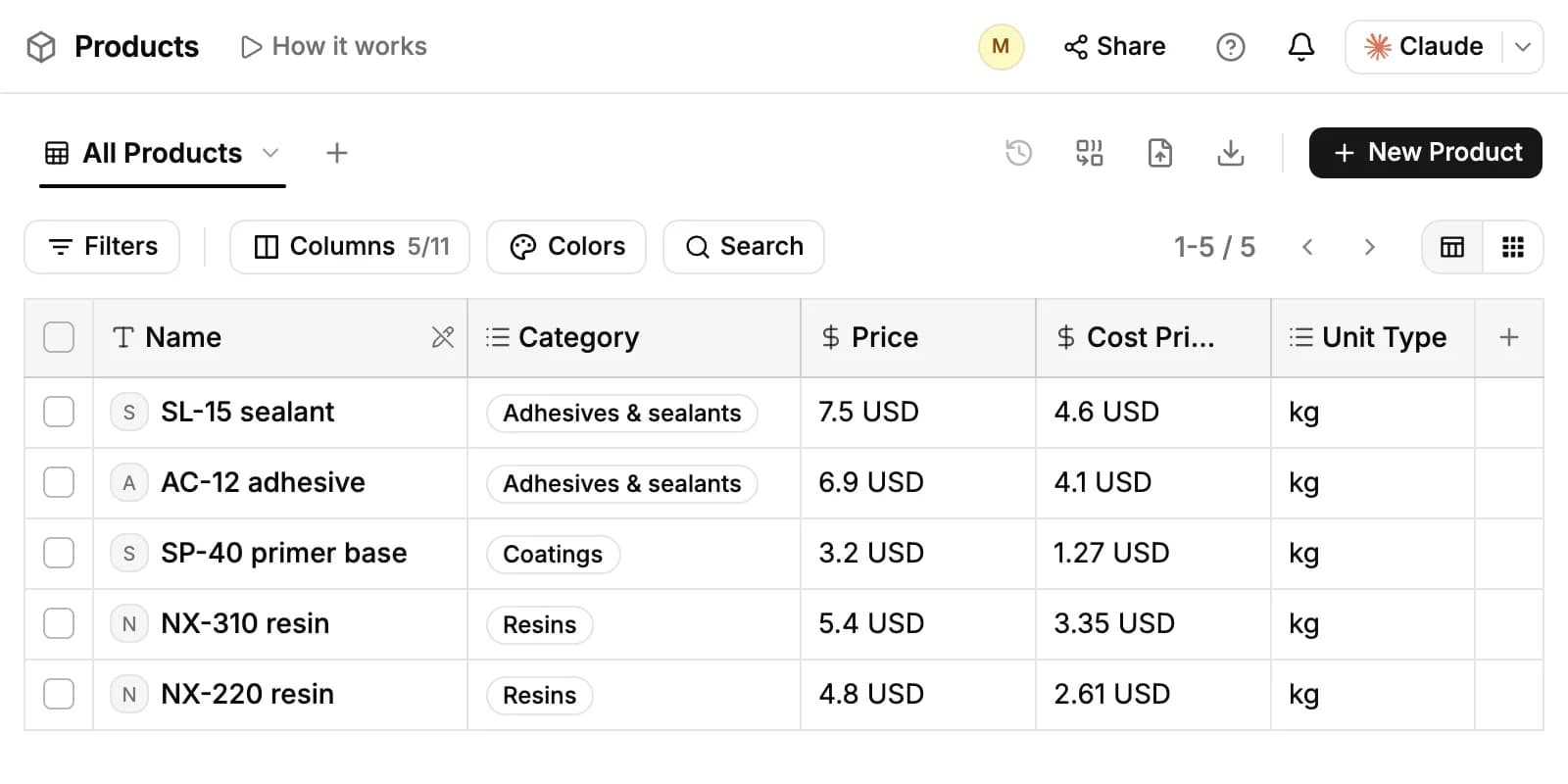
The Products page is a table you can edit in place: click a cell to change a price, a cost or a category. Switch to cards with the toggle at the top right. Narrow the list with Filters and Search, choose what to show with Columns, and add your own views with + next to All Products.
Find duplicates looks for products that are the same; select them and click Merge to keep one. Import loads a CSV or Excel file, and Export saves the table as CSV or Excel. Raw materials, bag types and price lists have the same buttons.
Set up price lists
A price list gives a group of customers, such as a region or your distributors, their own prices. For each product it holds an Additional Price that is added to the product's own price.
- Open Price Lists and click New.
- Give it a Name of its own. Region, Country and City are optional.
- Click Add Product, pick a product and type its additional price. Zero keeps the product's own price.
- Click Create.
To change a list, open it: add products with Add Product, click an additional price to edit it, or switch off Active so the list is no longer offered when someone creates a quote.
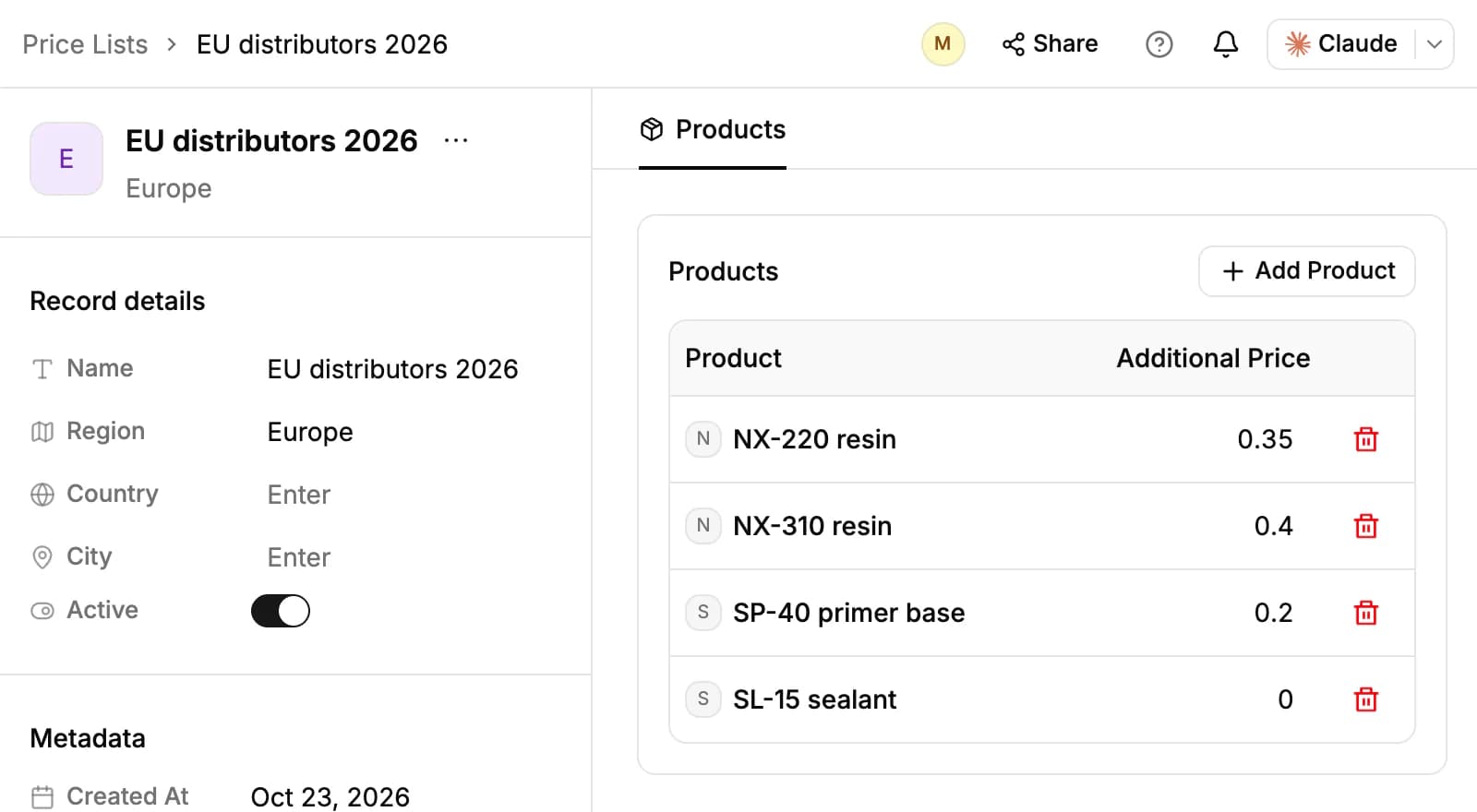
An additional price can't be negative, so a price list can raise a price but not lower it: give discounts on the quote. Price lists have no currency or end date of their own; each line is priced in its product's currency.
How price lists feed quotes
When a quote is linked to a price list, its products appear on the quote under Available products at the product's price plus the additional price. Only the products on that list can be added.
Change a price list's products or prices and PromptLab recalculates every quote linked to it, approved quotes included. A unit price someone typed on those quotes by hand is replaced.
A new product price doesn't change quotes that already have the product; each line keeps the price it was added at. A new cost price does update the cost and margin on Draft and Pending quotes.
Set up bag types
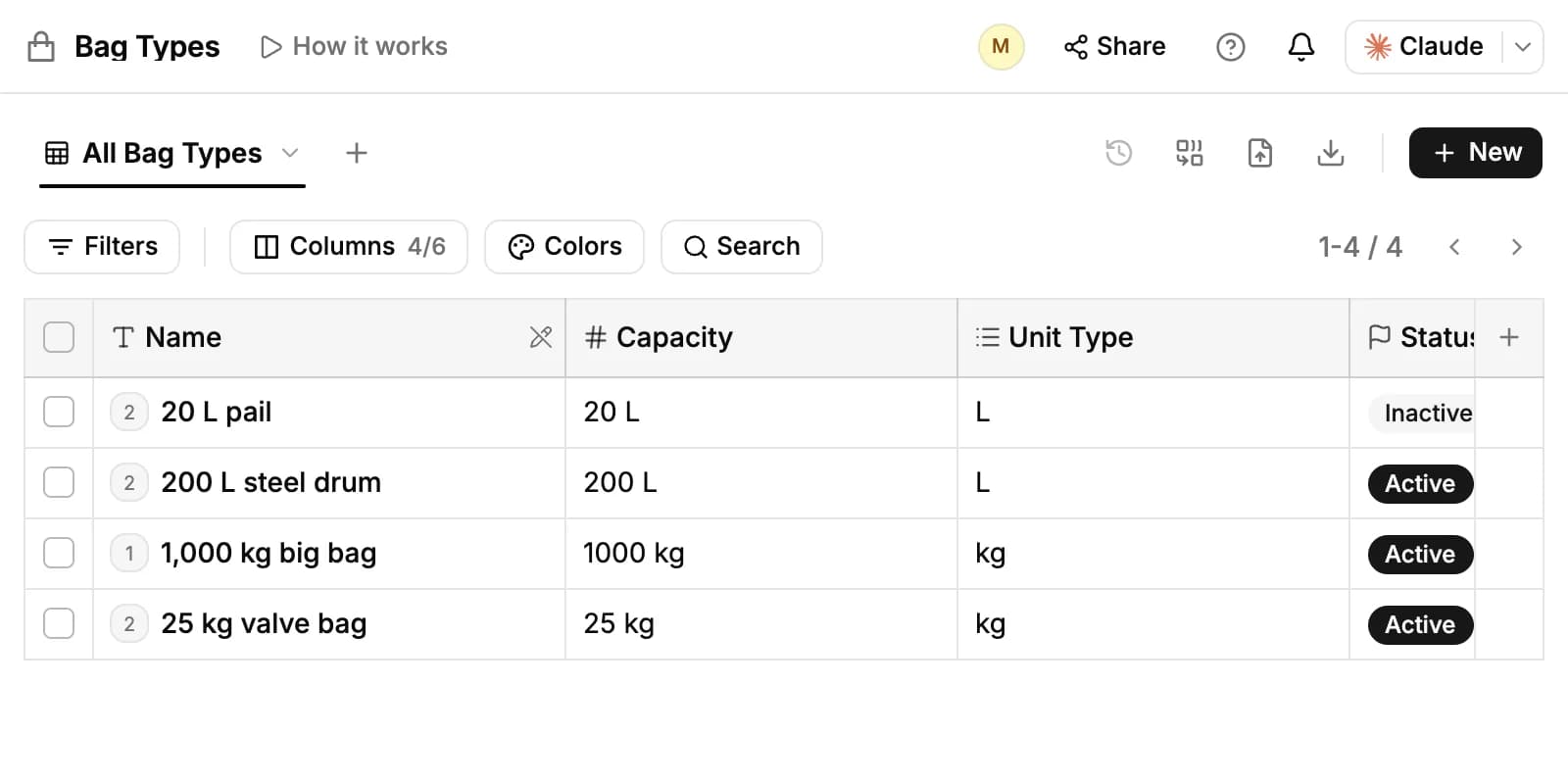
Bag types are the packaging you sell in, such as a 25 kg valve bag or a 1,000 kg big bag.
- Open Bag Types and click New.
- Fill in the Name, the Unit Type and the Capacity, which must be at least 1.
- Click Create.
Switch off Active to retire a bag type. To show bag types to customers, add them as featured items on a campaign: every email in the campaign then lists their name and capacity.
Related resources
To price a deal from your catalog, see Quotes.
Samples and sales orders pick from the same products: see Samples and Sales orders.
To feature products, bag types or price lists in your emails, see Campaigns.
Frequently asked questions
Which plans include products and price lists?
All plans.
Can I give one customer their own prices?
Make a price list for that customer, or for the group they belong to, and link it when you create their quote. Price lists aren't tied to an account.
Can a price list lower a price?
No. An additional price is zero or more. Give a discount on the quote's lines instead.
What happens to quotes when I change a product's price?
Nothing: lines already on a quote keep the price they were added at. A new cost price updates the margin on Draft and Pending quotes.
Do quotes or invoices add VAT?
No. VAT % is stored on the product for reference only.
Where do bag types show up?
In campaign emails, when you add them as featured items.