



















Campaigns
Send sequences of personal emails from your own mailboxes, with follow-ups that stop as soon as someone replies.
Available on all plans.
Available for workspace members with access to Campaigns, which is on by default.
Campaigns sends a sequence of emails to the people you pick: a first email, then follow-ups a few days apart. Every email goes out from a mailbox you've connected, one person at a time, inside the days and hours you set.
When someone replies, their emails stop and the reply shows up on the campaign. AI can write the whole sequence for you, or rewrite each email for the person who gets it.
For a short walkthrough of Campaigns, watch Create your first email campaign in PromptLab Academy.
WatchCreate a campaign
- Open Campaigns and click New Campaign.
- Pick what it's for: Intro, Price update or Offer. Or pick Write it with AI, or Start from a blank campaign.
- Name the campaign and write the emails on the Editor tab.
- Pick who gets it on the Leads tab, and the mailboxes and sending hours on the Settings tab.
- Click Create draft.
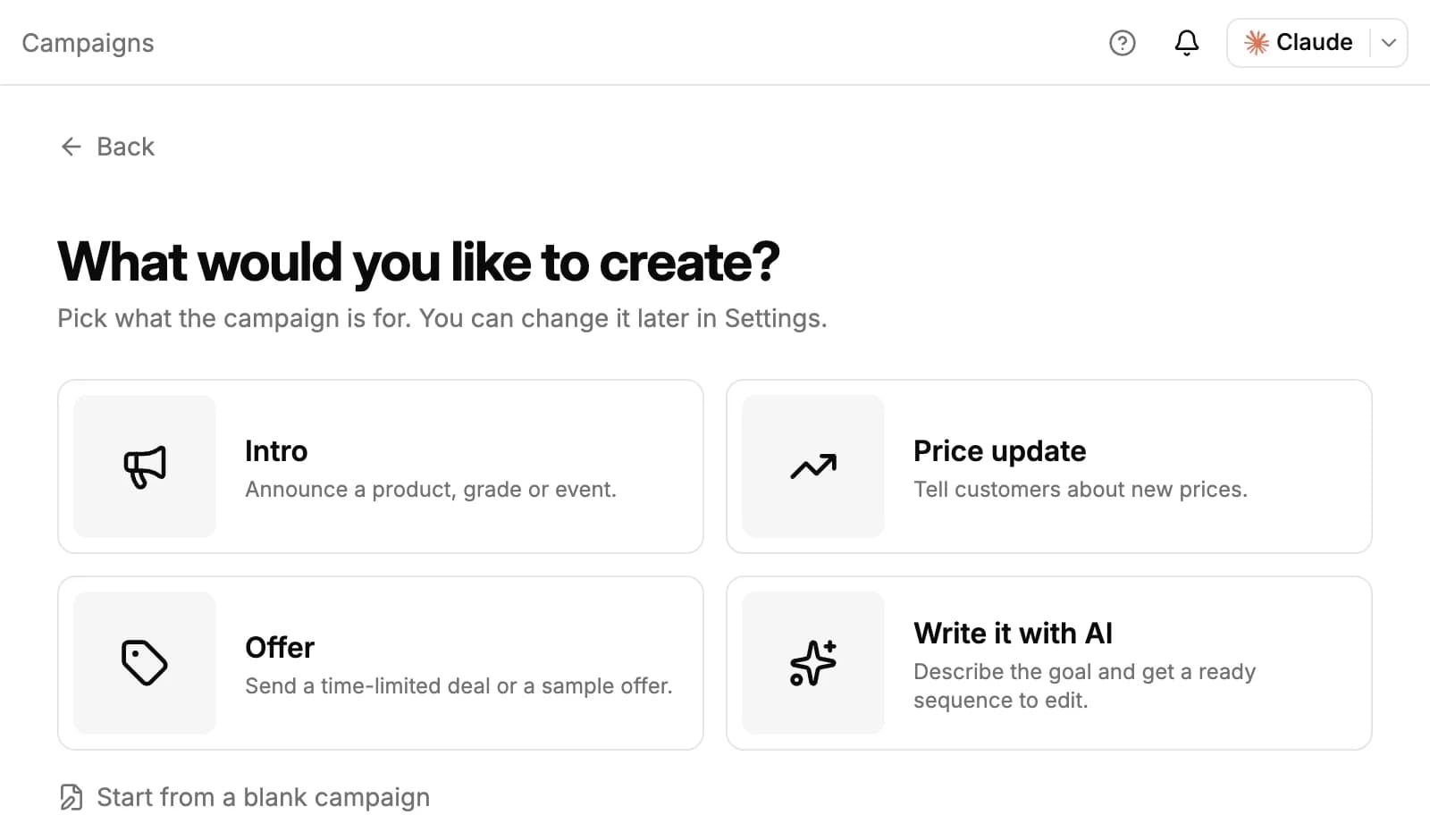
From then on, the draft saves itself as you edit. When it's ready, click Launch, check the summary under Ready to start? and click Start sending.
New workspaces don't pin Campaigns to the sidebar. Click More at the bottom of the sidebar, find Campaigns and pin it.
Write the emails
Each email has a subject and a body. The toolbar formats the text, adds details such as the contact's first name with Insert field, attaches files, and applies a saved email template or signature.
Click Add email for a follow-up, and set the wait before it in days, hours or minutes. A follow-up is skipped for anyone who has already replied. A campaign holds up to 10 emails.
To A/B test an email, click + beside it to add a version. People are split evenly between the versions, up to five (A to E), and you can stop sending a version at any time.
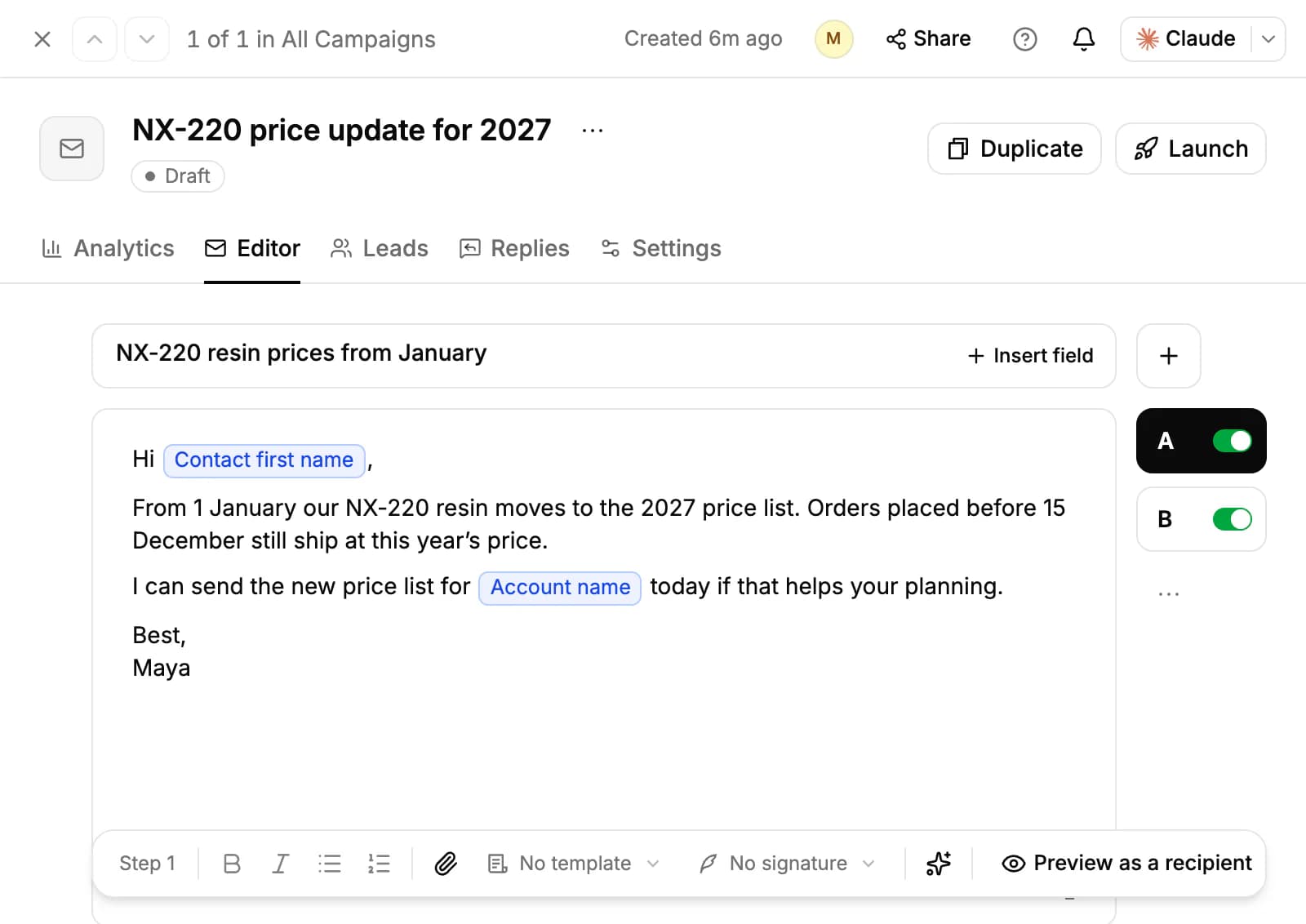
Click Preview as a recipient to read an email as one of the people who get it, or Send test to me to get it in your own mailbox.
To show part of your catalog, open Featured items on the Settings tab and pick products, raw materials, bag types or price lists. They're added at the end of every email in the campaign, the same for everyone.
Write it with AI
Pick Write it with AI when you create a campaign, or click AI draft at the top before you create the draft. Pick a goal (for example Introduce us to new buyers, Follow up on samples or Win back past customers), the tone and the number of emails, add anything the AI should know, and click Write draft. The AI replaces the emails in the draft, and you can change everything afterwards.
AI rewrite fits an email to each person who gets it: the same message, adjusted to their company and role. Turn it on for an email with the AI rewrite button (the sparkles) in the toolbar.
AI uses your workspace's weekly AI credits: 16 credits for a drafted campaign, and 6 credits for each email AI rewrites. The ready check shows the total before you start.
Choose who gets it
On the Leads tab, search your contacts by name or email, or start from Upload CSV, Enter emails manually, Pick accounts or Pick opportunities. Add by rule adds everyone who matches, for example accounts in Germany, or contacts who filled in one of your forms.
The table shows whether each person Can receive the emails. People with no email address, blocked addresses and people already in the campaign are skipped.
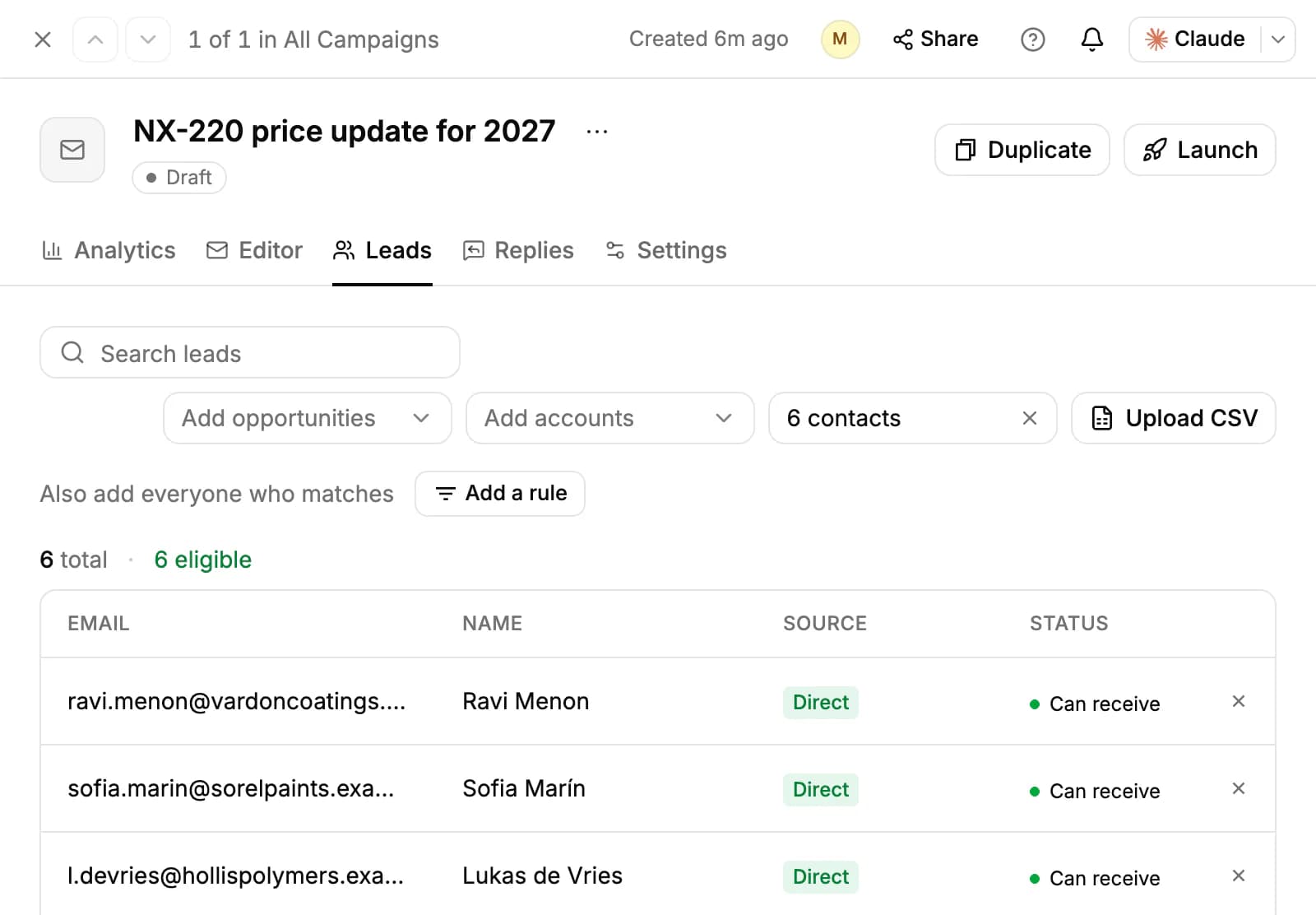
A file or a pasted list only adds people who are already contacts. Add new people in Contacts first.
Set mailboxes and sending pace
On the Settings tab, tick the mailboxes to send from under Accounts to use. With several, each person gets one of them and keeps it for their follow-ups. A campaign can rotate through up to 20 mailboxes.
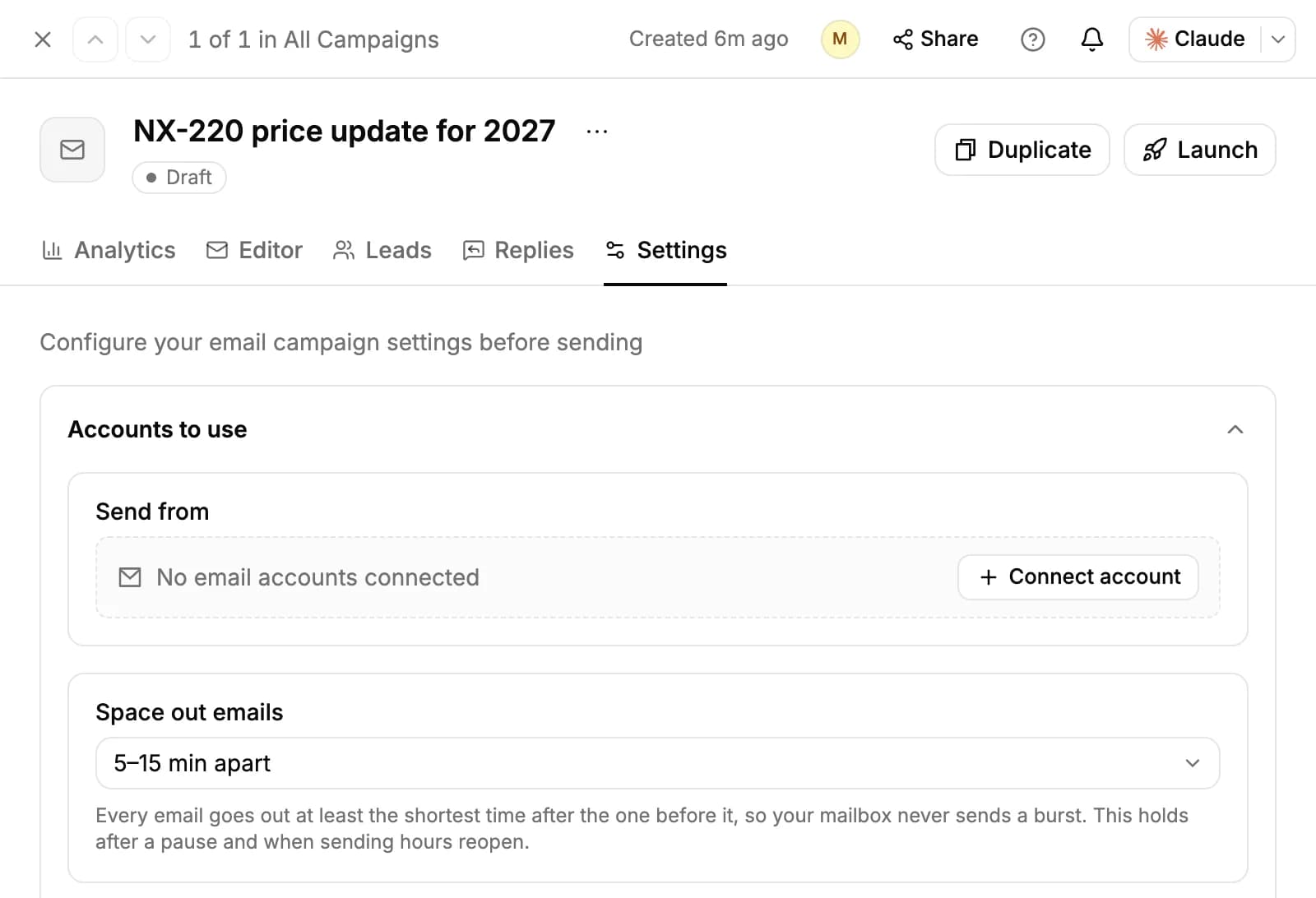
- Space out emails sets the gap between one email and the next, so your mailbox never sends a burst. The default is 5 to 15 minutes; All at once skips it.
- Schedule & limits sets the days and hours emails go out, in the time zone you choose, and optional dates to start and stop sending. New campaigns send on weekdays from 9:00 to 17:00.
- Tell me when someone replies is on by default.
- Under Advanced settings, Basic deliverability turns on Track opens, Track link clicks and Add an unsubscribe link. All three start off.
Each mailbox also has a daily limit: 30 campaign emails a day for a free Gmail or Outlook.com address, and 50 for Google Workspace, Microsoft 365 and other mail servers. A new mailbox warms up first: 10 a day in its first week, 20 in the second and 30 in the third. To change the limit or turn warm-up off, open Apps, find the mailbox and choose Daily limit from its menu. When the spacing and a mailbox limit differ, the slower one wins.
Replies, bounces and unsubscribes
- Replies: when someone replies, PromptLab stops their emails and, with Tell me when someone replies on, sends you a notification. The conversation shows on the campaign's Replies tab.
- Bounces: when an email comes back as undeliverable, that person gets no more emails from the campaign. Bounces are listed on the Analytics tab with the reason.
- Unsubscribes: with the unsubscribe link on, someone who uses it gets no more emails from any of your campaigns.
Pause, edit and track a campaign
A campaign is a Draft until you start it, then Sending. Pause stops it and Resume picks up where it left off. When everyone has had every email, it's Finished.
While a campaign sends, its emails are locked: you can only turn a version on or off. Pause it to change the emails; emails people already got keep their place. To send a changed copy, use Duplicate, which starts as a draft.
If a sending mailbox stops working (disconnected, expired or without permission to send), the campaign pauses itself and shows how to fix it.
The Analytics tab shows how many people started the sequence, emails sent, open and click rates (when tracking is on), replies and bounces, with a trend chart and numbers for each email. On the Leads tab, Retry failed sends again to people whose email didn't go out, and Export downloads the list.
Related resources
To see which people from a campaign visit your website, see Website visitors.
To answer replies and other conversations, see Inbox.
To compare plans and weekly AI credits, see Plans & pricing.
Frequently asked questions
How many emails can I send a day?
It depends on your mailboxes: 30 a day for a free Gmail or Outlook.com address and 50 for a business mailbox, fewer while a new mailbox warms up. To send more, add mailboxes: a campaign rotates through up to 20.
Do I need to connect a mailbox?
Yes. Campaign emails go out from Gmail, Outlook, Exchange or another mailbox you've connected, so replies come back to you.
Can I email people who aren't contacts yet?
Not directly. Add them in Contacts first (you can import a spreadsheet), then add them to the campaign.
Does a reply always stop the sequence?
Yes. Anyone who replies gets no more emails from the campaign.
Is there a warm-up network?
No. Warm-up means a new mailbox sends fewer campaign emails in its first three weeks. PromptLab doesn't trade warm-up emails with other mailboxes.
Which plans include Campaigns?
Every plan. AI drafting and AI rewrite use your weekly AI credits.