



















Sales orders
Record confirmed orders with their prices, payment terms and delivery dates, and keep track of payments and invoices.
Available on all plans.
Available for workspace members with access to Sales Orders. Only owners and admins can move an order to another account.
A sales order records what a customer bought: the products, quantities and prices, the trade and payment terms, the delivery dates and the payments received. PromptLab works out what is still owed and when it's due.
Create an order when a customer confirms. There's no button that turns a quote into an order: you create the order with the quote's lines.
To see an approved quote become an order, watch Turn a quote into a sales order in PromptLab Academy.
WatchCreate an order
- Open Sales Orders and click New Order.
- Pick the Account. Assignee starts as you.
- Pick a Product and enter the Quantity. The Unit Type and Price fill in from the product; change the price to what you agreed. Click Add Product for more lines.
- Fill in the terms: the Prepayment, Upon Delivery and Deferred percentages, Deferred Days, Trade Terms, Delivery Cost, Plan Delivery Date and Delivery Date.
- Record money already received with Add Payment.
- Leave Create Invoice on to create the invoice with the order, with its PO Number and Shipping Date, then click Create.
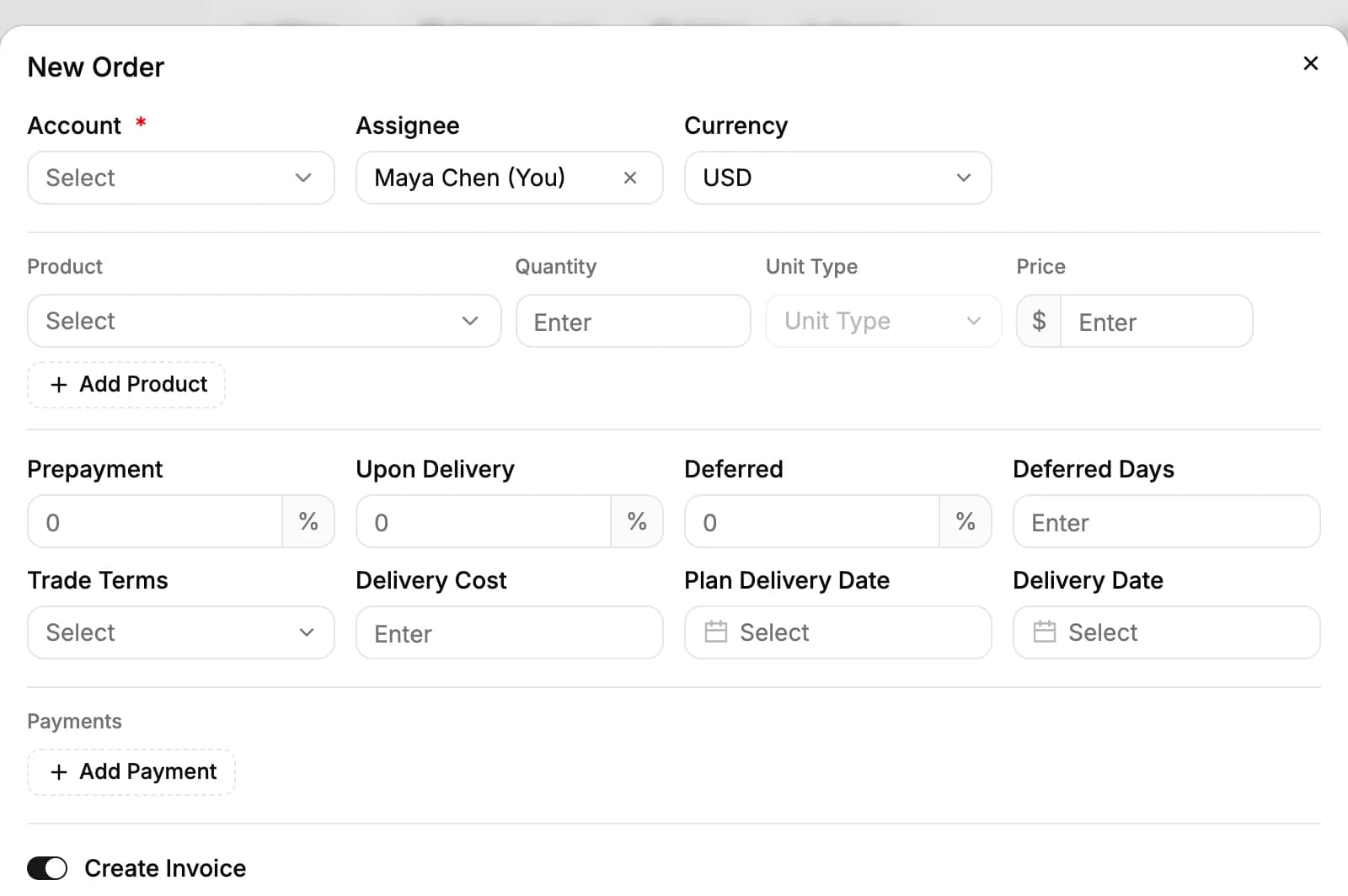
The Currency follows the first product you add, and you can change it. If the account has trade and payment terms saved, they fill in when you pick it. Trade terms are the Incoterms, from EXW to CIF. Orders are numbered SO-0001 and onward; owners and admins change the format in Settings → Counter Formats.
New workspaces don't pin Sales Orders to the sidebar. Click More at the bottom of the sidebar, open Revenue and pin Sales Orders.
From quote to order
- When the customer accepts, set the quote's Status to Approved.
- Create the order on the Sales Orders page with the quote's products, quantities and prices.
- To keep track, write the quote number in the order's General Note.
An order isn't linked to a quote, and approving a quote doesn't create an order by itself.
Track payments
Payment terms split the price into a prepayment, a part paid on delivery and a deferred part due a number of days later. When you change them on an order, the three percentages must add up to 100%.
Record each payment on the order's Payments tab with its Amount, Date and any Banking fee. PromptLab then fills in Paid Amount, Paid Date and Remaining Balance and sets the payment status: Waiting for payment, Partially paid or Paid. A banking fee counts toward the amount paid.
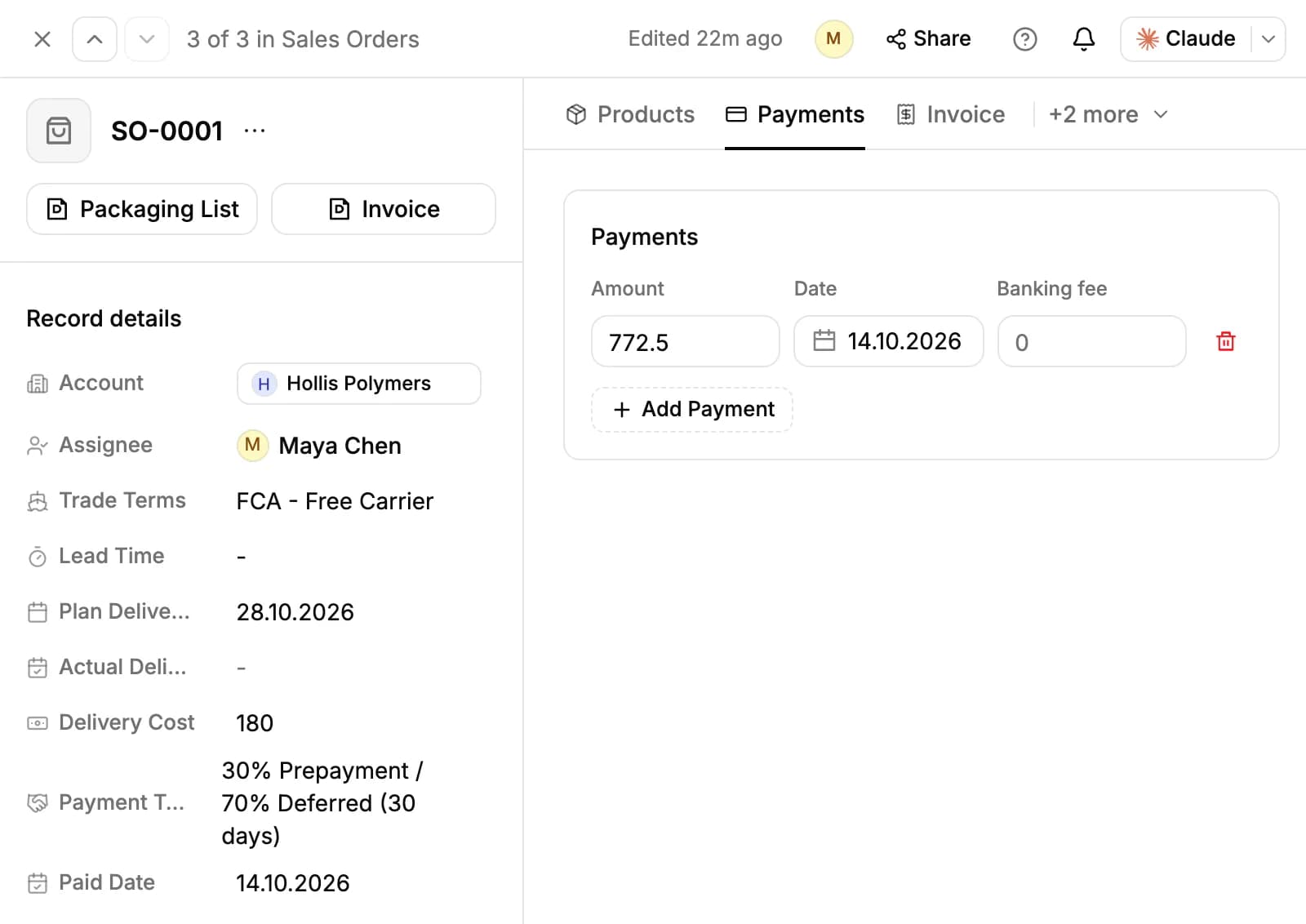
The Payment Due Date is the delivery date, or the planned one until the order is delivered, plus the Deferred Days. Once it has passed, the order counts as overdue.
Products, delivery and lead time
The Products tab holds the order's lines and its total; change a line or click Add Product there. Enter a Delivery Cost for the whole order and PromptLab splits it across the lines by quantity. Under each line you see its share and the netback: the price per unit after delivery.
Lead Time counts the days from the invoice's shipping date to the order's actual delivery date.
Invoices and packaging lists
An order has one invoice. Create it with the order, or later with Create Invoice at the top of the order. Invoices are numbered INV-0001 and onward.
The Invoice tab holds the invoice number, the Shipping Date, the PO Number and Batch Number, and the packing details: Total Pallets, Pallet Type, and Qty Bags, Net Weight and Gross Weight for each product. Upload related documents there too.
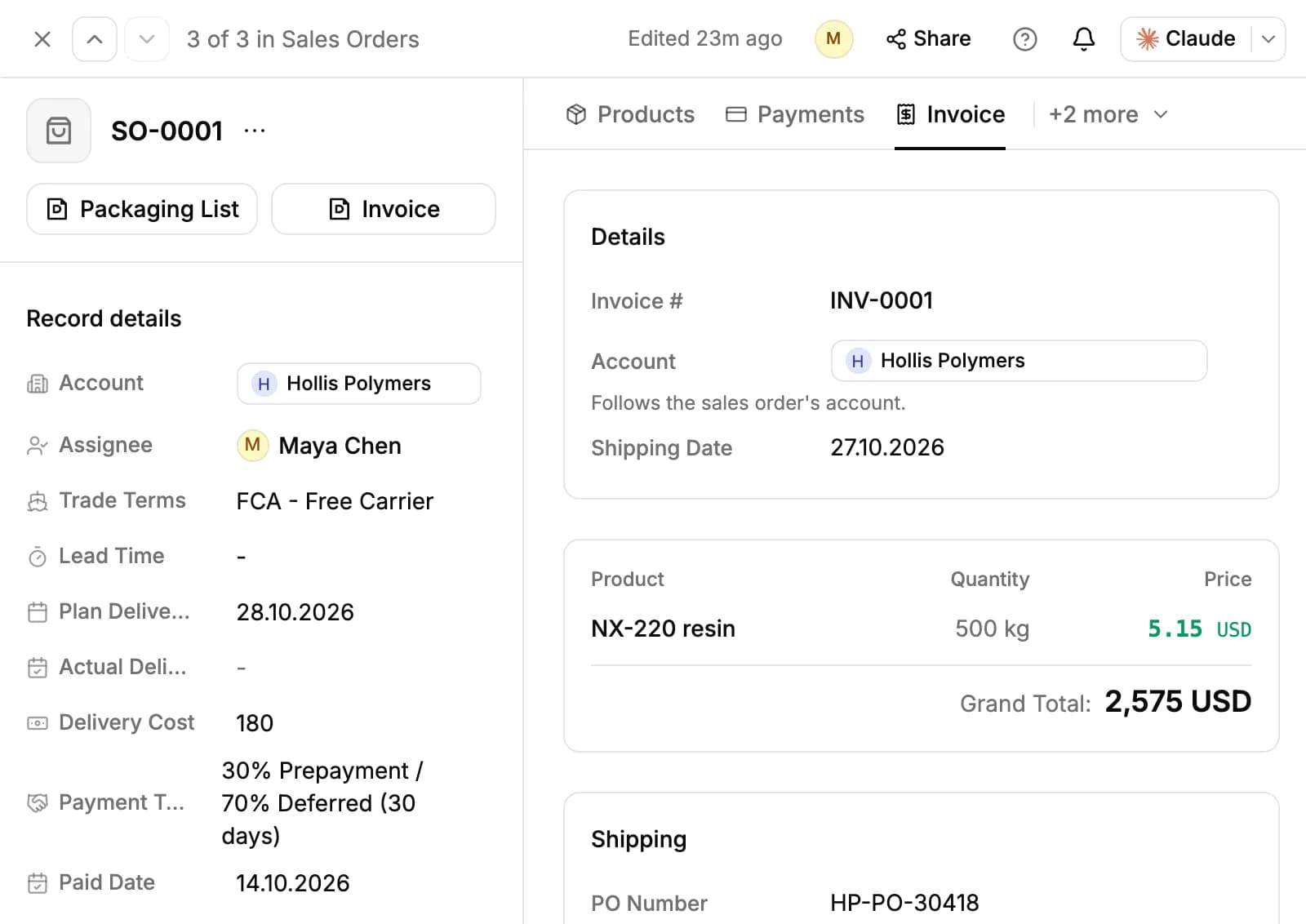
Click Invoice or Packaging List at the top of the order to open them as PDFs. Invoices don't add tax.
The Sales Orders page
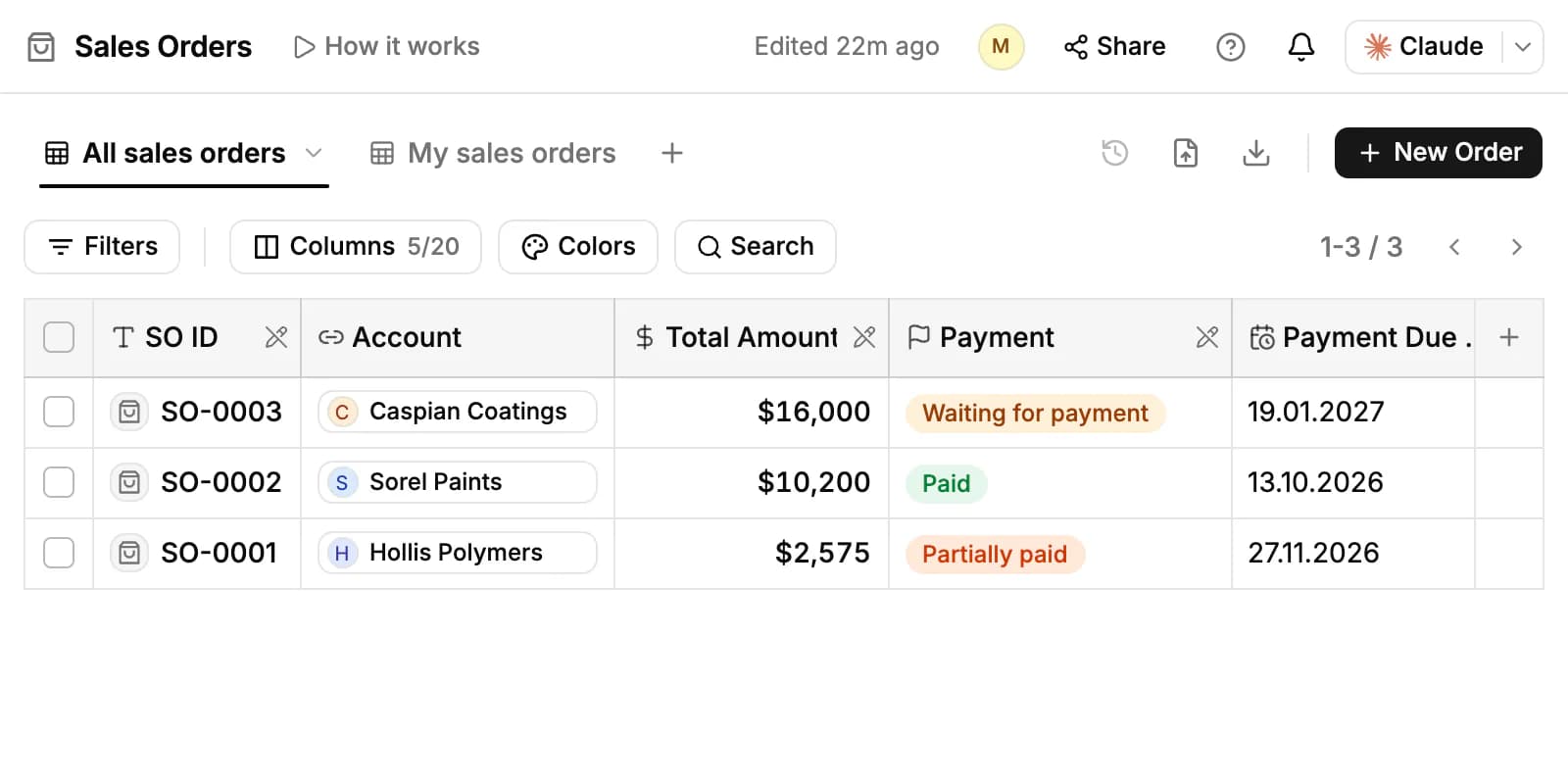
All sales orders and My sales orders (the ones assigned to you) list orders with their account, products, totals, payment status, dates and Overdue days. An order with several products has a row for each; expand it with the arrow. Click a cell to edit it, narrow the list with Filters and Search, and use Import and Export for CSV or Excel files.
The Dashboard has an Orders tab with revenue, open orders, volume, customers, expected cash and sales by country, and a Revenue Analytics tab. On an account's Overview, the highlights show what it owes, what is overdue and its lifetime sales once it has orders.
Share an order with your customer
Click Share at the top of the order, open Publish and turn on Anyone with the link can view. Your customer sees the items, prices, totals, delivery dates and the invoice, never your costs or notes. The link works until you turn it off, or for 1, 7 or 30 days if you set Link expires.
Related resources
Orders usually follow an approved quote: see Quotes.
Products and their prices come from Products & price lists.
To chart your orders and revenue, see Dashboards.
Frequently asked questions
Which plans include sales orders?
All plans.
Can I turn a quote into a sales order with one click?
No. Approve the quote, then create the order with the same products, quantities and prices.
Can an order have more than one invoice?
No. Each order has one invoice, created with the order or later from it.
Who can delete an order?
The person who created it, or a workspace owner or admin. Deleting an order deletes its invoice too.
Can I move an order to another account?
Owners and admins can. The invoice moves with it.
Which currencies can an order use?
USD, EUR, UZS and RUB.