



















Samples
Send product samples to customers and track each one from the request to the test result.
Available on all plans.
Available for workspace members with access to Samples.
A sample is a small quantity of one or more products sent to a customer to test. PromptLab keeps the shipment, the dates, the tracking number and the result together, linked to the account, contact and opportunity.
Each sample gets a number such as SMP-0001 and moves through nine statuses, from Requested to the test result.
Create a sample
- Open Samples and click New Sample.
- Pick the Account and Contact. Both are optional.
- Pick a Product and enter the Quantity. Add a Grade if the product comes in several. Click Add Product to send more than one product in the same sample.
- Add a Shipping Address and Notes if you like, and click Create.
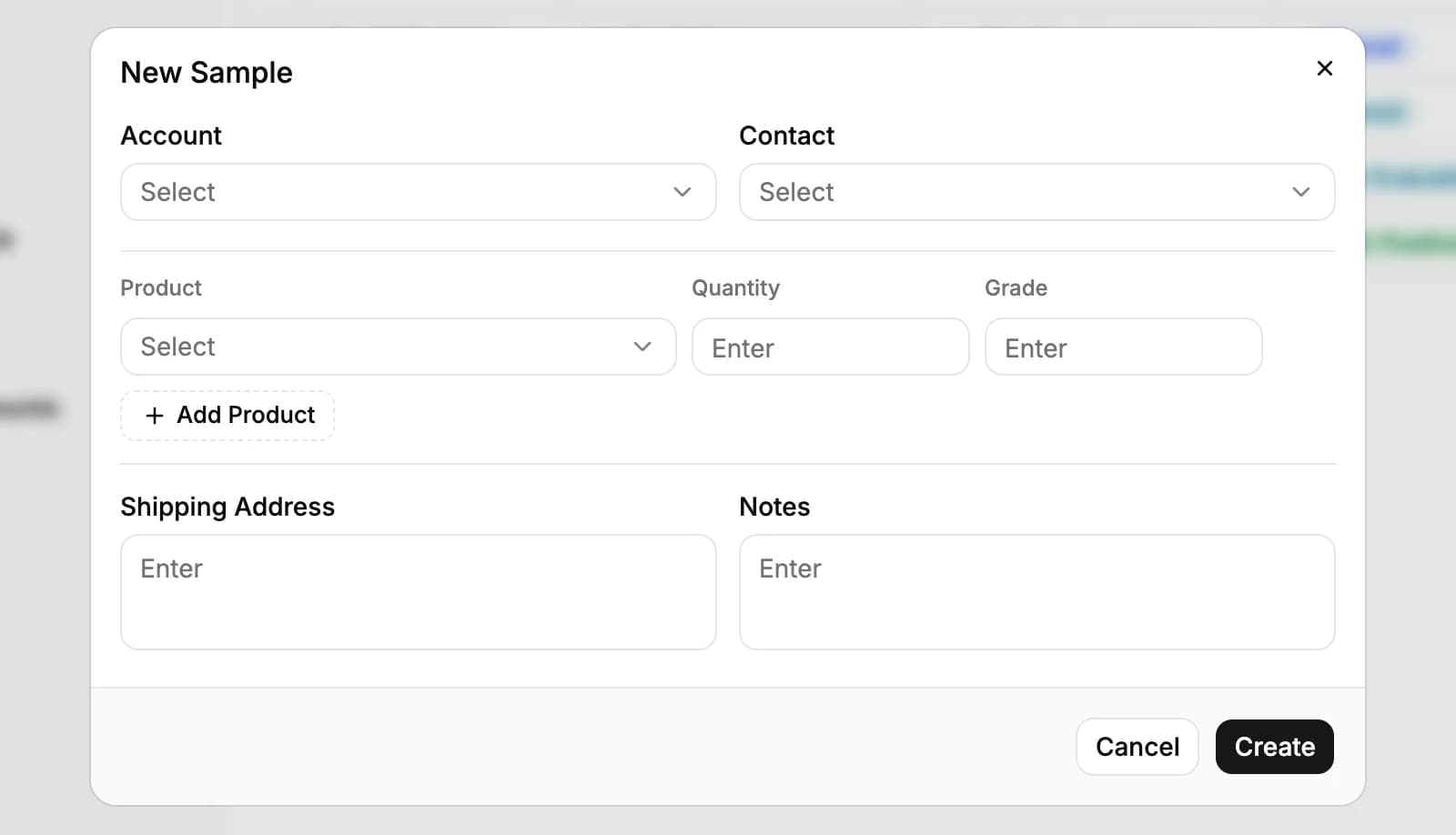
The sample starts as Requested, dated today. To link it to an opportunity, open it and pick one under Opportunity.
Only active products can be picked. New workspaces don't pin Samples to the sidebar: click More at the bottom of the sidebar, open Revenue and pin Samples.
Track the shipment
Open the sample and fill in the fields on the left as it moves:
- Status: Requested, Preparing, Sent, In Transit, Delivered, Under Evaluation, then Result: Positive, Result: Conditional or Result: Negative.
- Tracking Number: the carrier's number for the parcel.
- Sent Date and Delivered Date. The Requested Date is set when the sample is created.
- Account, Contact and Opportunity, and the Shipping Address.
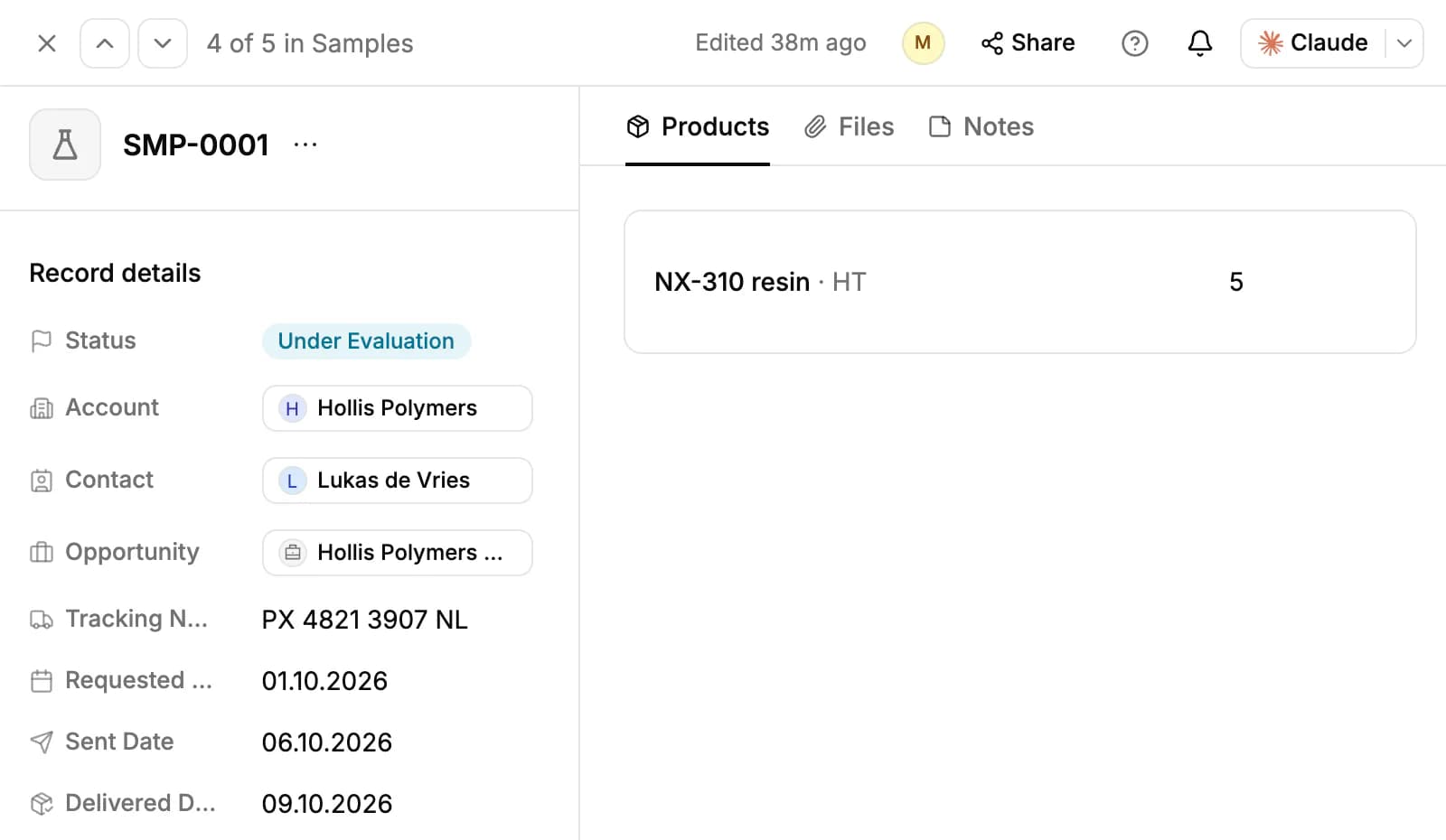
Dates don't fill in when you change the status, so set them as you go. PromptLab stores the tracking number but doesn't look up the parcel with the carrier.
Record the result
When the customer starts testing, set the status to Under Evaluation. Write what they found in Test Result Notes, then set the result: Result: Positive, Result: Conditional or Result: Negative.
Keep test reports and certificates on the sample's Files tab, up to 10 files per upload and 50 MB each, and running notes on its Notes tab.
Change a sample
On the sample's page, click any field on the left to change it, and a product's quantity on the Products tab. To change the products themselves, click the sample's row on the Samples page: the Update Sample window opens with every field, the product lines and the attachments in one place.
To delete a sample, click the three dots next to its number and choose Delete.
Follow every sample
The Samples page lists every sample with its account, products and status. Click a sample's number to open its page. Narrow the list with Filters and Search, choose what to show with Columns, and use Import and Export for CSV or Excel files.
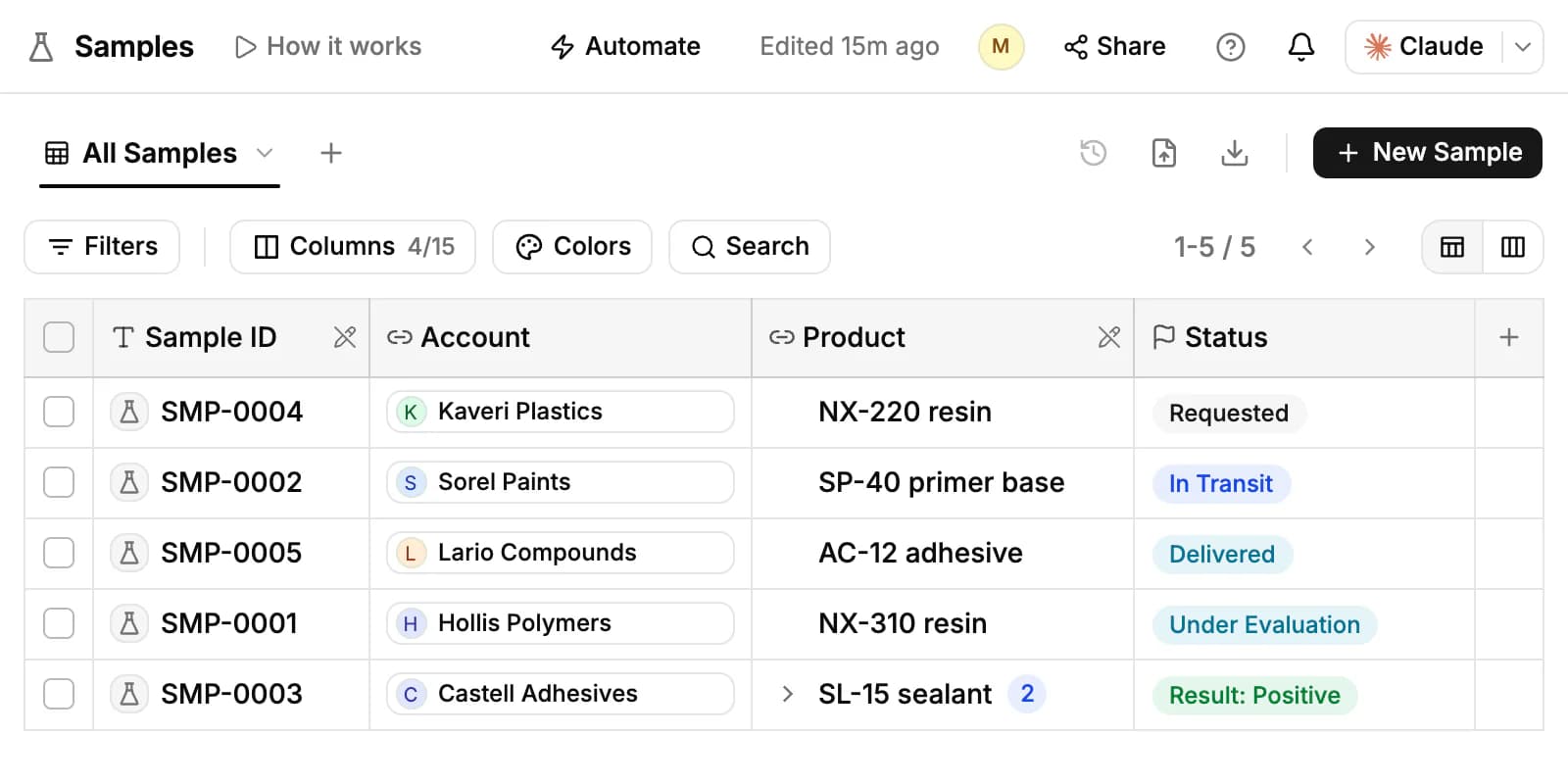
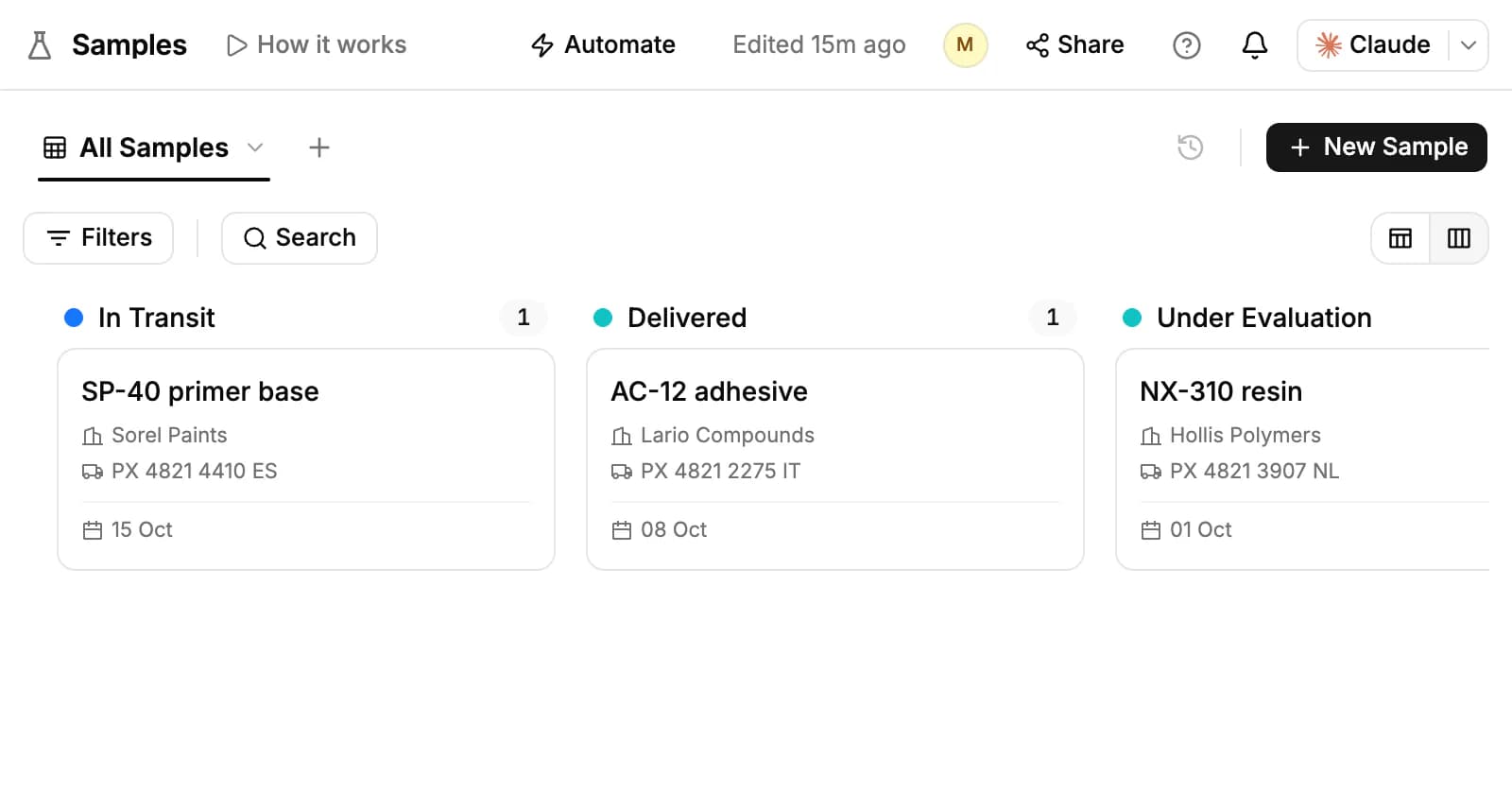
Switch to the board with the toggle at the top right. It has a column for each status; drag a card to move the sample on. Each card shows the product, the account, the tracking number and the requested date.
On an account's Overview, the highlights show how many samples it has and the latest status, until the account places its first order. Samples linked to one of the account's opportunities count too.
Share tracking with your customer
- Click Share at the top of the sample and open the Publish tab.
- Turn on Anyone with the link can view. PromptLab copies the link for you.
- Send the link. Under Link expires you can make it stop working after 1, 7 or 30 days.
Your customer sees the product, quantity, status, dates and tracking number, and nothing else.
Related resources
Samples pick from your catalog: see Products & price lists.
When the result is positive, price the order in Quotes.
A workflow can start when a sample is requested or its status changes: see Workflows.
Frequently asked questions
Which plans include samples?
All plans.
Can one sample hold several products?
Yes. Click Add Product in the New Sample window for each one, with its own quantity and grade.
Does a sample need an account?
No. The account, contact and opportunity are all optional, and you can add them later.
Do the dates fill in on their own?
Only the requested date. Set the sent and delivered dates yourself.
Can PromptLab track the parcel?
No. It stores the tracking number; check the delivery on the carrier's site.
Can I attach the test report?
Yes. Add it on the sample's Files tab.