



















Quotes
Build quotes from your price lists, watch the margin as you price, and send your customer a PDF or a link.
Available on all plans.
Available for workspace members with access to Quotes. Only owners and admins can change document numbers.
A quote prices products for an opportunity. Its lines come from a price list, and PromptLab works out the subtotal, discounts, cost and margin while you price.
When it's ready, open it as a PDF or share a link your customer can open without signing in. Quotes move from Draft to Pending to Approved.
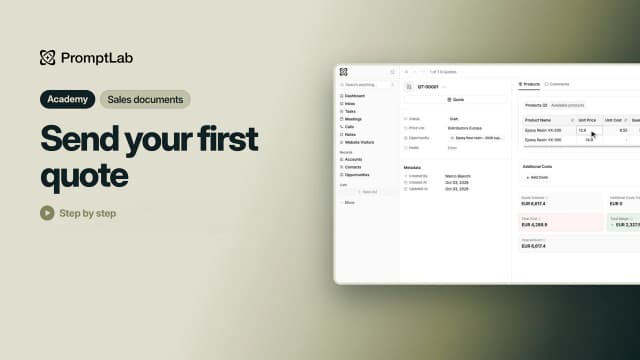
Create a quote
- Open Quotes and click New Quote.
- Pick the Opportunity the quote is for. It's optional, but the PDF is addressed to the opportunity's account and first contact.
- Pick a Price List. Only active price lists are offered.
- Click Create.
The quote gets the next number, such as QT-00004, and starts as a Draft. Open it to add products. If your workspace has more than one number format for quotes, the window also asks for a Number Format.
New workspaces don't pin Quotes to the sidebar. Click More at the bottom of the sidebar, open Revenue and pin Quotes.
Add products and discounts
- Open the quote and click Available products on its Products tab.
- Click Add next to each product you're quoting. It's added with a quantity of 1 at the price-list price.
- Back under Products, click a line's Quantity, Unit Price or Discount to change it. The discount is a percentage off that line.
Each line also shows its Unit Cost, Total, Margin and Margin %. To charge for freight or other extras, click Add Costs under Additional Costs, pick a cost or create a new one, and enter the amount. Additional costs are in the quote's currency.
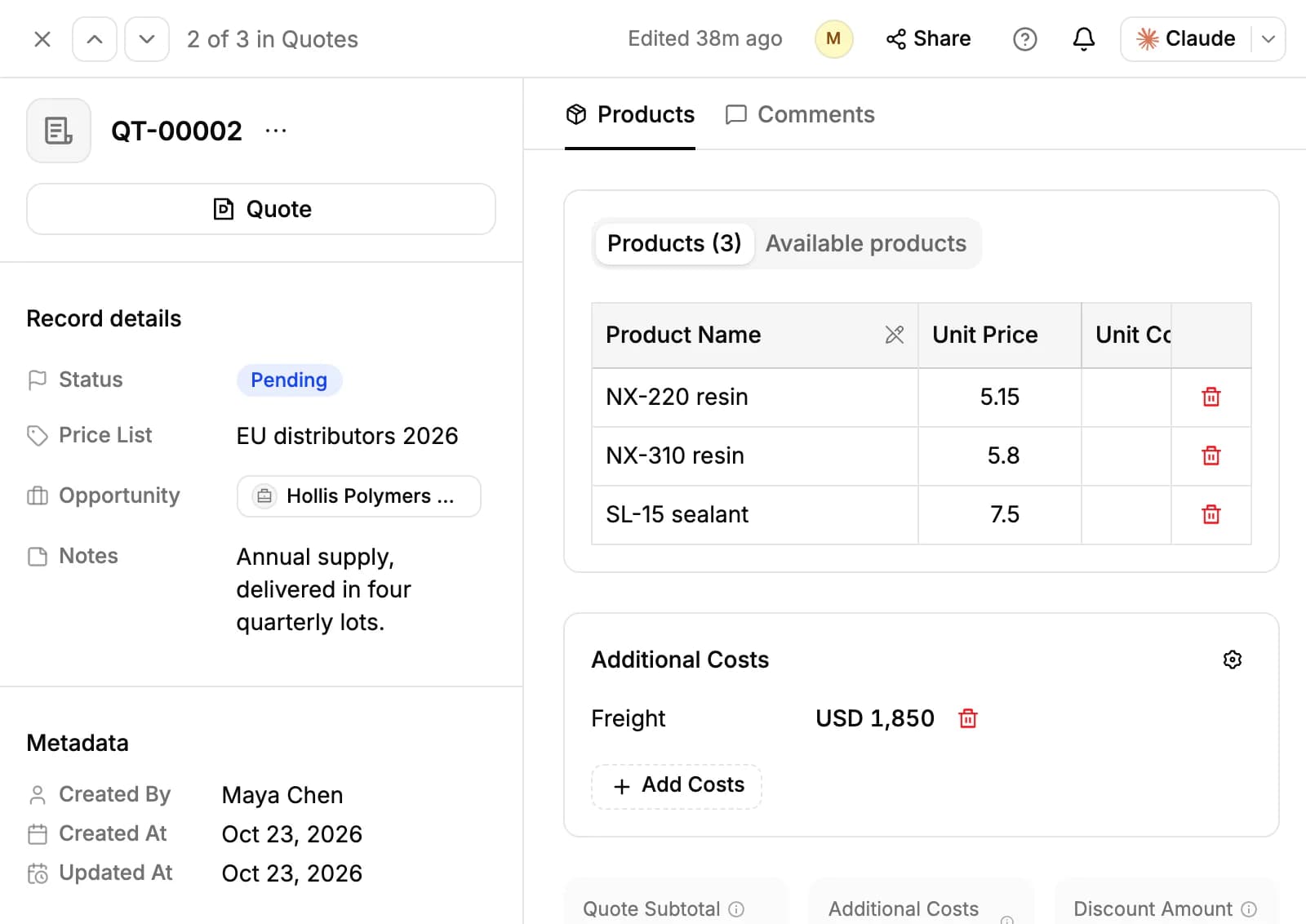
No price list on the quote? Available products stays empty until you pick one under Price List on the left. Picking another price list later doesn't change the lines already on the quote.
Read the totals and margin
Under the lines, the quote adds everything up:
- Quote Subtotal: the line totals, after discounts.
- Additional Costs Total and Discount Amount.
- Total Cost: your cost, each product's cost price times its quantity.
- Total Margin and Margin %: the subtotal minus the cost. They turn red when you price below cost.
- Total Amount: the subtotal plus additional costs, what the customer pays.
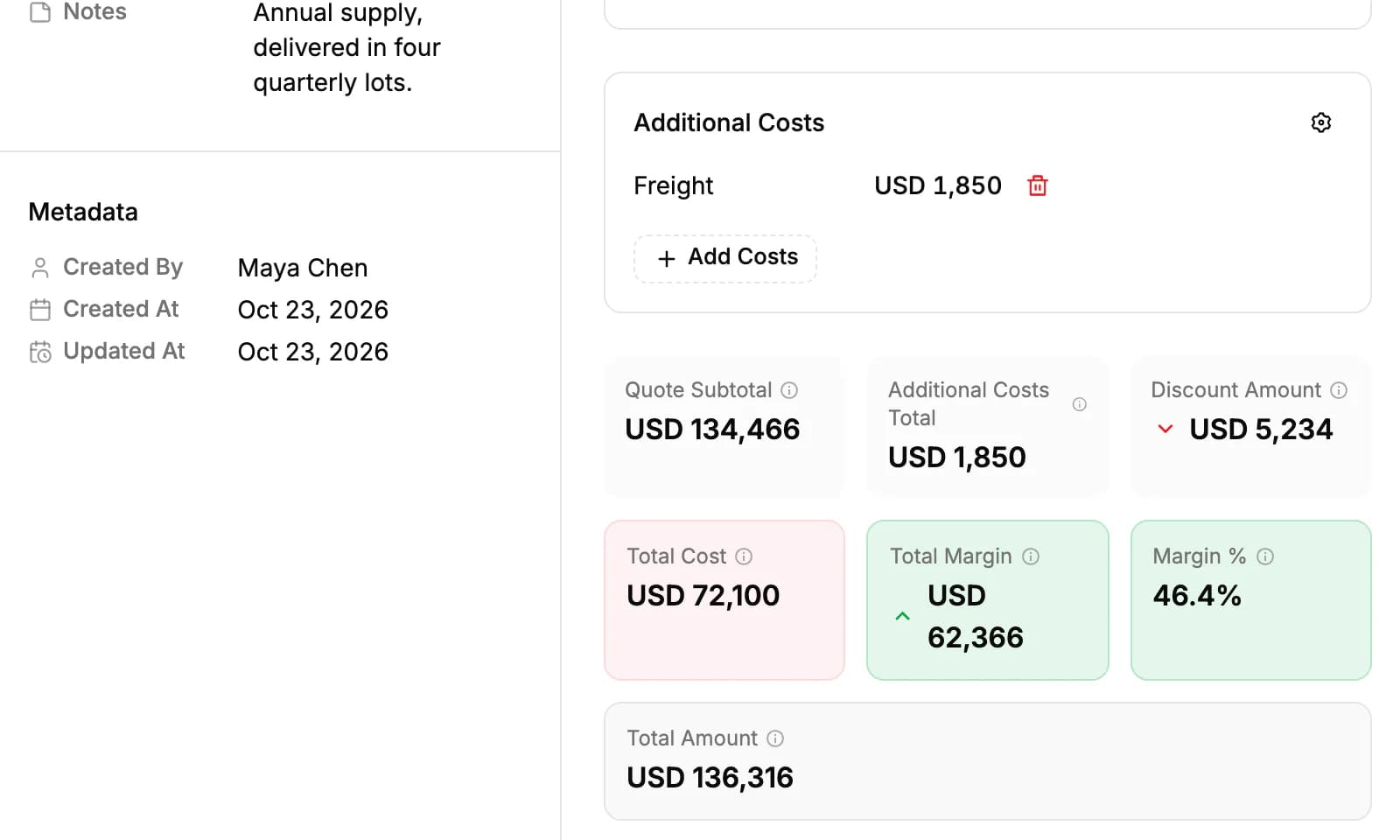
A product without a cost price is left out of the cost and margin, and the quote says how many such products it has. Add a cost price on the product to include it.
Move a quote through its statuses
A quote is Draft, Pending or Approved. Change it with Status on the left of the quote, or switch the Quotes page to the board with the toggle at the top right and drag the card to another column. Set a quote to Pending when it goes to the customer and to Approved when they accept. The statuses don't lock anything: you can still edit an approved quote.
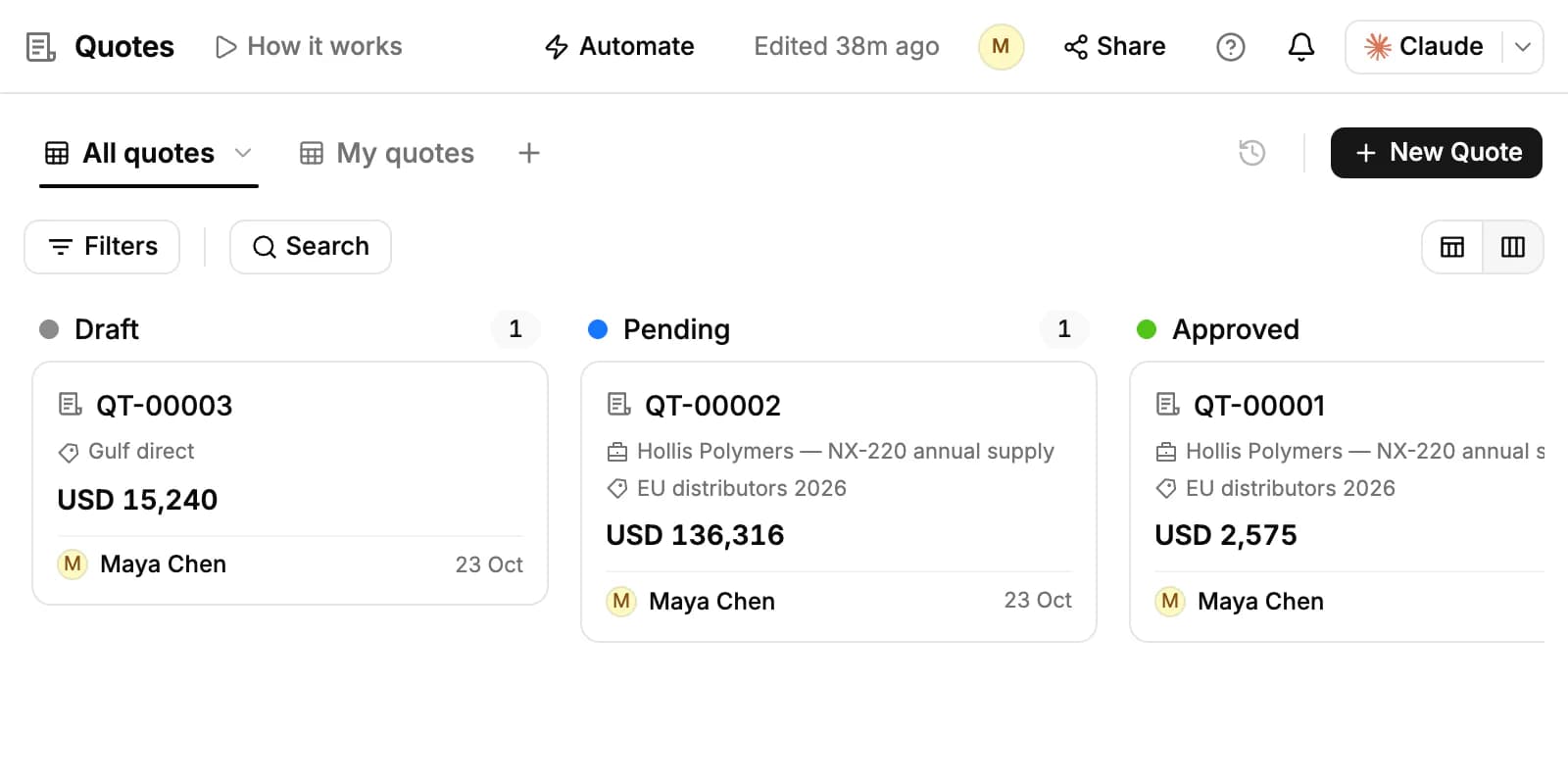
The page has two views, All quotes and My quotes (the ones you created). Narrow them with Filters and Search, and use Import and Export for CSV or Excel files. An opportunity lists its quotes under Quotes in its details, and an account's Overview counts its sent and draft quotes until it places its first order.
Send the PDF
Click Quote at the top of the quote to open it as a PDF in a new tab. The PDF has your company's name and contact details, the quote number and date, who it's for, the lines with their discounts, additional costs, the totals, your notes, and signature boxes for your customer and for you.
The contact details come from Settings → General, under Contact details. Anything in the quote's Notes prints on the PDF, so write it for the customer.
PromptLab doesn't email the quote for you and has no e-signature: the signature boxes are for signing on paper. Send the PDF from your own mailbox, or share a link.
Share a link with your customer
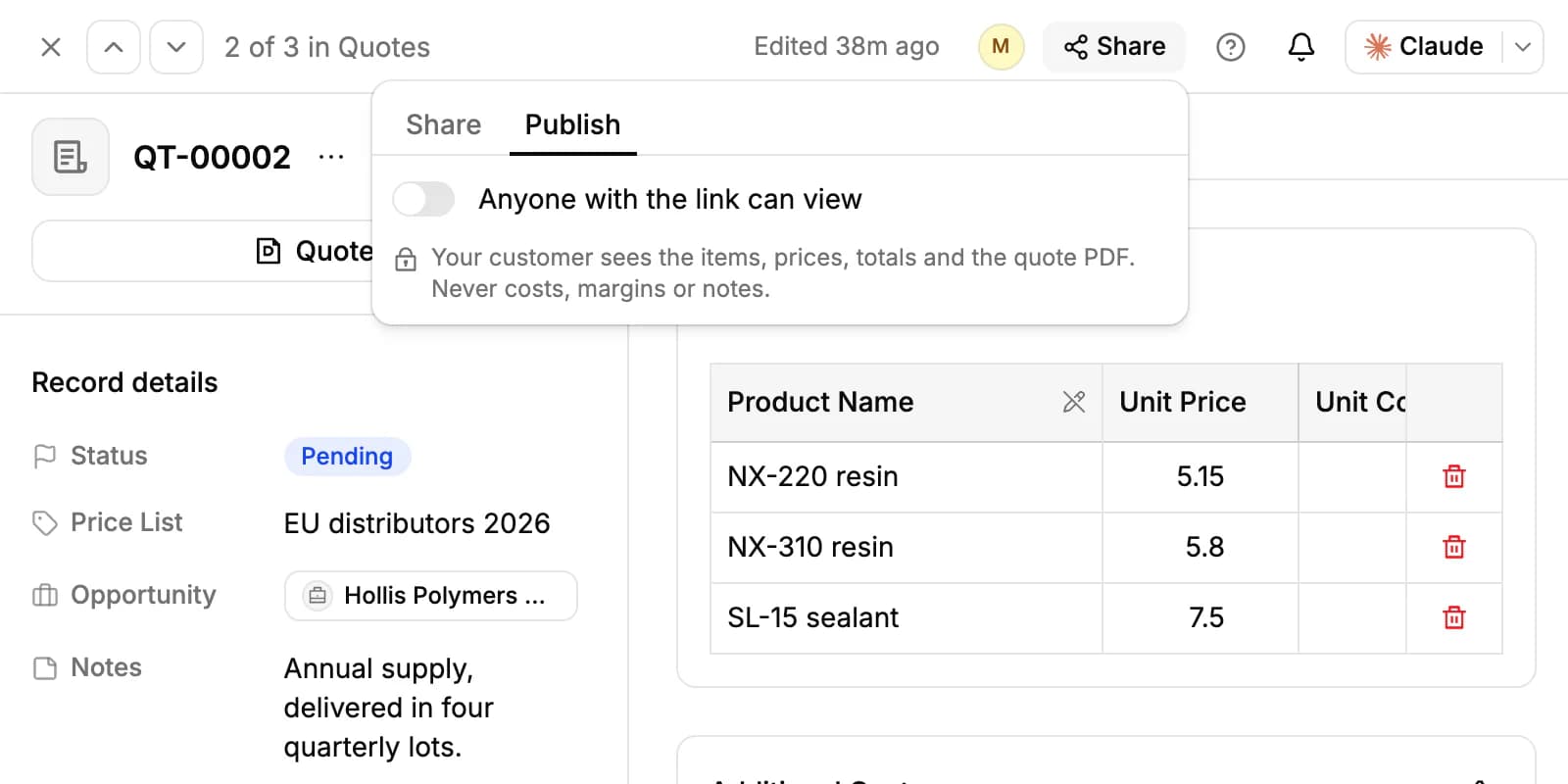
- Click Share at the top of the quote and open the Publish tab.
- Turn on Anyone with the link can view. PromptLab copies the link for you.
- Under Link expires, keep Never or pick After 1 day, After 7 days or After 30 days.
Your customer opens the link without an account and sees the items, prices, totals and the quote PDF, never your costs or margins. Turn the switch off to take the link down.
The link doesn't tell you whether or when the customer opened it.
Set your document numbers
Quotes are numbered QT-00001, QT-00002 and so on. Owners and admins can change the format on one page that also covers invoices, sales orders, opportunities and samples:
- Open Settings and click Counter Formats under Customization.
- Edit the Template. It must contain {number}; add {YYYY} or {YY} for the year.
- Set the Padding (how many digits, from 1 to 10) and the number to Start At. The Preview shows the result.
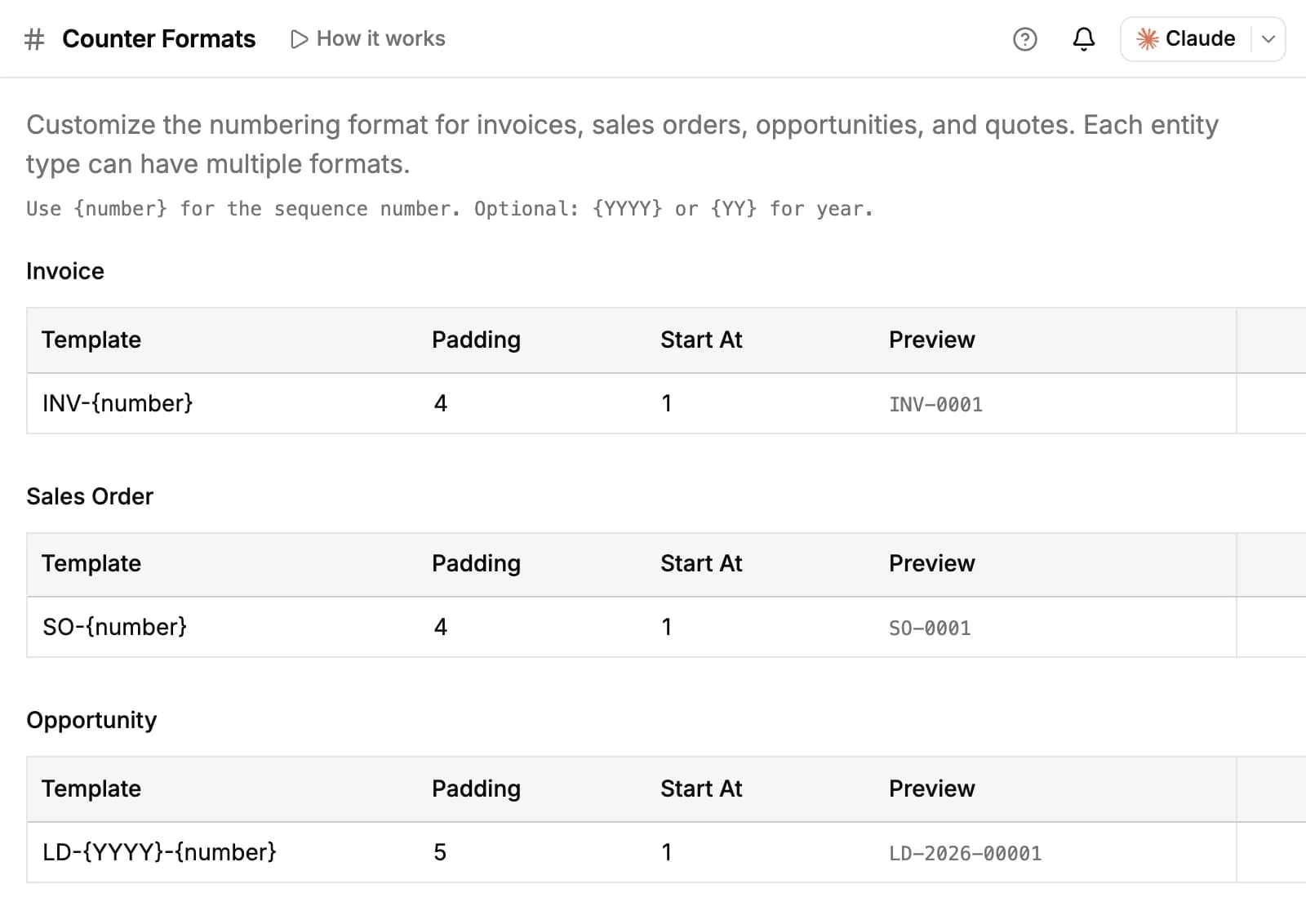
Click Add format to keep a second format beside the first. When a document type has more than one, the New Quote, New Sample and New Order windows ask for a Number Format, starting on the one marked Default. Set default changes which one that is, and Reset all goes back to the standard format.
Related resources
Quotes are priced from your catalog: see Products & price lists.
When the customer accepts, record the order in Sales orders.
For how quotes and samples fit your sales process, read Quotes & Samples.
Frequently asked questions
Which plans include quotes?
All plans.
Can I email a quote from PromptLab?
Not from the quote. Open the PDF and send it from your mailbox, or share a link your customer can open without an account.
Can customers accept or sign a quote online?
No. The shared page is read-only and there's no e-signature. The PDF has signature boxes for signing on paper; set the quote to Approved yourself.
Does PromptLab add tax to a quote?
No. The total is the subtotal after discounts plus additional costs.
Can I see when my customer opens the link?
No. Shared links don't track views.
Are there quote templates?
No. Every quote PDF uses the same layout, with your company details at the top.
Does an approved quote become a sales order?
Not by itself. Create the order on the Sales Orders page with the quote's products, quantities and prices.