



















How to share a sales dashboard
Share a sales dashboard by giving each audience its own view, a read-only link with an expiry date, and a habit of revoking links you no longer need.
 By the PromptLab team27 October 20266 min read
To share a sales dashboard, first decide who it's for and build a view with only what they need. Then share it as a read-only link rather than a login or a screenshot, set an expiry date when the link is for one meeting or one quarter, and revoke it when the person no longer needs it. Use a live link when the reader should see today's figures, and an exported PDF when you need a fixed record of what was shown.
This guide is for sales leaders at manufacturers and distributors who report pipeline and revenue to a boss, a board, a distributor partner or a key customer. It covers what each of them should see, live links against exports, and how to keep shared numbers from leaking further than you meant.
Who you share with, and what each one needs
The biggest mistake is sending one dashboard to everyone. Your internal pipeline has deal names, discounts and margins that a partner or a customer must never see. Start from the audience.
| Audience | What they need | What to leave out |
|---|---|---|
| Your boss or the founder | Won revenue against target, pipeline by stage, the biggest deals, forecast for the quarter | Rep-level activity unless they ask |
| A board or investors | Revenue trend, pipeline coverage, new vs repeat customers, the few deals that move the quarter | Customer names if the board pack travels widely |
| A distributor partner | Their sell-in and orders by product, open quotes and samples in their territory, leads you passed them | Your other distributors, your margins, direct accounts |
| A key account | Their orders by product and month, open quotes, sample status, delivery performance | Your pipeline, other customers, internal notes |
A coatings maker reporting to a regional distributor, for example, might share a view of orders by product line in that region this year, the samples sent to the distributor's end customers, and the quotes waiting on an answer. That is the distributor's business. Your pipeline in other regions isn't.
For what goes on an internal dashboard in the first place, see how to build a sales dashboard.
Live link or exported file?
Both have a place. Choose by what the reader will do with it.
A live link shows the figures as they are when the reader opens it.
- Good for a boss who checks weekly, or a partner who wants current orders.
- No version confusion: there is only one copy.
- The numbers change. If someone quotes it in a meeting next month, they'll quote different figures.
An exported file (PDF or slides) freezes the numbers on the day you made it.
- Good for a board pack, a signed-off quarterly review, or anything that needs to be on record.
- It can be forwarded forever, and you can't take it back.
- It goes stale the moment it's sent.
A simple rule: share live for people who track the numbers, export for meetings that need a record. Many teams do both for a quarterly business review: a live link during the quarter, then a PDF of the deck that was presented.
Step by step: share a dashboard safely
- 1
Build a separate view for each outside audience
Make a separate dashboard filtered to that audience: one distributor's territory, one customer's account. Never share your internal dashboard with a filter you hope they won't change.
- 2
Check every number before you share
Open the view and read it as the recipient would. Look for a customer name, a margin column or a rep comment that shouldn't be there. Check the date range and the currency.
- 3
Share as a read-only link
Read-only means the recipient can look but can't edit anything or open the rest of your CRM. A link also beats a screenshot, which is out of date by Friday and can't be withdrawn.
- 4
Set an expiry date when the need is short
A link for a board meeting or a single quarterly review should expire soon after. A partner's standing view can run longer, but put a review date in your diary.
- 5
Write down who has which link
Keep a short list: link, recipient, date shared, expiry. When a contact leaves the partner or the customer, you know what to revoke.
- 6
Revoke links you no longer need
Revoke a link when a deal ends, a distributor contract changes, or a contact moves company. A revoked link stops working at once.
What to say when you send it
A link with no context gets misread. Add two or three lines:
- What the dashboard shows and the date range.
- The one or two numbers you want them to notice.
- When the link expires, or that it updates live.
For example: "Here is your live order view for 2026 by product line. Note the drop in the solvent-based range since July, which we'd like to discuss on Thursday. The link expires at the end of November."
Common mistakes
- One dashboard for every audience. Your board and your distributor need different numbers.
- Sharing a login instead of a link. A shared login shows far more than you meant and is hard to take back.
- Links that never expire. Old links pile up and nobody remembers who has them.
- Pasting figures into slides by hand. They're wrong the next time someone changes a deal. Tie charts to the live report where you can.
- No owner for shared links. Someone on the team should review them each quarter.
How PromptLab helps
PromptLab has reports and dashboards on pipeline and revenue on every plan, with a report builder for the cut each audience needs, such as the deals and accounts in one distributor's territory.
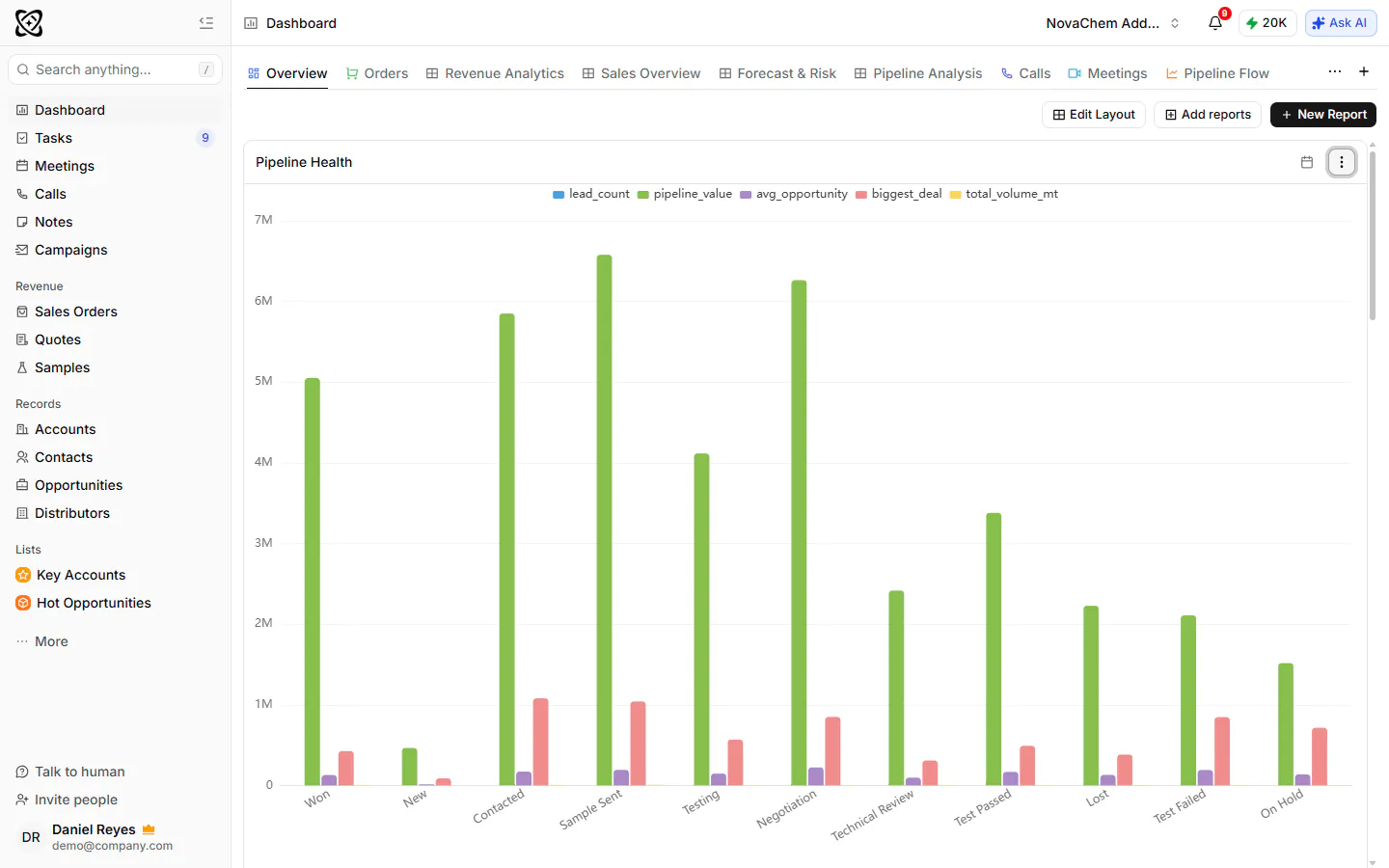
Dashboards, reports, tables, lists, records and quotes can be shared by a read-only link that needs no login. Each link can carry an optional expiry date, and you can revoke it at any time. For a presentation, make an artifact: a document or a slide deck (up to 30 slides) with charts, KPIs and tables tied to a live report, so the numbers refresh every time it's opened. Artifacts share by the same kind of link. You can also keep it private, share it with chosen teammates, or export it to PDF or PowerPoint when you need a fixed copy. See how to make a sales presentation with AI for the deck side.
Links have no password protection, so share each one only with the people who should see it. Read more on sales reports.
Frequently asked questions
How do I share a sales dashboard with someone outside the company?
Build a separate view filtered to what they should see, then share it as a read-only link. Avoid giving them a login. Set an expiry date if the link is for a single meeting or quarter.
Should I send a live dashboard or a PDF?
Send a live link to people who track the numbers over time. Send a PDF when you need a fixed record, such as a board pack or a signed-off review. Many teams use both.
What should a distributor partner see on a shared dashboard?
Their own orders by product, open quotes and samples in their territory, and the leads you passed them. Leave out your margins, other distributors and your direct accounts.
How do I stop someone seeing a dashboard I shared?
Revoke the link. In PromptLab a revoked link stops working, so the person can't open it again. Keep a short list of who has which link so you know what to revoke.
Is it safe to share a sales dashboard by link?
It's safe if you share only what you'd be happy to see forwarded. Anyone with the link can open it, so use read-only links, set expiry dates on short-term ones and revoke links that are no longer needed.