













How to connect Claude to your CRM
Connect Claude to your CRM over MCP in a few minutes: add the connector URL, sign in with OAuth, then ask about accounts, quotes and meetings.
 By the PromptLab team6 October 20265 min read
You connect Claude to a CRM through MCP. In Claude, you add the CRM's server URL as a connector, sign in with your CRM login and approve access. After that you can ask Claude about accounts, quotes and meetings in plain words, and it answers from your real records.
With PromptLab the URL is https://trypromptlab.com/mcp. Sign-in is OAuth, so there are no API keys to create, copy or rotate. The whole setup takes a few minutes, and the rest of this guide covers the steps, what to ask, and what Claude can't do.
What MCP is, in plain words
MCP stands for Model Context Protocol. It is a standard way for an AI assistant to talk to another piece of software. The software publishes a list of tools, such as "search accounts" or "create a task", and the assistant calls them when your question needs them.
For a sales rep, that means Claude stops guessing. Ask "what did Vardon Coatings say about price last time?" and Claude looks the account up, reads the meeting notes and answers from them. For a longer explanation, read what MCP is.
What you need before you start
Before you connect
How to connect Claude to PromptLab
- 1
Copy the connector URL
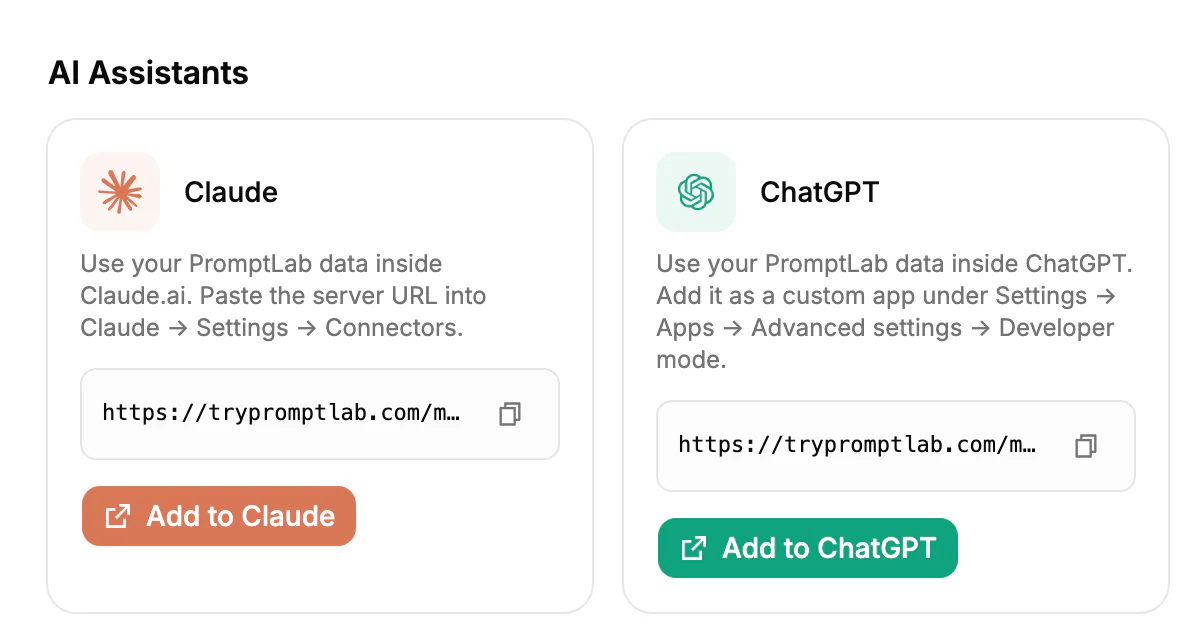
In PromptLab, open Settings, then Apps, then AI Assistants. The Claude card shows the server URL,
https://trypromptlab.com/mcp. Copy it, or use the Add to Claude button on the card to go straight to the next step. - 2
Add the connector in Claude
In Claude's settings, find Connectors and add a custom connector with that URL. If it asks for a name, call it "PromptLab".
- 3
Sign in with OAuth
Claude sends you to a PromptLab sign-in page. Log in with your normal PromptLab account. You never paste a password or token into Claude.
- 4
Approve access
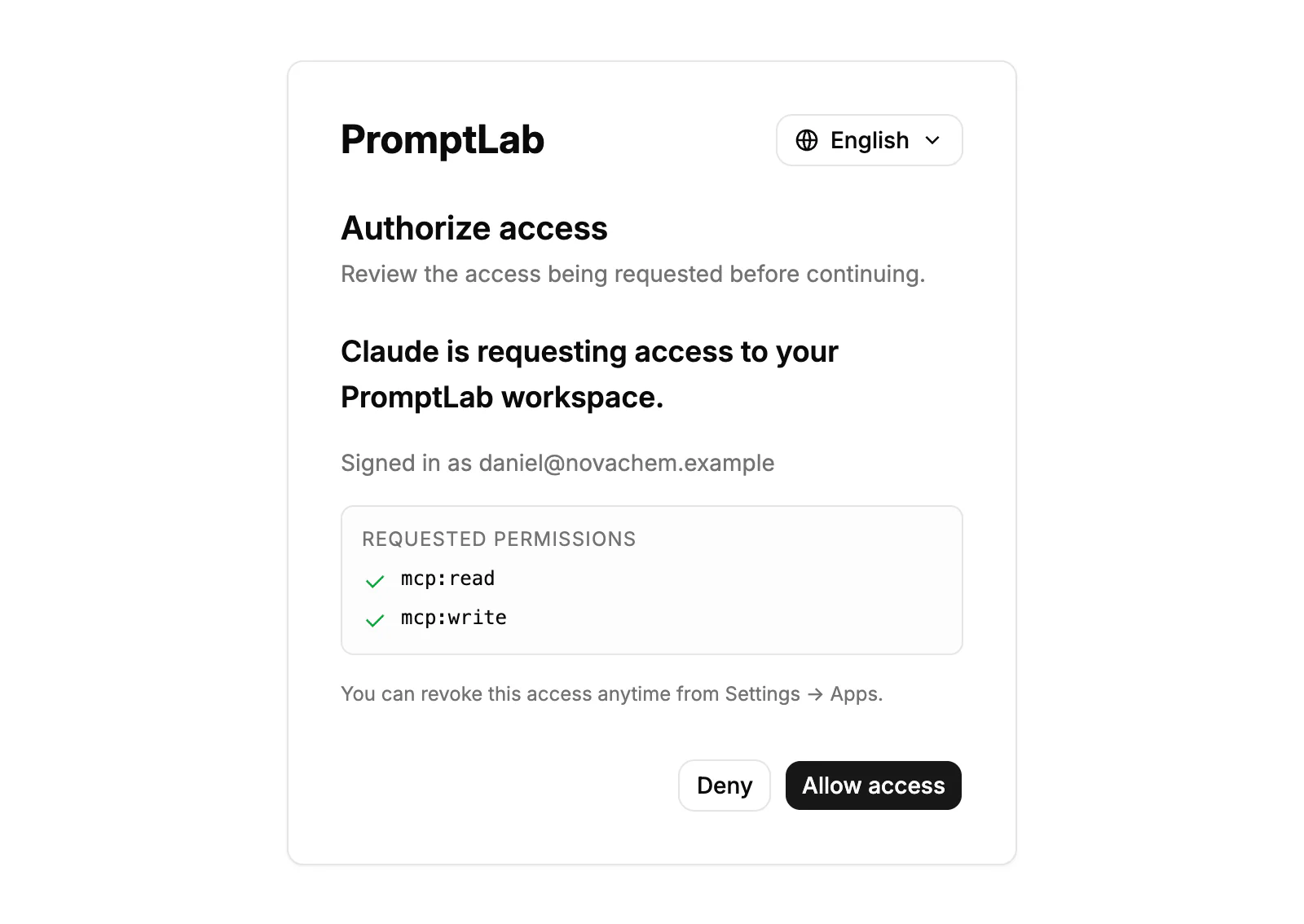
PromptLab asks whether Claude may access your workspace. Approve it, and the connection is live.
- 5
Run a test question
Start a chat, check the connector is enabled for it, and ask a small question: "List my five newest accounts." If the names match your CRM, you are done.
What to ask Claude once it's connected
Good prompts name a customer, a time frame and the output you want. These are written for a rep who sells coatings, plastics or industrial supplies.
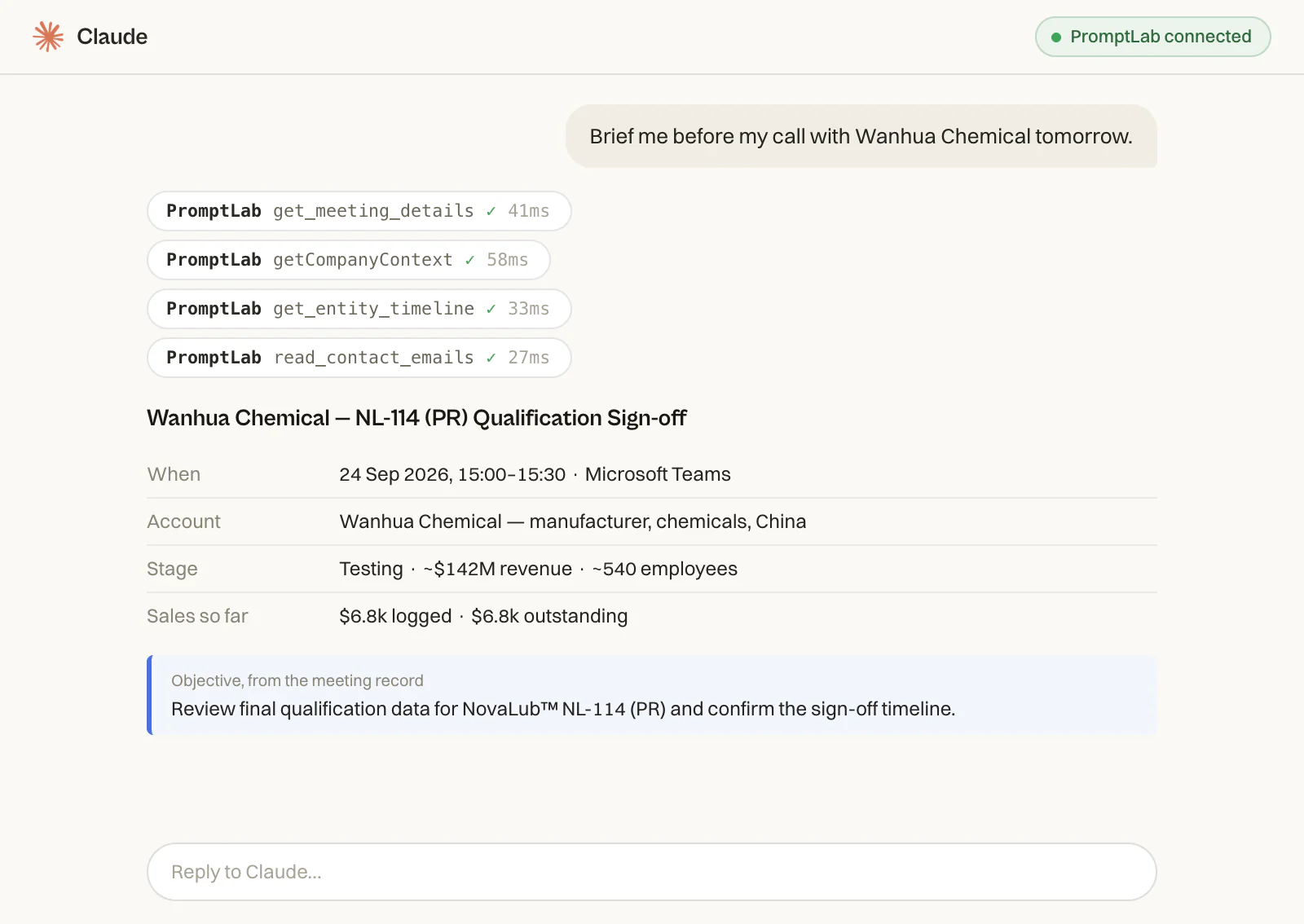
- Before a call: "Brief me on Vardon Coatings: open quotes, last meeting, who I spoke to and anything they objected to."
- Quote chasing: "Which open quotes haven't had a reply in 30 days? Draft a short follow-up for the three biggest."
- After a call: "Log a note on the Harlow Packaging deal: they want 2 t of PL-220 delivered in November, and they asked for a better price on 10 t."
- Tasks: "Create a task for Friday to call Harlow about the delivery date."
- Pipeline questions: "Which deals in negotiation have no activity this month?"
- Quote drafting: "Draft a quote for 2 t of PL-220 for Harlow Packaging."
- Sample chasing: "Which samples are still under evaluation, and when did each one arrive?"
Always read a draft quote before it goes out. Claude writes what you ask for, and you stay responsible for the price.
What Claude can read and write
Through PromptLab's connector, Claude can look up and work with your accounts, contacts, deals, quotes, sales orders, sample requests, meetings, email and tasks. On Basic it can read and write, so it can create the task or log the note, not only look things up.
Each connected assistant counts as one connection toward your plan's limit: up to two on Basic and three on Professional.
What Claude can't do
Be clear about the limits before you rely on it.
- Remembering earlier chats. Don't count on it. Name the account again, or ask Claude to look it up.
- Checking its own facts. Claude can misread a long thread. For prices and quantities, open the record and confirm.
Tips for getting reliable answers
Ask for the source. "Which meeting was that from?" makes Claude point to the record, so you can check it. Keep requests to one job at a time too: brief first, then draft, then log.
How PromptLab helps
Claude is only as useful as the CRM behind it. PromptLab keeps quotes, customer price lists, sales orders and meeting transcripts in one place, so Claude has real product-sales records to read rather than a thin contact list. The connector sits on every plan from $11.99 per user per month, and sign-in is OAuth, not API keys. If you'd rather stay inside the CRM, Ask AI answers the same kind of plain-words question about accounts, deals, quotes, sales orders, meetings and email.
See the Claude and PromptLab page for the connector in action, or pricing to start a 14-day trial. A card is needed to begin.
Frequently asked questions
Do I need an API key to connect Claude to my CRM?
Not with PromptLab. The connection uses OAuth, so you sign in with your normal login and approve access. There is nothing to generate, paste or rotate.
Can Claude change my CRM data?
Yes. On every PromptLab plan, Basic included, the connector can read and write, so Claude can create a task or log a note, not only look things up. Check anything it writes, especially prices and quantities.
Can Claude see my product samples?
Yes. Claude can list sample requests, read one in full (items, status, tracking and notes) and update it, for example to mark a sample delivered or record the trial result. Our guide to tracking product samples covers the workflow around it.
Is the connector available on the cheapest plan?
Yes. Connecting Claude over MCP is included on every plan, starting with Basic at $11.99 per user per month, with up to two connections on Basic. Basic and Professional both come with a 14-day free trial.
Can I use ChatGPT as well as Claude?
Yes. PromptLab supports both, and each assistant works with the same CRM records. Our ChatGPT guide has the steps.