



















How to migrate from Proton.ai to PromptLab
Export customers, quotes and orders from your ERP, ask Proton.ai for the rest, then import and map the files in PromptLab. A guide for distributors.
 By the PromptLab team16 October 20264 min read
Proton.ai to PromptLab is a two-part, file-based move. Most of your data comes from your ERP, which Proton.ai reads from, and the rest you ask Proton.ai's team for. Then you import the files into PromptLab and map the columns.
This guide is for distributors and manufacturers. It covers why teams move, what to prepare, each step, and the first week.
Why do distributors move from Proton.ai?
Proton.ai is built for distributors. It plugs into the ERP and tells reps who to call, what to sell and who is due to reorder, across catalogues as large as 500,000 SKUs. For a large distributor that wants ERP data and reorder prompts in front of every rep, that is a real strength.
The catch is what sits around it. It doesn't publish its prices: you book a demo and get a quote. There is no free trial, no meeting recording, no MCP server, and no WhatsApp or Telegram. A rep can prepare for a call and log notes by voice, but what the buyer actually said survives only in those notes.
We checked these facts on 30 September 2026. See our Proton.ai alternatives and the Proton.ai vs PromptLab comparison.
What to prepare before you move from Proton.ai
Because the data sits in two places, plan who gets which file.
Before you move from Proton.ai
Our CRM migration checklist covers the same ground for any CRM.
Moving to PromptLab
From Proton.ai in four steps
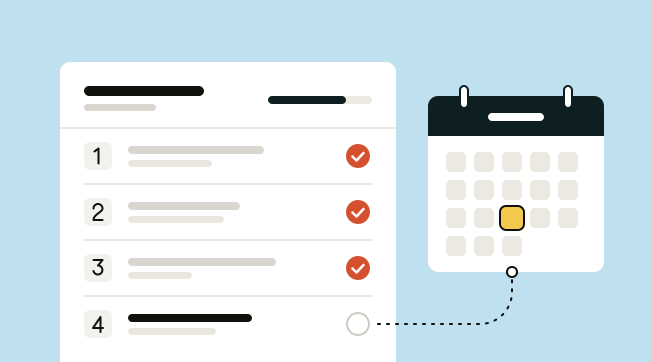
- 1Export from your ERPIt reads customers, quotes and orders from your ERP, so that data is already yours. Export it as CSV or Excel from the ERP's own reports.
- 2Ask for the restFor notes, contacts and activity your reps created only there, ask its team for a CSV. It doesn't document a self-serve export.
- 3Import into PromptLabClick Import on our Accounts, Contacts or Deals list, upload the file and map the columns. Quotes, sales orders, tasks and notes import the same way.
- 4Get migration supportFor a larger move, our Business plan includes data migration support and a dedicated account manager.
Step 1: export from your ERP
Proton.ai reads customers, quotes and orders from your ERP, so that data is already yours. Export it as CSV or Excel from the ERP's own reports.
Take customers, then quotes, then sales orders, in separate files. Keep a customer name or ID column in each, so they can be matched after the import.
Step 2: ask for the rest
Notes, contacts and activity that your reps created only in Proton.ai are another matter. It doesn't document a self-serve export, so ask its team for a CSV.
Do this early. A reply can take a while, and you don't want it to hold up the import.
Step 3: import into PromptLab
Click Import on the Accounts, Contacts or Deals list in PromptLab, upload the file and map the columns. You can also pick the file from Google Drive. Quotes, sales orders, tasks and notes import the same way.
Start with customers as accounts, then contacts, then quotes and orders. Your order history then sits on the account, where a rep opening it before a call can see it.
Step 4: get migration support
For a larger move, Business includes data migration support and a dedicated account manager. There is no live sync with Proton.ai, so the move runs on exports and imports.
Basic and Professional come with a 14-day free trial, with no card needed. Import a real spreadsheet of accounts on day one and see your own customers in the CRM the same day.
What to add in your first week
You've brought the history across. Now add the conversations that make the sale.
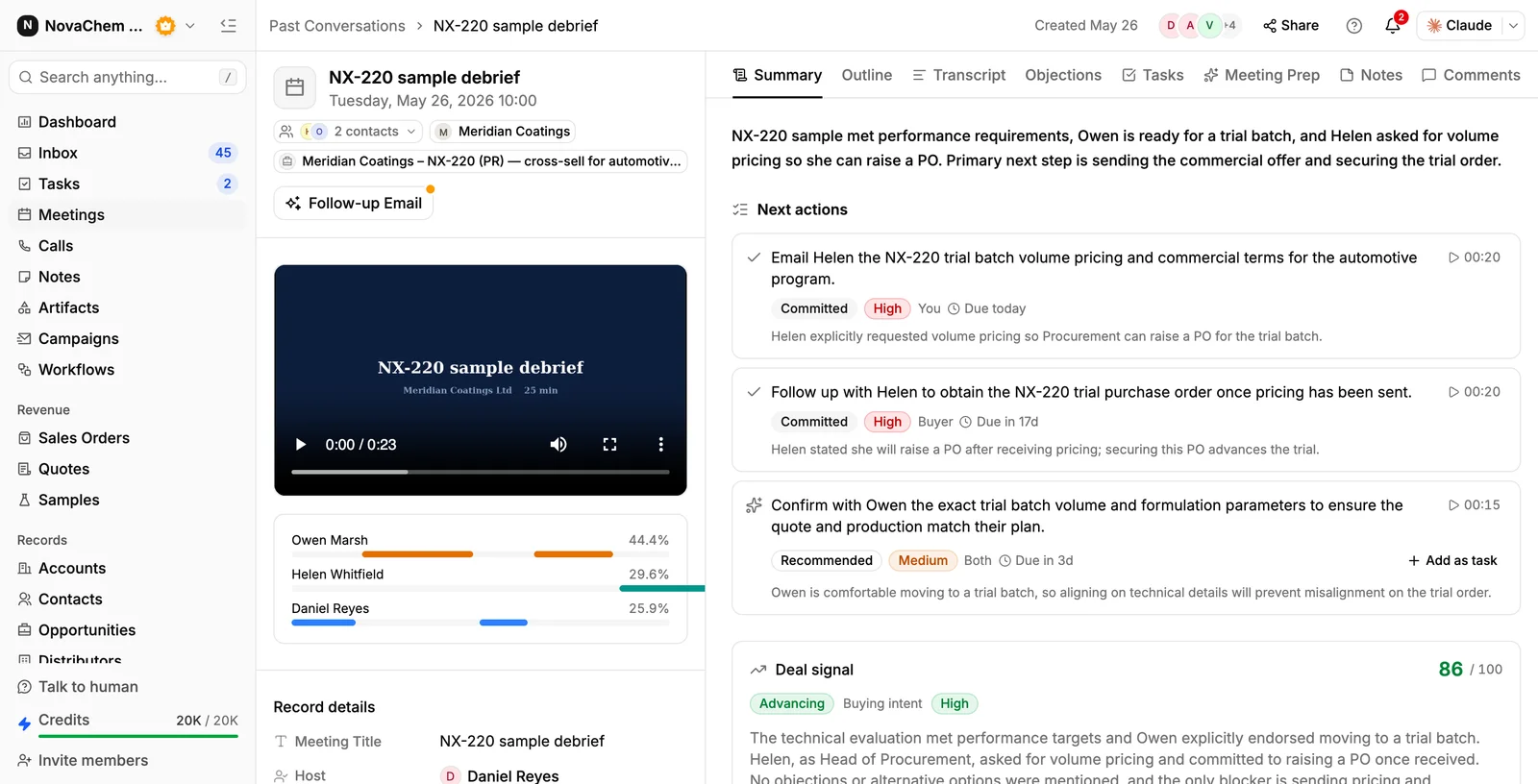
- Meetings. Each rep connects Google Meet, Zoom or Microsoft Teams. Every meeting gets a brief beforehand, then a recording and transcript in 100+ languages, a summary and a follow-up draft.
- Channels. Connect Gmail, Outlook or your own mail server, your WhatsApp Business number and your company's Telegram bot. All of it lands in one shared Inbox. See how to sell on WhatsApp.
- Price lists. Create a price list per key customer. See how to manage customer price lists.
- Claude or ChatGPT. Connect your assistant over MCP, with each user's own login. Ask AI answers questions about any account or deal.
- Reorders. Build a workflow: when a quote changes status or a deal changes stage, create a task.
Frequently asked questions
How do I export data from Proton.ai?
It reads customers, quotes and orders from your ERP, so export those from the ERP's own reports as CSV or Excel. For notes, contacts and activity created only in Proton.ai, ask its team for a CSV.
Can I import quotes and sales orders?
Yes. Quotes, sales orders, tasks and notes import the same way as accounts, contacts and deals. Map the columns on the matching list.
Will PromptLab connect to my ERP?
Not live, unless your ERP is Acumatica: PromptLab brings in customers, contacts, leads and opportunities from it. For any other ERP, export CSV or Excel from its reports and import the files into PromptLab.
Is there a sync with Proton.ai?
No. PromptLab's two-way sync covers Salesforce and HubSpot, so a Proton.ai move runs on exports and imports.
What do I lose by leaving Proton.ai?
If you rely on ERP-driven reorder prompts and product recommendations across a very large catalogue, those are Proton.ai's strengths. In return you gain meeting recording, chat channels and prices you can see before you talk to anyone.
Sources
Prices and features of other CRMs come from each vendor's own pages, on the dates below.
- Proton.ai, checked on 30 September 2026: Platform, CRM overview, Integrations