



















How to import contacts into a CRM
Import contacts into a CRM without a mess: clean the file, link contacts to accounts, map the columns, run a small test, then import the rest and check it.
 By the PromptLab team6 November 20265 min read
To import contacts into a CRM, clean your spreadsheet first, give every contact an account (company) name, save it as CSV or Excel, match each column to a CRM field, import five rows as a test, check them, then import the rest. Most bad imports come from the file, not the CRM, so the cleaning step matters most.
This guide is for sales teams at manufacturers and distributors who keep customers in spreadsheets or in an old tool and want them in one CRM. If you are moving the whole sales process, read how to move from spreadsheets to a CRM as well.
Before you import: what a good contact file looks like
A CRM contact has a person, a company and a way to reach them. Your file should too.
| Column | Example | Why it matters |
|---|---|---|
| First name, last name | Anna, Kowalski | Needed for greetings and search |
| anna@example-paints.com | Links later emails to the person | |
| Phone | +48 22 555 0101 | Keep the country code |
| Company | Example Paints Ltd | Links the contact to an account |
| Job title | Purchasing manager | Shows who decides |
| Owner | Marek | Who looks after them |
| Source | Trade show 2026 | Lets you report on where leads come from |
If you also sell by region or product, add columns for those. They become custom fields.
Step by step: import your contacts
- 1
Collect every list in one file
Gather the spreadsheets, the exported address book and any list from a trade show. Paste them into one sheet with the same columns. Add a "Source" column so you remember where each row came from.
- 2
Remove duplicates and junk
Sort by email and delete repeats. Remove rows with no email and no phone unless you know the person. Fix obvious typos in company names, so "Example Paints", "Example Paints Ltd" and "EXAMPLE PAINTS LTD." become one. The CRM data cleanup checklist lists what to look for.
- 3
Put the company on every row
In B2B you sell to companies, so each contact should belong to an account. Make sure the company column is filled and spelled the same way every time. If you have a separate list of companies with extra detail such as region or industry, import accounts first, then contacts.
- 4
Split full names and fix formats
Use separate first and last name columns. Write phone numbers with the country code. Keep one value per cell: if a contact has two emails, put the second in its own column or leave it out of this import.
- 5
Save as CSV or Excel and run a five-row test
Cut the file down to five rows that cover your odd cases, such as a name with an accent, a missing phone number and a long company name. Import those first and open each record to check it.
- 6
Match the columns and import the rest
When the test looks right, import the full file. Match each column to the right field and create a custom field for anything the CRM doesn't have, such as "Preferred language".
- 7
Check the result and assign owners
Open the contact list, count the rows against your file, and look at ten at random. Check that contacts sit under the right accounts. Then make sure each account has an owner so nobody has to guess whose it is.
Mistakes that ruin an import
- Importing before cleaning. Duplicates in the file become duplicates in the CRM, and deleting them one by one is slow.
- No company column. You get contacts floating without an account, which breaks quotes and order history later.
- Mixed formats. Dates written three ways and phone numbers with and without a country code make filters unreliable.
- Importing everything. A contact nobody has spoken to in years rarely deserves a place in your active list. Keep an archive file instead.
- Skipping the test. A five-row test takes ten minutes and saves a day of clean-up.
After the import
Importing is the start. Tell the team where to find contacts, switch off the old spreadsheet so nobody keeps updating it, and connect email so new messages attach to the right person. Then set a rule for who creates new contacts, so the list stays clean.
A worked example
Say a chemicals distributor has 1,200 rows from three sources: a sales spreadsheet, a trade show list and an old email export. After sorting by email and removing repeats, 900 remain. After dropping rows with no name or contact route, 800 are left. They add the company on every row, import five rows as a test, fix a phone-number format problem the test revealed, and then import all 800 in one go. The clean-up took an afternoon and saved weeks of fixing records one by one.
How PromptLab helps
PromptLab imports accounts, contacts, deals, quotes, sales orders, samples, tasks, notes and products from CSV and Excel files, or you can pick a file from Google Drive. That means you can bring in your customer companies, the people at them, and open deals in one go, instead of retyping them. You match each column to a field, and a column PromptLab doesn't know can be saved as a new custom field (text, number, date, yes/no, email, phone or link) during the import. If a contact's company isn't in the CRM yet, the import offers to create the account, and a row whose email is already in the CRM, or repeated in the file, is skipped. The owner sits on the account and the deal, so put your Owner column in the accounts file.
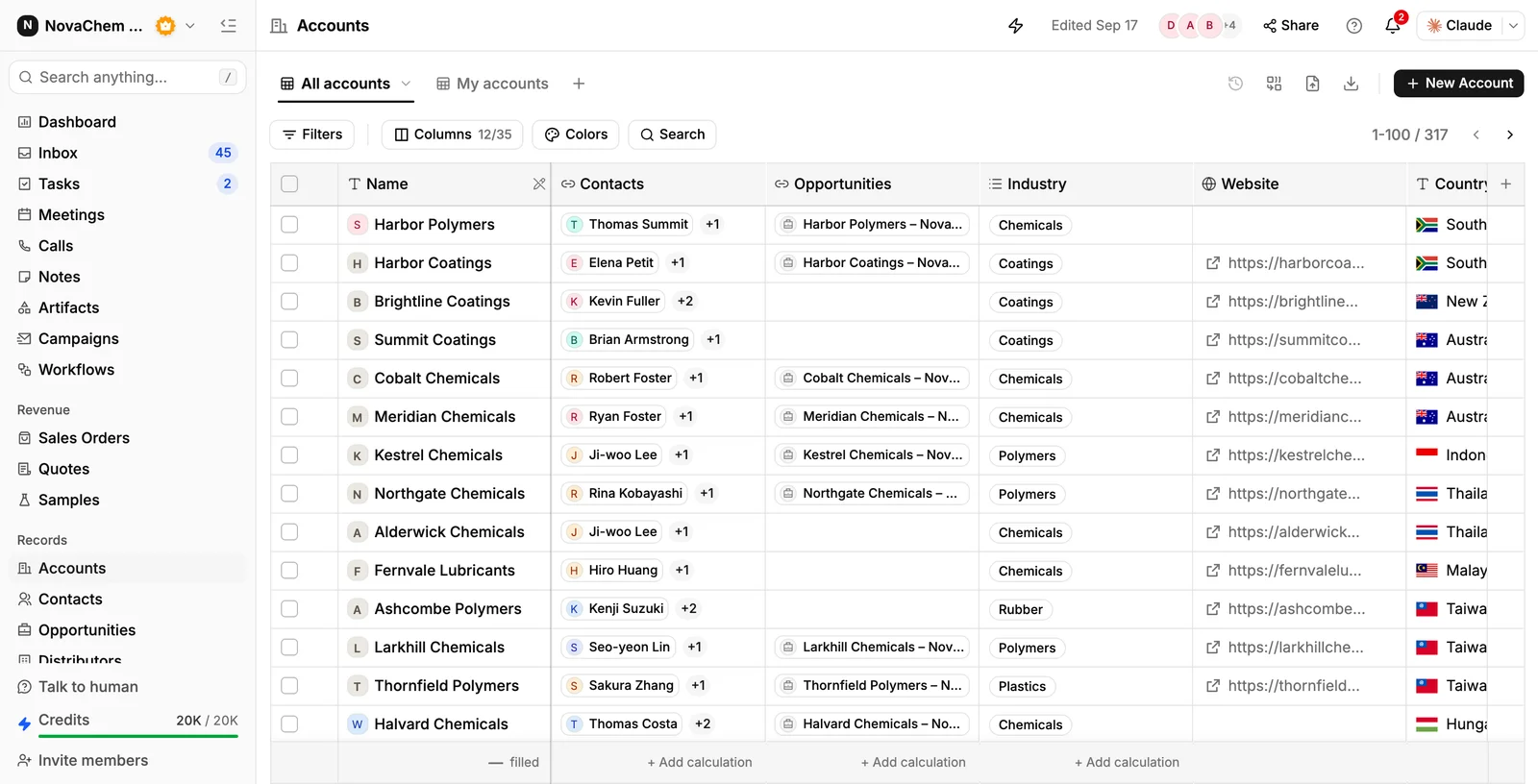
If you are coming from another CRM, PromptLab also has two-way sync with Salesforce and HubSpot, so you can run both while you switch. Once contacts are in, email capture from Gmail, Outlook or your own mail server attaches conversations to them, and a web form on your site creates new contacts with a note of the answers. See how to capture leads from your website.
Frequently asked questions
What file format should I use to import contacts?
CSV or Excel. Both are plain tables that any spreadsheet tool can produce. Use one header row, one contact per row, and no merged cells.
Should I import companies or contacts first?
Companies first if you have a separate list of them with extra detail, then contacts that point to those companies. If you only have contacts, make sure each row has a company name so the CRM can group them.
How do I avoid duplicate contacts?
Remove duplicates from the file before you import, using email as the key. After importing, search for common repeats such as the same company spelled two ways, and merge or delete them straight away.
Can I import contacts from Google Drive?
In PromptLab, yes: you can pick a file from Google Drive instead of uploading one from your computer.
How many contacts should I import?
Only the ones you would actually contact. Import active customers and live prospects, and keep old, cold contacts in an archive file until you have a reason to use them.