













How to move from spreadsheets to a CRM
Clean your sheet, choose the columns, remove duplicates, then import a CSV or Excel file into PromptLab and map the columns. A step-by-step guide.
 By the PromptLab team6 October 20265 min read
Moving from spreadsheets to a CRM takes four jobs: clean the sheet, decide which columns matter, remove duplicates, and import the file. In PromptLab you upload a CSV or Excel file, or pick it from Google Drive, and map each column to a field.
Most product sales teams start in a spreadsheet: one tab of customers, one of samples, one of prices. This guide shows how to turn that into clean records without losing history.
When is it time to leave the spreadsheet?
A spreadsheet works while one person holds the whole picture. It stops working when a second rep needs to see which samples went out, or the price list gets copied into three versions, or nobody can say who last spoke to a customer.
Watch for these signs:
- Two people have updated different copies of the same file
- A quote went out at a price that was out of date
- A buyer asked about a sample and the answer took an hour to find
- Follow-ups depend on someone's memory
A CRM keeps one record per customer, with its deals, quotes, samples and conversations together. If you're still choosing one, read how to choose a CRM for a B2B sales team.
Before you start
Before you import a spreadsheet
- 1
Clean the sheet
Start with one header row, and nothing above it. Remove blank rows, merged cells, subtotals and colour-only notes, because none of these survive an import. If you used colour to mean something, such as red for a lapsed customer, move that meaning into a column of its own.
Fix obvious typos in company names, and put dates in one format. Split cells that hold two things, like "John Smith, john@acme.com", into separate columns.
- 2
Choose your columns
Keep the columns that you'd search or filter by. For a product sales team that usually means: company name, contact name, email, phone, country, owner, deal stage, deal value and the product of interest.
Leave out columns nobody has filled in for a year. You can always add a custom field later, which is easier than carrying clutter in.
- 3
Remove duplicates
Sort by company name and look for near-matches such as "Acme Ltd", "ACME Limited" and "Acme". Sort a second time by email, since the same person can sit under two company spellings.
Merge each group into one row, keeping the most recent details. Do this before the import, because duplicates are far harder to untangle once they're linked to deals and emails.
- 4
Split the sheet by record type
One sheet often mixes companies, people and deals. Make one file per type: accounts, contacts, deals. Keep a shared column, such as company name, so each contact and deal can be matched to its account.
- 5
Import the file into PromptLab
Open the list you're filling, for example Accounts, and select Import. Upload your CSV or Excel file, or pick it from Google Drive if it lives there.
Import accounts first, then contacts, then deals, so the accounts are in place before the records that belong to them.
- 6
Map the columns
Match each column in your file to a PromptLab field: your "Company" column to the account name, "Stage" to deal stage, and so on. Skip columns you don't want.
Try a test import of about ten rows first. If the fields land where you expect, import the rest.
- 7
Check the result
Open five records and compare them with the sheet. Count the rows in the file against the records in the list. Then freeze the old file: keep it read-only as a reference, and stop editing it.
What about the other sheets?
Customer lists are only the start. Product teams usually run three more.
- Sample log. Log the samples that are still out on their accounts and deals, then record each new one as it ships. See how to track product samples.
- Price lists. Create a price list per customer in PromptLab, then quote from it. How to manage customer-specific price lists covers the routine.
- Order tracker. Quotes and sales orders sit on the account and the deal, so new orders no longer need the sheet.
Your first week off the spreadsheet
- Connect Gmail, Outlook or your own mail server, so email is captured on each contact.
- Connect Google Meet, Zoom or Microsoft Teams, so meetings are recorded and summarised.
- Connect your WhatsApp Business number and your company's Telegram bot into the shared Inbox.
- Set your pipeline stages, and view them as a Kanban board.
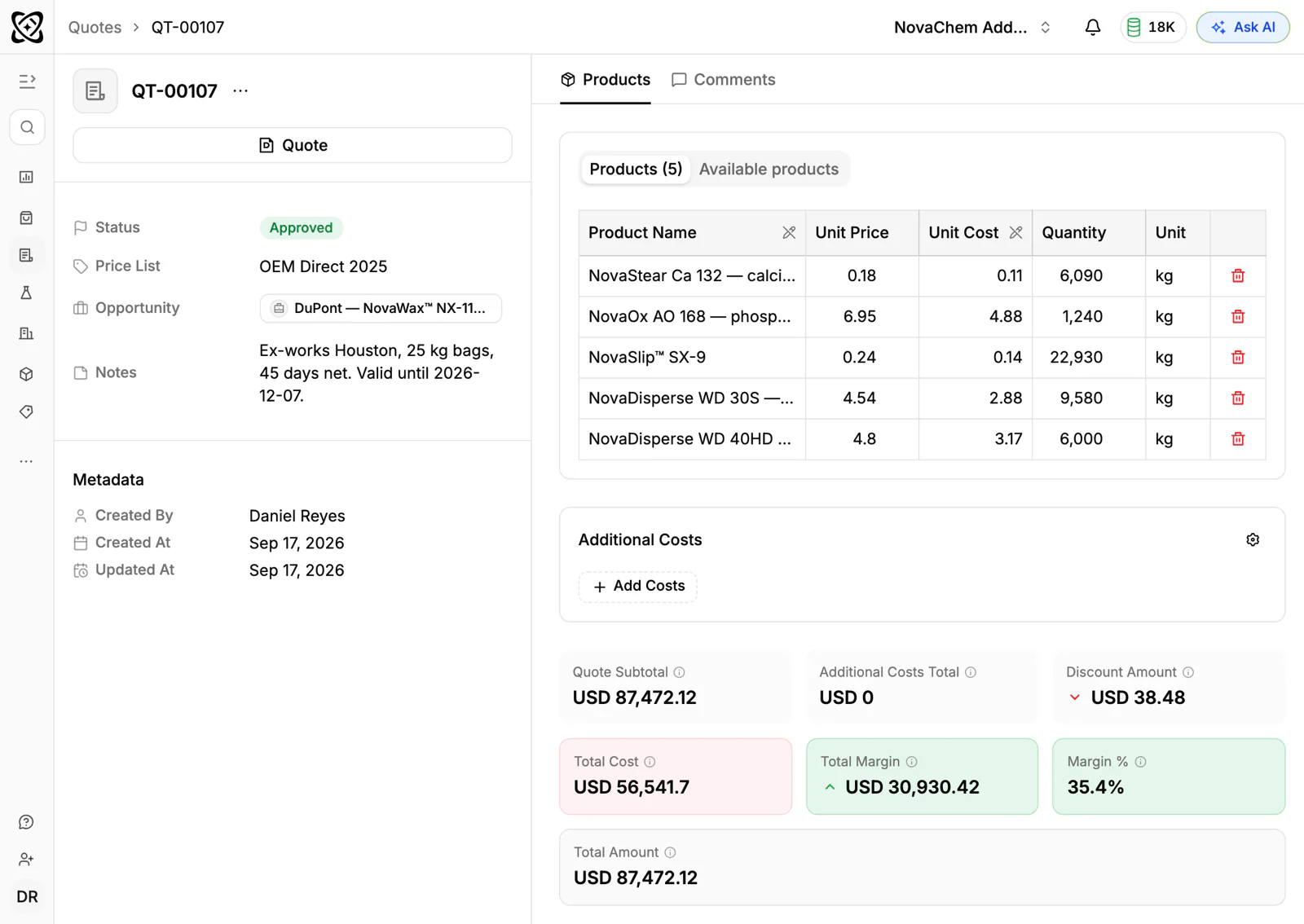
- Send your first quote from a price list, with the margin showing on each line.
- Add one workflow, such as a task when a quote changes status.
If your sheets are very large or messy, Enterprise includes data migration support. Everyone else can do the import during the 14-day free trial on Basic or Professional, with a card required to start. See pricing.
Frequently asked questions
Can PromptLab import from Excel and CSV?
Yes. Use Import on the list you're filling, upload an Excel or CSV file, or pick it from Google Drive, and map the columns.
Should I import everything in one file?
No. Make one file per record type, for example accounts, contacts and deals, and import accounts first. Each file then maps to one list, which keeps the mapping simple.
How do I deal with duplicates?
Clean them in the sheet before you import. Sort by company name and by email, and merge near-matches into one row. It's much harder to separate them after they have deals and emails attached.
What happens to my spreadsheet afterwards?
Keep it as a read-only reference for a few weeks, then archive it. Make the CRM the only place anyone adds or edits records.
Do I need a paid plan to try the import?
Basic and Professional come with a 14-day free trial, and a card is required to start it. There's no free plan.