



















How to migrate from Attio to PromptLab
Export views from Attio as CSV or Excel, import them into PromptLab, map attributes to fields and test the move in the 14-day free trial.
 By the PromptLab team16 October 20264 min read
Attio to PromptLab is a file-based move. You export a view from Attio as CSV or Excel, import it into PromptLab, map the attributes to fields, and bring tasks and notes across the same way.
This guide is for sales teams that sell products. It covers why teams move, what to prepare, each of the four steps, and what to set up in the first week.
Why do product sales teams move from Attio?
Attio is one of the best-designed of the new AI-native CRMs. You define every object, attribute and workflow yourself, and teams of up to three can use it free. If you enjoy shaping your own data model, that freedom is a real strength.
The catch for a product sale is that the model starts blank. Quotes, price lists, sales orders and sample tracking aren't in it, so someone has to design them before the team can quote. Call recording, meeting summaries and CRM autofill wait for the Pro plan at $79 a seat a month, billed annually. WhatsApp and Telegram aren't supported, and LinkedIn capture comes through third-party apps from its marketplace.
We checked those prices on 30 September 2026. For the wider field, read our Attio alternatives, the Attio pricing breakdown, or the Attio vs PromptLab comparison.
What to prepare before you export from Attio
Attio exports views, so what you get depends on the columns you show. A little preparation saves a second round of exports.
Before you move from Attio
Our CRM migration checklist covers the same ground for any CRM.
Moving to PromptLab
From Attio in four steps
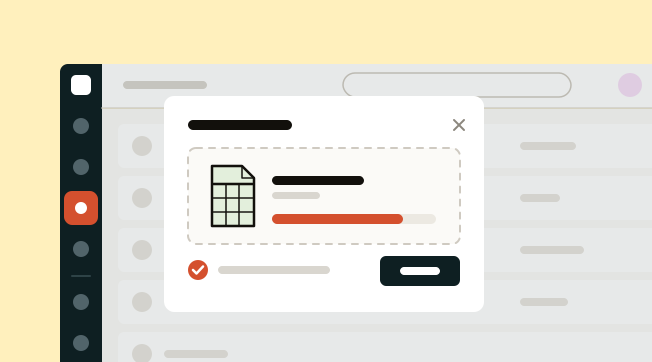
- 1Export a view from AttioOpen a table or kanban view, select Import / Export at the top right, and choose Export view as CSV or Export view as Excel.
- 2Select Import in PromptLabOpen the Accounts, Contacts or Deals list and select Import. Upload the file, or pick it straight from Google Drive.
- 3Map attributes to fieldsMatch each attribute to its field, such as company, contact or deal stage. Tasks and notes import the same way, so history comes with you.
- 4Test it during the trialRun real deals through it during the 14-day free trial. For a large workspace, our Business plan includes data migration support.
Step 1: export a view from Attio
Open a table or kanban view, select Import / Export at the top right, and choose Export view as CSV or Export view as Excel. Do this once per object, after the freeze, so the files match each other.
Name the files clearly, for example companies, people and deals. Check that every attribute you want is visible in the view before you export, because a hidden column stays behind.
Step 2: import into PromptLab
Open the Accounts, Contacts or Deals list in PromptLab and select Import. Upload the file, or pick it straight from Google Drive.
Go in this order: companies first, which become accounts, then people, then deals. That way the accounts exist before the contacts and deals that belong to them.
Step 3: map attributes to fields
Match each Attio attribute to its PromptLab field, such as company, contact or deal stage. Custom attributes you still need can be mapped to custom fields, so decide which ones earn a place before you run the import.
Tasks and notes import the same way, so each account's history comes with you. Don't skip them: the notes hold the reasons a deal was won or stalled.
Step 4: test it during the free trial
Run real deals through PromptLab during the 14-day free trial. Basic and Professional both come with one, with no card needed. Let two or three reps work in it for a week, then decide.
There is no live sync with Attio, so the move runs on exports and imports. For a large workspace, Business includes data migration support and a dedicated account manager.
What to add in your first week
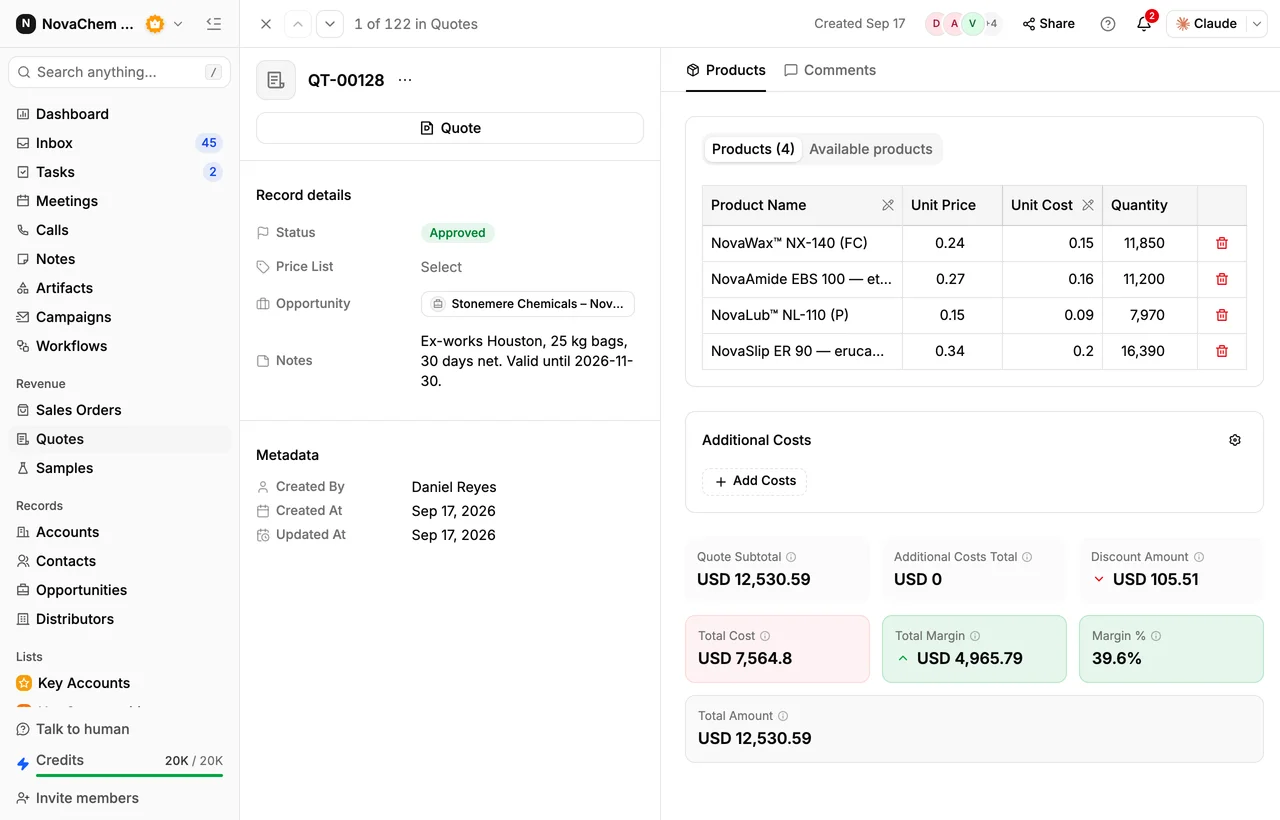
You've kept your pipeline. Now add the objects Attio left for you to build, which here are ready-made.
- Price lists. Create a price list for each key customer, so reps quote from agreed prices, not memory. How to manage customer price lists has the routine.
- Quotes and orders. Send a quote from a price list and raise the sales order when the customer says yes.
- Samples. Log each sample request on the account and the deal. See how to track product samples.
- Meetings. Each rep connects their meeting tool (Google Meet, Zoom or Microsoft Teams). Meetings are then recorded, transcribed and summarised.
- Channels. Connect your WhatsApp Business number and your company's Telegram bot, so buyer chats land in the shared Inbox beside email.
- Claude or ChatGPT. Attio has an MCP server, and so do we. Connect your assistant with each user's own login, no API keys.
Frequently asked questions
How do I export data from Attio?
Open a table or kanban view, select Import / Export at the top right, and choose Export view as CSV or Export view as Excel. The file holds the columns shown in that view.
Can I import straight from Google Drive?
Yes. When you select Import on a PromptLab list, you can upload the file or pick it from Google Drive.
Will my tasks and notes come across?
Yes. Tasks and notes import the same way as accounts, contacts and deals, so the history comes with you.
Is there a sync with Attio?
No. PromptLab's two-way sync covers Salesforce and HubSpot, so an Attio move runs on exports and imports. A small test batch first is a good habit.
Is there help with a larger move?
Business includes data migration support and a dedicated account manager. Smaller teams usually run the move themselves during the 14-day free trial.
Sources
Prices and features of other CRMs come from each vendor's own pages, on the dates below.
- Attio, checked on 30 September 2026: Pricing, Call Intelligence, AI, MCP server, Exporting lists and views