



















Meetings
Bring your meetings into PromptLab, prepare with AI, let the notetaker record them, and get the summary, transcript and tasks afterwards.
Available on all plans.
Available for all workspace members.
Meetings brings your Google Meet, Microsoft Teams and Zoom meetings into PromptLab. Before a meeting, generate a briefing from your CRM data. During it, the PromptLab notetaker joins and records. Afterwards you get the recording, a transcript, an AI summary and the action items as tasks, all linked to the people you met.
Connect your meeting app
- Open Apps from the workspace menu at the top of the sidebar.
- Under Video Conferencing, click Connect on Google Meet, Microsoft Teams or Zoom, and sign in.
PromptLab then brings in your upcoming meetings that have a Google Meet, Zoom or Teams link. Attendees are matched to your contacts by email; someone who isn't in PromptLab yet becomes a new contact, with an account based on their email domain.
Use Calendly or Cal.com for bookings? Connect them under Video Conferencing too, and each booking becomes a meeting, matched to the person who booked.
Your Google Calendar syncs through the Google Meet connection, and your Microsoft calendar through Microsoft Teams.
Upcoming events and past conversations
The Meetings page has two halves: Upcoming Events and Past Conversations; switch between them at the top. Team Meetings shows the meetings your workspace can see and My Meetings the ones you created. Add a view with + to see meetings as a table, a board or a calendar.
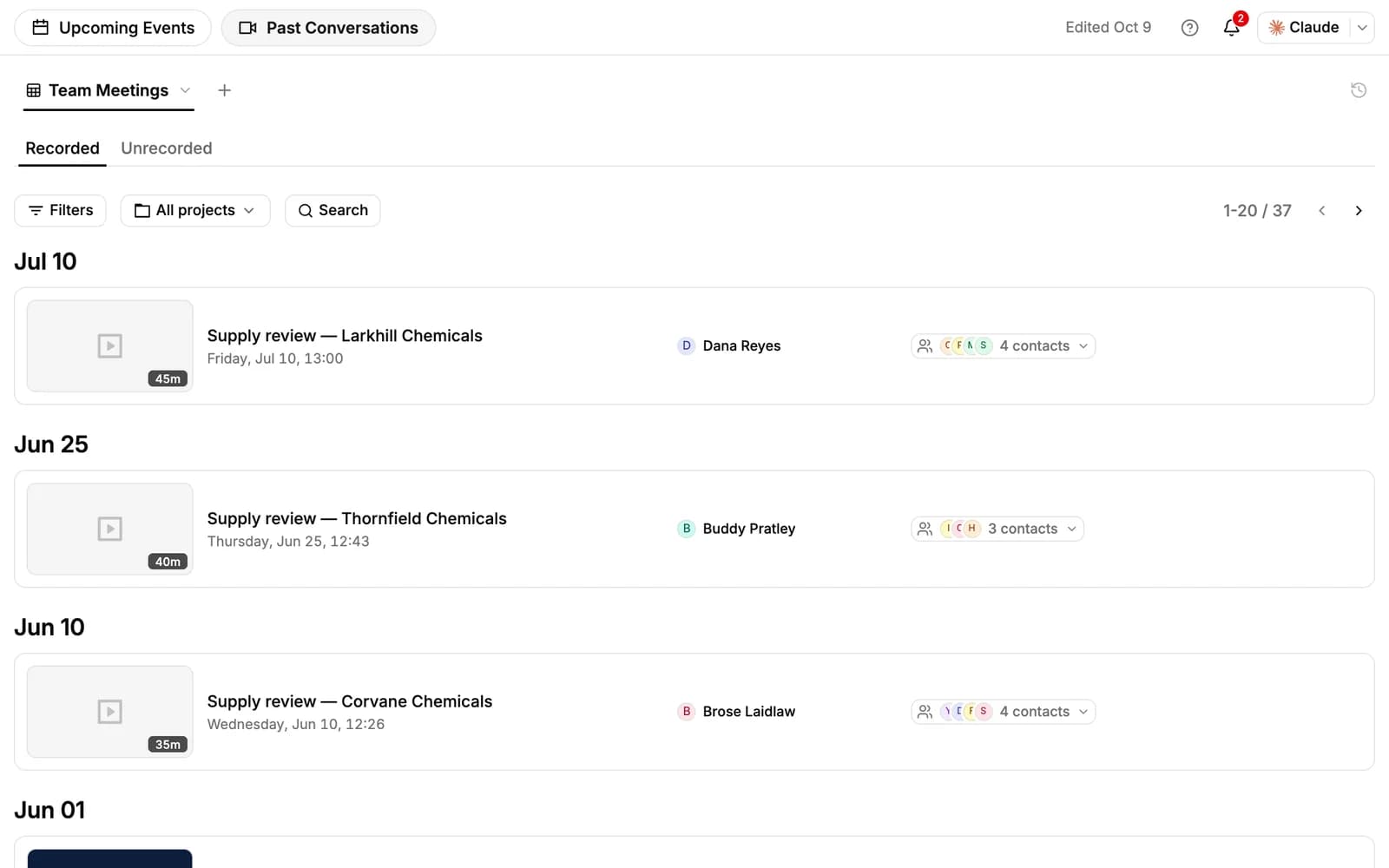
Past Conversations has two tabs: Recorded, with every meeting the notetaker recorded, and Unrecorded.
Schedule a meeting
Click New Meeting on the Meetings page, or Create Meeting at the top of an account, contact or opportunity:
- Type a title and, if you like, an agenda.
- Set the date, time and duration.
- Under Video link, pick Google Meet, Zoom or Teams, paste a link, or choose No video link for a meeting in person or by phone.
- Add teammates and Contact Emails, and link an account or opportunity under Link records.
- Leave Recording on if the notetaker should join, and click Schedule.
PromptLab creates the event and its link in Google, Zoom or Teams, which sends the invitations. To start a call right away instead, click Meet Now.
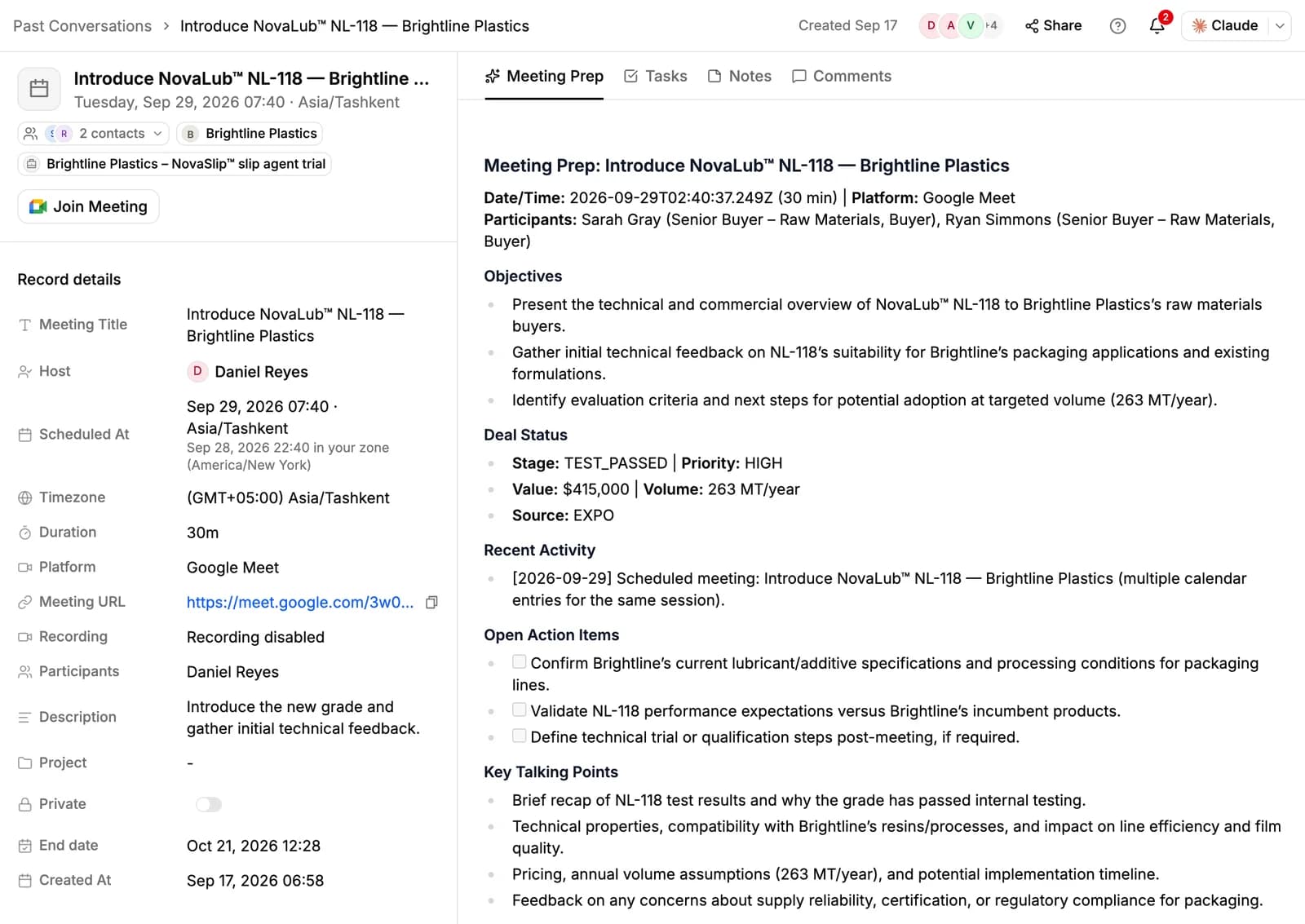
Prepare with Meeting Prep
Open an upcoming meeting and click Generate Meeting Prep on its Meeting Prep tab. PromptLab writes a briefing from what your CRM knows (the contacts, account, deal, recent activity, notes, tasks, samples and earlier meetings) under Objectives, Deal Status, Recent Activity, Open Action Items, Key Talking Points and Risks & Notes.
Click Regenerate to bring it up to date closer to the meeting.
The notetaker
The PromptLab notetaker joins every meeting synced from your calendar or booked through Calendly or Cal.com that has a Google Meet, Zoom or Teams link, and records it. If your meeting has a waiting room, admit it.
It joins under your company's name, for example "NovaChem Notetaker". To change the name, open Apps and find Notetaker name.
While it records, the meeting's page shows a live transcript. Click Stop notetaker to remove it from the call. For a meeting you schedule in PromptLab, turn Recording off when you create it to keep the notetaker out.
Zoom webinars can't be recorded, and neither can meetings that come in through an Exchange mailbox. You can't upload a recording you made elsewhere.
After the meeting
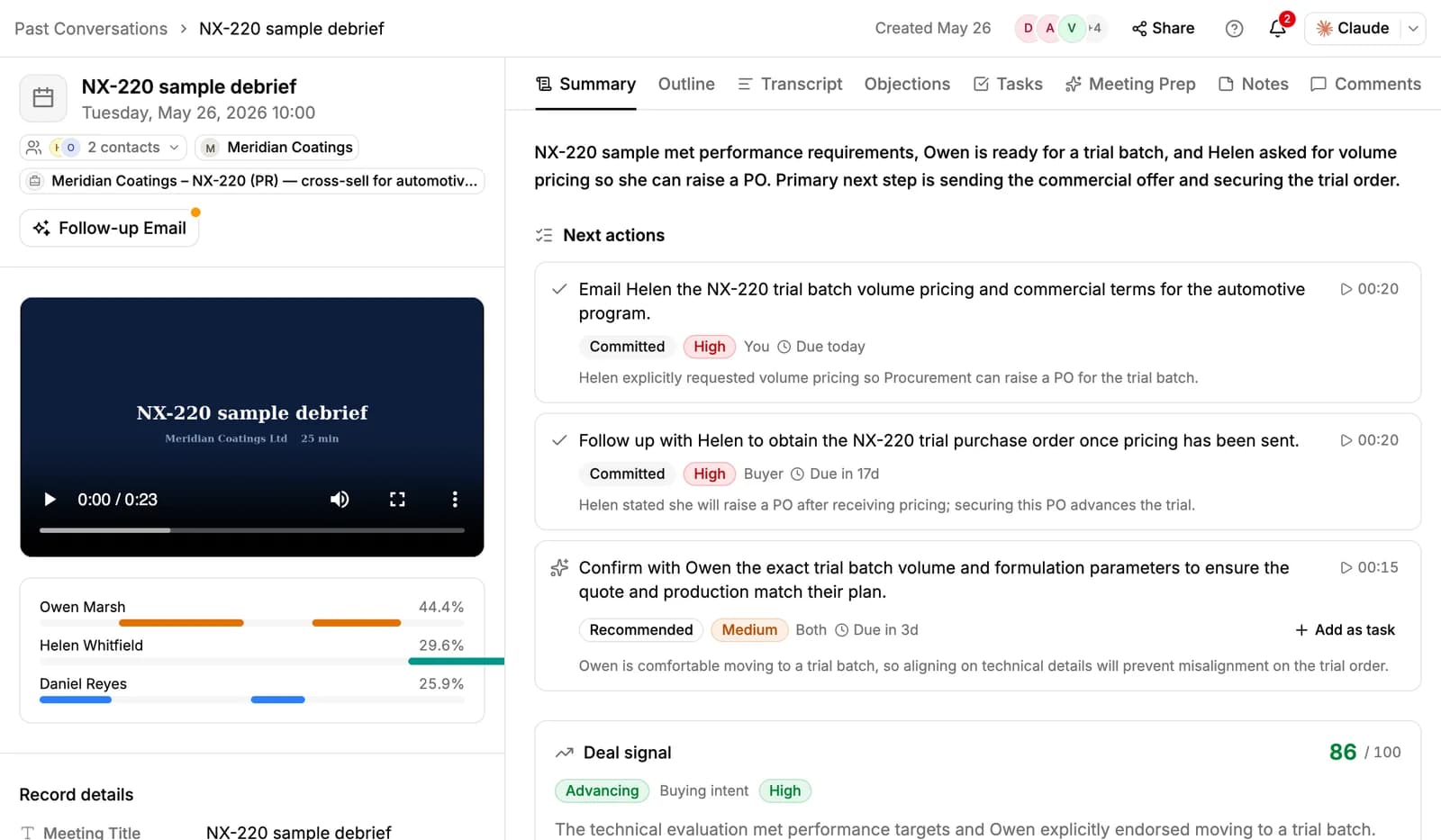
When the meeting ends, the recording is transcribed and the meeting opens with these tabs:
- Summary: a short recap; the next actions, each marked Committed or Recommended (add a recommended one with Add as task); a deal signal score; and the pain points, questions, competitors, pricing and stakeholders that came up.
- Outline: the meeting in timestamped sections.
- Transcript: every line with its speaker and time. Search it, copy it, or click a line to jump the video there.
- Objections: the objections raised, tagged by type, such as pricing, timing or competitor.
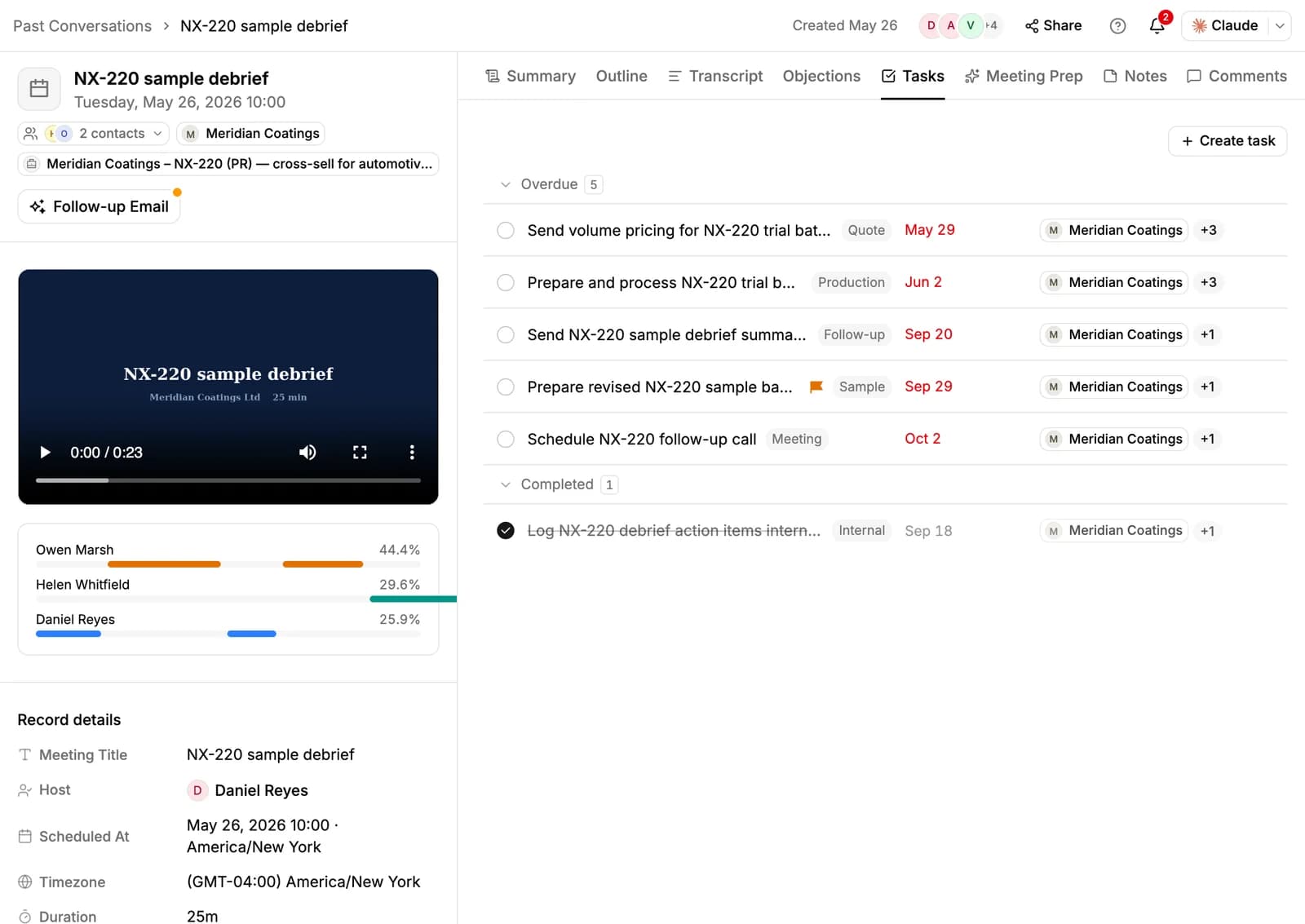
- Tasks: the action items, created as tasks on their own and given to the meeting's host.
- Meeting Prep, Notes and Comments.
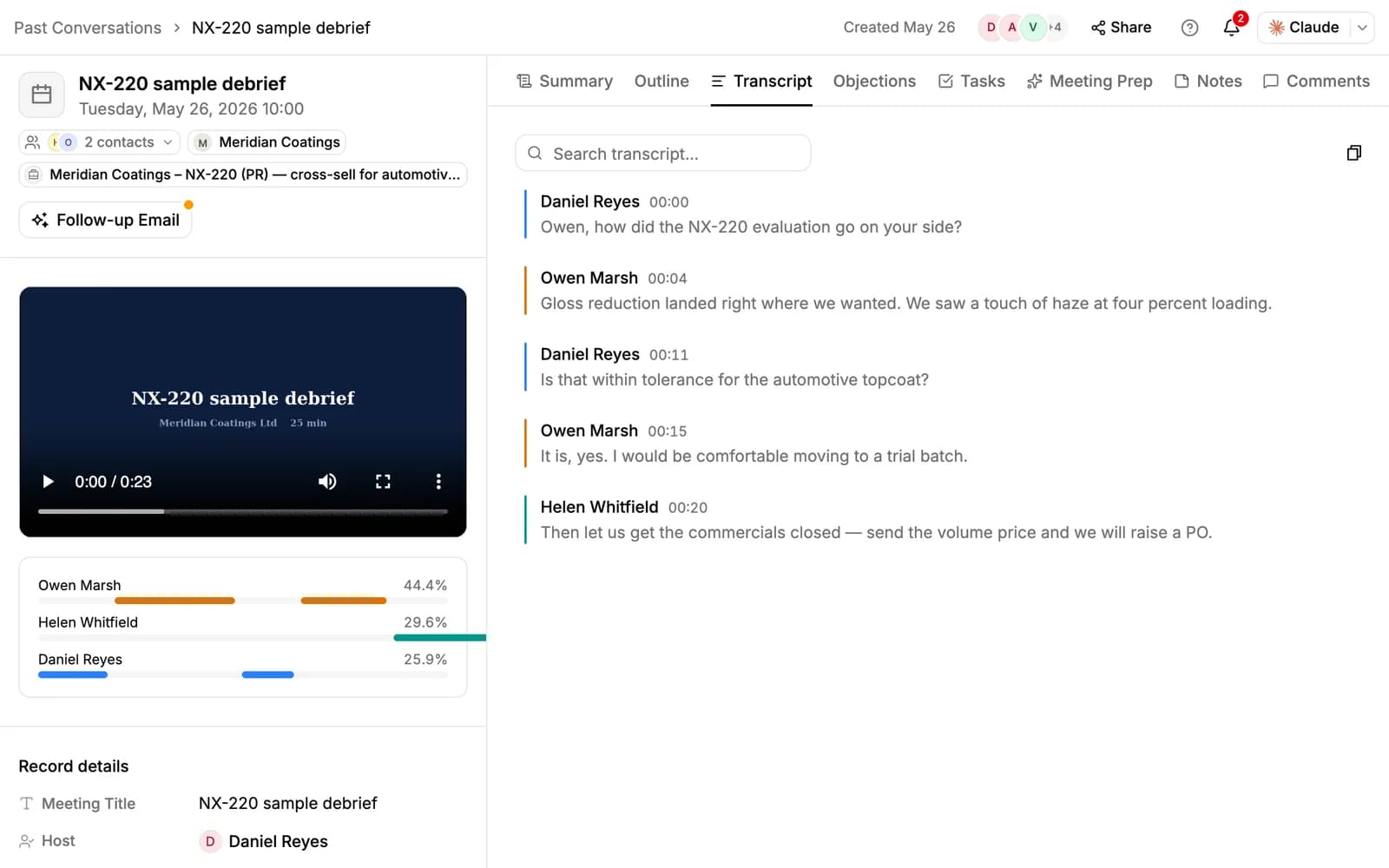
Transcripts work in 35 languages, and PromptLab detects the language on its own. The summary is written in the meeting's language.
Follow up and share
- Follow-up Email: pick a tone (Formal, Friendly or Concise) and click Generate. Edit the draft, Refine it if you like, and click Send. It goes from your own connected mailbox.
- Recap email: after a recorded meeting, its attendees get the summary by email. Admins can turn this off on the Apps page under Recap email to attendees.
- Share: meetings are visible to everyone in the workspace unless the host or a participant makes them private. Under Share → Publish you can create a link to the recording that anyone can open without signing in; links expire after 7, 14 or 30 days.
Find past meetings
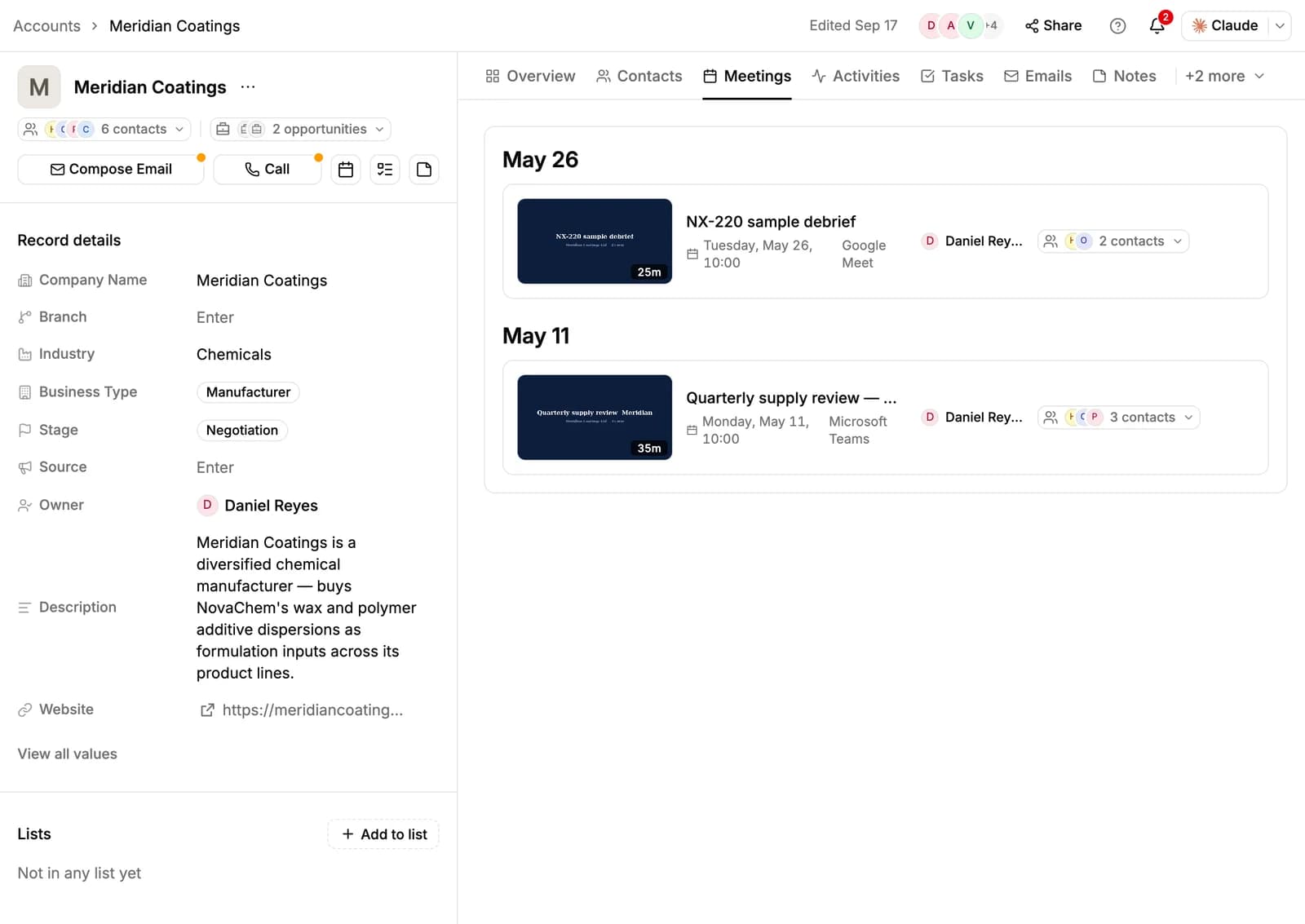
Every meeting shows on the Meetings tab of its accounts, contacts and opportunities. An account's tab also lists meetings attended by its contacts. Search finds what was said, too: results under Meeting transcripts open the meeting on its transcript.
Recording and consent
The notetaker joins as a visible participant under your company's name. Recording laws differ between countries and states, and some require everyone in the meeting to agree. It is your responsibility to follow them. For example:
- Say in the invitation that the meeting will be recorded.
- Mention meeting recording in your privacy notice.
- If someone doesn't agree, click Stop notetaker, or remove it from the call.
Related resources
To see what PromptLab does with recorded conversations, read Call Intelligence.
To connect your calendar, email and other apps, see Integrations.
Phone calls from your PromptLab number are covered in Calls.
Frequently asked questions
Which meeting apps can PromptLab record?
Google Meet, Zoom and Microsoft Teams. Zoom webinars aren't supported.
Does the notetaker join every meeting?
It joins every meeting synced from your calendar, or booked through Calendly or Cal.com, that has a Google Meet, Zoom or Teams link. For a meeting you schedule in PromptLab, you can turn Recording off.
Which languages are supported?
Transcripts work in 35 languages, detected automatically. The summary is written in the meeting's language.
Can I upload a recording?
No. PromptLab records meetings through the notetaker only.
Who gets the recap email?
The meeting's host, teammates and contacts, after a recorded meeting. Admins can turn the recap email off.
Is Meetings on every plan?
Yes. Meetings, recordings, transcripts, AI summaries and follow-up email drafts are on every plan. The AI features use your weekly credits.