



















Inbox
Read and answer email, WhatsApp, Telegram, LinkedIn, Slack and SMS conversations in one place, each linked to the right contact.
Available on all plans.
Available for all workspace members. Channels for the whole team are connected by workspace owners and admins.
The Inbox brings your customer conversations into PromptLab: email, WhatsApp, Telegram, LinkedIn, Slack and text messages. Each conversation is linked to the contact it belongs to, so you can see who you're talking to, their company and their deals without leaving the chat.
Reply from the Inbox, assign conversations to teammates, leave notes for your team, and turn a conversation into a task or an opportunity.
Connect your channels
Click Connect at the bottom of the Inbox's views to open Connect a channel. Each channel connects right there:
- Gmail and Outlook: sign in with your Google or Microsoft account.
- Other email: any other mailbox over IMAP and SMTP, or Exchange. The first time, enter your mail server's settings; they're saved for the whole workspace.
- WhatsApp and Telegram: scan a QR code with your phone, the way you link WhatsApp Web or Telegram Desktop. Your own chats come in, and only you see them.
- LinkedIn: install the PromptLab Chrome extension, sign in to it and turn on LinkedIn. It brings in your one-to-one LinkedIn messages.
- SMS: texts to and from your PromptLab phone number, set up in Settings → Voice Calls.
- Slack: customer conversations from your Slack workspace.
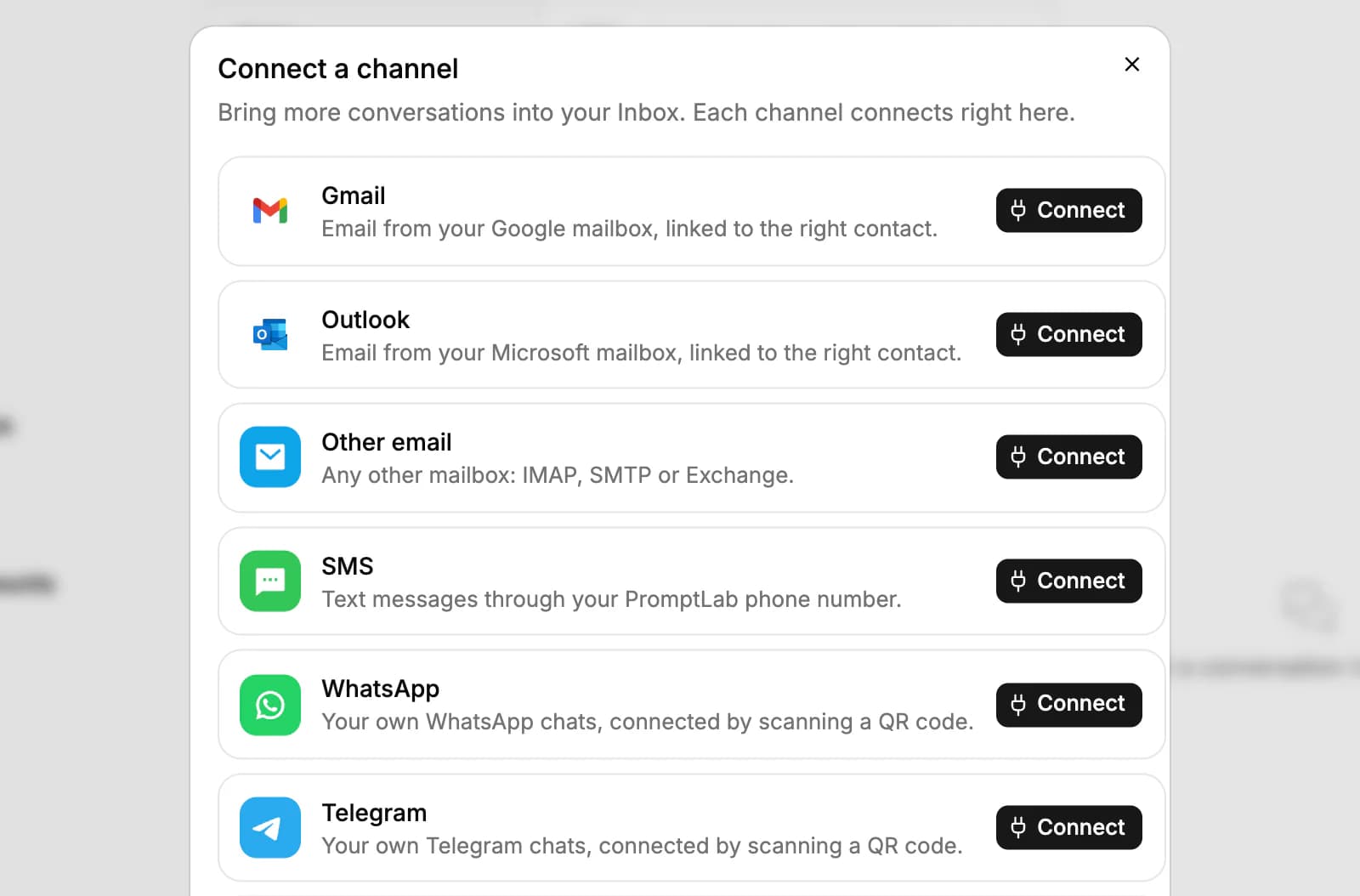
Workspace owners and admins can also connect channels for the whole team on the Apps page: the company's WhatsApp business number and a Telegram bot for your company. Customers who message them land in the team's shared Inbox.
A connected channel shows who it's connected as, and its gear opens it on the Apps page. Text messages need a PromptLab phone number, which comes with the Professional, Business and Enterprise plans.
Who sees what
Conversations that come in through your own accounts are private to you: your mailbox, your LinkedIn, the WhatsApp or Telegram you scanned in, and an SMS number assigned to you.
Conversations on channels connected for the whole workspace are shared with everyone: the WhatsApp business number, the company's Telegram bot, Slack, and an SMS number that isn't assigned to anyone.
Bring in your email
Click Mail in the views to connect a mailbox: Gmail, Outlook, Exchange or Other email. Once a mailbox is connected, its own tab appears in the views.
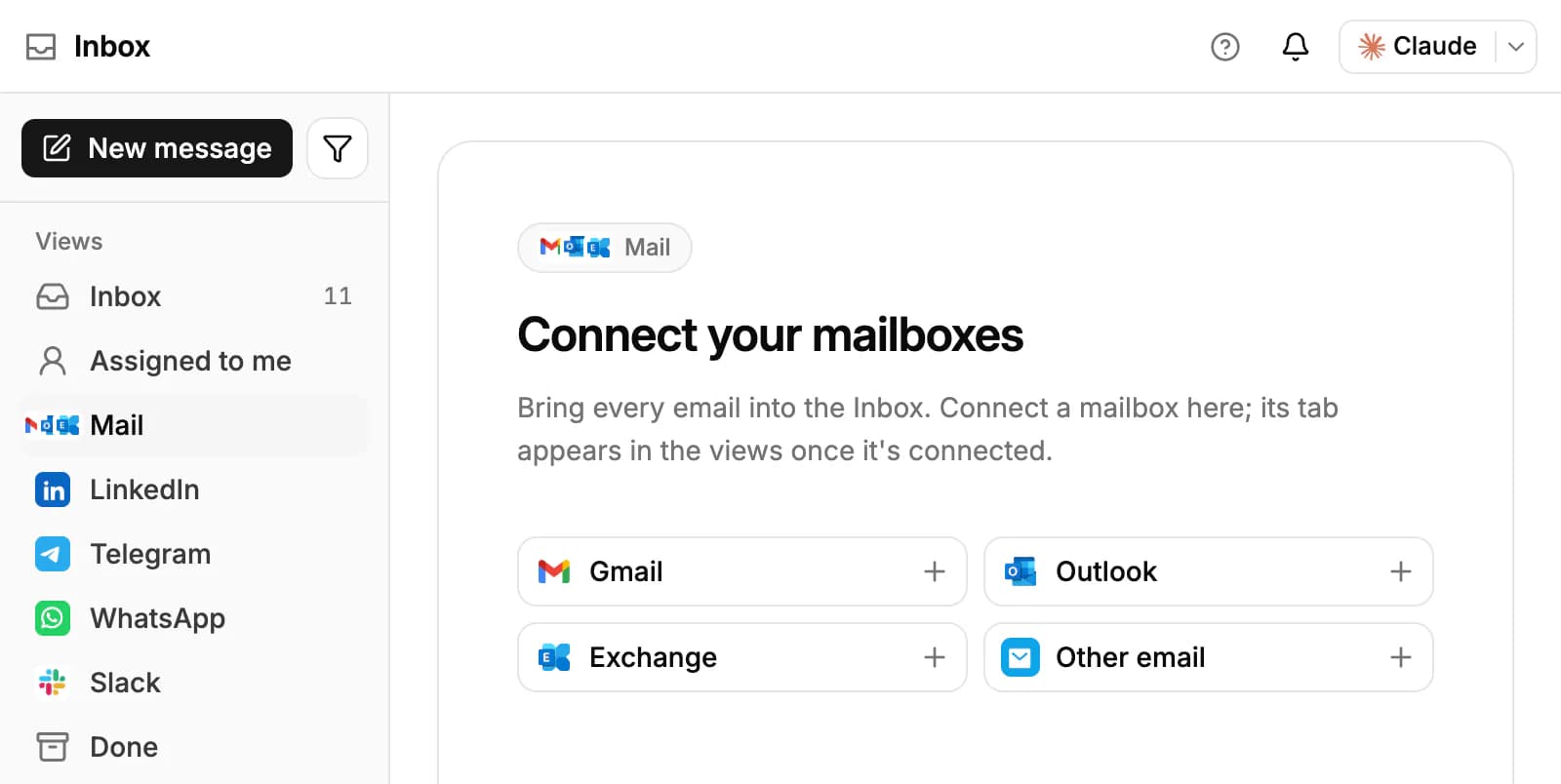
When you connect, choose how to sync. All emails saves everything you send and receive and creates contacts for unknown senders. Contacts only saves email only with people who are already contacts. Then pick how far back to import: 1 month, 3 months (the default), 6 months, 1 year or Everything.
An email thread shows up in the Inbox once the other person has written. A thread that holds only emails you sent stays out of it. Open an email to Reply, Reply all or Forward; to write a new one, click New message and pick a contact.
Work a conversation
The views on the left are Inbox (everything open), Assigned to me, a tab for each channel, Done, Starred and Unread. Above the list, All, Records only and Not replied narrow the list, and Filter narrows it by status, channel, reply status, owner and date, or to important conversations only.
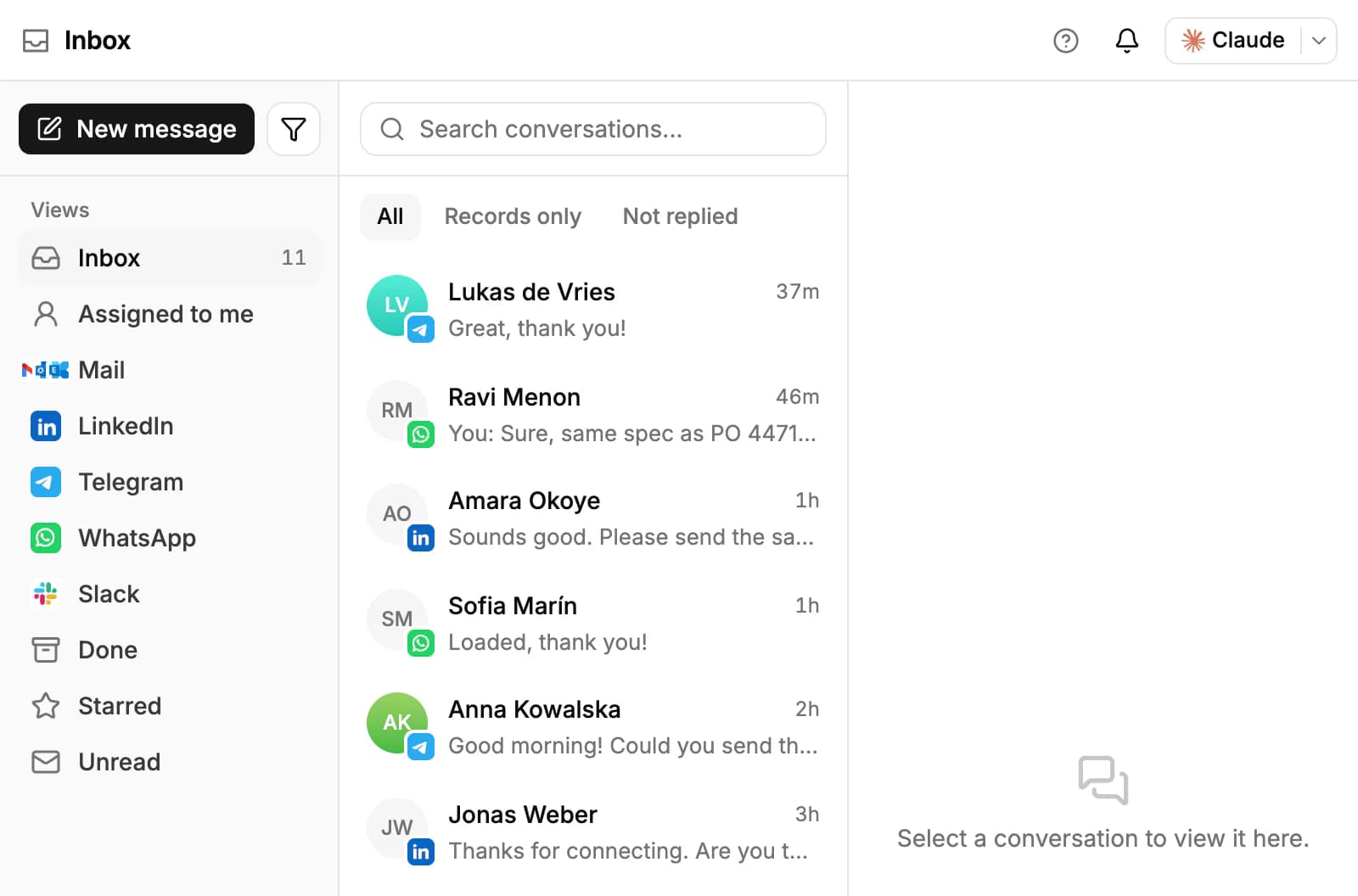
Open a conversation and type in the box at the bottom. Your reply goes out on the conversation's own channel, from the account it came in through; LinkedIn replies leave from your own LinkedIn through the extension. The buttons at the top of the conversation:
- Star conversation keeps it within reach under Starred.
- Mark as done moves it to Done; Reopen brings it back.
- Create task makes a follow-up task linked to the contact, their account and their opportunity.
- Create opportunity appears when the conversation has a contact but no opportunity yet.
Keyboard shortcuts: R to reply, N for a note, I to star, D to mark done and Esc to close the conversation.
Assign and leave notes
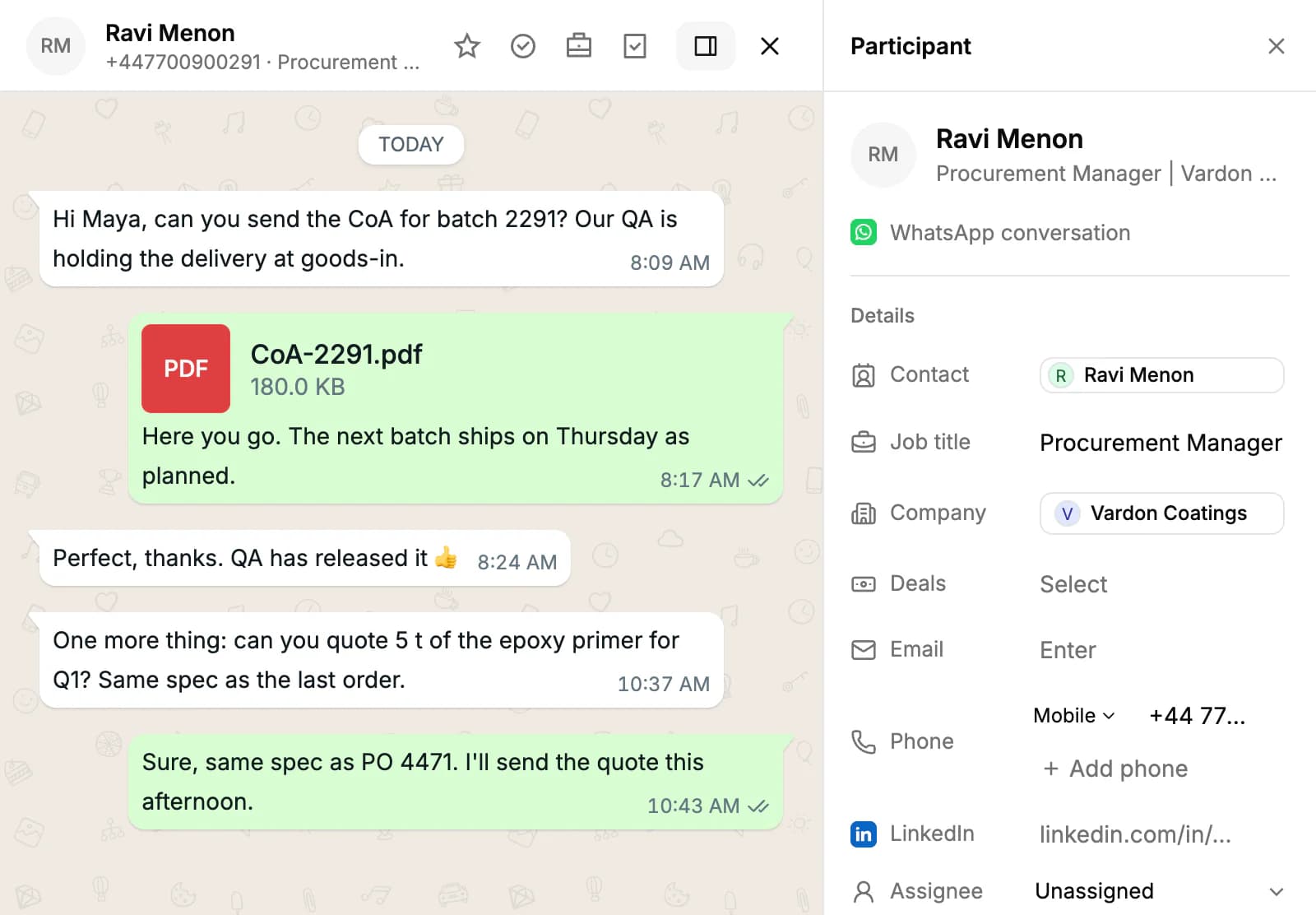
Click Participant at the top of a conversation and pick a teammate under Assignee. The conversation then shows in their Assigned to me view.
Click Note next to Reply to write a note for your team. Notes stay inside PromptLab and are never sent to the customer. Type @ to mention a teammate.
Link conversations to your records
PromptLab links each conversation to the contact it matches, by email address, phone number or handle. The Participant panel shows that contact's job title, company, deals, email, phone and LinkedIn, and you can edit them right there.
- Contact: pick a different contact, remove the link, or create a new contact from the conversation.
- Company: link the contact to an account.
- Deals: link an opportunity, or create one.
- Open record opens the contact's page.
For a LinkedIn conversation with someone who isn't a contact yet, click Add to CRM.
Block a sender or delete a chat
In an email conversation, workspace owners and admins can click Block sender. Email to or from that address stops coming into the Inbox and the conversation leaves it, for the whole workspace.
Blocked addresses are listed in Settings → Email → Blacklist, where admins can also block a whole domain or a prefix such as noreply*, and lift a block. The blacklist covers email only.
You can remove one of your own WhatsApp or Telegram chats with Delete chat. It leaves PromptLab but stays in your WhatsApp or Telegram, and a new message brings it back.
Related resources
To call contacts and text them from your PromptLab number, see Calls.
To send a sequence of emails to many contacts, see Campaigns.
To connect your mailbox, calendar and other apps, see Integrations.
Frequently asked questions
Which channels can I connect?
Email (Gmail, Outlook, Exchange or any IMAP mailbox), WhatsApp, Telegram, LinkedIn, Slack and SMS. Instagram and Facebook Messenger aren't supported.
Can my teammates read my conversations?
No. Conversations from your own mailbox, LinkedIn, WhatsApp or Telegram are visible only to you. Only channels connected for the whole workspace are shared.
Why don't I see some of my emails?
An email thread appears once the other person has written to you. Email from blocked senders stays out, newsletters and other bulk mail are left out, and so is email from people who aren't contacts if your mailbox syncs Contacts only.
Can I start a conversation from the Inbox?
You can start an email: click New message and pick a contact. On the other channels, conversations start when you or the customer write in that app.
Does the Inbox write replies with AI or send broadcasts?
No. You write every reply yourself, one conversation at a time. There are no chatbots or mass messages.
Is the Inbox on every plan?
Yes. Text messages need a PromptLab phone number, which comes with the Professional, Business and Enterprise plans.