



















Website visitors
See which people from your email campaigns visit your website, which pages they read and for how long.
Available on all plans.
Available for workspace members with access to Campaigns, which is on by default.
Website Visitors shows who from your campaigns is reading your website. Add a short code to your site; when someone clicks a link in one of your campaign emails, PromptLab ties the visit to their contact, with the pages they opened, how long they stayed and the campaign that brought them.
Everyone else who visits is counted but stays anonymous. PromptLab doesn't look up companies from IP addresses.
Install the tracking code
- Open Website Visitors and click the Setup tab.
- Click Add New, type your website's domain and click Get the Pixel.
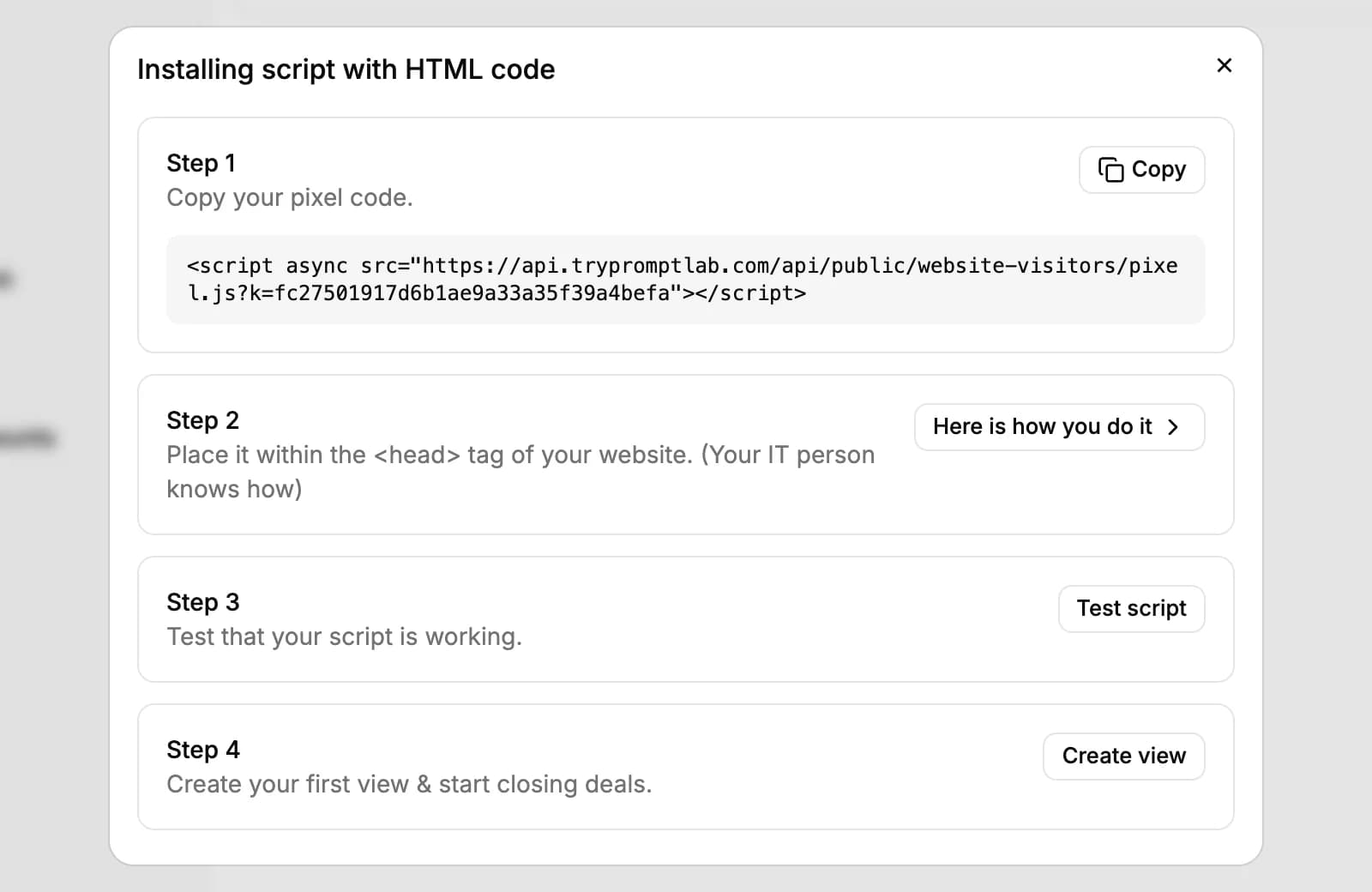
- Click Copy and paste the code into the head of your website's pages.
- Click Test script. PromptLab opens your site in a new tab and waits for the code to report in, and the domain's status turns Working.
Here is how you do it has the steps for WordPress, Wix, Webflow, Shopify and custom HTML. You can track up to 10 domains, and each one covers its subdomains too.
New workspaces don't pin Website Visitors to the sidebar. Click More at the bottom of the sidebar, find Website Visitors and pin it.
How visitors get a name
When a campaign has Track link clicks on, its links to your tracked domains carry a signed tag for the person who got the email. When they click, the tracking code reads the tag and names the visit after their contact. Later visits from the same browser keep the name.
Anyone who arrives another way, or from a campaign without click tracking, counts toward Total Visitors but isn't named.
Click tracking is off by default. Turn it on in the campaign's Settings tab under Advanced settings, and link to a page on a domain you track.
What a visit records
PromptLab keeps one row per visitor, per day, per site: the pages they opened and how long they stayed on each. Time on a single page counts for 30 minutes at most, and known bots are ignored.
Clicking Test script doesn't count you as a visitor: that one page load only checks the code.
See who visited
The Website Visitors tab starts with four numbers: Total Visitors in the last 30 days, Identified with the identification rate, High Value (senior people such as owners, directors and heads, read from their job title) and visitors Today.
The table lists the named visitors with their Name, Company, Campaign, Pages, Visit duration and Date. Each visitor is already a contact: click a row to open their contact page and follow up.
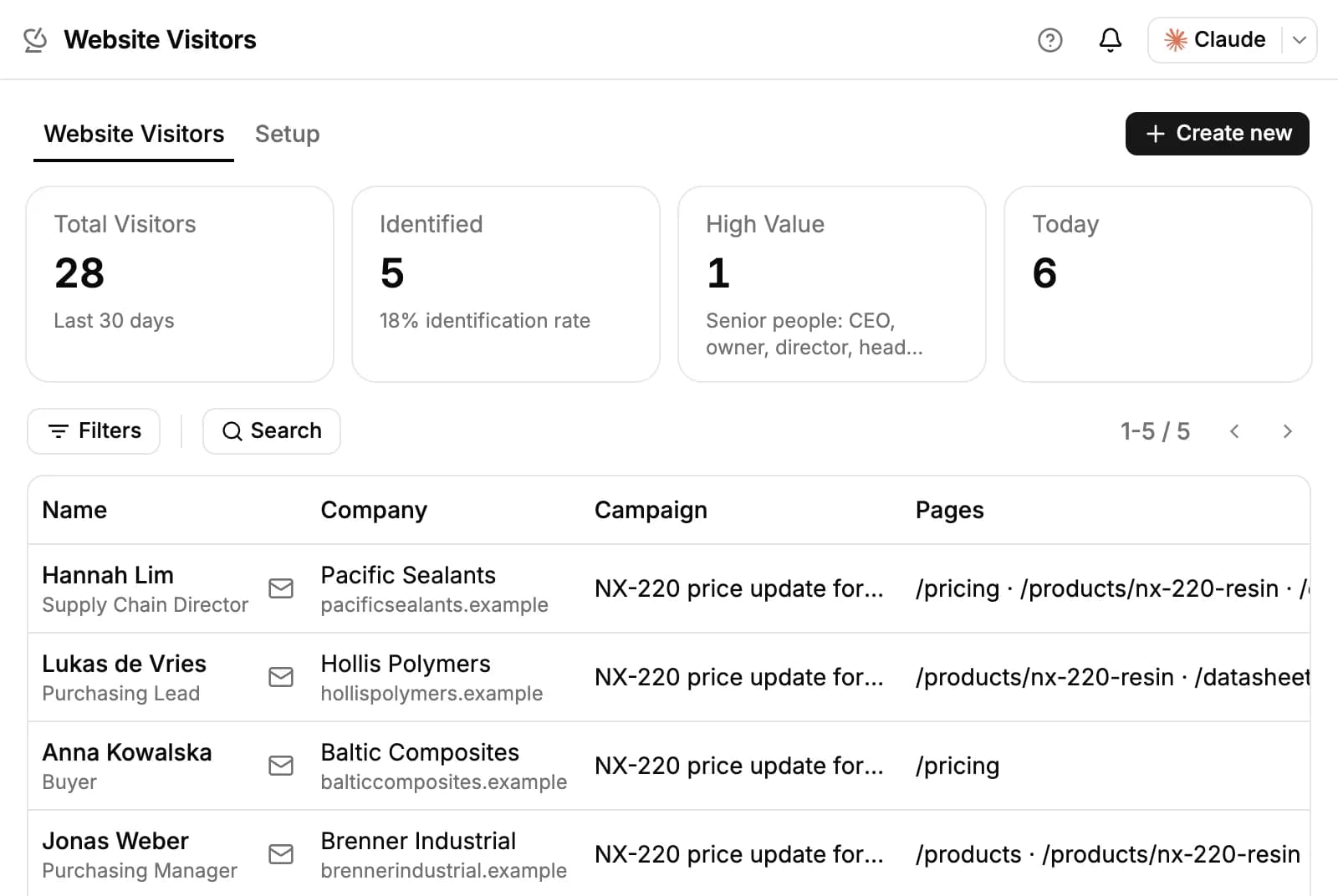
Filter by time range, campaign, decision role, department, industry, number of employees or revenue, or by whether you have their email, LinkedIn or phone.
Save views and get alerts
- Click Create new.
- Name the view, for example Pricing page readers.
- Under Filters, narrow it by campaign, decision role, company size and more, and add URL rules for the pages they opened and Referrer rules for where they came from.
- Under When someone new matches, pick what happens: Slack, Notify me, Task or Telegram.
- Click Save view.
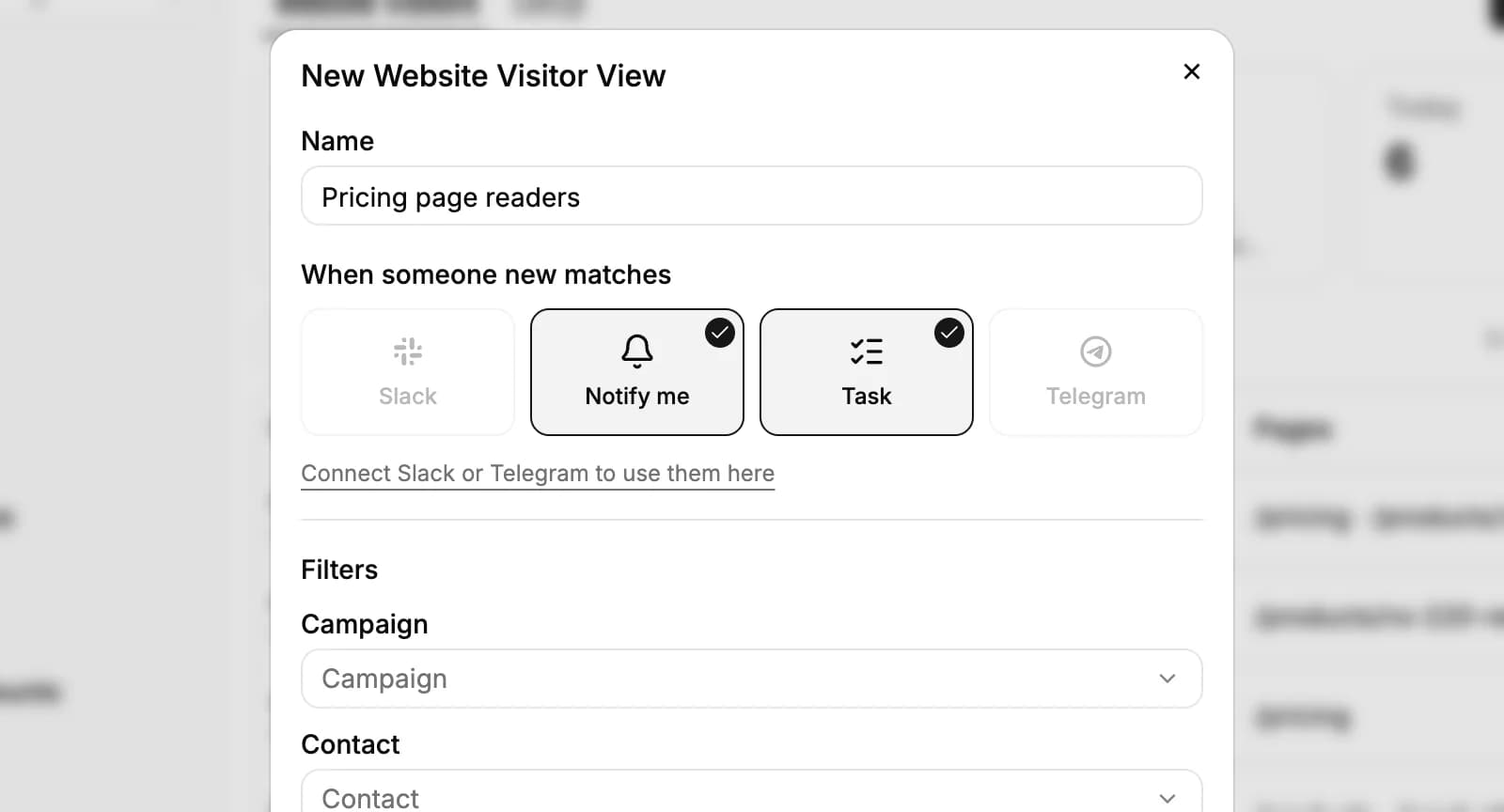
Each view becomes a button above the table. Its alerts run as a workflow, which you can open from the view's menu with Open its workflow. A view alerts you once a day per visitor.
You can also build your own workflow that starts when a website visitor is identified, for example to create a task for the account owner.
Connect Slack or Telegram on the Apps page before you pick them here.
Privacy and consent
The tracking code keeps a random visitor ID in the browser and reports which pages were opened, where the visitor came from and the time spent on each page. It doesn't read what people type or what's on your pages. Visits are kept for about 13 months.
Privacy laws differ between countries, and it is your responsibility to follow them. For example:
- Ask for consent with a cookie banner before the code runs.
- Mention visitor tracking and email link tracking in your privacy policy.
- Delete a domain on the Setup tab to stop tracking it; its visitors are deleted too.
Related resources
Visitors are named from your email campaigns: see Campaigns.
To follow up with a visitor, open their contact: see Contacts.
To change what happens when someone matches a view, see Workflows.
Frequently asked questions
Does it identify companies from their IP address?
No. A visitor is named only after clicking a tracked link in one of your campaign emails. Everyone else stays anonymous.
Why is a visitor I emailed still anonymous?
Their campaign may have had Track link clicks off, the link may point to a domain you don't track, or they came back in a different browser.
How many websites can I track?
Up to 10 domains per workspace. Each domain covers its subdomains.
Do I need campaigns to use Website Visitors?
To name visitors, yes. Without campaigns, you see visitor counts only.
Which plans include Website Visitors?
Every plan.