



















Forms
Build a form for your website or a shareable link, and turn every response into a contact, account, opportunity or record.
Available on all plans.
Available for all workspace members. A custom object's form needs permission to add records to that object.
A form in PromptLab is a view of a records page. Add a Form view to Contacts, Accounts, Opportunities or a custom object, write the questions, then share it as a link or put it on your website.
Every response creates or updates a record on that page. On contacts, accounts and opportunities, the full response is also saved as a note on the record.
Create a form
- Open Contacts, Accounts, Opportunities or a custom object.
- Click + next to the view tabs and choose Form.
- Give the form a title and, if you like, a description.
A new form starts with the fields its records need. A contact form asks for a name, an email and a message; an account form for the company name and website; an opportunity form for the company, a name and an email. Changes save as you type.
A workspace can have up to 50 forms. Deleting the Form view deletes its form and its responses, and the form stops working everywhere it's shared.
Add questions
Click Add question. Pick one of the page's columns (or make one with New field…), or a New question with its answer type: Short answer, Paragraph, Number, Email, Phone, Link, Date, Checkbox, Dropdown or Multi-select.
An answer to a field fills that field on the record. A new question's answer is kept with the response. Each question says which it is: Saves to a field, or Kept with the response, not in a field.
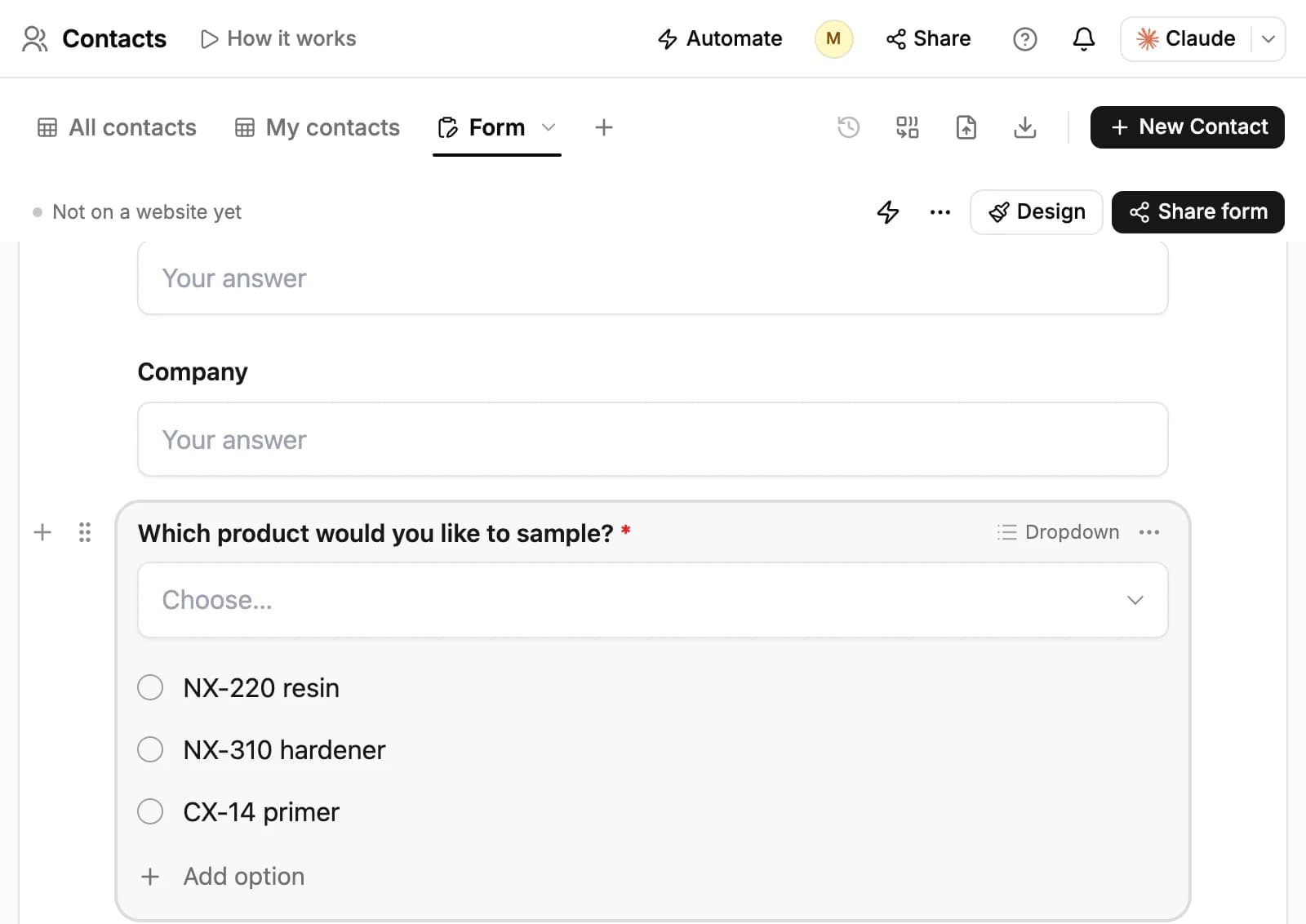
Use a question's ••• menu to make it Required, change its Question type, Duplicate it or remove it. A form holds up to 30 fields and questions.
Some fields can't be removed or made optional, because the record can't be saved without them: the email on a contact form and the company name on account and opportunity forms.
Design the form
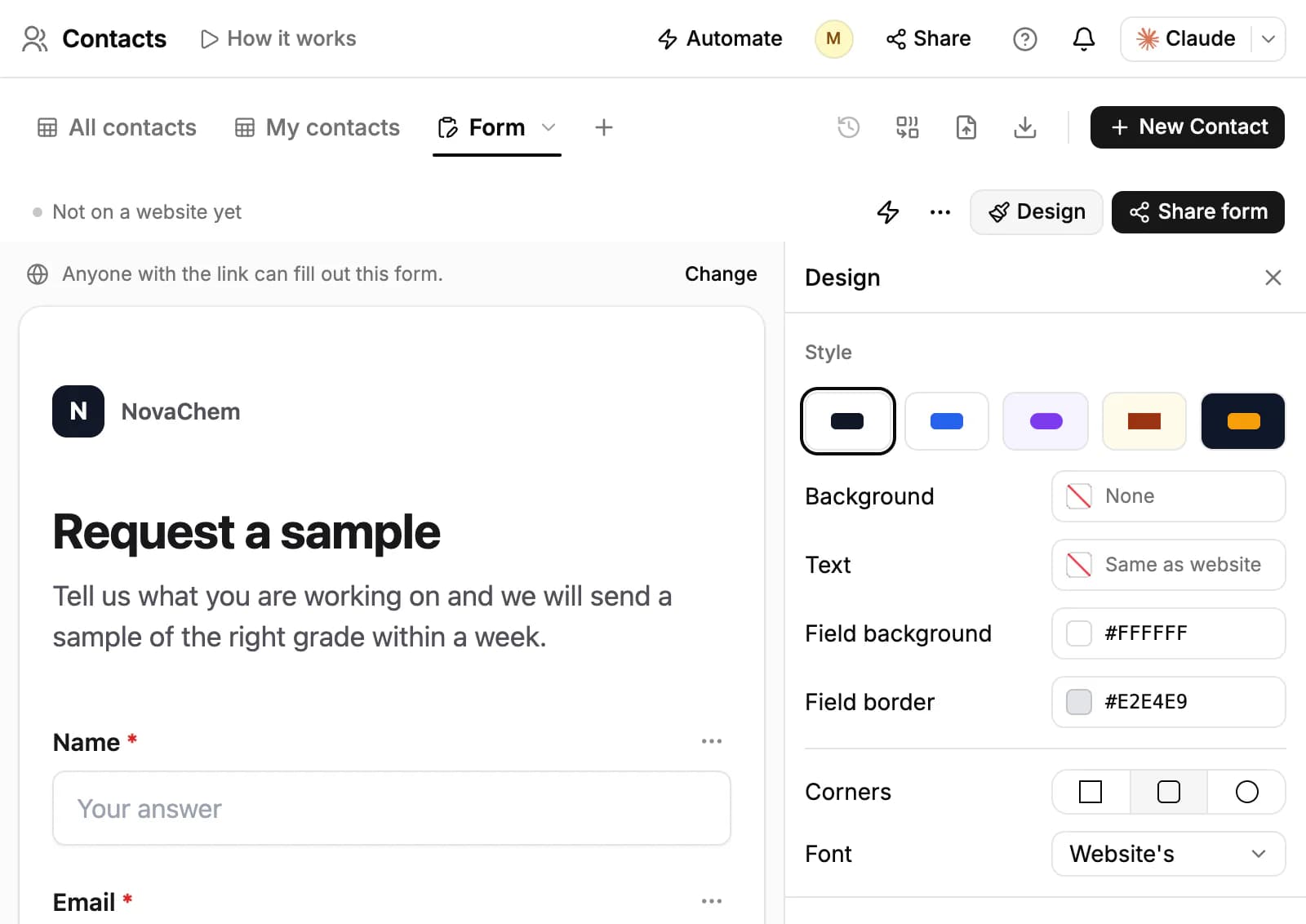
Click Design to style the form. Under Style, pick a preset (Classic, Ocean, Soft, Paper or Midnight) or set the background, text and field colors, the corners and the font. Under Button, set its text, size, style, color and width. Under After sending, turn on Show the thank-you screen to write the thank-you message, or Then open my own thank-you page to send people on to your website.
Share it or add it to your website
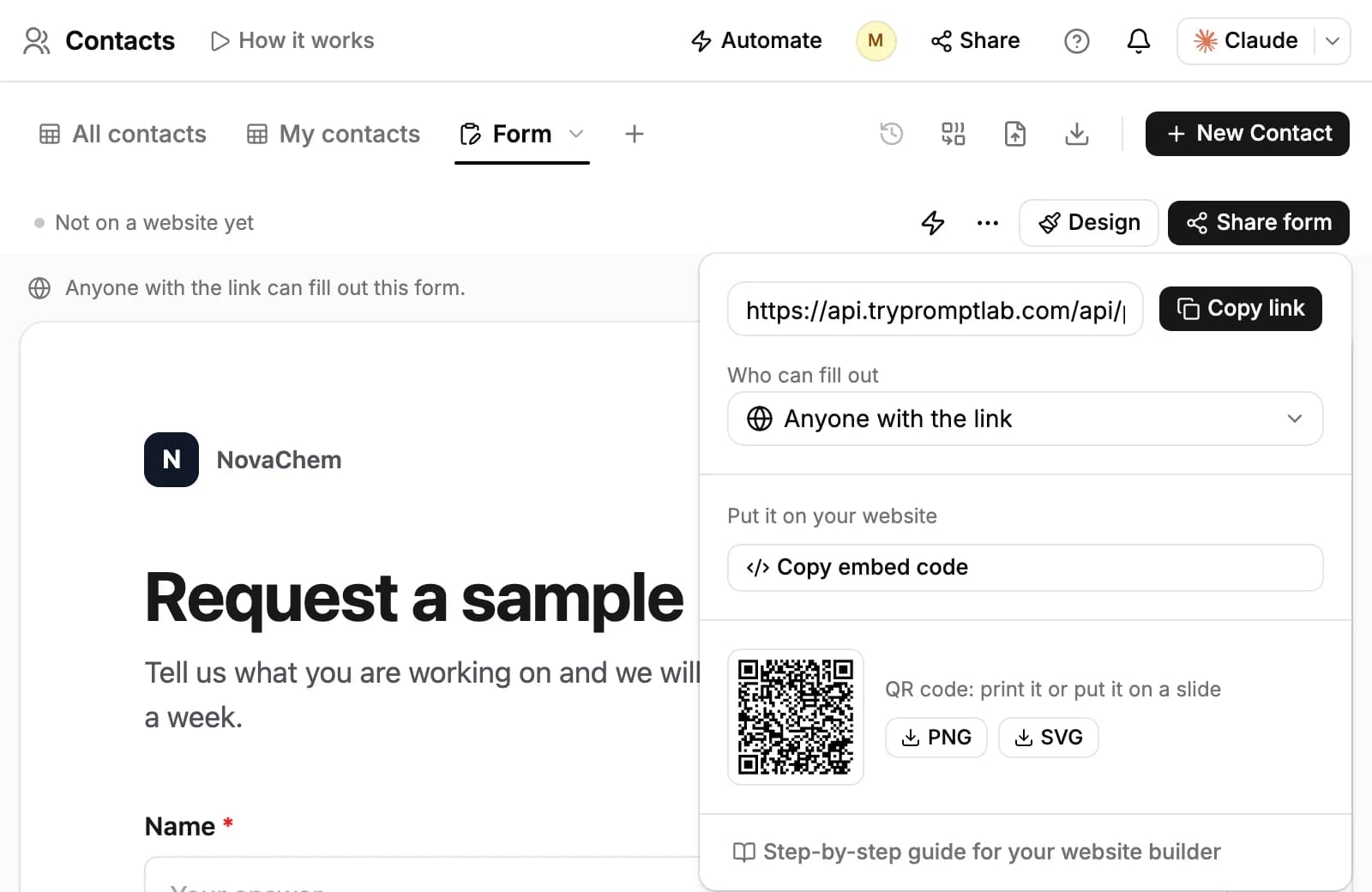
Click Share form:
- Copy link copies the form's own page, to send by email or chat.
- Who can fill out: Anyone with the link, or No one (closed) to stop taking responses.
- Copy embed code copies the code for your website. Step-by-step guide for your website builder covers WordPress, Wix, Squarespace, Webflow, Shopify and plain HTML.
- The QR code downloads as PNG or SVG, to print or put on a slide.
Above the form, PromptLab shows the website where the form was last seen and how many views and messages it has had.
If your code ends up somewhere it shouldn't be, choose Get a new code from the form's ••• menu. The old code and link stop working right away, so replace them on your website.
What a response creates
- Contact form: finds the contact with the same email and fills in their empty fields, or creates a new contact. The response is added as a note.
- Account form: creates the account, or updates the account that already has the same website. The response is added as a note.
- Opportunity form: creates an opportunity on the company's account (the account of that exact name, or a new one) with the source Website Inquiry, and adds the person as a contact when they give an email. The response is added as a note.
- Custom object form: creates a record from the answers.
To see every response, choose Responses from the form's ••• menu. Each one shows whether it made a new record or found an existing one. Search them, or Export CSV.
Follow up on responses
A response doesn't send anyone an email or notification on its own. To act on new responses, build a workflow that starts when a form is submitted, for example to create a task or tell a teammate.
To email the people who filled in a form, create a campaign and add them on its Leads tab with Add by rule and the Form rule. Everyone who has sent the form by the time the campaign starts is added.
Related resources
Forms add records to Contacts, Accounts and Opportunities.
To act on new responses automatically, see Workflows.
To email the people who filled in a form, see Campaigns.
Frequently asked questions
Where is the Forms page?
Forms are Form views on the Contacts, Accounts, Opportunities and custom object pages. Older links to a form still open its view.
Does PromptLab tell me when someone sends a form?
Not on its own. Build a workflow that starts when a form is submitted to get a notification or a task for each response.
Can people upload files through a form?
No. Forms take text, numbers, emails, phone numbers, links, dates, checkboxes and choices.
How are forms protected from spam?
PromptLab ignores responses from bots that fill in a hidden field or send the form too fast, and each form takes up to 200 responses an hour.
Who owns the records a form creates?
They're created in the name of the workspace owner.
Can I close a form?
Yes. Click Share form and set Who can fill out to No one (closed).