



















Lists
Group hand-picked accounts, contacts or opportunities into lists, give them columns of their own, and work them as a table or a board.
Available on all plans.
Available for all workspace members.
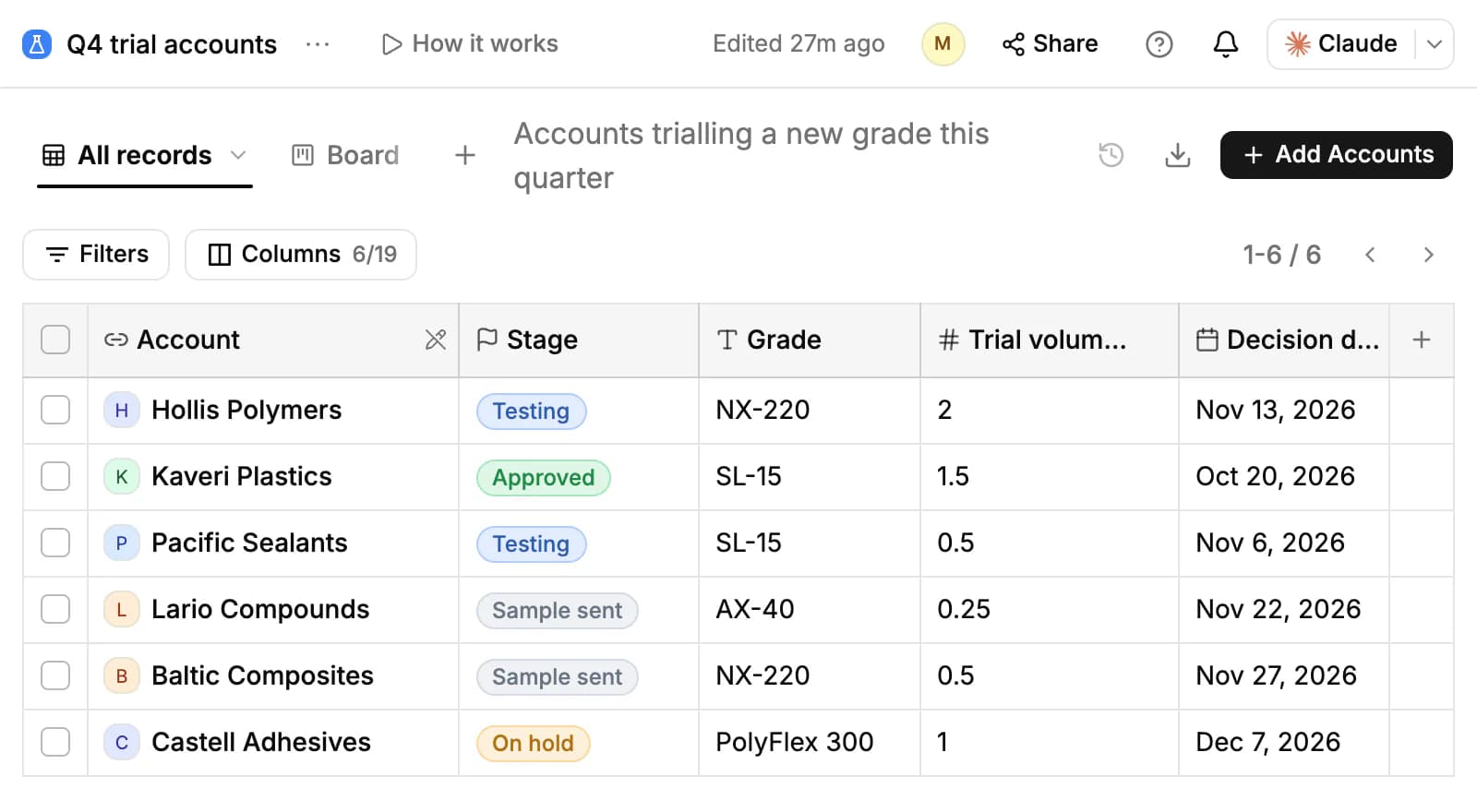
A list is a hand-picked set of records of one type: accounts, contacts or opportunities. Use one for anything a filter can't express, such as the accounts trialling a new grade this quarter or the contacts to follow up after a trade show.
The records themselves stay where they are. A list points at them and adds its own columns, such as a stage or a next step, that live on the list and nowhere else.
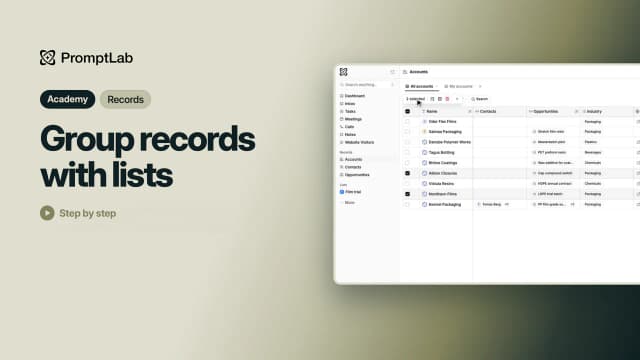
Create a list
- Click New list under Lists in the sidebar. Once you have a list, hover Lists and click +.
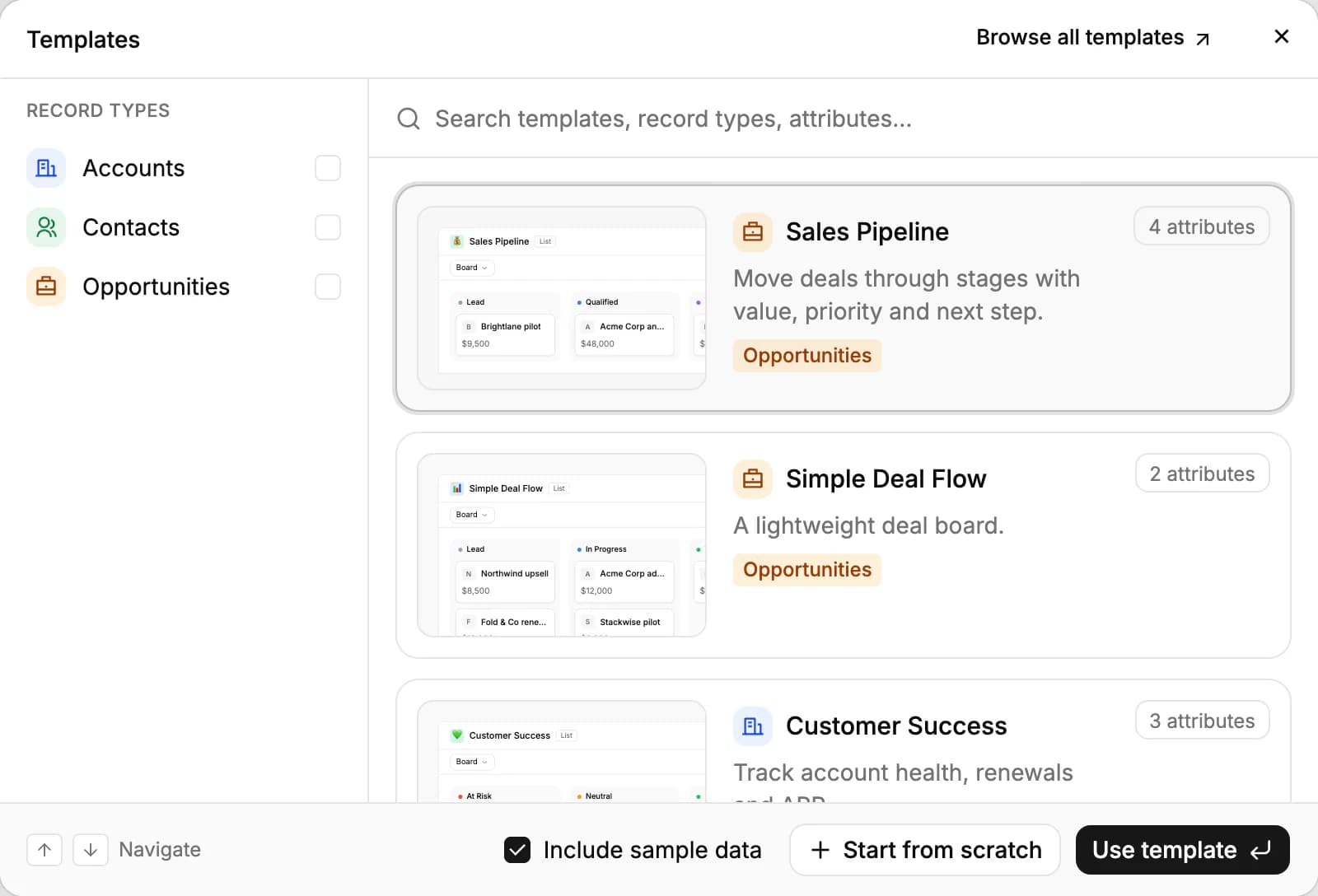
- In the Templates window, pick a template and click Use template, or click Start from scratch.
- From scratch, choose the Record type (Accounts, Contacts or Opportunities), then a name and an icon, a description and a color.
- Click Create. The list opens and appears under Lists in the sidebar.
A list's record type can't be changed after it's created.
Start from a template
There are five templates: Sales Pipeline and Simple Deal Flow for opportunities, Customer Success for accounts, and Recruiting and Outreach for contacts. Each comes with its own columns, such as a Stage, and a board.
With Include sample data ticked, PromptLab puts your most recent records of that type into the new list and fills in example values. It never creates records; with none of that type yet, the list starts empty. Browse all templates opens the full template gallery on our website.
Add and remove records
There are three ways to put records in a list:
- On the list, click Add Accounts (or Add Contacts, Add Opportunities), pick the records and click Add.
- On the Accounts, Contacts or Opportunities page, select records and click Add to list.
- On a record's page, click Add to list under Lists. That panel also shows every list the record is in.
Records already in the list are skipped. To take records out, select them and click Remove from list; the records themselves aren't deleted.
To add many at once, open the export menu at the top of the list and click Import. Each row of your file names a record (an account by its name, a contact by email, an opportunity by its name) and can fill in the list's columns.
Add list columns
A list shows the records' own fields, and you can add columns that belong only to the list: click + at the end of the table header. The board groups records by a Status column, such as a Stage, or by a select column.
A list column can have a default value: a fixed value, or the current user or the date a record was added. Filters splits List columns from Record fields, so you can filter on both.
Work the board
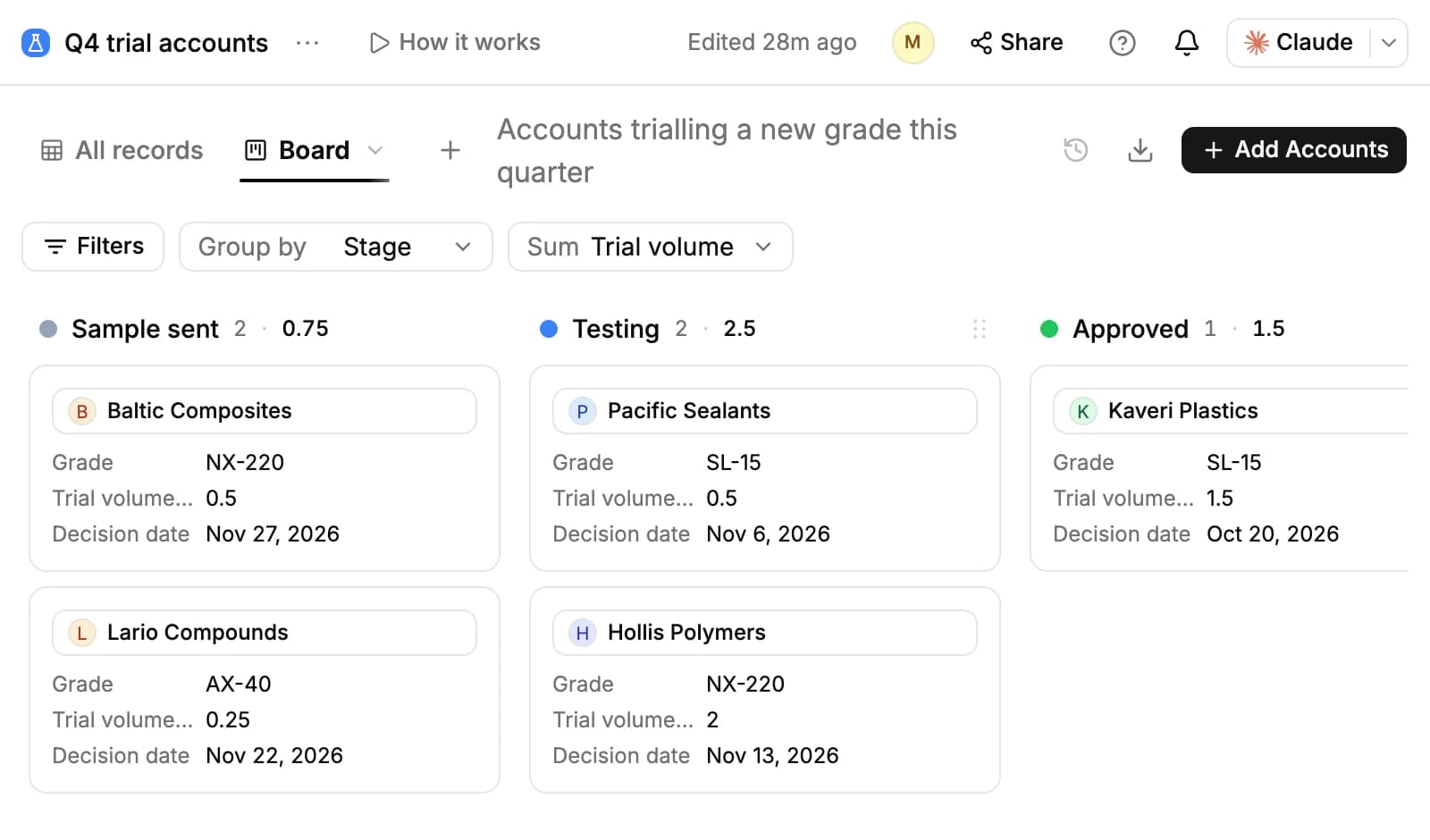
Every list starts with two views: All records, a table, and Board. On the board, Group by picks the status or select column to group by, and Sum adds up a number or currency column per stage. Drag a card to another column to change its stage, or add a stage at the end of the board.
Click + next to the views to add more, such as a gallery, a calendar or a timeline. The export button downloads the list as CSV or Excel.
Share a list
A new list is open to everyone in your workspace, who can view it. Click Share at the top of the list to change that:
- Add teammates and give each one a level: Can edit (records and columns), Can edit content (records only) or Can view.
- Under General access, choose Only people listed to make the list private. A private list shows a lock in the sidebar.
- On the Publish tab, turn on Anyone with the link can view to share a read-only copy outside the company. Viewers see the list's rows and columns, never notes, activity or files.
Workspace owners and admins can open every list, private ones included. Only the list's creator and admins can publish it, edit its settings or delete it.
Edit, delete and arrange lists
Click the menu next to the list's name and choose Edit list to rename it or change its icon, color or description. Delete in the same window removes the list and its memberships; the records stay.
To reorder your lists in the sidebar or hide one, click More at the bottom of the sidebar and open Lists: drag a list to move it, or click Remove from sidebar. The order is yours alone.
Related resources
To track a kind of record PromptLab doesn't have, such as trade shows or plant sites, build a custom object.
Lists work on your Accounts, Contacts and Opportunities.
For more ready-made lists and objects, browse the template gallery.
Frequently asked questions
What can a list hold?
Accounts, contacts or opportunities, one type per list. Custom object records can't be added to a list.
Can a record be in more than one list?
Yes. A record can be in as many lists as you like.
Does deleting a list delete its records?
No. Deleting a list removes the list and its columns; the records stay.
Who can change a list?
Its creator, workspace admins, and teammates added with Can edit or Can edit content. Everyone else can only view an open list.
Can I share a list outside my company?
Yes, as a read-only link from Share, on the Publish tab. Only the list's creator or an admin can publish it.
Is Lists on every plan?
Yes, and every workspace member can create lists.