



















Accounts
Keep every company you sell to in one place, with its contacts, deals, emails, meetings and tasks together on one page.
Available on all plans.
Available for all workspace members. A member set to Own records sees only their own accounts.
An account is a company you work with. Its page brings together everything about it: the people you talk to, the opportunities you're working, emails, meetings, calls, tasks, notes and files.
Add accounts one at a time, import them from a spreadsheet, or let PromptLab create them: a contact you add with a company email address and no account is linked to the account for that domain, which is created if it doesn't exist yet.
Create an account
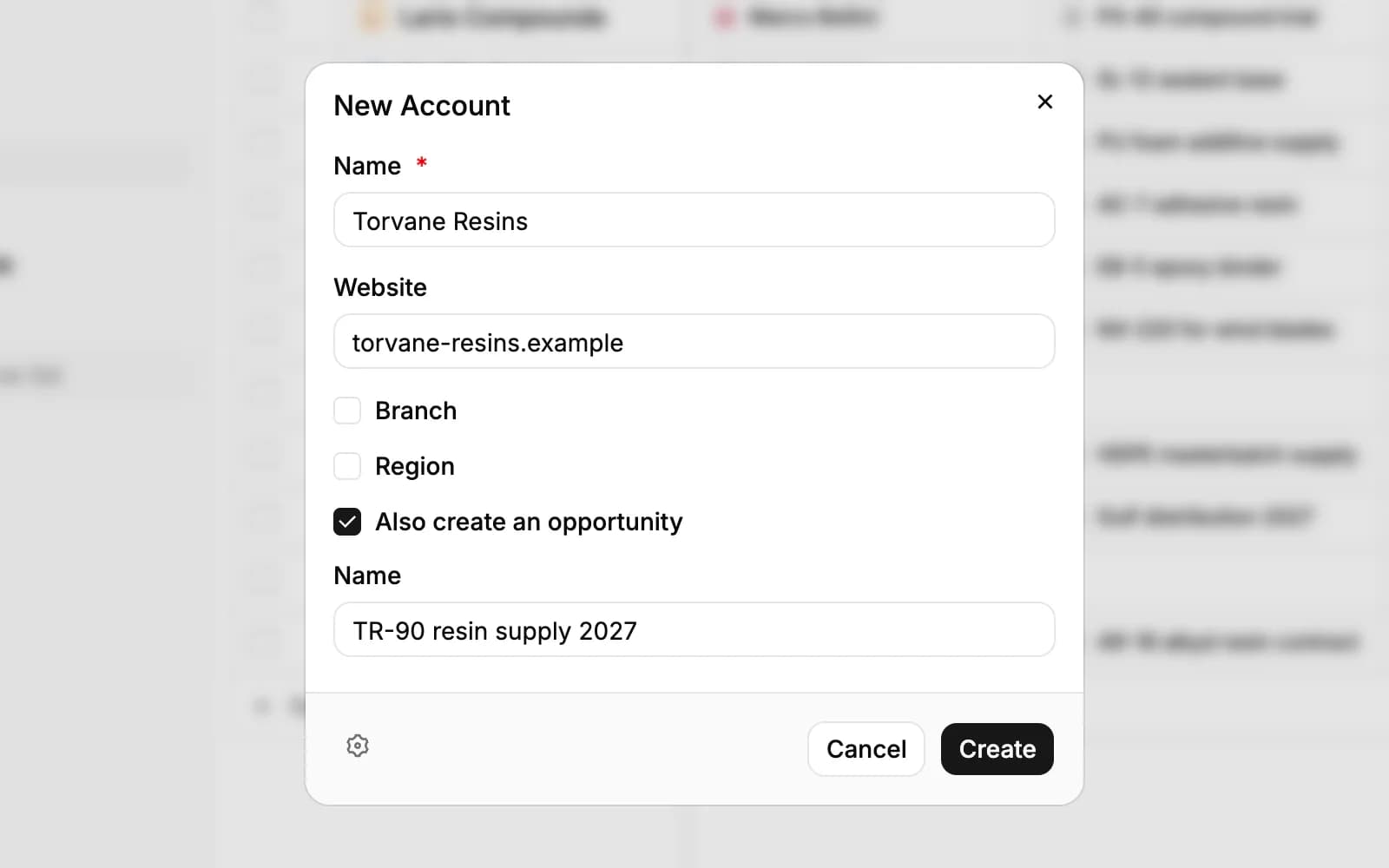
Click New Account at the top of the Accounts page. In the window:
- Type the account's Name. It's the only field you must fill in.
- Add the Website if you know it. PromptLab uses it to spot duplicates and to look up the company's details.
- Tick Branch or Region if you want to add either.
- To start a deal right away, tick Also create an opportunity and give the opportunity a name.
- Click Create.
You can also click New Account under the last row of the table and type the name straight into the new row.
Two accounts can't share a website. If another account already uses the same domain, PromptLab says so and offers View existing account. Owners and admins choose which fields the window asks for, and which are required, with the gear at its bottom left.
Find your accounts
The page opens on All accounts. My accounts shows the accounts you created. Click + next to the views to add one of your own: a Table, Board, Gallery, List, Dashboard, Timeline, Map, Calendar or Form.
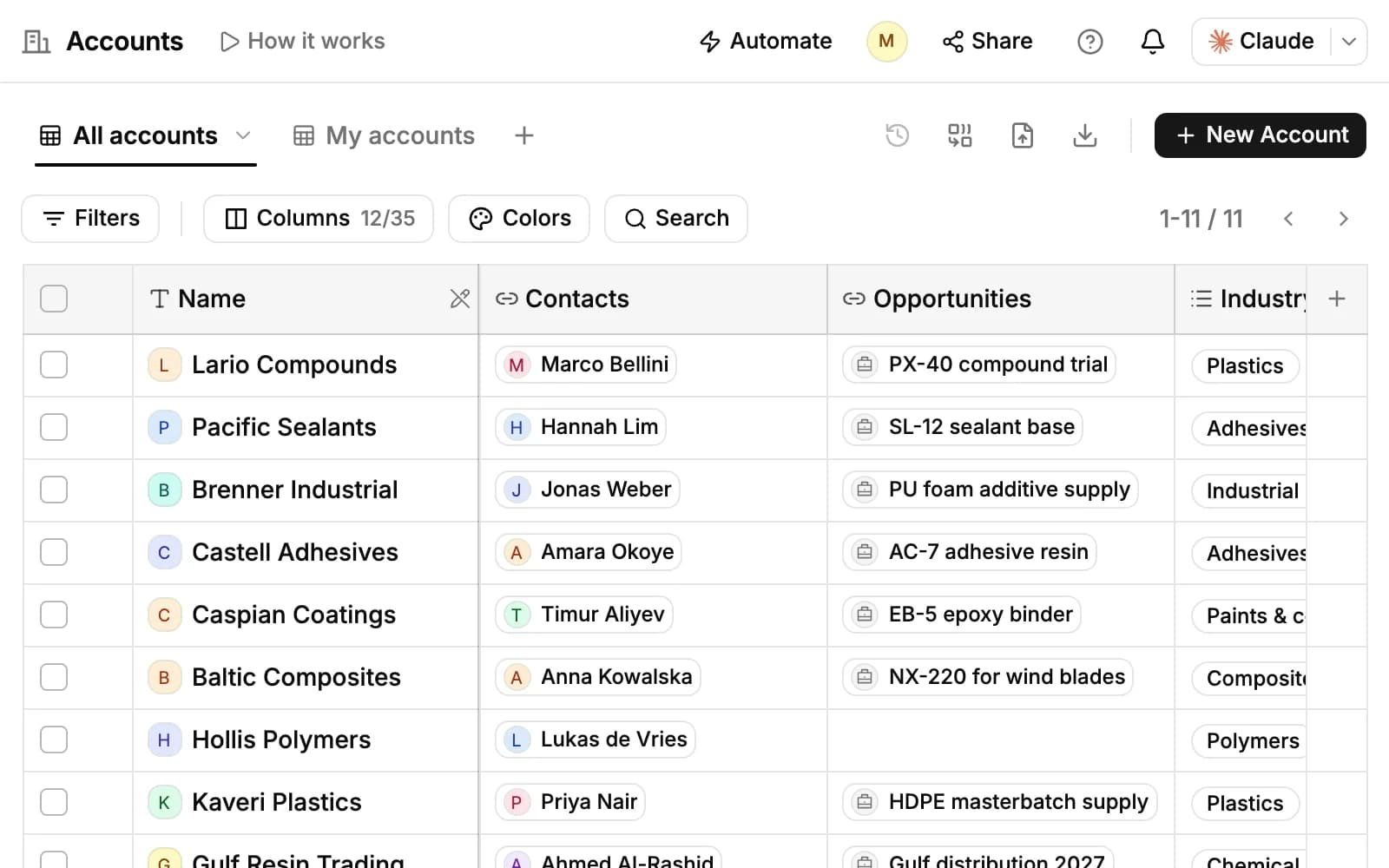
- Filters narrows the list by any field, and Search finds an account as you type.
- Columns chooses which fields show, in what order, and how the list is sorted. Colors tints a cell or a whole row when a value matches a rule.
- Click a cell to change it in place. Click a row to open a preview of the account, and expand it to its full page.
A view you add is private until you choose Share this view from its menu. Automate at the top of the page starts a workflow from a template for accounts; see Workflows.
Import and export accounts
- Click Import at the top of the Accounts page (the upload icon).
- Drop a CSV or Excel file on the window, or click Browse. You can also pick a file from Google Sheets or Microsoft Excel.
- Check which row holds your column headers and click Next.
- Match each of your columns to an account field. PromptLab suggests a match; change it, or choose Skip this column. A column that matches no field can become a new field of its own.
- Click Import.
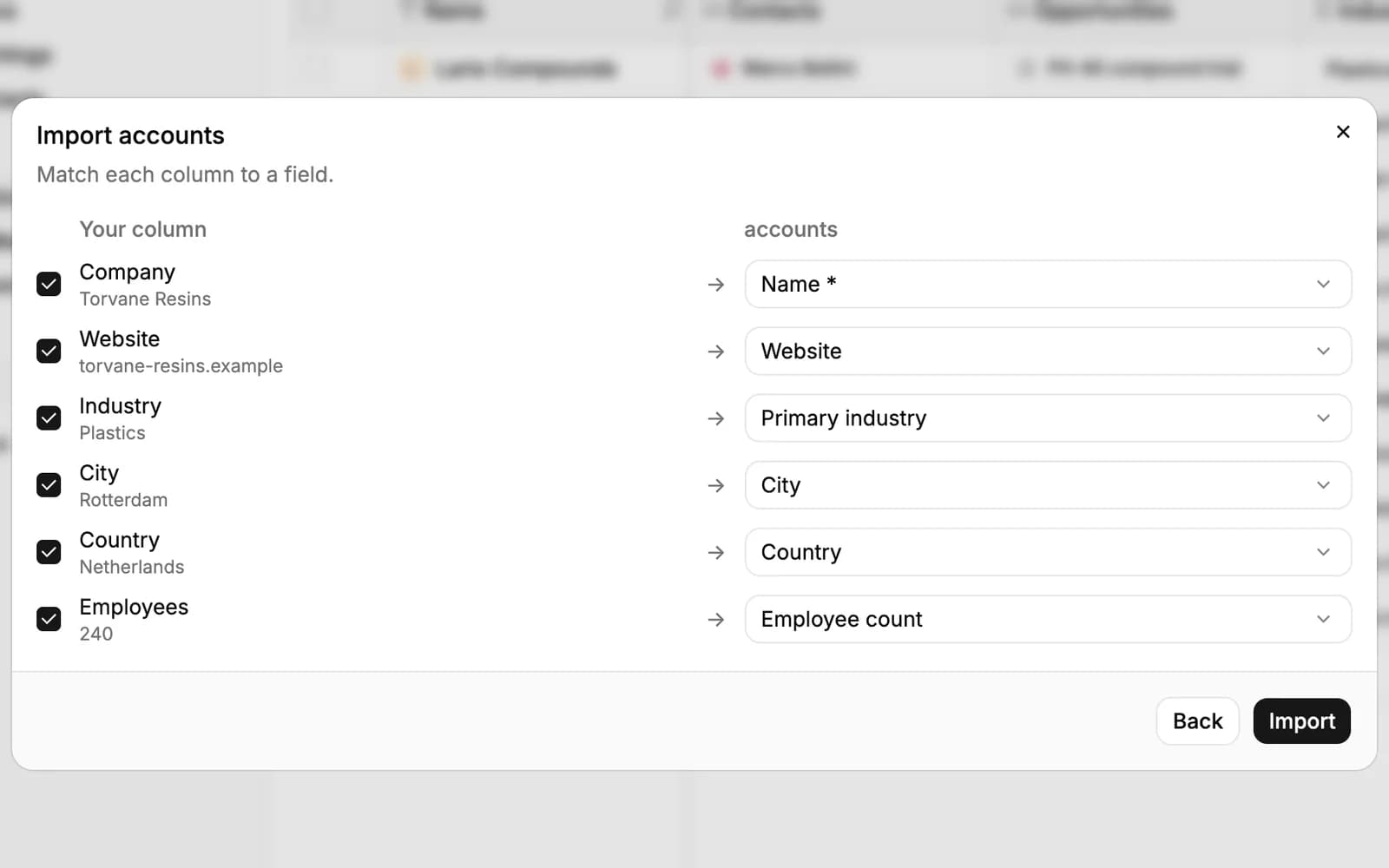
When it's done, PromptLab shows how many rows were imported, skipped and failed. Accounts that already exist (the same name or website) and rows that appear twice in the file are skipped. Click Download error report, fix the failed rows and import them again.
To export, click Export (the download icon), choose Export CSV or Export Excel and untick the columns you don't need. The file holds the rows of the view you're on, or only the rows you selected.
One import takes up to 250 rows. Imported accounts aren't enriched automatically (see below).
The account page
Open an account to see everything about it. The left side holds its fields under Record details: click a value to change it, and View all values shows the rest, with a search box. Lists shows the lists the account is on, and Add to list adds it to another.
Under the name, chips link to the account's contacts and opportunities. The buttons below start the next step: Compose Email (addressed to the primary contact, or else the first contact with an email address), Call, Create Meeting, Create task and Create note. A dot on Compose Email or Call means it needs setting up first: a connected mailbox, or a PromptLab phone number.
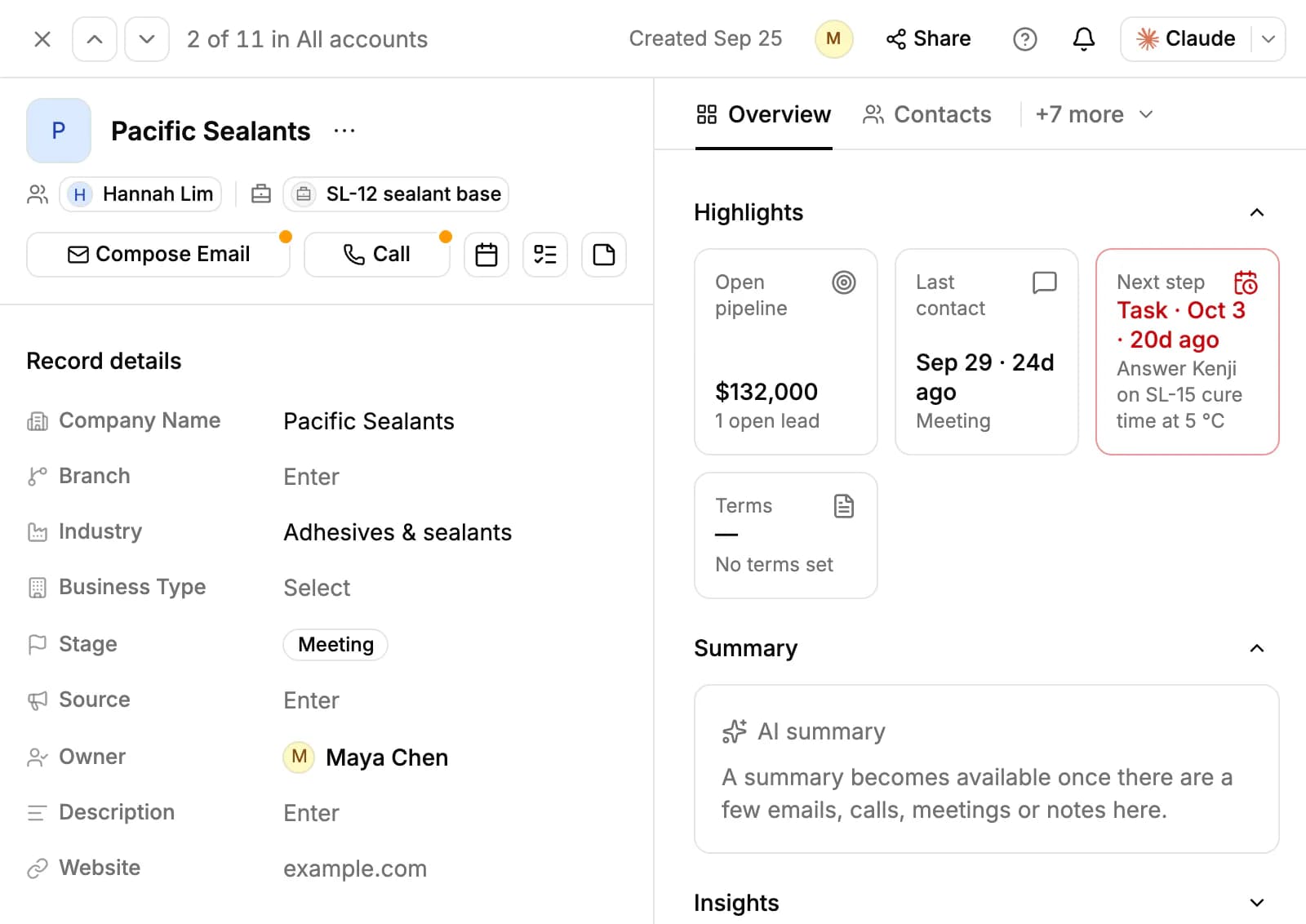
On the right, Overview starts with Highlights: for a customer, what's outstanding and overdue, how fast they pay, lifetime sales, the last order and the terms; before the first order, the open pipeline, quotes, samples, the last contact and the next step. Below come the AI summary, Insights, and open tasks, meetings, notes and activity. Drag a section to move it, or fold it away.
The other tabs are Contacts, Meetings, Activities, Tasks, Emails, Notes, Comments and Files. The arrows at the top move to the previous or next account in the list you came from.
Fill in details with AI
Open the ••• menu next to the account's name and click Enrich. PromptLab looks the company up, through your Apollo connection if you have one and on the web, and shows what it found under Review Lookup Results. Only empty fields are filled: tick the ones you want and click Apply.
When you create an account with a website or a LinkedIn page, PromptLab does this on its own in the background.
- AI summary writes one paragraph on who the account is, where things stand and what's next, from its emails, calls, meetings and notes. Click Summarize once there's enough activity. When new activity comes in, the summary says so; click Update.
- Insights researches the company on the web: headquarters, size, revenue, products, market position, competitors and recent news. Click Generate Insights.
Enrich, the AI summary and Insights use your weekly AI credits; when Enrich finds nothing it's sure of, you aren't charged. Enrich's web lookups are also capped per person each month: 150 on Basic, 400 on Professional and 1,000 on Business and Enterprise.
Add your own fields
Click + at the right end of the table header. Pick a type, such as Text, Number, Currency, Date, Select, Status, Reference or Formula, and name the field. It becomes a column, and a value on every account page. Or choose Generate with AI and describe the fields you need.
To have AI fill a field for every account, turn on AI autofill for it; see CRM Autofill.
Merge duplicates and delete accounts
- Click Find duplicates at the top of the Accounts page (the icon next to import).
- Under Match on, keep Name or add other fields, and choose How close: Exact, Similar (allows small typos) or Loose.
- Click Scan, review the groups it finds, pick the account to keep in each with Keep this one, and merge.
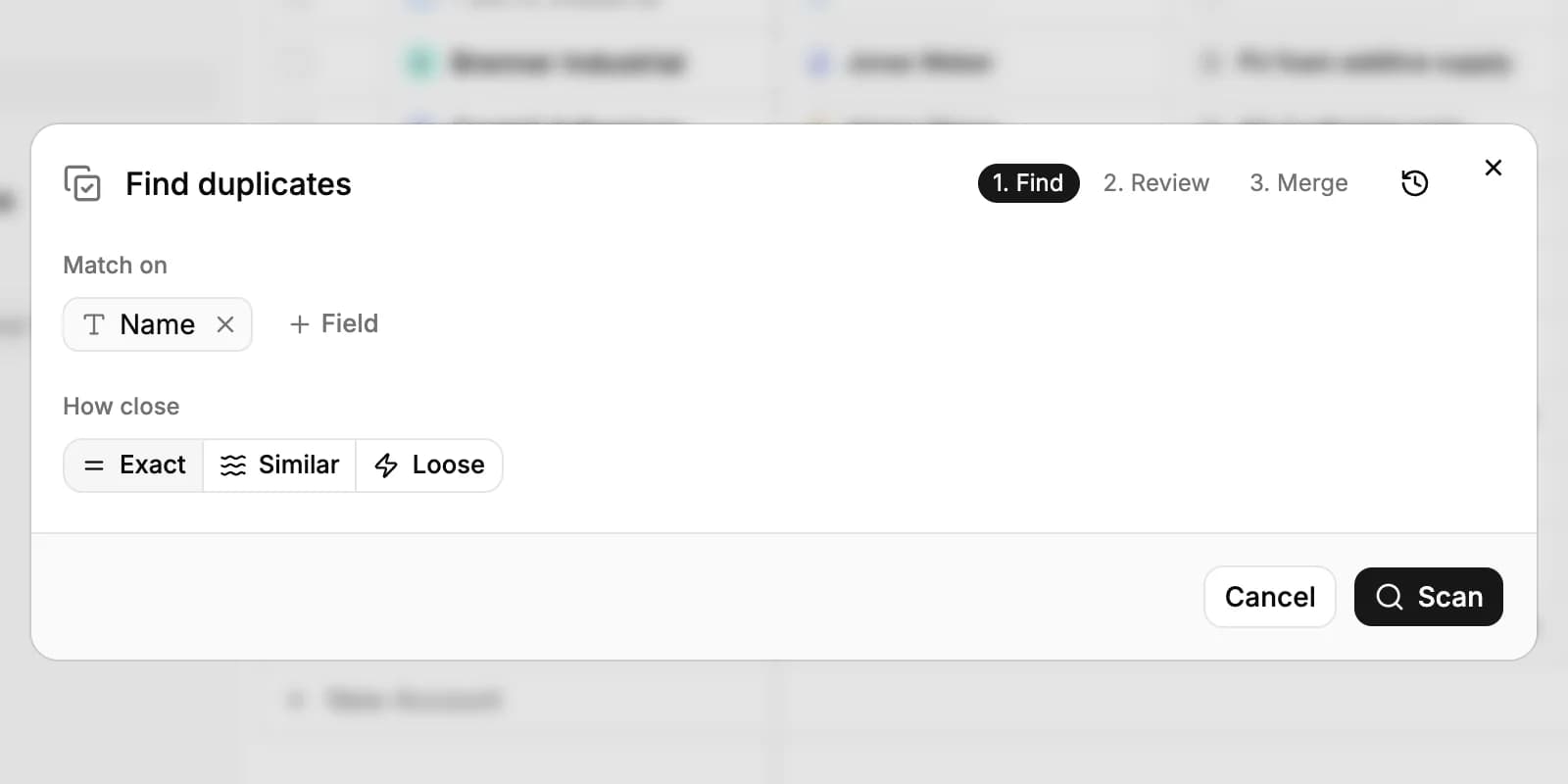
When you already know two accounts are the same, select them in the table and click Merge, or open one and choose Merge with… from its ••• menu. The contacts, opportunities, notes, tasks, meetings and emails of the merged accounts move to the one you keep. The clock icon in Find duplicates lists the merges of the last 30 days, each with Undo.
To delete an account, choose Delete from its ••• menu. Owners and admins can delete any account, and members the accounts they created. Owners and admins can also select rows and choose More, then Delete. The account's contacts, opportunities, tasks and notes stay in PromptLab, no longer linked to it.
Who can see an account
Accounts are open to everyone in the workspace with full access to Accounts. A member set to Own records sees only the accounts they own or created, the ones they've been added to, and the accounts of their own opportunities.
To add someone to one account, open it, click Share and add them by name. On the Publish tab, Anyone with the link can view makes a read-only page with the account's main fields, never its notes, activity or files. Only an owner of the account or an admin can publish it.
Related resources
Every account has people and deals: see Contacts and Opportunities.
To group accounts into a target list of your own, see Lists.
To give members Own records access, see Workspace settings.
Frequently asked questions
Is Accounts on every plan?
Yes. Accounts, import and export, merging and your own fields are on every plan.
How many accounts can I import at once?
Up to 250 rows per import. For a bigger file, split it and import each part.
Can two accounts have the same name?
Yes, if you create them by hand, though an import skips names that already exist. Two accounts can never share a website. Use Find duplicates to clean up.
Can I undo a merge?
Yes, for 30 days. Open Find duplicates, click the clock icon and choose Undo next to the merge.
What happens to contacts when I delete an account?
They stay in PromptLab, along with the account's opportunities, tasks and notes. They're just no longer linked to an account.
Can I change an account's Stage?
No. An account's stage follows its opportunities: it shows how far its deals have got. Move the opportunity instead.