



















Contacts
Keep the people you work with, linked to their accounts and deals, with your emails, calls, texts and meetings on their page.
Available on all plans.
Available for all workspace members. A member set to Own records sees only their own contacts.
A contact is a person at one of your accounts. Their page collects your emails, calls, text messages, meetings, tasks and notes with them, and shows the deals they're part of.
You can add contacts by hand, import them or save them from LinkedIn, and PromptLab adds the new people you meet when your calendar syncs.
Create a contact
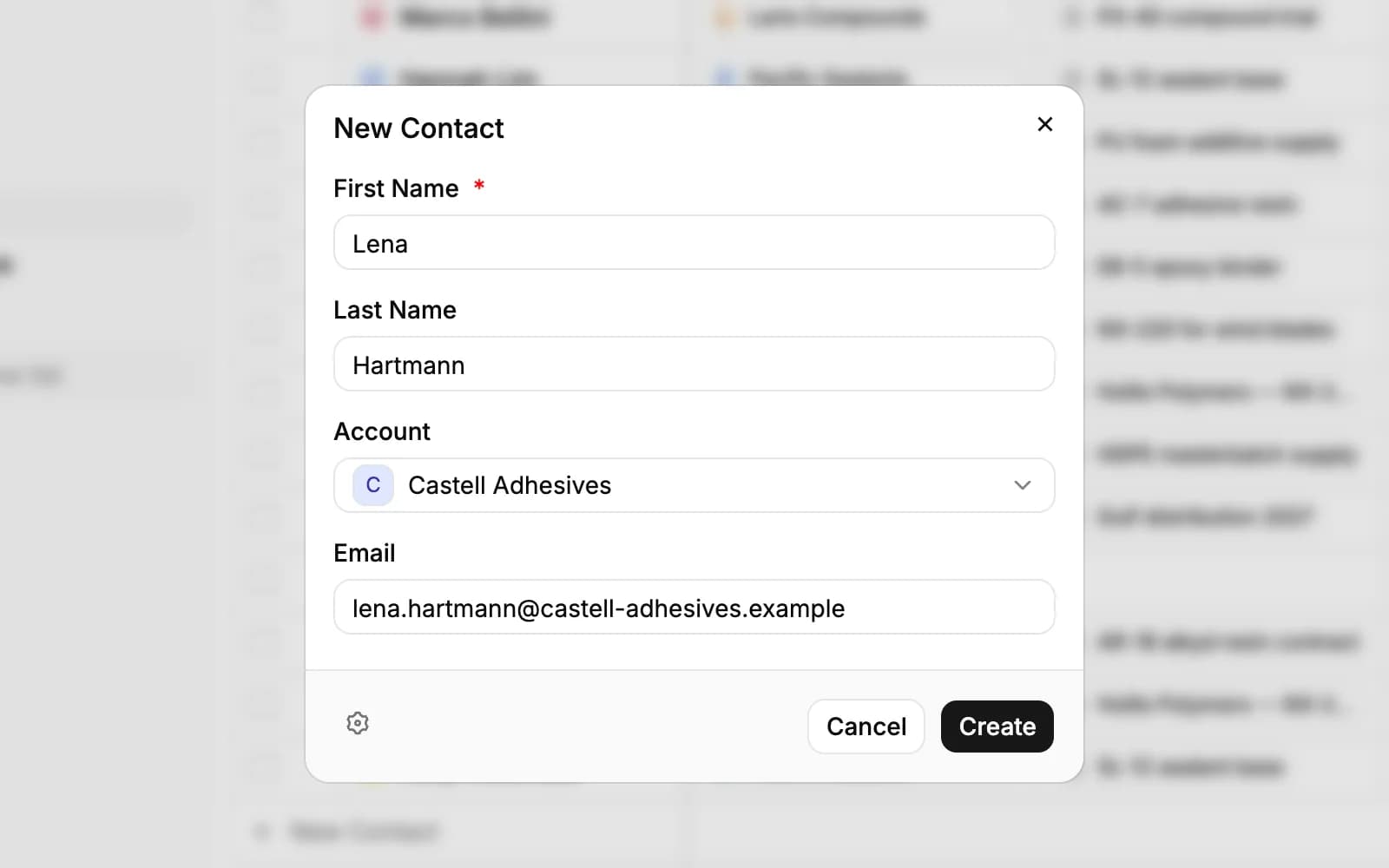
Click New Contact at the top of the Contacts page:
- Type the First Name. It's the only field you must fill in.
- Add the Last Name and the Email.
- Pick the Account, or leave it empty: PromptLab then links the contact to the account for their email domain, and creates that account if you don't have it. Personal addresses, such as Gmail, get no account.
- Click Create.
Each email address belongs to one contact. If someone already has it, PromptLab tells you who and offers View existing contact.
To add someone to an account, open the account's Contacts tab and click Add Contact (shown to owners, admins and whoever created the account). On an opportunity, Add Contact on its Contacts tab picks from the account's people or creates someone new.
Other ways contacts arrive
- LinkedIn: with the PromptLab Chrome extension, save a LinkedIn profile as a contact in one click. The same extension brings your LinkedIn messages into the Inbox, where Add to CRM turns a new person into a contact.
- Meetings: attendees who aren't contacts yet are added when your calendar syncs; see Meetings.
- Forms: add a Form view to the Contacts page, and every response from your website creates or updates a contact; see Forms.
Two contacts can't share a LinkedIn profile, just as they can't share an email address.
Work with the contacts list
All contacts lists everyone; My contacts the people you created. Use Filters, Columns, Colors and Search to shape a view, add views with +, and click a cell to edit it.
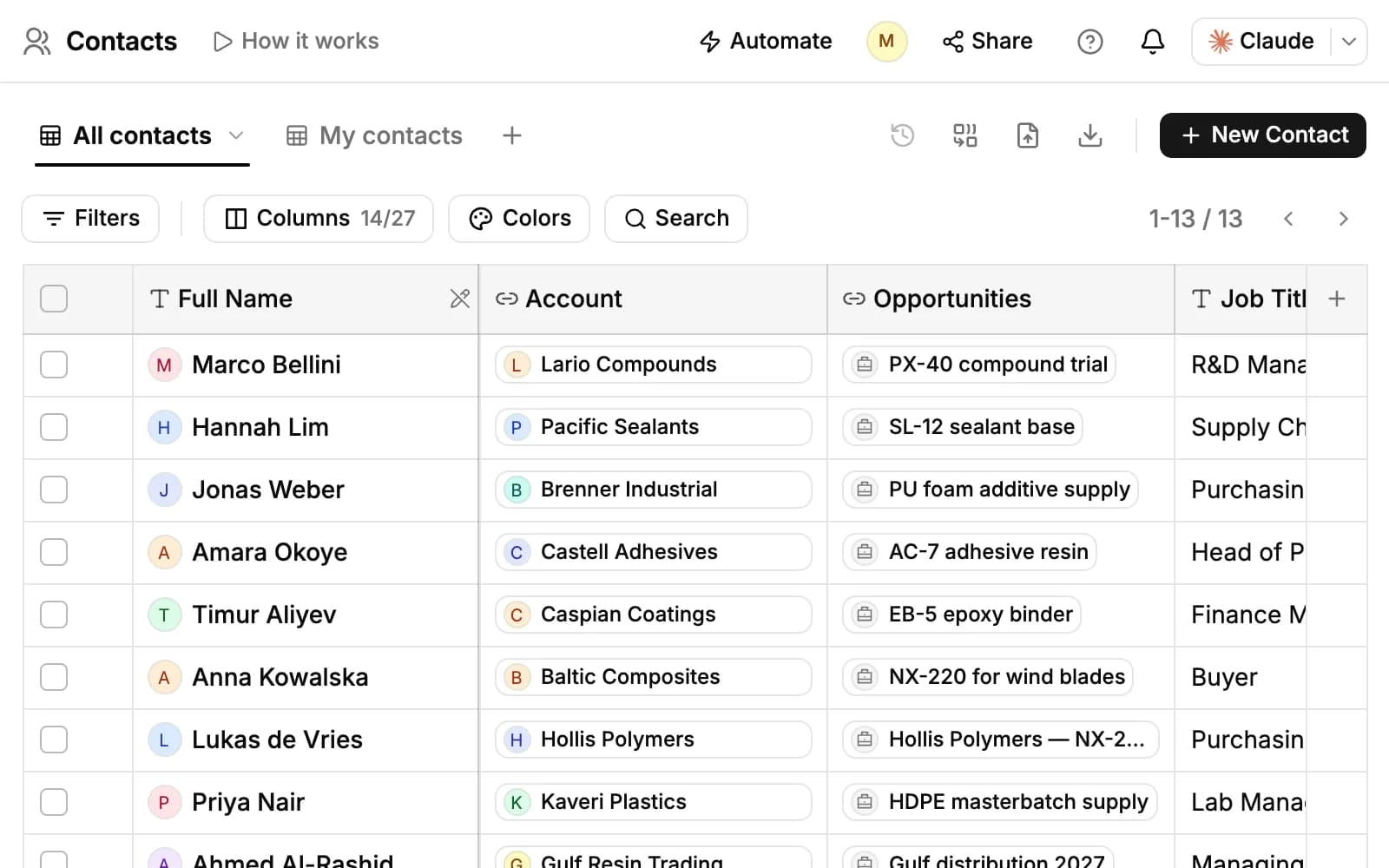
Tick contacts to act on many at once:
- Send email: write one email that goes to each contact separately from your connected mailbox, for up to 50 at a time. For more, use a campaign.
- Share: email the selected records, as they are now, to the people you choose.
- Add to list and Merge.
- Owners and admins also get More, with Blacklist senders (mail from those people stops syncing for the team) and Delete.
Import and export contacts
Click Import at the top of the Contacts page and follow the same steps as for accounts. For contacts:
- Map a column to Full name (auto-split) and PromptLab splits it into first and last name.
- The Account column is matched to your accounts by name. When some don't exist, choose Create missing accounts or Skip account on these rows.
- Rows whose email already belongs to a contact, or that appear twice in the file, are skipped.
Export saves the view you're on, or the rows you selected, as CSV or Excel. One import takes up to 250 rows.
The contact page
The left side holds the contact's fields under Record details, such as their job title, department, decision role, Stage, Primary Contact and account. View all values shows the rest, including every email address and phone number.
The buttons under the name are the same as on an account: Compose Email, Call, Create Meeting, Create task and Create note. Call dials the contact's numbers, and a new meeting starts with their email address.
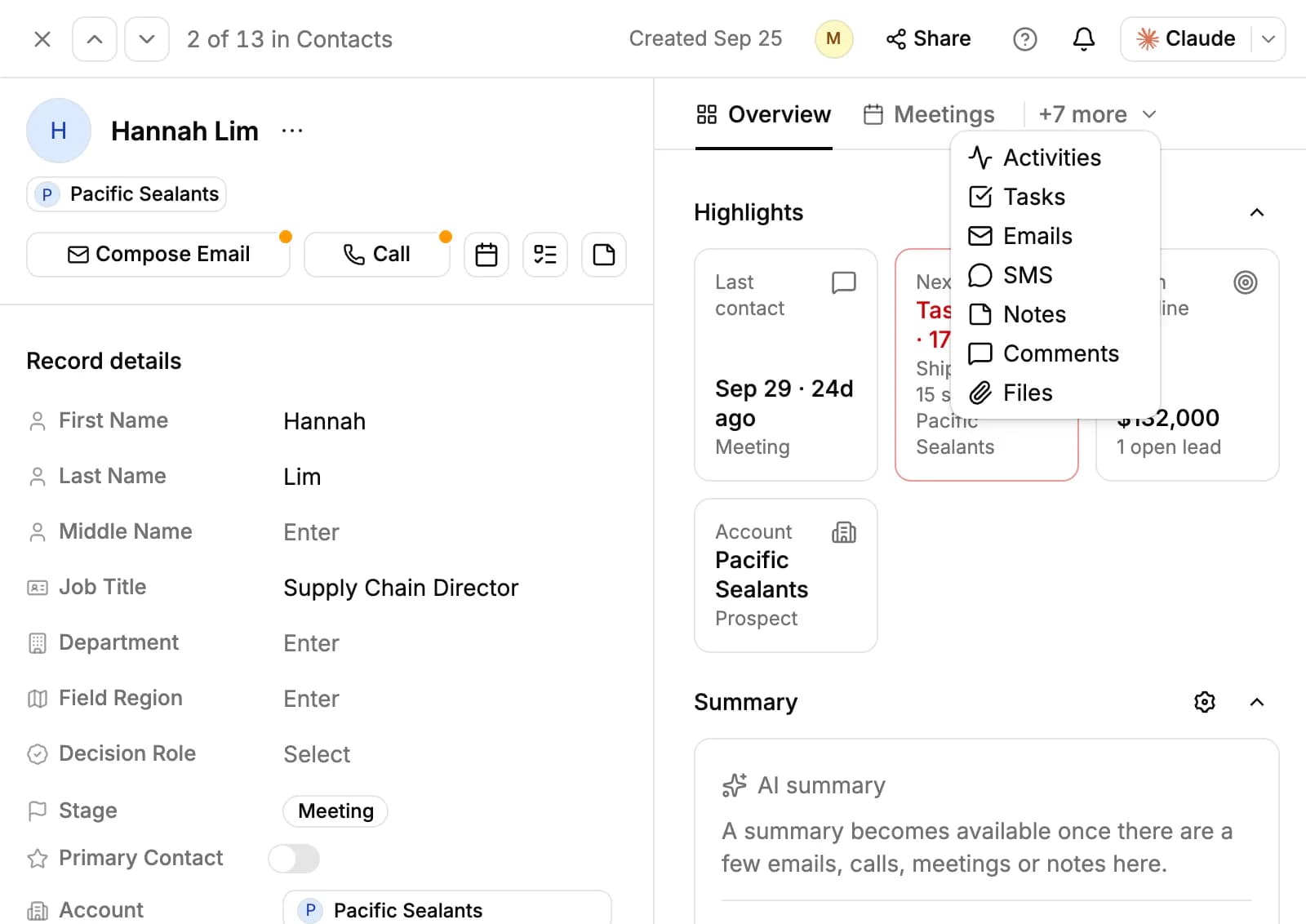
Overview starts with Highlights: the last contact, the next step, the contact's open pipeline and their account. Then come a Summary of the fields you pick with the gear, the AI summary, and Insights, which research the person's experience, education and skills on the web. The other tabs:
- Meetings and Activities: their meetings, and a timeline of calls, emails, messages, meetings and field changes.
- Emails: the email with them from your connected mailbox, with Reply.
- SMS: text them from your PromptLab number; see Calls.
- Tasks, Notes, Comments and Files.
Log a call, email or meeting
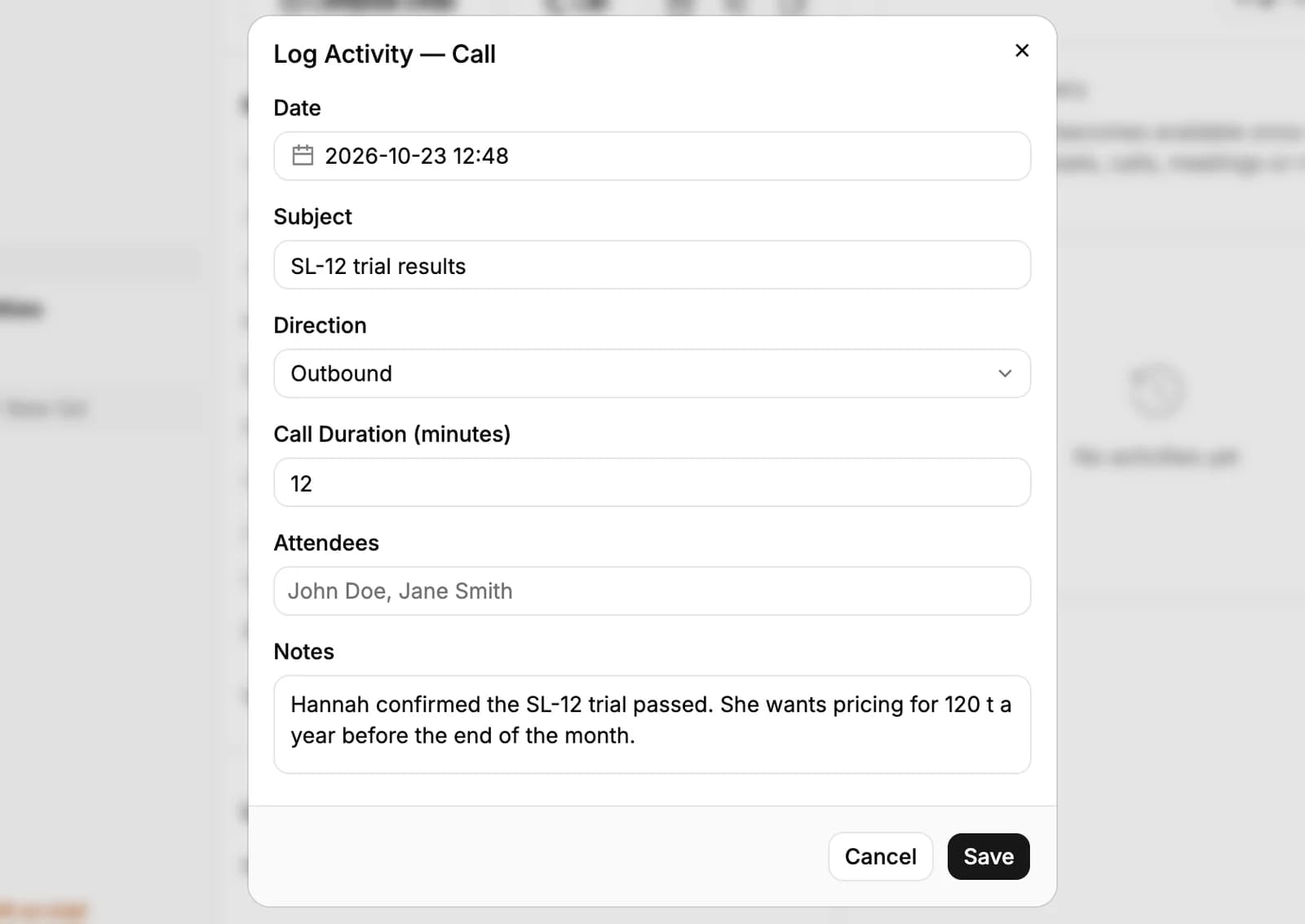
Calls from PromptLab, email from your connected mailbox and recorded meetings are logged on their own. For something that happened elsewhere, open the Activities tab, click Log Activity and choose Email, Call, Meeting or Other. Fill in the date and the details and click Save: it joins the contact's timeline.
Enrich a contact
Choose Enrich from the ••• menu next to the contact's name. Contact enrichment uses Apollo, so connect your own Apollo key, or your team's, on the Apps page first. PromptLab shows what it found under Review Lookup Results and fills only the empty fields you tick when you click Apply.
With Apollo connected, a contact you create with an email address, or with a full name and an account, is enriched in the background on its own. Lookups count against your Apollo plan.
Contacts, accounts and deals
A contact belongs to one account and can be on any number of its opportunities. The contact's Stage follows those opportunities, so you can't edit it: it shows how far the account's deals have got.
Turn on Primary Contact for the person who should get the email when someone clicks Compose Email on the account.
Merging and deleting work as they do for accounts: Find duplicates at the top of the page, Merge with… in a contact's ••• menu, and Delete for owners, admins and whoever created the contact.
Related resources
Contacts belong to Accounts and take part in Opportunities.
To answer their WhatsApp, Telegram, LinkedIn and email messages in one place, see Inbox.
To collect contacts from your website, see Forms.
Frequently asked questions
Is Contacts on every plan?
Yes, with import, export and merging. Enrichment needs your own Apollo connection.
Can a contact belong to more than one account?
No. A contact has one account, but can be on several of that account's opportunities.
Can two contacts share an email address?
No. Each email address belongs to one contact, and PromptLab points you to the existing one.
Can a contact have more than one email address or phone number?
Yes, up to 20 of each. Add them under View all values on the contact's page.
Why can't I change a contact's stage?
It follows the opportunities of the contact's account. Move the opportunity on the pipeline board instead.
Is there a PromptLab browser extension?
Yes, one: the Chrome extension for LinkedIn. It saves LinkedIn profiles as contacts and brings your LinkedIn messages into the Inbox.