



















Custom objects
Build your own kinds of records, such as plant sites or trade shows, with their own fields and views, from a template, a spreadsheet or a description.
Available on all plans.
Available for workspace members with the Custom Objects module, which new teammates get by default.
Accounts, contacts and opportunities don't cover everything a sales team tracks. A custom object adds a new kind of record to PromptLab, such as plant sites, trade shows, contracts or vendors, with the fields you choose.
Each object gets its own page under Records in the sidebar, with views, filters, import and export like the built-in records.
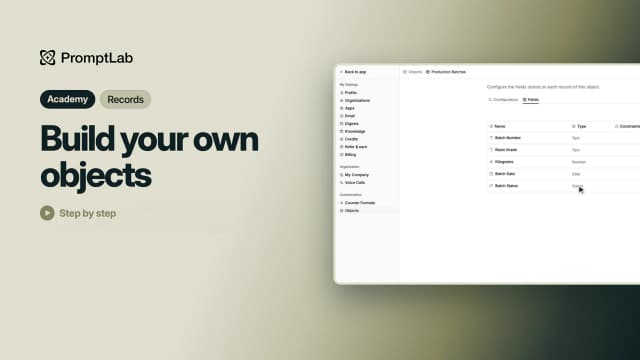
Create an object
Hover Records in the sidebar and click + (New Object). Workspace owners and admins can also open Settings, click Objects under Customization and click New Object. Then choose how to start:
- Use template: a ready-made object with all its fields.
- Start from CSV: an object built from a spreadsheet, with its rows imported.
- Start from scratch: a name and the fields you describe.
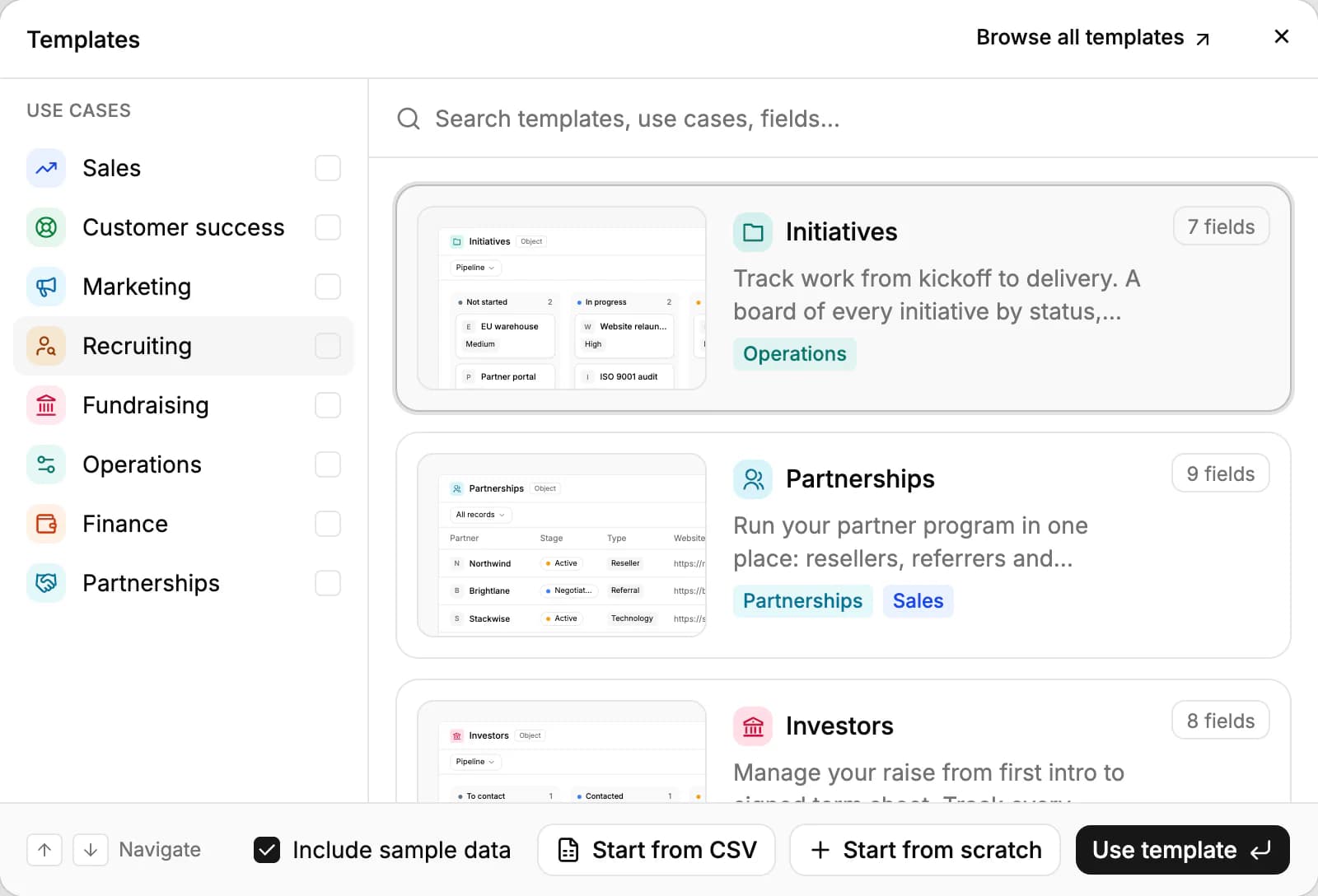
Start from a template
There are nine templates, sorted by use case (Sales, Customer success, Marketing, Recruiting, Fundraising, Operations, Finance and Partnerships): Initiatives, Partnerships, Investors, Candidates, Vendors, Events, Support tickets, Contracts and Billing. Billing creates three linked objects at once: Subscriptions, Billing invoices and Payments.
Pick one and click Use template. With Include sample data ticked, the new object gets a few example records you can delete whenever you like. Browse all templates opens the full template gallery on our website.
Start from a spreadsheet
- Click Start from CSV and pick a .csv, .xlsx or .xls file with a header row.
- PromptLab names the object after the file and turns each column into a field, guessing its type. Untick the columns you don't want, and rename fields or change their types.
- Click Create object. Your rows are imported right after the object is created.
Start from scratch
Click Start from scratch. Give the object a name and an icon, and a description if you like. Under Describe the fields you want, write the fields in plain words, then click Create object: PromptLab creates the object and then its fields.
Leave Name empty and PromptLab names the object from its description. You can also leave the fields out and add them yourself later.
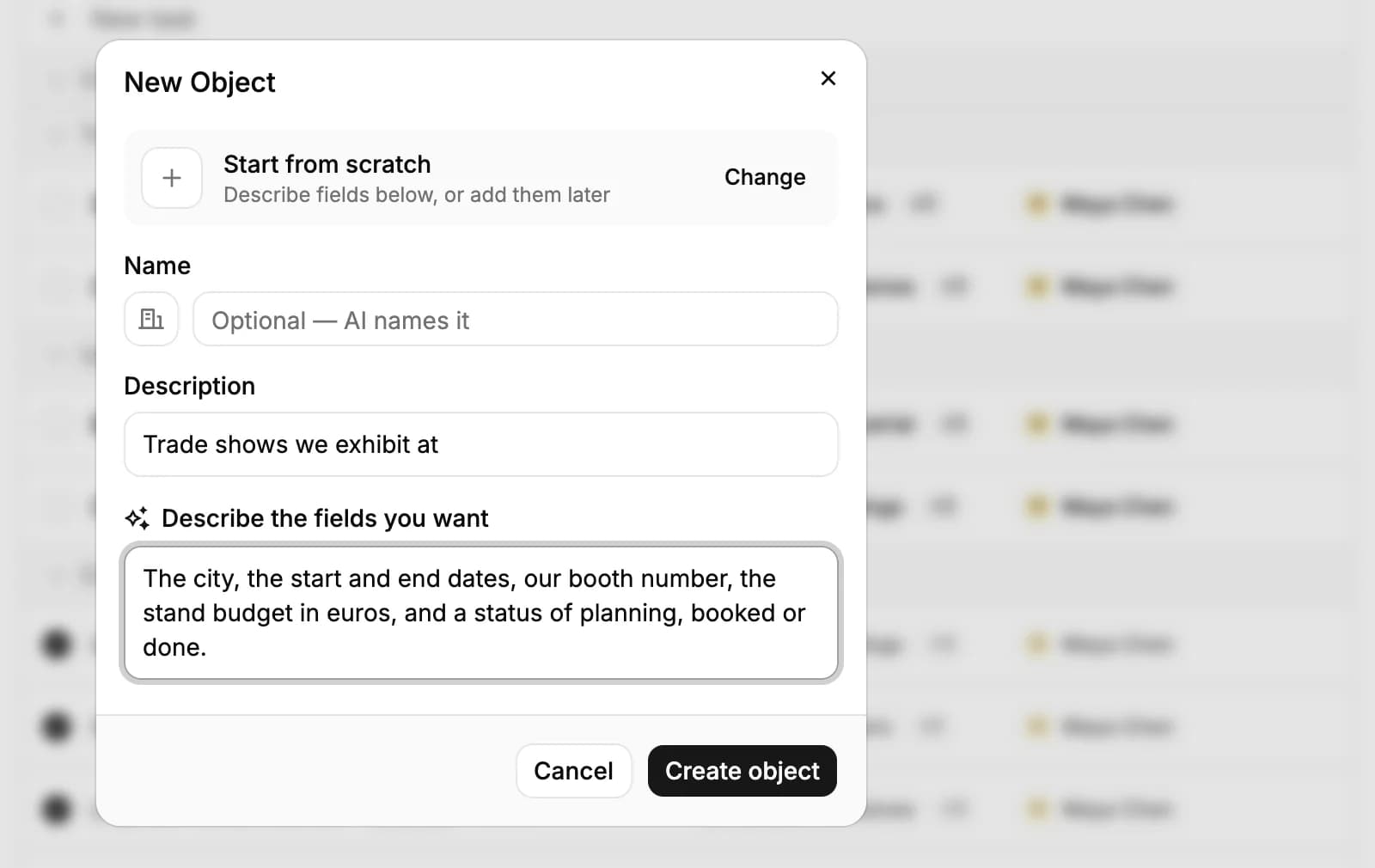
Naming an object and creating fields with AI use your weekly AI credits: 12 credits to name an object, and 12 credits plus 3 for each field after the first to create fields. Typing a name and adding fields yourself costs nothing.
Add and view records
Open the object from the sidebar and click New Record, or click a cell in the table and type. Expand on a row opens the record with all its fields.
All records is a table; click + to add views such as a board, a gallery or a calendar, and shape them with Search, Filters, Columns and Colors. The buttons at the top import records from a spreadsheet and export them to CSV or Excel.
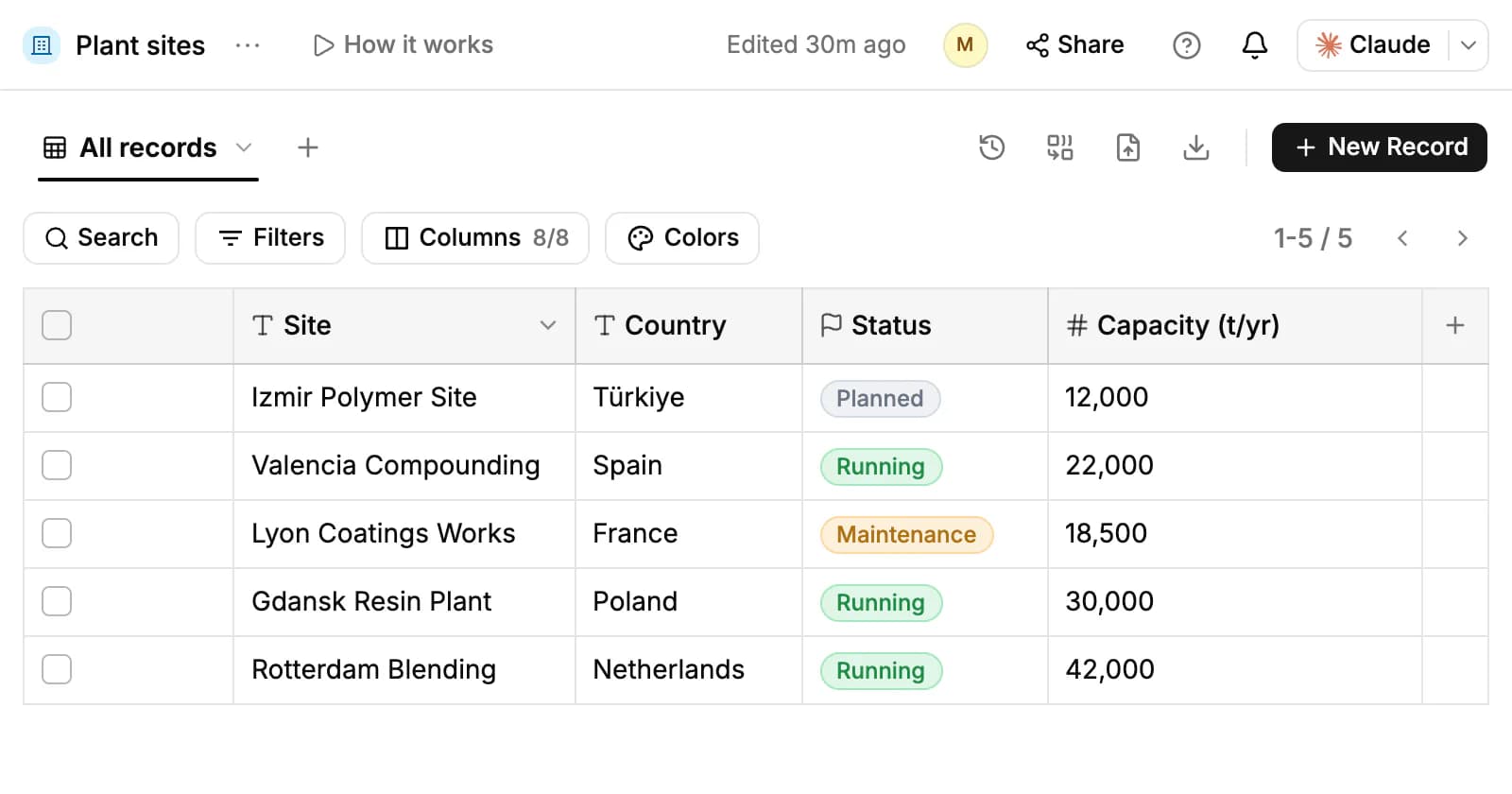
Manage fields
Add a field with + at the end of the table header, or click the menu next to the object's name, choose Object settings, open Fields and click Add Field.
Fields can be Text, Long Text, Number, Currency, Checkbox, Date, Select, Multi-Select, Status, Email, Phone, URL, File, Formula or Reference. A Reference field links each record to an account, contact, opportunity, product, sales order, task or another object.
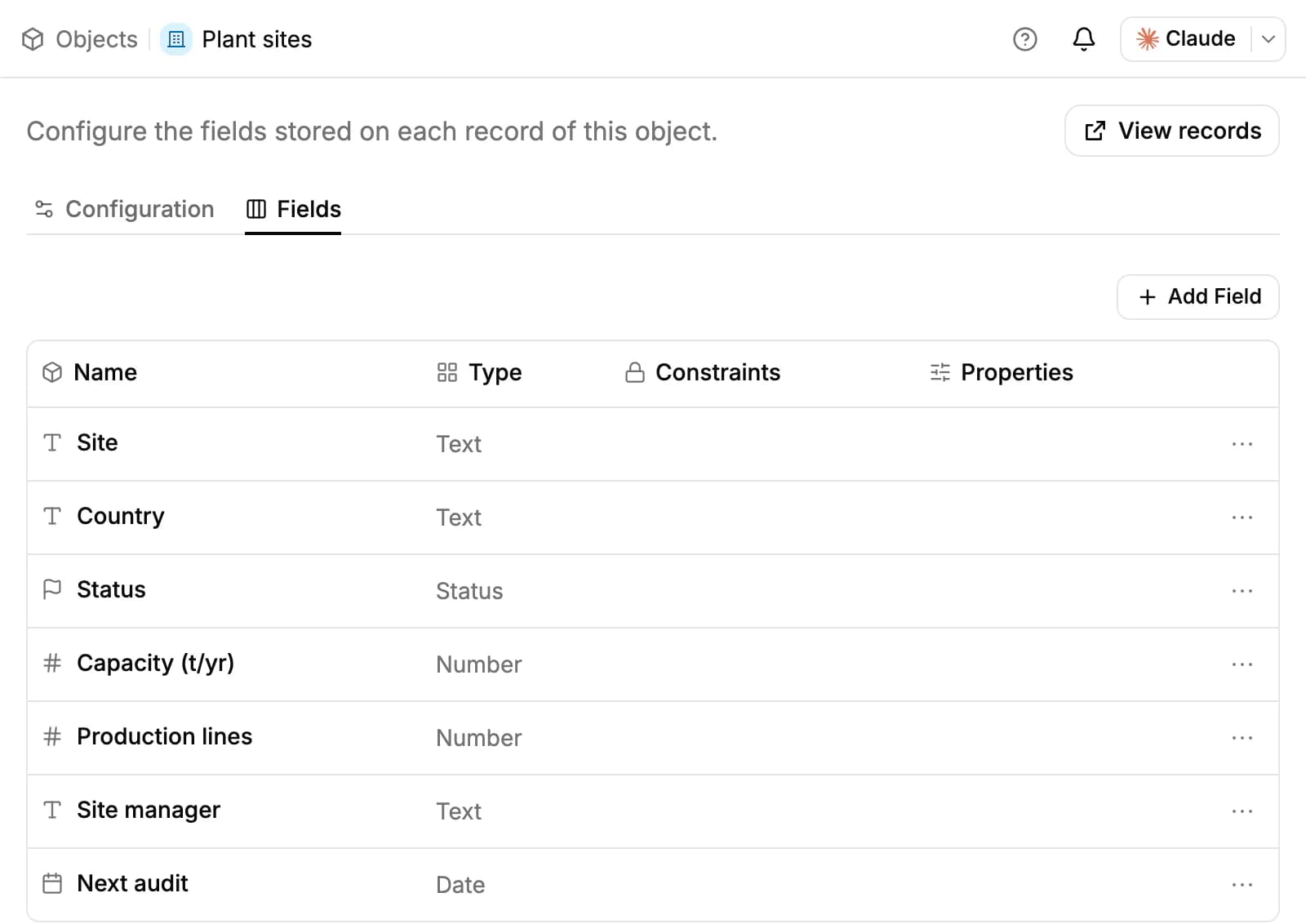
Under Configuration, the Display Field is the value that names each record (the first text field if you don't pick one). The Create form tab sets which fields appear when someone adds a record, and in what order.
Share or delete an object
A new object is open to everyone in the workspace, who can add and edit its records, fields and views. Click Share on the object's page to make it private with Only people listed, and add teammates with Can edit (rows, columns and views), Can edit content (rows only) or Can view.
Teammates also need the Custom Objects module to see an object. If someone you share with doesn't have it, the Share window says so, and an admin can turn it on from there.
To delete an object, open Object settings and click Delete Object. This permanently removes the object, all of its fields and all of its records. Only the object's creator and workspace admins can delete it.
Related resources
To group existing accounts, contacts or opportunities rather than create a new kind of record, use Lists.
Browse ready-made objects in the template gallery.
AI credits per plan are on Plans & pricing.
Frequently asked questions
Are custom objects on every plan?
Yes. Only naming an object or creating its fields with AI uses your weekly AI credits.
Can a custom object link to my accounts?
Yes. Add a Reference field that points at accounts, or at contacts, opportunities or another object.
Who can create an object?
Anyone with the Custom Objects module. The Objects page in Settings is for workspace owners and admins.
Can two objects have the same name?
No. Each object in a workspace needs a name of its own.
What happens to the records when I delete an object?
They're deleted with it, along with its fields. This can't be undone.
Can I add custom object records to a list?
No. Lists hold accounts, contacts or opportunities.