



















Notes
Write notes on your accounts, contacts and opportunities, format them with headings and lists, and find every note again from one page.
Available on all plans.
Available for all workspace members.
Notes is where your team writes things down: call prep, visit reports, what a customer asked for. A note can be linked to an account, a contact, an opportunity, a meeting, a call and a sample, and it shows on each of those records.
Notes save as you type. There is no Save button.
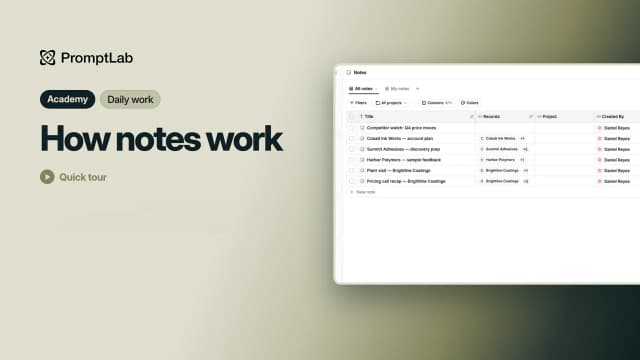
The Notes page
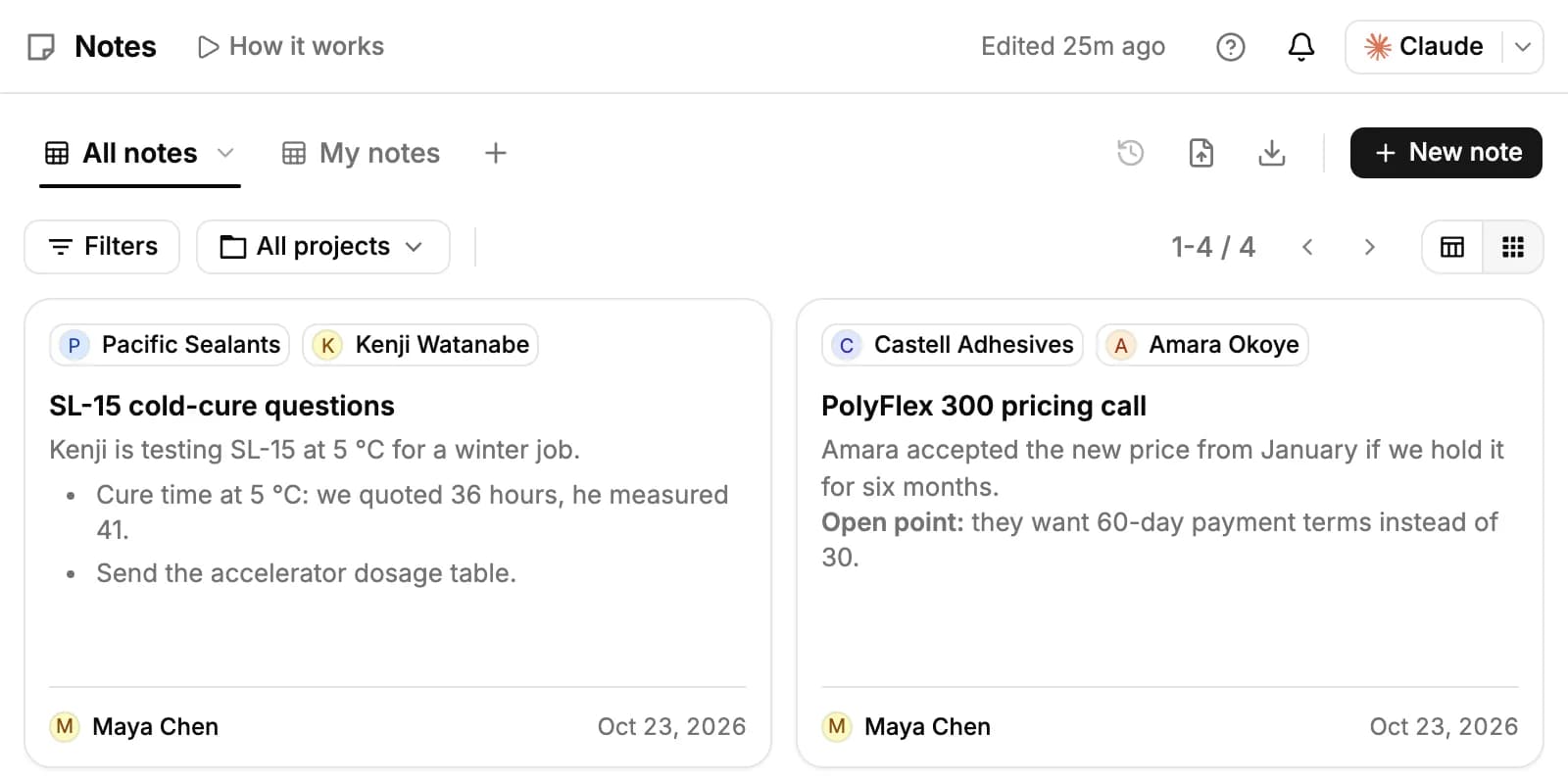
The Notes page lists every note in the workspace. All notes shows them all and My notes the ones you wrote. Switch between a table and cards with the buttons on the right, narrow the list with Filters or All projects, and add views of your own with +.
New workspaces don't pin Notes to the sidebar. Click More at the bottom of the sidebar, find Notes under Workspace and pin it.
Write a note
- Click New note on the Notes page. The note opens in a window over the page.
- Type a title, or leave it empty: PromptLab then uses the first words of your text as the title.
- Write the note. The top of the window says Saving… and then Saved as you type.
- Close the window when you're done.
The window doesn't block the page behind it: drag it by its top bar, or choose Open full page from its menu to give the note a page of its own.
A note you close without writing anything is deleted, so empty notes don't pile up.
Format your text
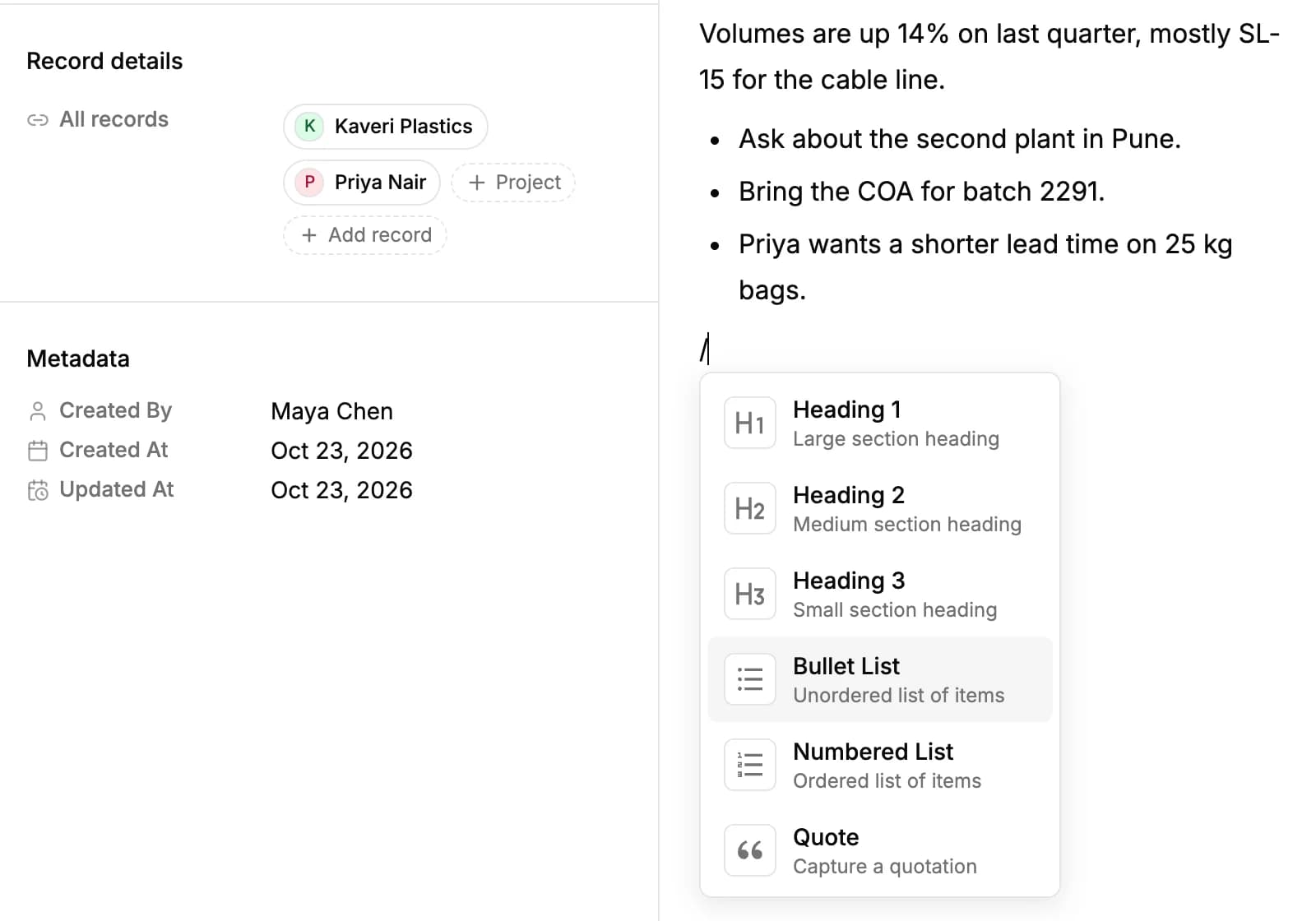
Type / in the text to add a Heading 1, Heading 2 or Heading 3, a Bullet List, a Numbered List, a Quote or a Divider. Select text to make it bold, italic, underlined or struck through, to turn it into a list or a quote, or to add a link.
Link a note to records
Start a note from a record and it's linked to that record: click Create note at the top of an account, contact or opportunity, or + in a sample's Notes section.
To link more, click Add record under the note's title and pick an account, contact, opportunity, meeting, call or sample. A note links one record of each kind. Project adds the note to a project.
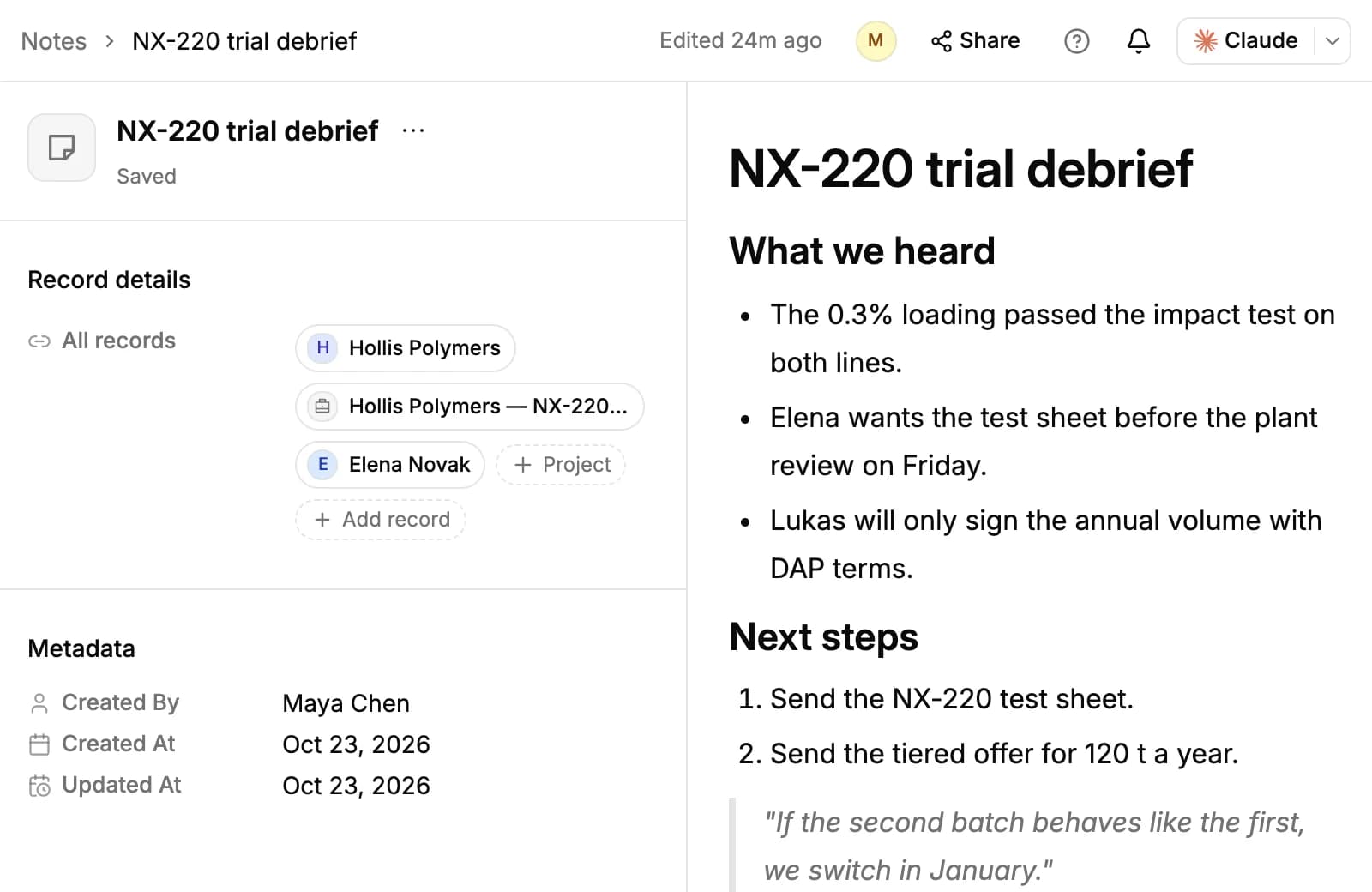
Linked notes show on the record's Notes tab, newest first. Click one to open it.
Find a note
On the Notes page, the Records column shows what each note is linked to, and Filters narrows the list. To find a note by what it says, use Search anything... at the top of the sidebar, or press /: it matches the title and the text of your notes.
Edit, delete and export
Open a note to change it; edits save the same way. To delete a note, open the menu at the top of the note and click Delete, or select notes in the table and delete them together.
The buttons at the top of the Notes page export notes to CSV or Excel and import them from a spreadsheet.
Who can see notes
Notes have no private setting: everyone in your workspace can read them, and their author is shown on every note. Any teammate can add to or change a note.
Related resources
To keep track of things to do rather than things said, see Tasks.
A recorded meeting has its own summary and notes: see Meetings.
To set up the records your notes belong to, see Accounts and Contacts.
Frequently asked questions
Is there a Save button?
No. Notes save as you type; the top of the note says Saved once your changes are stored.
Can I make a note private?
No. Notes have no private setting; everyone in your workspace can read them.
Can one note belong to several records?
Yes: one account, one contact, one opportunity, one meeting, one call and one sample at the same time.
Why did my empty note disappear?
A note you close without writing anything is deleted on its own.
Can I search inside notes?
Yes. The search at the top of the sidebar matches the title and text of your notes.
Can Ask AI write notes?
Yes. Ask it to save something as a note on a record, and it creates the note for you.
Is Notes on every plan?
Yes, and every workspace member can use it.