



















Opportunities
Track every deal through your pipeline, from the first conversation to won or lost, on a board or in a table.
Available on all plans.
Available for all workspace members. A member set to Own records sees only the opportunities they own, created or were added to.
An opportunity is a deal with one of your accounts: what you hope to sell, what it's worth, where it stands in your pipeline and who's involved.
Work your opportunities on the pipeline board, where each stage is a column, or in a table. Quotes, meetings, calls, emails and tasks link to the opportunity, so its page tells the whole story of the deal.
For a short walkthrough of the pipeline, watch Work your pipeline on the board in PromptLab Academy.
WatchCreate an opportunity
Click New Opportunity at the top of the Opportunities page, type a Name, pick the Account (it's required) and click Create.
A new opportunity starts in New with Medium priority, and you as its Sales Owner. It gets a number such as LD-2026-00004; owners and admins set the format under Settings → Counter Formats. You can also create one:
- With Also create an opportunity when you create an account.
- From a stage on the board: hover over the column's name and click +.
- With Create opportunity on a conversation in the Inbox.
- From your website, with a Form view on the Opportunities page; see Forms.
Owners and admins choose which fields the New Opportunity window asks for with the gear at its bottom left.
Work the pipeline board
Click the board button at the top right, next to the table button, to see your pipeline with one column per stage. Each column shows how many opportunities it holds and their total value. A card shows the account, the sales owner, the location, the source and the value.
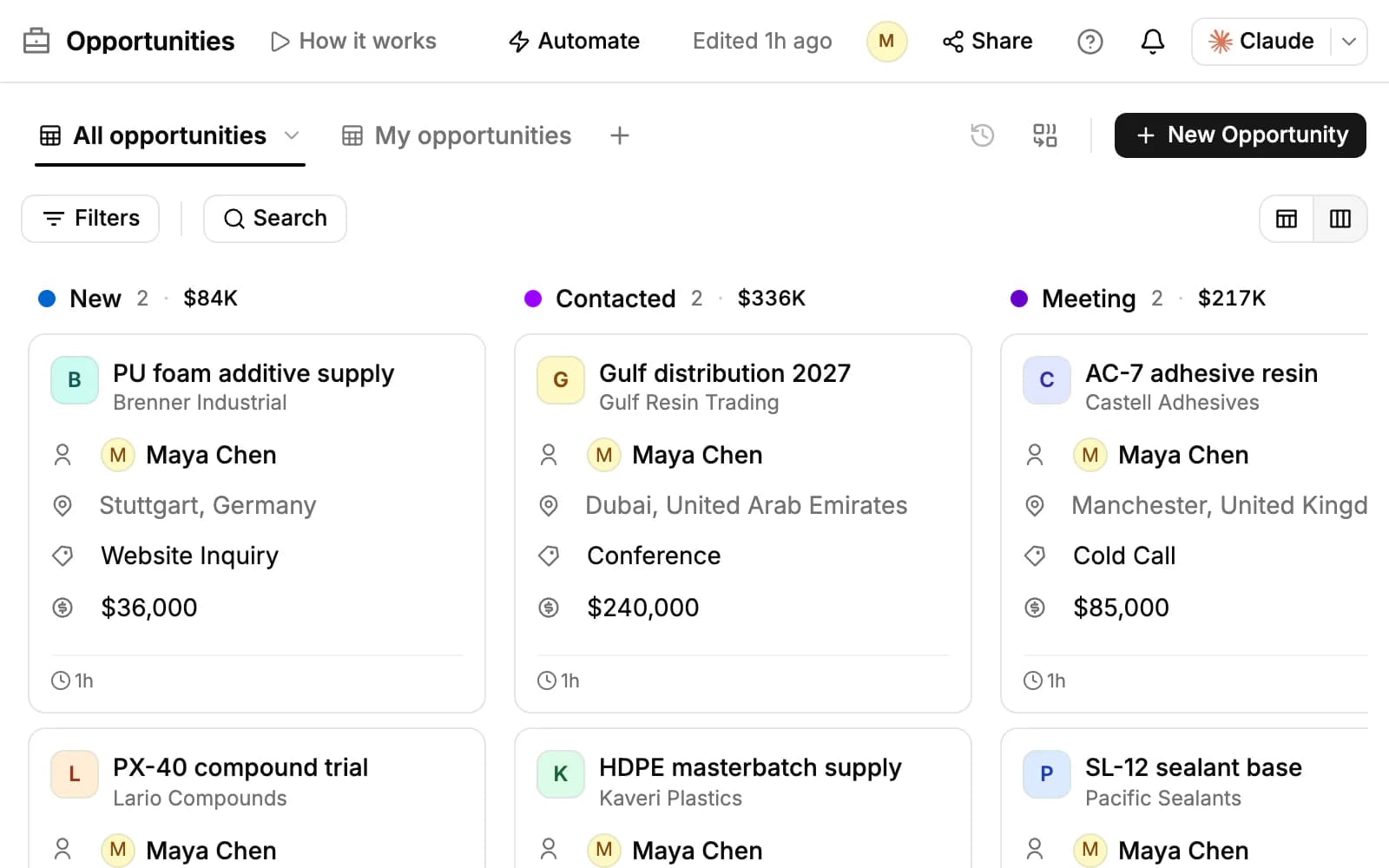
- Drag a card to another column to change its stage.
- Use Filters and Search to narrow the board, for example to High priority deals. The filter is saved with the view.
- Click a card to open the opportunity.
You can also add a Board view with + next to the views. It groups by stage and works the same way.
Set up your pipeline stages
A new workspace starts with 12 stages: New, Contacted, Meeting, Technical Review, Sample Sent, Testing, Test Passed, Test Failed, Negotiation, Won, Lost and On Hold. Change them on the board:
- Click a stage's name to rename it, click the dot beside the name to change its color, or Delete the stage. Only an empty stage can be deleted, so move its opportunities first.
- Click + after the last column to Add Stage.
- Hover over a stage's name and drag the handle beside it to move the column.
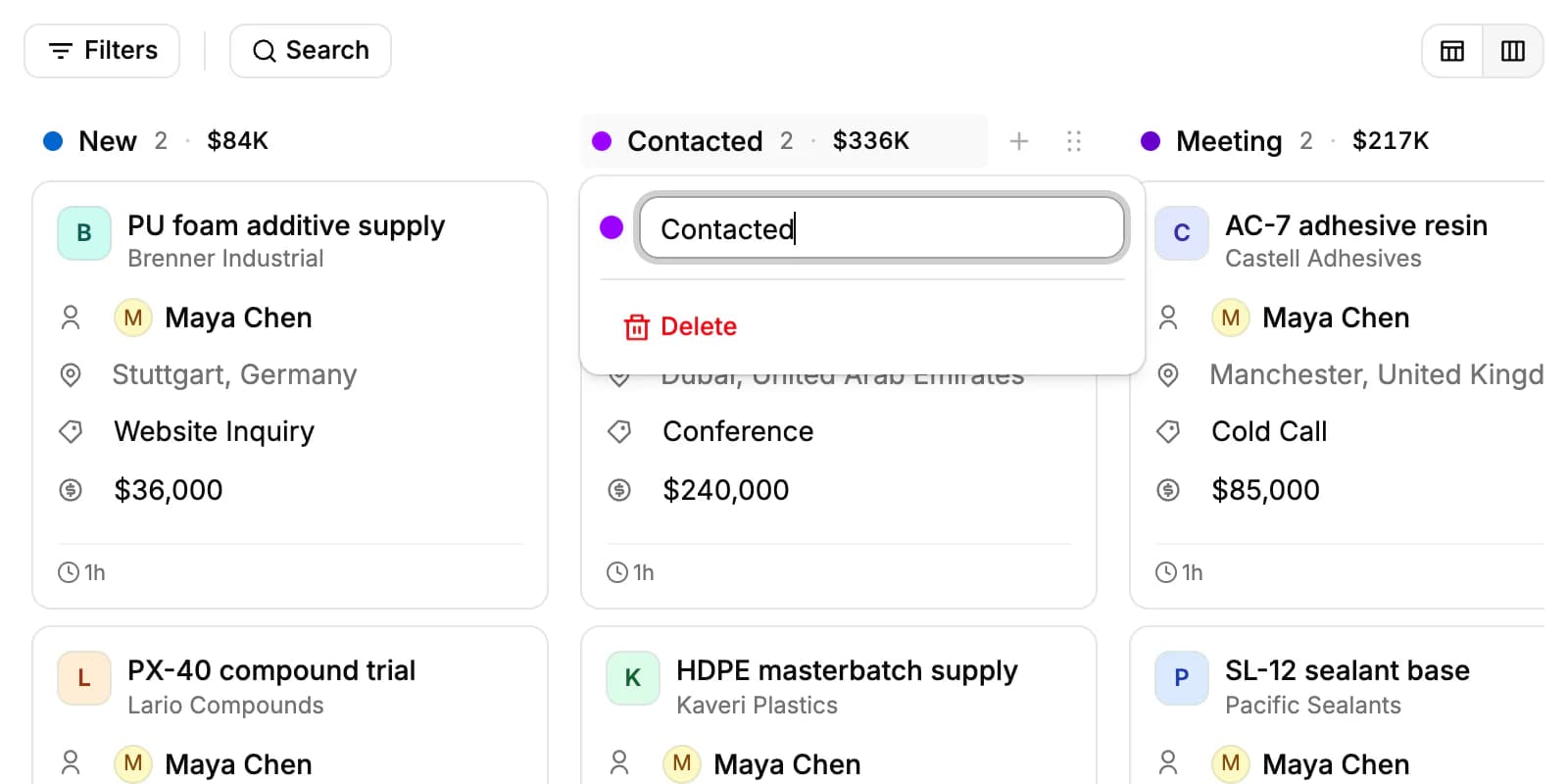
A workspace has one pipeline, and its stages are the same for everyone. Anyone who can open Opportunities can change them.
Close a deal as won or lost
Click Won or Lost at the top of the opportunity, drag its card to the Won or Lost column, or click that stage in the tracker on its Overview.
- Mark as won asks for the Close date: today or an earlier day, never a future one.
- Mark as lost also asks for the Loss reason: Price, Competitor, Timing, No budget, Product fit or Other.
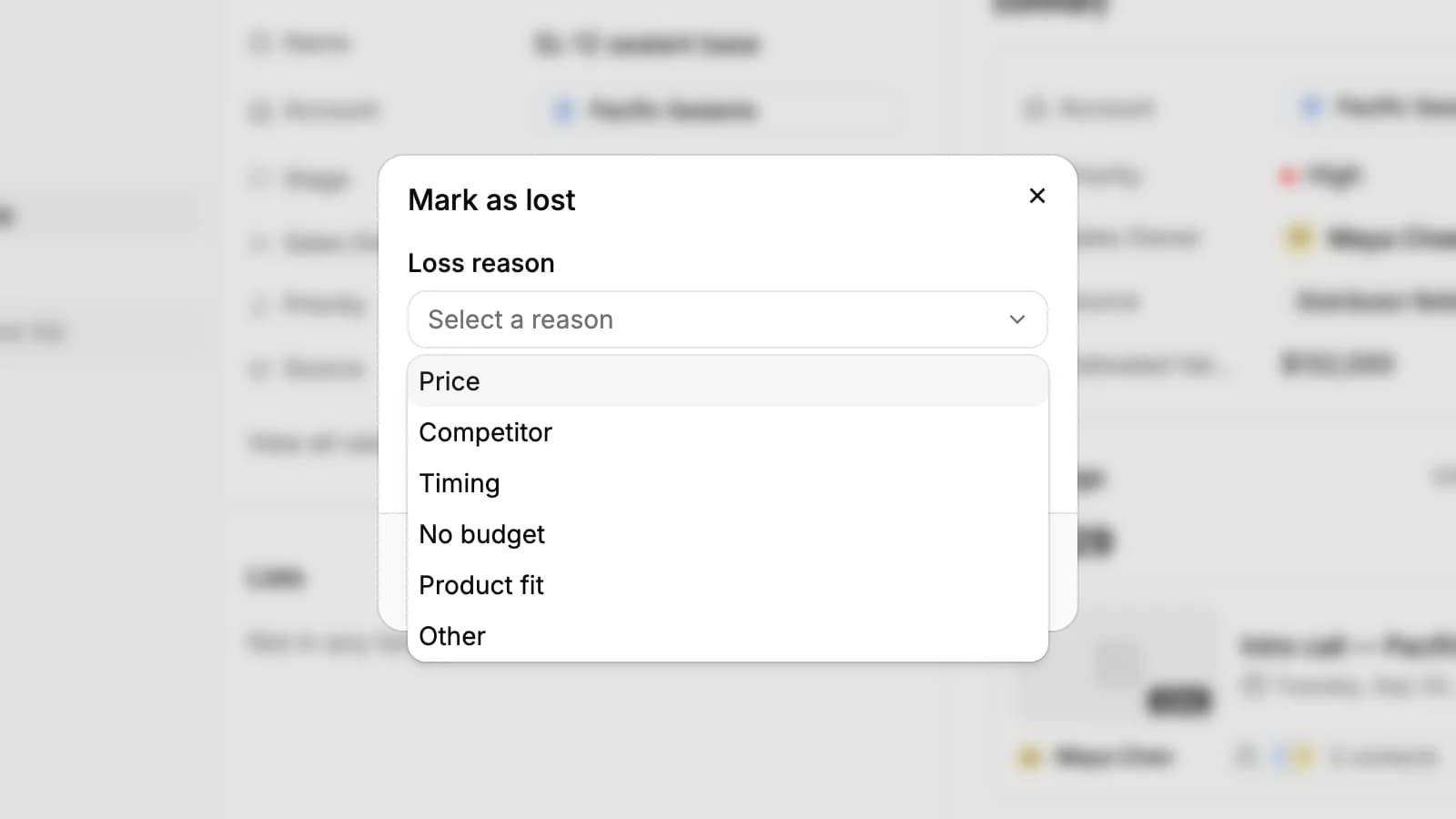
Click Confirm. The close date and loss reason feed your reports. To reopen a deal, click an open stage in its tracker.
The opportunity page
Under the name, chips link to the account and the contacts. Next to Won and Lost are the same buttons as on an account (Compose Email, Call, Create Meeting, Create task and Create note), shown as icons when space is short.
Record details on the left holds the Name, Account, Stage, Sales Owner, Priority and Source. View all values adds the Estimated Value, Expected Annual Volume, Next Follow Up, the quotes made for it and, once it's closed, the close date and loss reason.
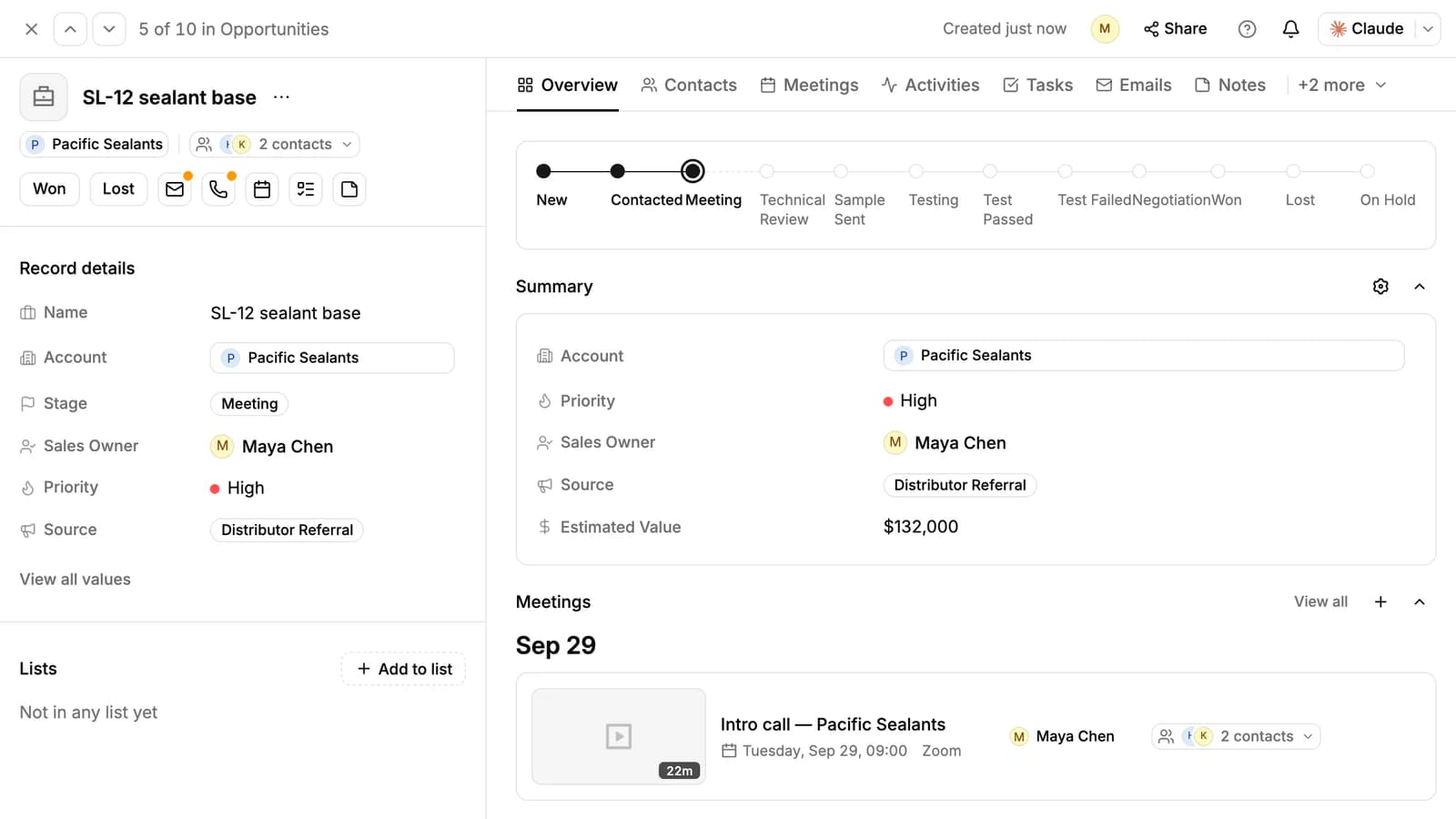
Overview shows the stage tracker (click a stage to move the deal there), a Summary of the fields you pick with the gear, and the deal's tasks, meetings, notes and activity. The other tabs are Contacts, Meetings, Activities, Tasks, Emails, Notes, Comments and Files.
Owners, admins, the opportunity's creator and its sales owner can edit its fields. Owners, admins and its creator can delete it from the ••• menu.
Use the table
In the table, every field is a column: edit cells in place, sort, filter, and add your own fields with + at the end of the header. Add the Health column to see which deals are going cold: Active (activity in the last 7 days), Healthy (30 days), Quiet (60 days), At risk (longer), or New for a deal less than a week old with no activity yet.
Tick rows to Change Stage or Assign Sales Owner for all of them, Send email to each deal's main contact, Add to list or Merge. Owners and admins can also Delete.
Import your deals
Switch to the table and click Import at the top; import and export aren't on the board. The steps are the same as for accounts, with two rules:
- Each row needs an Account, matched by name. PromptLab checks the names first and can create the missing accounts for you.
- A Stage must be one of your pipeline's stages, or the row fails.
Download the error report, fix the failed rows and import them again. One import takes up to 250 rows.
Stages on accounts and in reports
Accounts and contacts show a Stage too, which follows their opportunities: the furthest stage of the account's open deals or, once every deal is closed, its latest won deal (otherwise its latest lost or on-hold one).
For pipeline reports, open Dashboard. Its Overview tab shows the open pipeline, won revenue, win rate, the deal funnel, stuck deals and more; see Dashboards & reports.
Related resources
For how PromptLab helps you run a deal from start to finish, read Deal management.
Price a deal with Quotes and send material to test with Samples.
Every opportunity belongs to one of your Accounts and involves its Contacts.
Frequently asked questions
Is Opportunities on every plan?
Yes. The pipeline board, your own stages, import and export are on every plan.
Can I have more than one pipeline?
No. A workspace has one pipeline. To track another process, create a custom object with a Status field and give it a Board view.
Can I rename or add stages?
Yes. Click a stage's name on the board to rename or recolor it, and click + after the last column to add one. The change applies to the whole workspace.
Can I delete a stage that still has deals in it?
No. Move its opportunities to another stage first.
What currency is the deal value in?
The Estimated Value is in US dollars, and so are the column totals on the board.
Can an opportunity have several contacts?
Yes. Add them on its Contacts tab, from the people at its account or as new contacts.