



















Tasks
Create tasks, give them to teammates, link them to records and see what's due, including the follow-ups PromptLab creates from meetings and calls.
Available on all plans.
Available for all workspace members.
Tasks keeps your to-dos next to the customers they're about. Each task has a due date, the people it's assigned to, and the account, contacts and opportunity it belongs to, so it also shows on those records.
You don't have to type every task yourself: PromptLab turns the action items from recorded meetings and calls into tasks on its own.
Create a task
Click New task at the top of the Tasks page. In the Create task window:
- Type the task name. A description is optional.
- Set the due date. It starts on Today; pick Tomorrow, Next week, No due date or any day in the calendar.
- Click Link records to link an Account, one or more Contact records and an Opportunity.
- Check the assignee (you, by default; add as many teammates as you need), the priority (Low, Medium, High or Urgent) and the task type.
- Add files with Attachments if you need them, and click Save.
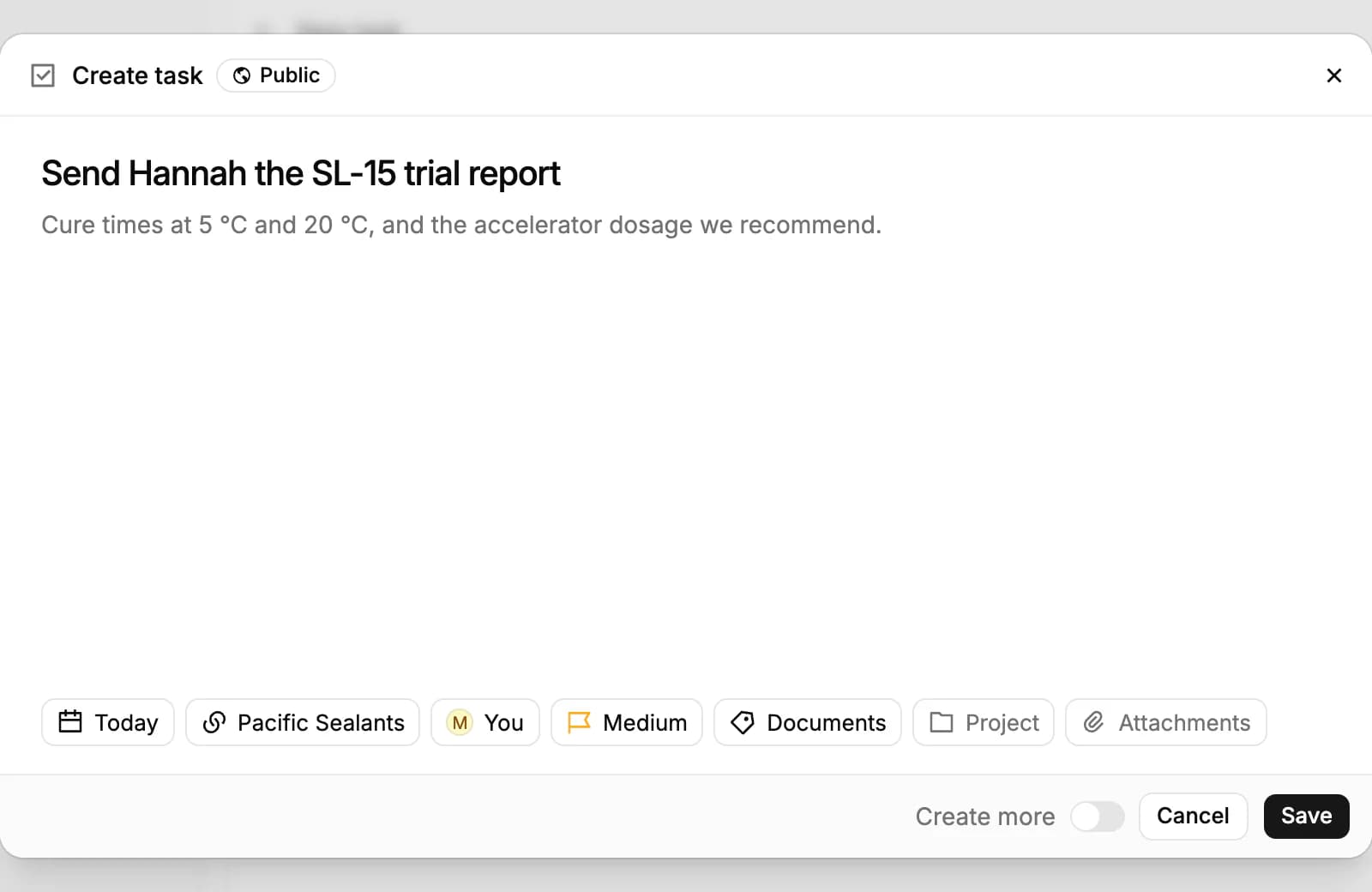
Turn on Create more to keep the window open for the next task; it keeps the same date, records and assignees. To add a task that's already linked to a record, click Create task on an account, contact or opportunity.
Find your tasks
The Tasks page opens on All tasks. My tasks shows the tasks assigned to you, and + adds a view of your own, such as a board.
Two buttons on the right switch the layout. List groups open tasks into Overdue, Today, Upcoming and No due date, with finished ones under Completed at the end. Table shows every field as a column you can sort, resize, hide and edit in place.
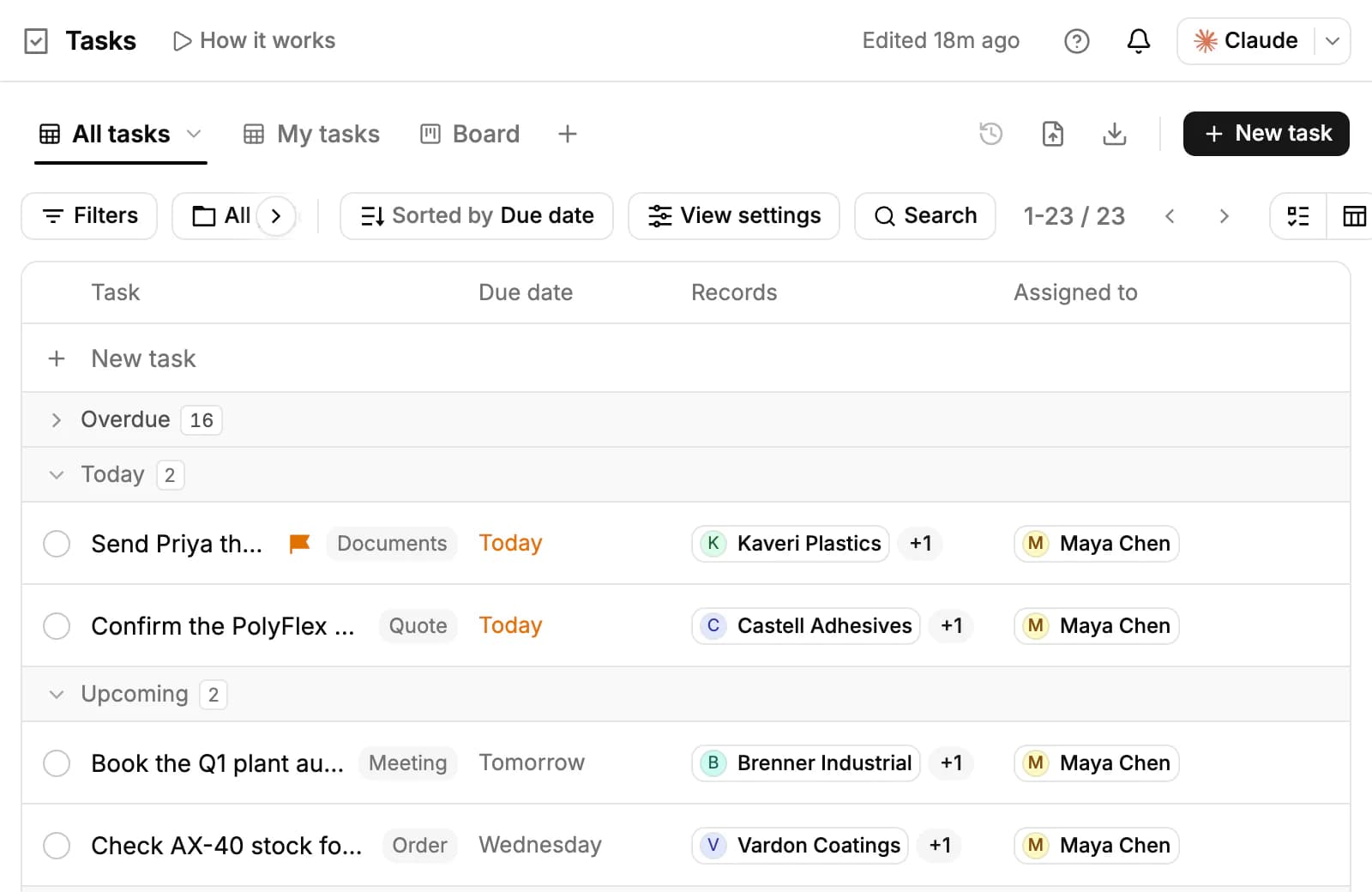
- Filters narrows the tasks by any field, and Search finds tasks by their name or description.
- All projects shows the tasks of one project.
- In the List layout, View settings groups tasks by Due date, Assignee or Creator (or No grouping) and hides or shows completed tasks. The sort button orders them by due date, creation date or name.
Your choice of layout and grouping is kept for you, in this browser; it doesn't change the page for your teammates.
Work on a task
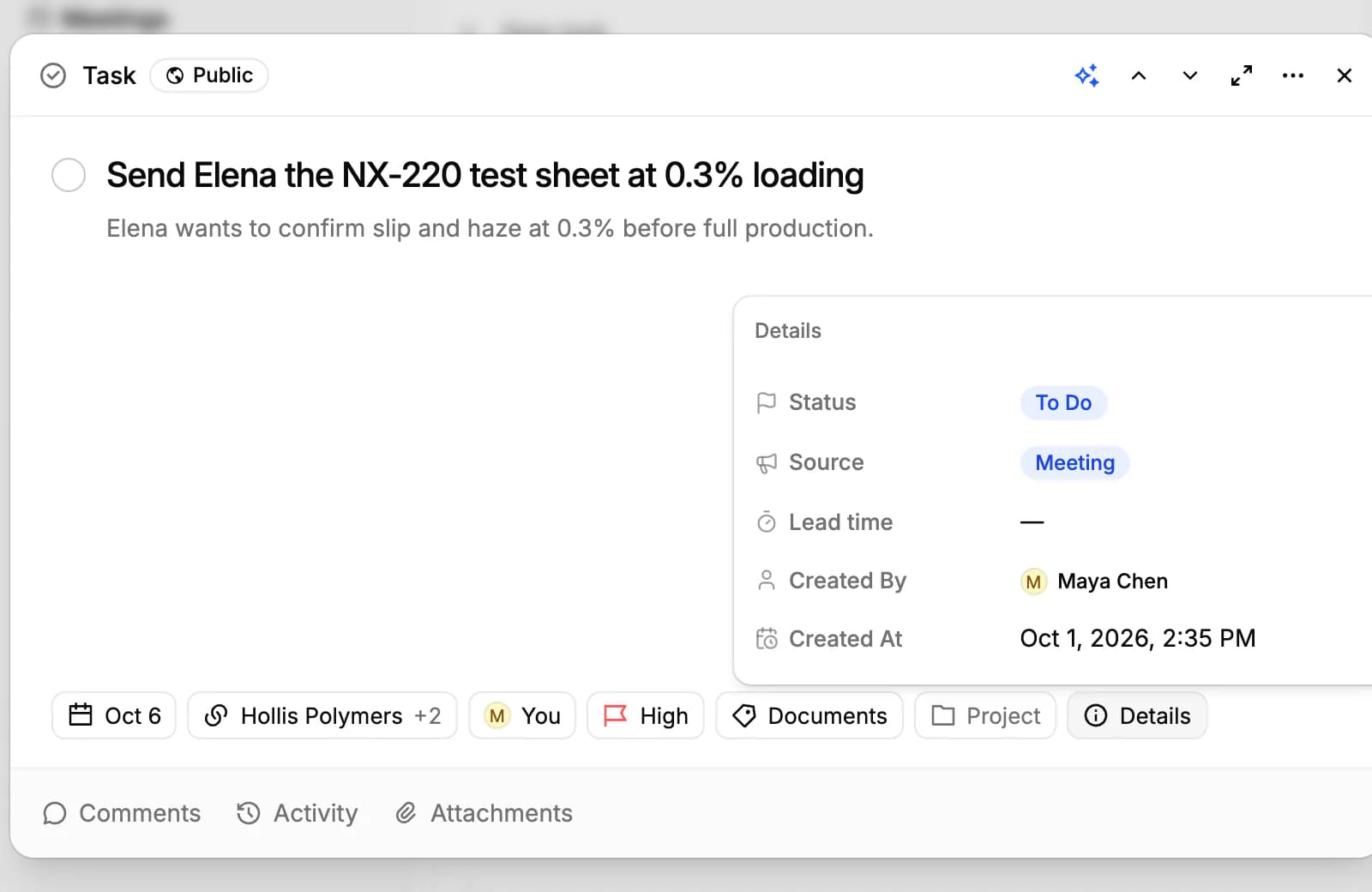
Click a task to open it. Change the name, the description or any of the buttons under them; every change saves at once. Details shows the task's status, where it came from (Source) and who created it.
- Comments: talk the task through with your team.
- Activity: every change made to the task.
- Attachments: the task's files.
The arrows at the top move to the previous or next task. Open full page shows the task on a page of its own, and the menu beside it has Delete.
Complete a task
Click the circle in front of a task's name to mark it complete (Mark Complete). In the List layout it moves to Completed; click the circle again to Reopen it.
In the Table layout, the Status column also has To Do and In Progress. A task whose due date passes before it's completed is marked Expired and stays in Overdue until you finish it.
Assignees and reminders
When someone assigns you a task, you're notified in PromptLab (the bell at the top of the page) and by email, and in Telegram if you've connected it for notifications. Assigning a task to yourself sends nothing.
A day before a task is due, its assignees get a reminder in PromptLab. When the due date passes and the task is still open, they get one more notice.
Tasks PromptLab creates for you
Many tasks arrive on their own:
- Meetings: the action items of a recorded meeting become tasks for the meeting's host.
- Calls: the action items of an answered call become tasks linked to the contact, account and opportunity you called.
- Email: when an email from one of your contacts asks you to do something, PromptLab creates a task for it, marked with an envelope next to its name.
- Ask AI and workflows: ask Ask AI to create a task, or add a step that creates one to a workflow.
A task's Details show its Source: Manual, Meeting, Call, Email, AI chat, Automation, Slack, Telegram or WhatsApp.
Tasks on your records
Every task shows on the Tasks tab of the account, contacts and opportunity it's linked to, and an account's overview has a Tasks section with its open tasks. Click Create task there to add a task that's already linked.
Private tasks and task types
New tasks are Public: everyone in the workspace can see them. Click Public at the top of a task to make it Private, so only you and its assignees can see it. Only the task's creator and assignees can change this.
The task type says what a task needs: Call, Documents, Follow-up, Internal, Logistics, Meeting, Order, Other, Outreach, Production, Quote or Sample. Workspace owners and admins can add their own types with Manage task types in the task type menu of the Table layout; each type's one-line hint helps PromptLab's AI sort the tasks it creates.
Import tasks from a spreadsheet or export them to CSV or Excel with the buttons at the top of the Tasks page.
Related resources
Meetings and calls create tasks on their own: see Meetings and Calls.
To create tasks when something happens in your CRM, see Workflows.
To keep longer write-ups on the same records, see Notes.
Frequently asked questions
Is Tasks on every plan?
Yes. Tasks is on every plan, and every workspace member can use it.
Can a task have more than one assignee?
Yes. Add as many teammates as you need; each of them is notified.
Can I link a task to several accounts?
No. A task links one account, any number of contacts and one opportunity.
Do I get reminded before a task is due?
Yes. Assignees get a reminder in PromptLab a day before the due date, and another notice if it passes. Reminders don't come by email.
Who can see my tasks?
Everyone in your workspace, unless you make a task Private. Then only you and its assignees can see it.
Can tasks repeat?
No. PromptLab has no recurring tasks; create the next one when you complete the last.