

















How to build a customer database for a B2B business
Build a customer database that sales can use: decide what to store, set up accounts and contacts, import what you have, and keep it current as orders come in.
 By the PromptLab team7 November 20266 min read
To build a customer database, decide what you need to know about a customer, give every customer one record with its people attached, load what you already have from your spreadsheets and email, and set a few rules so it stays current. A database nobody updates is only a list, so the habits matter as much as the tool.
This guide is for manufacturers, distributors and wholesalers. Your customers are companies with several buyers, price lists, samples and repeat orders, so the structure differs from a shop's customer list.
What a B2B customer database must hold
A consumer database is a list of people. A B2B database is a list of companies, with people, deals and orders attached to each.
| Level | What it holds | Example |
|---|---|---|
| Account (the company) | Name, website, address, industry, region, owner, payment terms, preferred Incoterm | Example Paints Ltd, Poland, owner Marek |
| Contact (the person) | Name, role, email, phone, language, preferred channel | Anna Kowalski, purchasing manager |
| Deal (a live opportunity) | Product, expected volume, estimated value, stage, next follow-up | 4 tonnes of resin, quote sent |
| Quote, sample, order | What was offered, tested and bought | Quote Q-104, sample S-21, order O-88 |
| History | Emails, calls, meetings, notes, files | The whole conversation in date order |
The account is the centre. Everything else hangs off it, so you can open one company and see all of it.
Step by step: build the database
- 1
List the questions the database must answer
Write down what your team asks every week. Who buys this product? Which customers have not ordered in six months? What did we quote this buyer last? Which samples are out? The questions decide the fields.
- 2
Choose the fields, and keep them few
Start with the basics: name, website, country, industry, owner, payment terms, how they found you. Add fields only when someone will use them. Ten fields everyone fills in beat forty that nobody does.
- 3
Decide how a customer is named
Pick one spelling rule and write it down. Is it "Ltd" or "Limited"? Is a group one account with several sites, or separate accounts? Settling this now saves you a duplicate clean-up later.
- 4
Collect what you already have
Customers hide in many places: the sales spreadsheet, the accounting system's customer list, the email address book, business cards from trade shows, WhatsApp chats. Put them in one sheet with the same columns, and note where each row came from.
- 5
Clean, then import
Remove repeats, fix spellings, put a company name on every contact and keep phone numbers in international format. Then import accounts first and contacts second. The import guide walks through the five-row test.
- 6
Attach the conversations
Connect email so messages land on the right person. Add the channels your buyers use, such as WhatsApp and Telegram. A database fed by real conversations stays alive.
- 7
Set the rules for keeping it current
Say who creates records, who owns each account, what a rep does after every call, and when the team reviews the list. Keep the rules short enough to fit on one page.
Which fields are worth adding
Beyond the basics, product sellers get the most from these:
- Customer type: end user, distributor, reseller, OEM. It changes how you price and what you offer.
- Products bought or interested in: the product families, so you can find everyone who buys a given grade.
- Payment terms and credit limit: so a rep sees them before quoting. If you have none yet, read what a credit limit is.
- Preferred Incoterm: for export customers, the delivery terms you usually agree.
- Language and preferred channel: email, WhatsApp or phone.
- Source: trade show, referral, website, outbound. It tells you where good customers come from.
- Next review date: when someone should next check the account.
Keep the database accurate
Data decays. Buyers change jobs, companies are bought, and numbers change.
- Update the record at the end of every call or meeting, not at the end of the month.
- Capture instead of typing where you can. See how to reduce CRM data entry.
- Give every account one owner, and reassign when a rep leaves. Handing over accounts has the steps.
- Review the list every quarter: remove bounced emails, mark buyers who left and flag accounts with no activity.
- Use a single place. If reps keep private spreadsheets too, the database loses.
Spreadsheet or CRM?
A spreadsheet works for a few dozen customers and one person. It struggles when two people edit it, when a customer has several contacts, or when you want the history of calls, quotes and samples next to the company. At that point, a CRM is the customer database. The guide to moving from spreadsheets to a CRM covers the switch.
How PromptLab helps
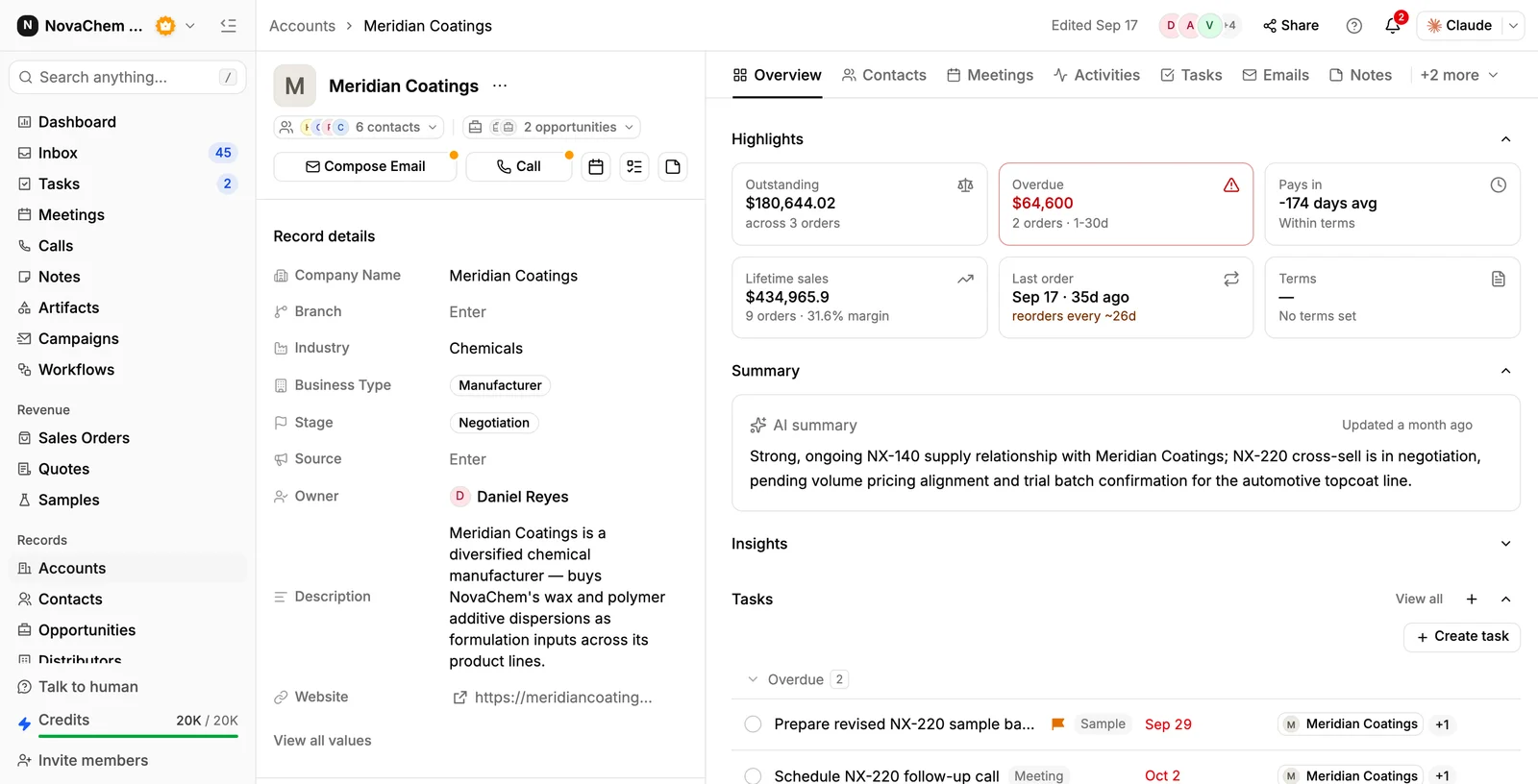
PromptLab is built around the account. Its page brings together the contacts, deals, meetings, emails, notes, tasks and a Files tab, and quotes, samples and sales orders are linked to it. For a customer, the Overview shows lifetime sales, the last order, how often it usually reorders and what is outstanding or overdue. An account can store its preferred trade and payment terms, which fill in on a new sales order.
You can add custom fields to accounts, contacts, deals, products, quotes, samples, sales orders and tasks, so the fields above are yours to set up. Import accounts, contacts, deals, quotes, sales orders, samples, tasks, notes and products from CSV and Excel, or from Google Drive. Columns are matched to fields, and an unknown column can become a new custom field.
Email capture from Gmail, Outlook or your own mail server, plus a shared Inbox with email, WhatsApp and Telegram, keeps the history up to date without retyping. Web forms add each submission to the CRM, and one from an email already on file lands on the existing contact. A workspace can't hold two contacts with the same email, and Find duplicates on the Contacts and Accounts lists merges the repeats that slip in.
Frequently asked questions
What should a B2B customer database include?
Accounts with their key details, the contacts at each, the deals, quotes, samples and orders, and the history of emails, calls and meetings. Add payment terms, preferred delivery terms and the account owner. Keep the fields few and make sure someone owns each one.
Can I build a customer database in Excel?
Yes, for a small list and one editor. It gets hard once several people use it, one customer has several contacts, or you want to see calls, quotes and samples next to the company. That is the point to move to a CRM.
How many fields should I start with?
Eight to twelve. Name, website, country, industry, owner, payment terms and source cover the account. Name, role, email, phone and language cover the contact. Add more only when someone will use the answer.
How do I get customer data out of old spreadsheets and email?
Collect every source into one sheet with the same columns, clean it, put a company on every row and import it. Then connect email so new conversations attach themselves.
How do I keep a customer database up to date?
Update records straight after each call, let email and messaging attach conversations automatically, give every account an owner and review the list each quarter.